The number of AI agents in organizations keeps growing, and each one gets its own identity in Microsoft Entra ID. Teams regularly create agents to support short-term projects and run experiments, but these identities often remain in the tenant even after the agents are no longer in use. If left unchecked, they can retain unnecessary access, leading to agent identity sprawl and increasing security risks.
To address similar challenges with user accounts, admins already use Microsoft Entra Lifecycle Workflows to automate inactive user management. Microsoft Entra extends this capability to AI agents through Agent ID lifecycle policies, which automate inactive agent identity management through notifications, disablement, and deletion.
In this blog, we’ll explore how to use Microsoft’s free default inactivity policy to clean up inactive agent identities and create custom lifecycle policies for greater flexibility.
How Microsoft Entra Agent ID Lifecycle Workflows Help Clean up Agents?
Every agent registered in Microsoft Entra Agent ID gets its own identity, which must be managed until the agent is retired. Throughout its lifecycle, each agent needs clear ownership, regular reviews, and ongoing identity management to ensure it remains necessary and properly managed.
Microsoft Entra agent lifecycle policies cover this with 3 rules.
- Sponsor must be present: Ensures every agent has at least one sponsor accountable for managing it.
- Periodic reconfirmation: Requires sponsors to confirm that their agents are still needed.
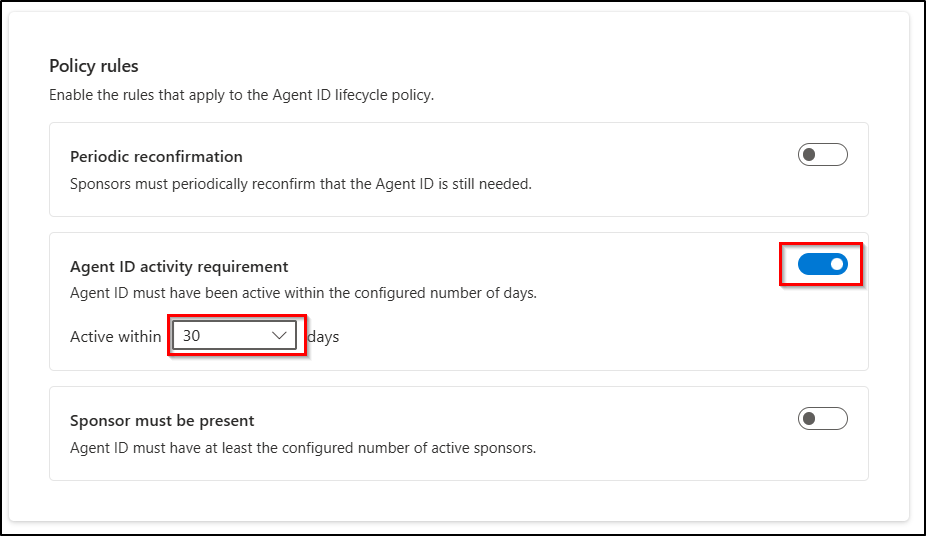
- Agent ID activity requirement: Identifies agents that have not been active within the configured number of days and initiates the specified cleanup action.
While all three rules help maintain proper agent governance, the activity requirement plays a direct role in identifying and cleaning up inactive agent identities.
Rather than relying on admins to identify and remove these identities manually, inactivity policies automate the process. They check agent token activity over a configured period, notify sponsors, and can eventually disable or delete inactive agent identities.
This is particularly useful for identifying:
- Completed pilot projects: Agents created to support temporary pilots or business projects that have officially ended.
- Retired test agents: Agents used during development, troubleshooting, or feature testing that are no longer required.
- Replaced agents: Older agents that have been superseded by a newer version but left enabled in the tenant.
Before configuring the policy, let’s look at the prerequisites to clean up inactive agents.
Prerequisites to Clean Up Inactive Agents Using Microsoft Entra Agent Lifecycle Policies
To manage inactive agents using Microsoft Entra agent lifecycle policies, your account and organization meet the following requirements:
Role requirement: Your account must have one of the following roles:
- Lifecycle Workflows Administrator
- AI Administrator
- Agent ID Administrator
- Global Administrator
License requirement: Licensing depends on the type of policy you want to use:
- Default inactivity policy: No premium license is required.
- Custom lifecycle policies: Your organization must have either:
- Microsoft 365 E7, which includes Agent 365 and Microsoft Entra Suite.
- Microsoft Agent 365 paired with at least Microsoft Entra ID P1 or Microsoft 365 E3.
Once the prerequisites are in place, you can enable the default inactivity policy or create custom lifecycle policies to clean up inactive agents.
How to Clean Up Inactive Agents in Microsoft Entra
Microsoft Entra offers two ways to automate inactive Agent ID cleanup, depending on how much control your organization needs:
1. Enable Microsoft Entra’s Default Policy for Inactive Agents
Microsoft Entra includes a Default Agent Identity Inactivity Lifecycle Policy, a built-in policy that automates cleans up stale agent identities. The policy follows a predefined schedule as below, which admins cannot customize.
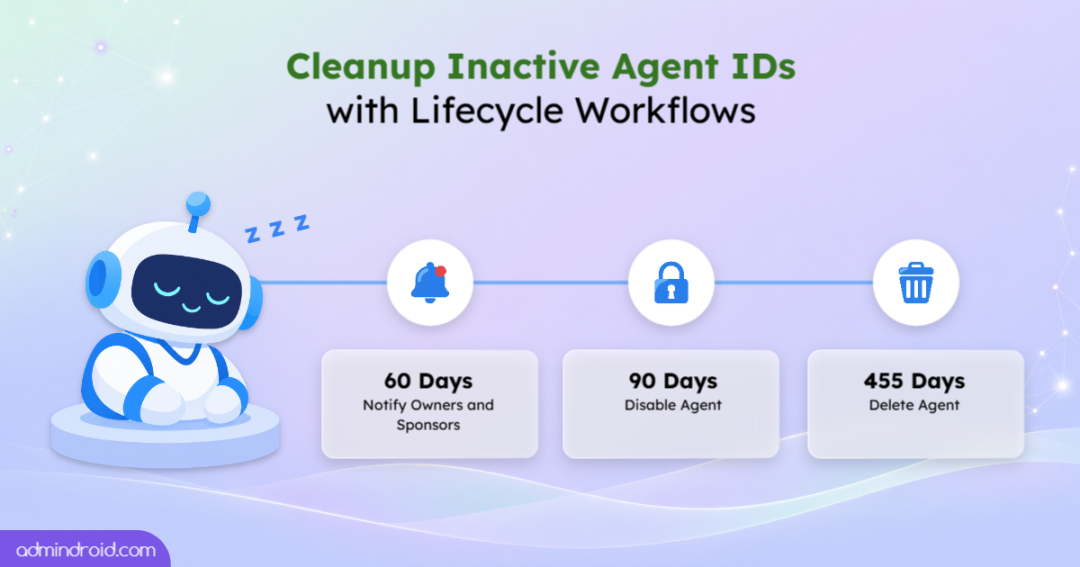
The policy starts monitoring agent inactivity and takes action at three milestones:
At 60 days: Microsoft Entra notifies the agent’s owners and sponsors. This starts a 30-day grace period during which they can review the agent and decide whether it is still needed.
At 90 days: If no action is taken, Microsoft Entra automatically disables the agent identity and revokes its access.
At 455 days: Microsoft Entra deletes the agent identity through soft deletion.
During the grace period, sponsors can disable an agent immediately if it is no longer needed. If the agent is still required, interacting with it to trigger a new token issuance resets its inactivity period.
The policy can send up to three notifications:
- Pre-action notification: Sent when the 30-day grace period begins, before the agent identity is disabled.
- Disable notification: Sent immediately when the agent identity is disabled.
- Delete notification: Sent when the agent identity is deleted, 365 days after disablement.
Note: Since Agent ID lifecycle policies are in preview, Microsoft does not provide a Service Level Agreement (SLA) and does not recommend using them for production workloads.
How to Enable the Default Entra Agent ID Inactivity Policy
Follow the below steps to enable the default Agent ID inactivity policy.
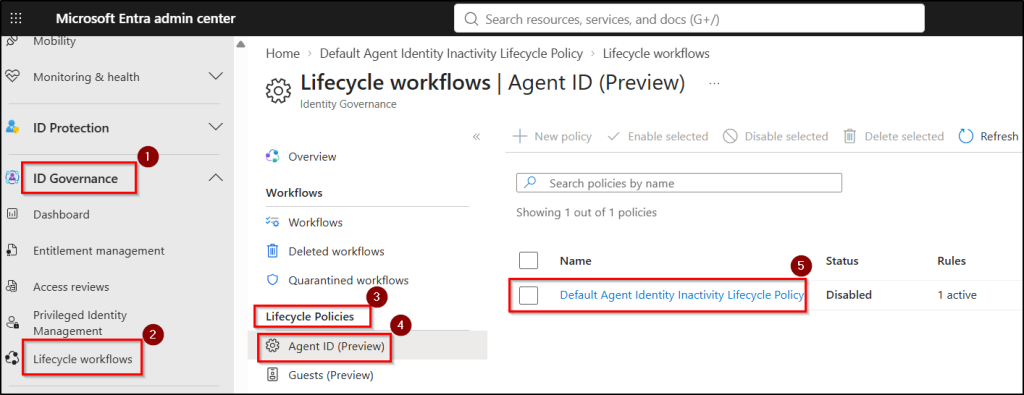
- Sign in to the Microsoft Entra admin center.
- Navigate to ID Governance > Lifecycle workflows > Lifecycle Policies > Agent ID (Preview).
- Click on Default Agent Identity Inactivity Lifecycle Policy to open the Policy Overview tab and review the policy details.
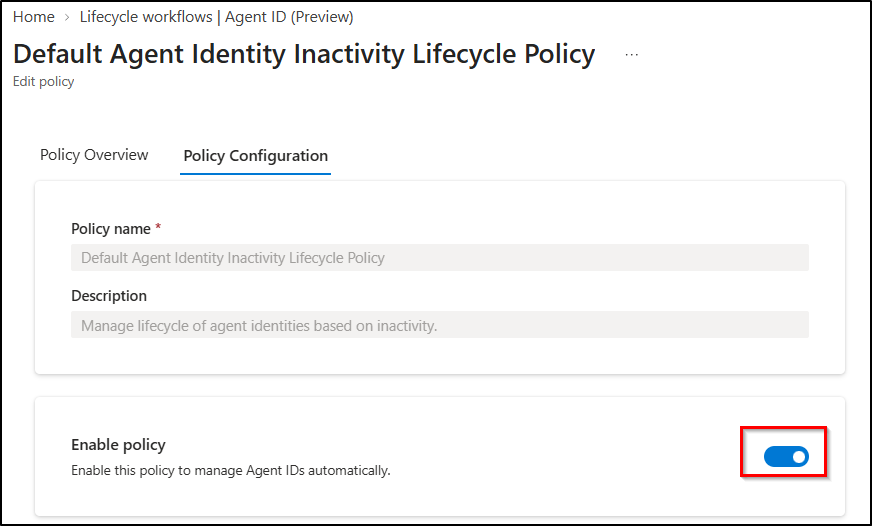
- Switch to the Policy Configuration tab and turn on the Enable policy toggle.
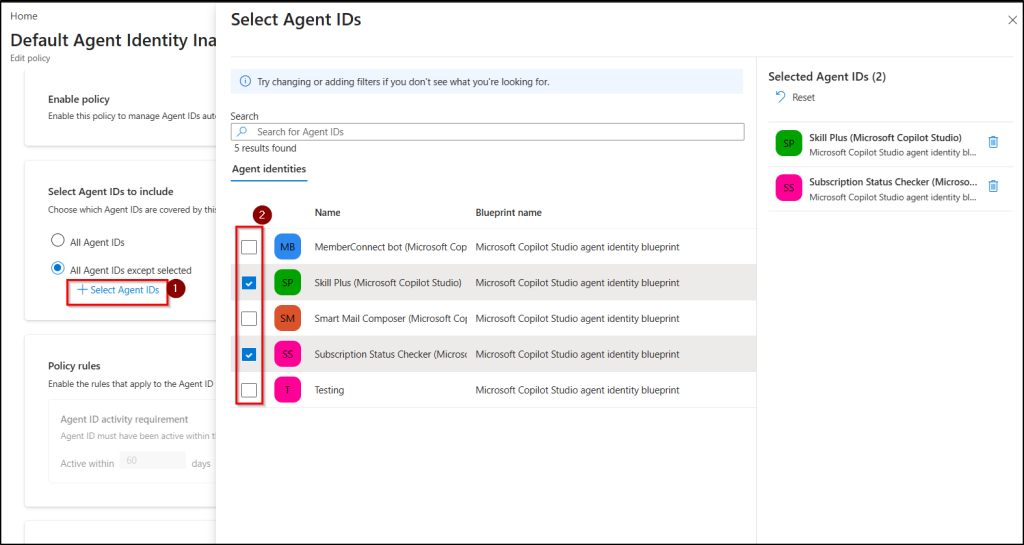
- Review the policy scope under Select Agent IDs to Include. By default, the policy targets all agent IDs.
- To exclude a few agent identities, select All Agent IDs except selected, click + Select Agent IDs, choose the identities that should stay outside the policy, and click Select.
6. Under Notification Schedule, add fallback email addresses. To receive notifications for agent IDs that don’t have an assigned sponsor or owner. Group mailboxes are also supported. Each recipient must have an Exchange license to receive notification emails.
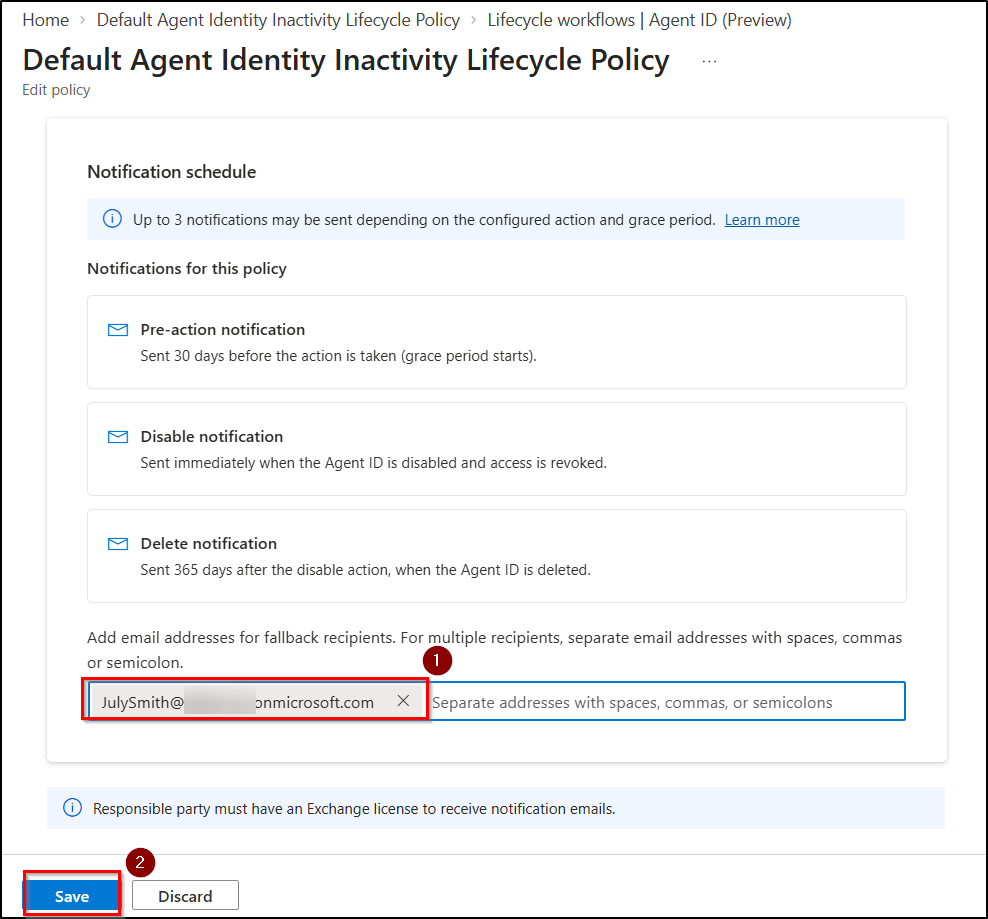
7. Review the configurations and select Save.
The default policy now runs on its predefined schedule, identifying inactive agent identities and applying the configured notifications and cleanup actions.
However, the inactivity threshold and cleanup actions are fixed and cannot be changed. If these settings don’t meet your requirements, you can create a custom lifecycle policy with your own thresholds and actions.
2. Create a Custom Lifecycle Policy to Clean Up Inactive Agents
A custom agent lifecycle policy lets you define the settings that the default policy keeps fixed: the inactivity threshold, the cleanup action, and the grace period.
Once an agent meets the configured inactivity threshold, sponsors and owners are notified, and your configured cleanup action is applied after the grace period ends.
Follow these steps to create a custom Microsoft Entra Agent ID lifecycle policy:
- Sign in to the Microsoft Entra admin center.
- Navigate to ID Governance > Lifecycle Workflows > Lifecycle Policies > Agent ID (Preview).
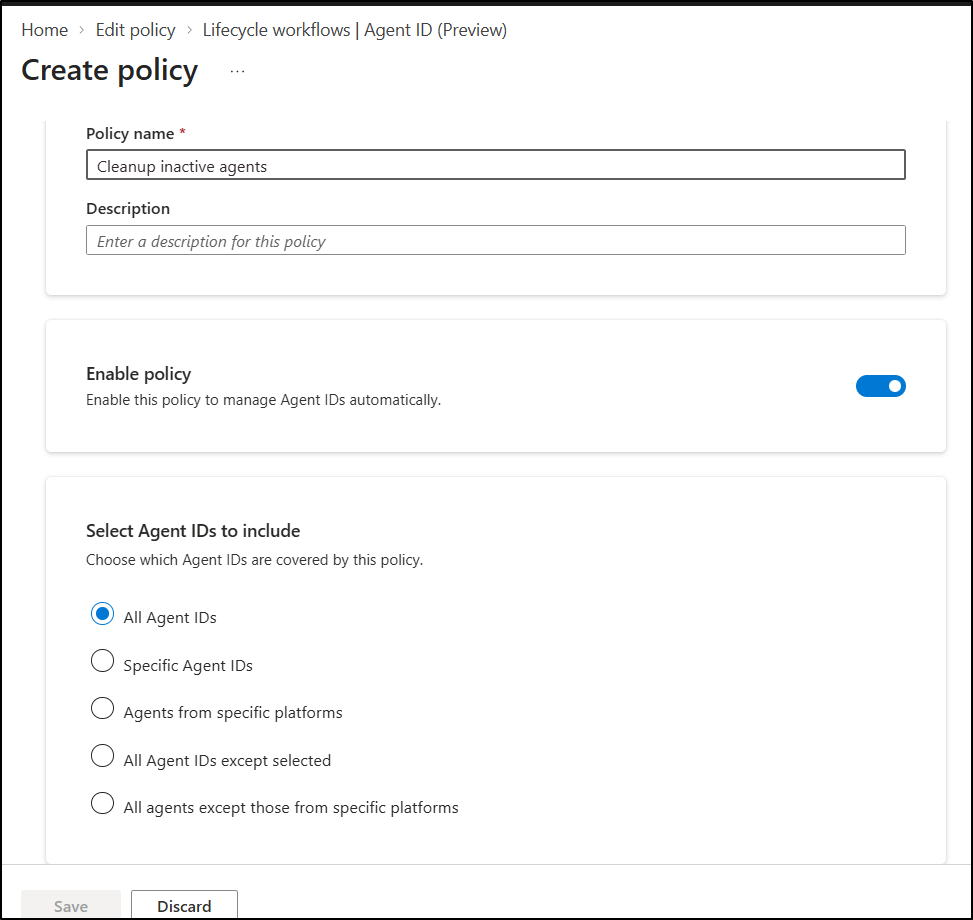
- Select New policy, enter a unique policy name and an optional description.
- Turn on the Enable policy toggle.
- Select the scope of agent identities the policy should govern.
- All Agent IDs: Apply the policy to every agent identity in your tenant.
- Specific Agent IDs: Apply the policy only to the agent identities you select.
- Agents from specific platforms: Apply the policy to agent identities associated with the platforms you select.
- All Agent IDs except selected: Apply the policy to every agent identity except those you exclude.
- All agents except those from specific platforms: Apply the policy to all agent identities except those associated with the platforms you exclude.
- Under Policy rules, enable Agent ID activity requirement toggle, and select the inactivity duration.
- Choose the policy action: Disable, Delete, or Disable and delete.
Note: The Disable Agent ID and delete after specified days option disables the agent first, then deletes it after the number of days you set.
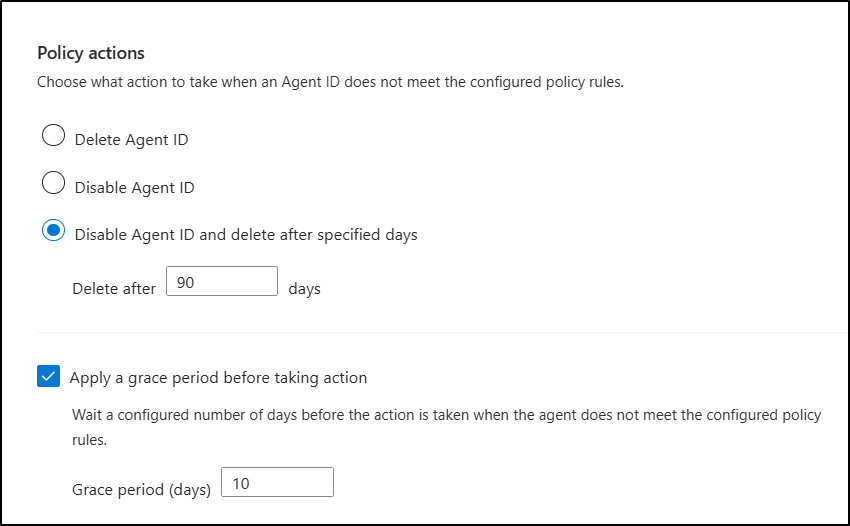
- Enable Apply a grace period before taking action and set its duration. Once the inactivity duration is reached, sponsors and owners are notified and given this time to respond before the configured action is applied.
- Under Notification schedule, review the notification behavior and add fallback recipients for agents without a sponsor or owner.
- Review the configurations and select Save.
Note: If you have several agent lifecycle policies, set the policy priority. When an agent matches more than one policy, the highest-priority policy applies.
How to Manage Inactive Agent Identities in Microsoft Entra
When Microsoft Entra flags an orphaned agent identity under a lifecycle policy, its sponsors and owners get an opportunity to review it before the configured action is enforced. Here’s what a sponsor and owner need to do:
- Email Notification to Sponsors and Owners: Sponsors and owners receive an email identifying the inactivity rule the agent has violated. The action will be followed, such as disabling or deleting the agent, if no action is taken within the grace period. If the agent has no sponsor or owner, the configured fallback recipients receive the email instead.
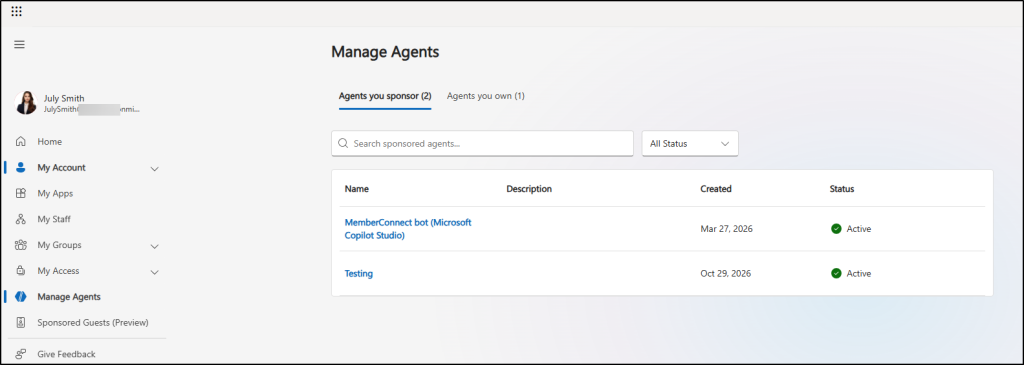
- Review Agent IDs in the Manage Agents Portal: Once after checking the mail, recipients can sign in to the My Account portal and select Manage agents to view the agent identities they are responsible for. This menu appears only for users who own or sponsor at least one agent. They can switch between the Agents you sponsor and Agents you own tabs to review their respective agents.
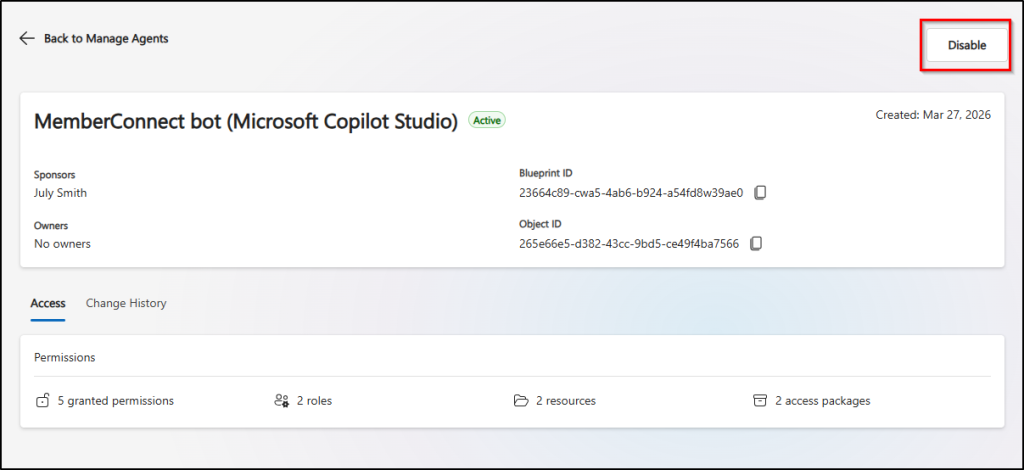
- Keep or Disable Inactive Agent Identities: After reviewing an agent, sponsors or owners can decide whether it is still needed. If the agent is no longer needed, the sponsor or owner can select Disable option to disable it immediately, without waiting for the policy to take action. If it is still needed, sponsors can keep it active by using it to trigger a new token issuance, which resets the inactivity period.
- Restore Disabled or Deleted Agent Identities: If an agent is disabled or deleted by mistake, it can still be recovered. However, sponsors cannot perform these actions themselves. Only an owner or administrator can re-enable a disabled agent or restore a deleted one.
Note: Only soft-deleted agent identities can be restored within 30 days of deletion.
These options give sponsors and owners some control over automated cleanup. However, admins should also take a few precautions when configuring lifecycle policies to avoid disrupting agents that are still in use.
Best Practices for Agent Lifecycle Management
A cleanup policy acts on every agent in its scope, so a little preparation keeps active agents from being disabled or deleted by mistake. Follow these practices to manage policy scope, ownership, cleanup actions, and ongoing monitoring.
- Exclude seasonal agents: A rarely used agent could be flagged as inactive and disabled even if it is still needed. Exclude such agents from the default policy or create a custom policy with a longer inactivity period.
- Fix ownership gaps: Ensure every agent has an assigned owner or sponsor. Add fallback recipients, such as a shared mailbox to receive notifications, for agents without an owner or sponsor.
- Use grace periods and staged cleanup: For custom policies, use the Disable Agent ID and delete after specified days option to disable agents first and allow time for sponsors to assess whether they are still needed before automatically deleting them after a defined period.
- Combine lifecycle rules: Use the other rules such as: inactivity monitoring, periodic reconfirmation, and minimum sponsor requirements together to strengthen agent governance. Remember that each enabled rule is evaluated independently.
- Keep sponsor assignments up to date: Inactivity notifications are sent to an agent’s sponsors. If a sponsor leaves or changes roles, the agent may left with no one to review or manage it. Add the agent sponsor tasks to your offboarding workflows. These tasks notify the manager and cosponsors and can transfer sponsorship to the manager as well as owner.
- Review audit logs: Check Microsoft Entra audit logs for agent disablement, deletion, and ownership or sponsorship changes. This confirms the right agents were cleaned up and identify any accidental deletions. You can restore a soft-deleted agent within 30 days if one was removed by mistake.
Wrap-up
Agent identities need the same lifecycle discipline as users, and inactive ones are the easiest to overlook. Microsoft Entra’s free default inactivity policy provides a built-in way to identify and clean up inactive agents using predefined schedules and actions. If its fixed schedule doesn’t suit your agents, a custom policy lets you define your own.
Whichever approach you choose, keep sponsors and ensure fallback email recipients are monitored, so every notification reaches someone who can act on it.