The default experience in Microsoft 365 allows users to create SharePoint sites on their own to meet their collaboration needs. Although convenient, this can lead to site sprawl and make site creation governance harder for admins. This makes it important for admins to have flexible controls over how users create and request new sites.
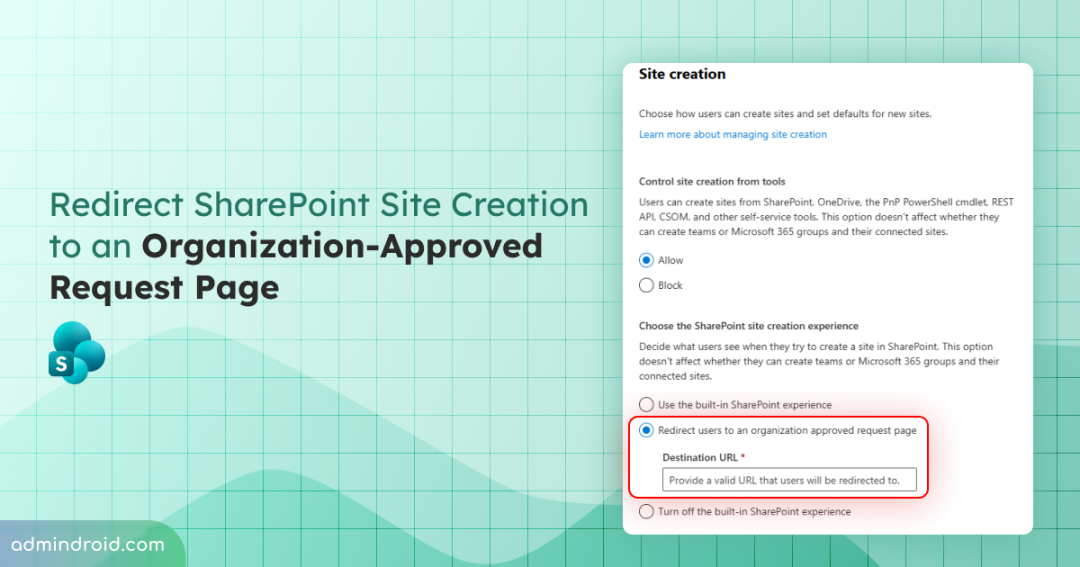
Until now, admins largely had two choices: allow site creation or turn it off. Many relied on workarounds to manage site requests. Now, after a long wait, SharePoint Online finally offers a third option: redirect users to an organization-approved request page.
Let’s take a look at this change and how it helps admins manage site creation in SharePoint.
New Site Creation Experience in SharePoint Online
The SharePoint Admin Center now gives admins more flexibility in choosing what users see when they try to create a site. Admins can choose from the following options:
- Use the built-in SharePoint experience: Allow users to create sites through the standard SharePoint interface.
- Redirect users to an organization-approved request page: Send users to any web page when they try to create a site. For example, the destination could be a Microsoft Forms form, an internal request page, a third-party approval tool, or another site provisioning solution.
The redirect option is particularly useful for organizations that use custom request forms, approval workflows, or provisioning solutions to manage new site requests.
- Turn off the built-in SharePoint experience: Disable the standard SharePoint site creation interface.
⚠️Important: These settings don’t restrict users from creating Microsoft 365 Groups or Teams. Since these can automatically create connected SharePoint sites, admins must manage their creation separately.
How to Set Up Self-Service SharePoint Site Provisioning with Approval?
- Sign in to the SharePoint admin center with the required administrative permissions.
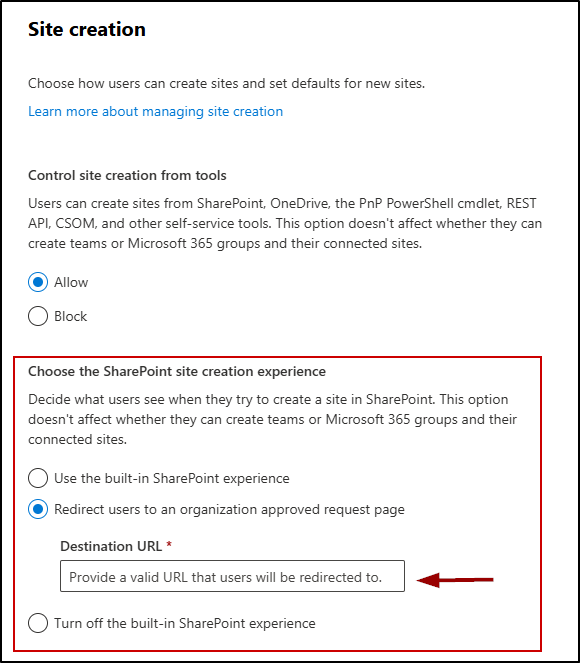
- Navigate to Settings > Site creation.
- Under Choose the SharePoint site creation experience, select Redirect users to an organization-approved request page.
- In the Destination URL box, enter the URL of your organization’s custom site request or provisioning page.
- Save the settings.
SharePoint Site Creation Approval Process: Practical Use Cases
Redirecting users to an organization-approved request page is useful when site creation needs to follow a defined process. Here are a few ways organizations can use this option.
1. Set Up a Site Request Approval Workflow with Power Automate
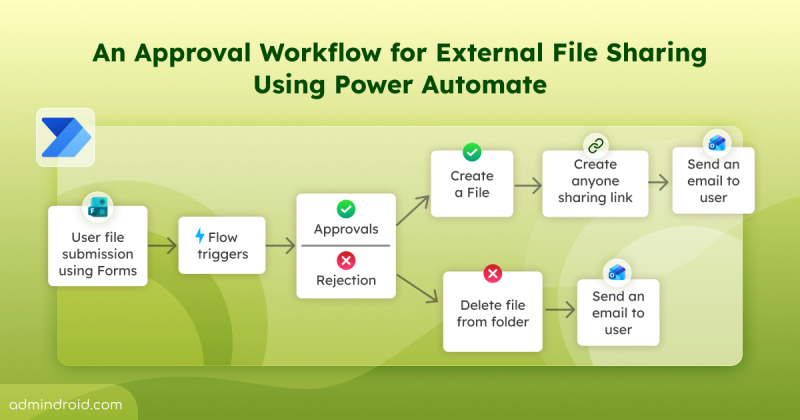
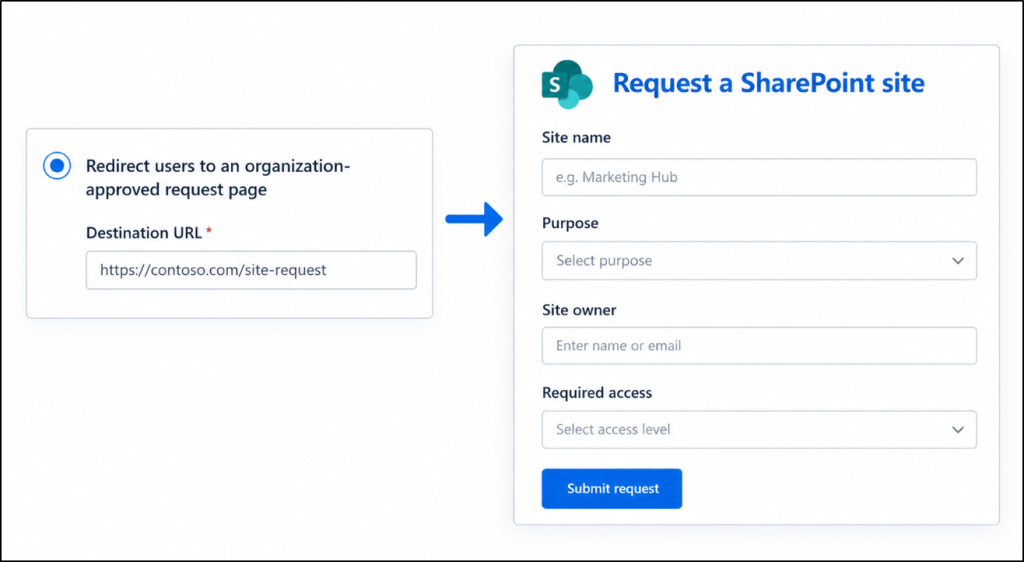
Organizations can create a site request form using Microsoft Forms or Power Apps and use Power Automate to route submissions to the appropriate approvers.
When a user requests a new SharePoint site, the workflow can collect details such as the site name, purpose, owner, and required access. It can then send the request for approval before triggering the site provisioning process.
2. Route Requests Through an IT Service Portal
Organizations that manage IT requests through a service portal can redirect users to the relevant request form. This helps IT teams track requests, assign ownership, and follow a consistent provisioning process.
3. Collect Required Details Before Provisioning
A custom request page can collect information that the default site creation experience may not capture as part of the organization’s process, such as the business purpose, department, site owner, and sensitivity requirements. Admins can use these details to review requests and apply the appropriate governance policies before provisioning.
By directing users to an approved request page, organizations can make site requests more consistent and easier to manage.
Closing Thoughts
With the new site creation redirect option, you can guide users through an approved request process while keeping SharePoint site creation aligned with your organization’s governance policies.
We hope this blog helps you manage SharePoint site creation more effectively. For any questions, feel free to reach out to us in the comments.
Thanks for reading!