When accidental deletions or data corruption strike, Microsoft 365 Backup has always been a reliable option for restoring SharePoint sites, OneDrive accounts, and Exchange mailboxes. But what happens when you only need to recover a single file or folder? Until now, admins often had to restore the entire SharePoint site or OneDrive account just to retrieve one corrupted or deleted item, which was time-consuming and impractical.
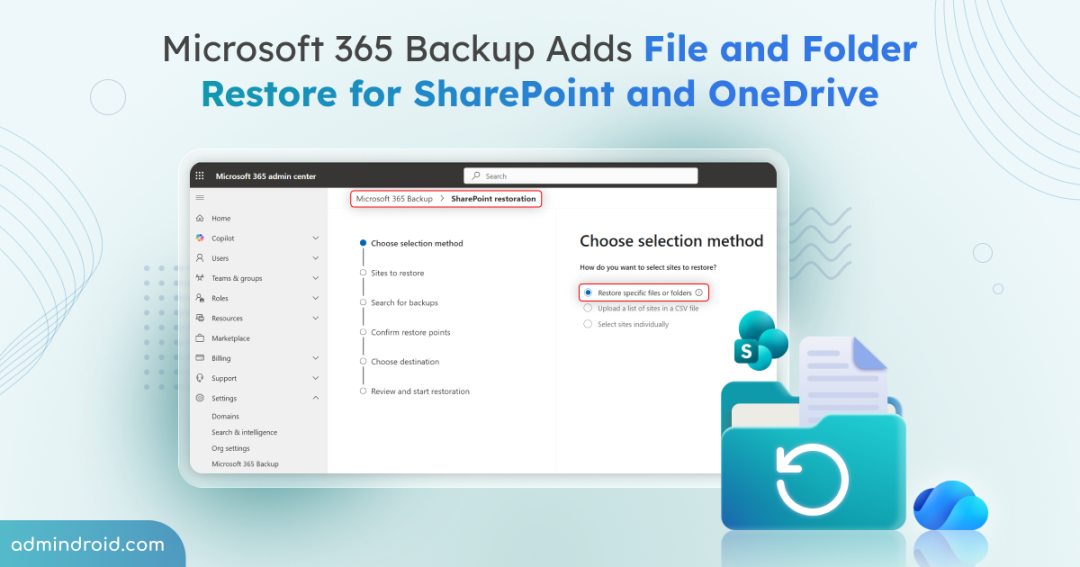
Microsoft has now addressed this challenge by introducing granular restore capabilities in Microsoft 365 Backup for SharePoint and OneDrive, which is currently in public preview. Admins can now restore individual files or folders directly from restore points, making recovery faster and far more precise. In this blog, we will explore how Microsoft 365 Backup improves file and folder recovery and take a closer look at this latest update.
Overview of File and Folder Recovery in Microsoft 365 Backup
Besides restoring the entire SharePoint site or OneDrive account, administrators often relied on the Recycle Bin to recover deleted items. However, the Recycle Bin comes with its own limitations as it only retains deleted files and folders for up to 93 days, after which the data cannot be recovered.
So, Microsoft 365 Backup has been upgraded to support restoring individual files and folders directly. With this capability, you can restore only the required content by browsing and searching restore points for protected SharePoint sites and OneDrive accounts. It is especially useful when responding to recovery, correction, or remediation requests involving personal or sensitive data.
Rollout Timeline for Microsoft 365 Backup File and Folder Recovery
- ️ The public preview for file and folder restore in Microsoft 365 Backup began in early March 2026 and is expected to complete by mid-March 2026.
- The general availability of this feature is expected to begin in late April 2026 and complete by early May 2026.
Prerequisites for File and Folder Restore in Microsoft 365 Backup
Following are the essential prerequisites for restoring files and folders using Microsoft 365 Backup.
- License Requirement: You must have an Azure subscription to set up pay-as-you-go billing for Microsoft 365 Backup.
- Tenant Configuration: This feature will be available only if Microsoft 365 Backup is enabled in the tenant.
- Role Requirement: You must have the SharePoint Backup Administrator role to perform restore operations for SharePoint sites and OneDrive accounts.
Now, let’s see how you can restore the required files and folders using Microsoft 365 Backup.
How to Restore Files and Folders in SharePoint and OneDrive Using Microsoft 365 Backup?
Here are the steps to restore individual files and folders using Microsoft 365 Backup.
- Sign in to the Microsoft 365 admin center.
- Navigate to Settings → Microsoft 365 Backup.
- Select Restore under either SharePoint or OneDrive, depending on from where you want to restore the files or folders.
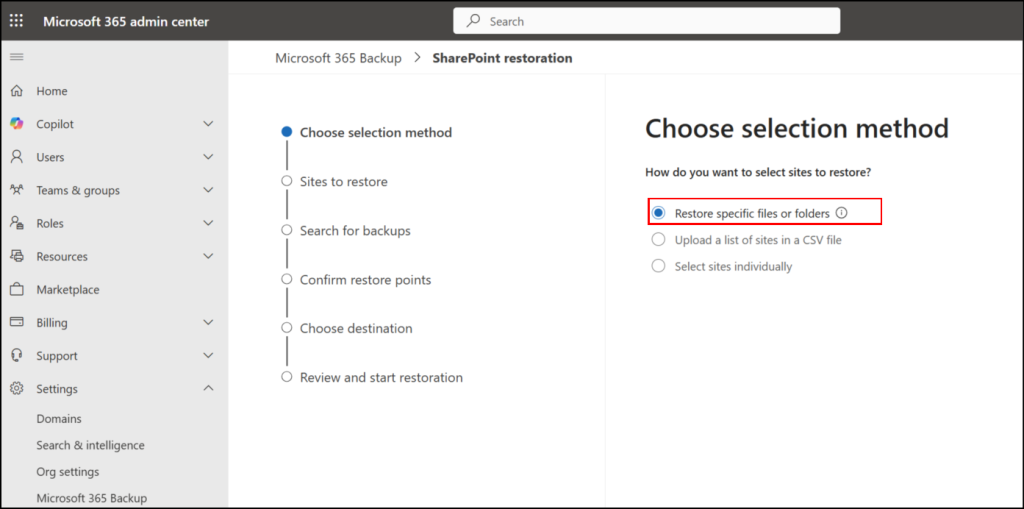
- On the Choose Selection method page, select Restore specific files or folders to recover files and folders from a specific restore point.
- On the Sites to restore page, select the target OneDrive account or SharePoint site from the backed-up resources, and then click Next.
- On the next page, choose the required date and time for the file and folder restoration. If the selected timeframe has no restore point, the system will prompt you to use the nearest available restore point.
- Next, on the Content Page, select the required subsite and then choose the target document library from which you want to restore the files or folders. If there are multiple document libraries, you can use the Search option to quickly locate the required one.
- In the Select files and folders section, you can use the Search bar at the document-library level or navigate through the file and folder path to locate the required items.
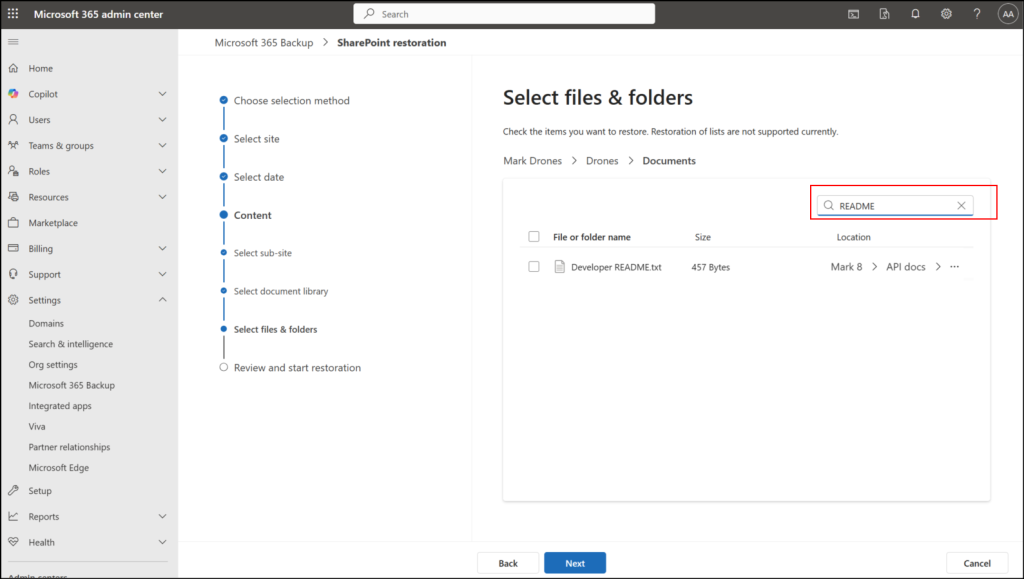
- Select the checkbox for the required files and folders and click Next.
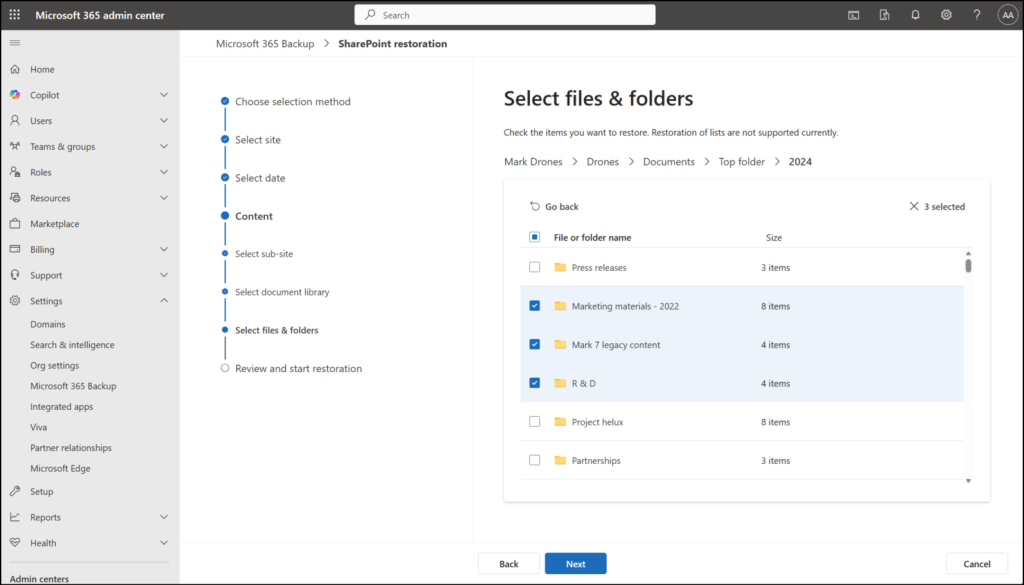
Note: You can restore files and folders only from the currently selected folder hierarchy. If you search for another file or folder outside that hierarchy, the current selection will be cleared.
- On the Review and Finish page, verify the selected files and folders, then select Start restoration to begin the restore process.
Key Things to Know About File and Folder Restore in Microsoft 365 Backup
Administrators performing file and folder restoration using Microsoft 365 Backup should keep the following key points in mind.
- You can restore files and folders by overwriting them in the original location or by creating a copy in a different location.
- This update does not change how or where backups are stored. It simply provides an additional way to access existing restore points at a more granular level.
- The scope of auditing is now more granular, extending to the file and folder level when retrieving specific data.
- This update respects your existing backup policies and restore points. All current configurations continue to work as before, and you can simply use the new granular restore capability from the available restore points.
- File and folder restoration can only be initiated by administrators, and there is no direct impact on end users.
- Admins should review the Microsoft 365 Backup coverage for SharePoint and OneDrive to ensure the required sites and accounts are protected.
- Organizations should update recovery runbooks to include file and folder–level restore scenarios and guide IT teams to prioritize granular restores instead of restoring entire SharePoint sites or OneDrive accounts.
And that’s all about the update! We hope this new Microsoft 365 Backup capability for file and folder restoration provides a more granular control when responding to recovery, correction, or remediation scenarios. If you have any questions or experiences to share about this feature, feel free to drop them in the comments section below. We would love to hear from you. Stay tuned for more updates and upcoming blogs.