In day-to-day administration, absolute power is often just one accidental click away from absolute disaster.
Imagine you’re offboarding a user in Microsoft 365 and trigger a device wipe. A second later, you realize that you just wiped an active user’s device instead of the offboarded user’s device. In an instant, all company and personal data is gone, productivity halts, and a routine task becomes a high-stakes recovery mission.
What if you could prevent such accidental device wipes with a simple configuration? This is where Multi Admin Approval in Microsoft Intune comes in. By implementing a two-step approval workflow, you can ensure that device action commands are intentional, verified, and safe.
In this blog, let’s explore how to prevent accidental device wipes using multi administrative control in Microsoft Intune and protect your organization from the “oops” moment no admin wants to experience.
What is Multi Admin Approval in Microsoft Intune?
Multi Admin Approval is a security feature in Microsoft Intune designed to prevent unauthorized or accidental administrative actions. MAA introduces an additional approval step for sensitive operations, ensuring that critical changes cannot be executed by a single admin. It operates through the creation of Intune Access Policies that define which administrative tasks are protected and which group of authorized users must verify them before they can proceed.
When an action protected by Multi Admin Approval is initiated, the MAA process follows a simple, three-step lifecycle:
- Request – An administrator submits a request to perform the protected action or configuration.
- Review – An approver reviews the submitted request and decides whether to approve or reject it.
- Complete – Once approved, the admin who initiated the request must complete it to execute the action. They can also cancel the request if needed.
Multi-Admin Approval allows you to set up approval workflows for Windows Platform Script deployments, app deployments, device actions (Wipe, Retire, and Delete), configuration and compliance policies.
Important Note: Multi Admin Approval is enforced only for actions performed using user identities (via UI, Graph API with delegated permissions, or PowerShell). Actions executed through apps using application permissions bypass the approval flow and run directly.
Now, let’s explore how multi administrative approval helps protect your organization from unauthorized device wipe actions.
How Multi Admin Approval Helps Prevent Accidental Device Wipes in Intune?
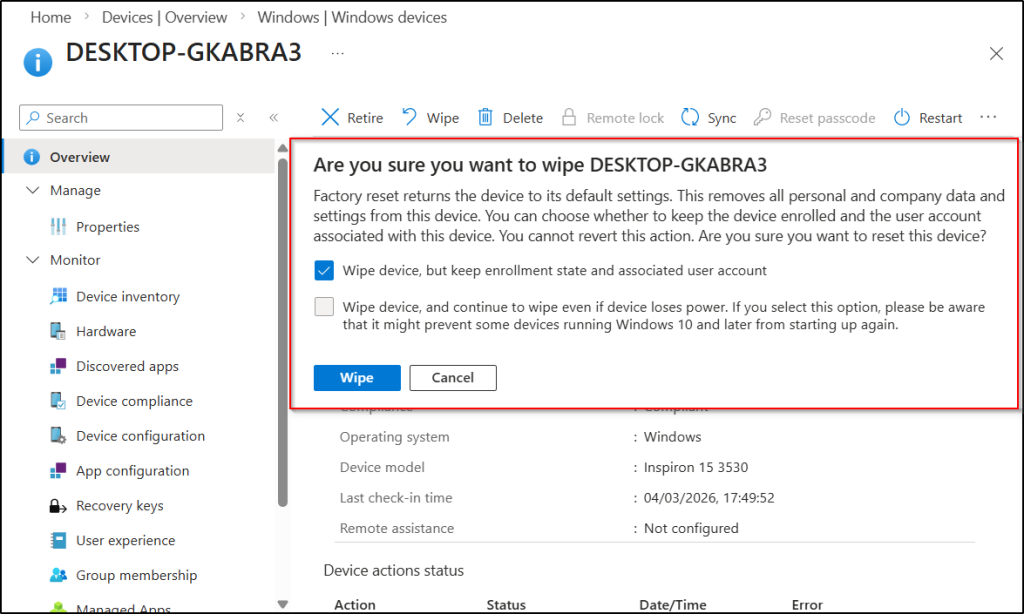
In a standard Microsoft Intune setup, when an admin selects the wipe action on an enrolled device, they are typically presented with options, such as whether to retain the user’s associated account or wipe the device regardless of connectivity. Upon making those selections, Intune performs the wipe action immediately.
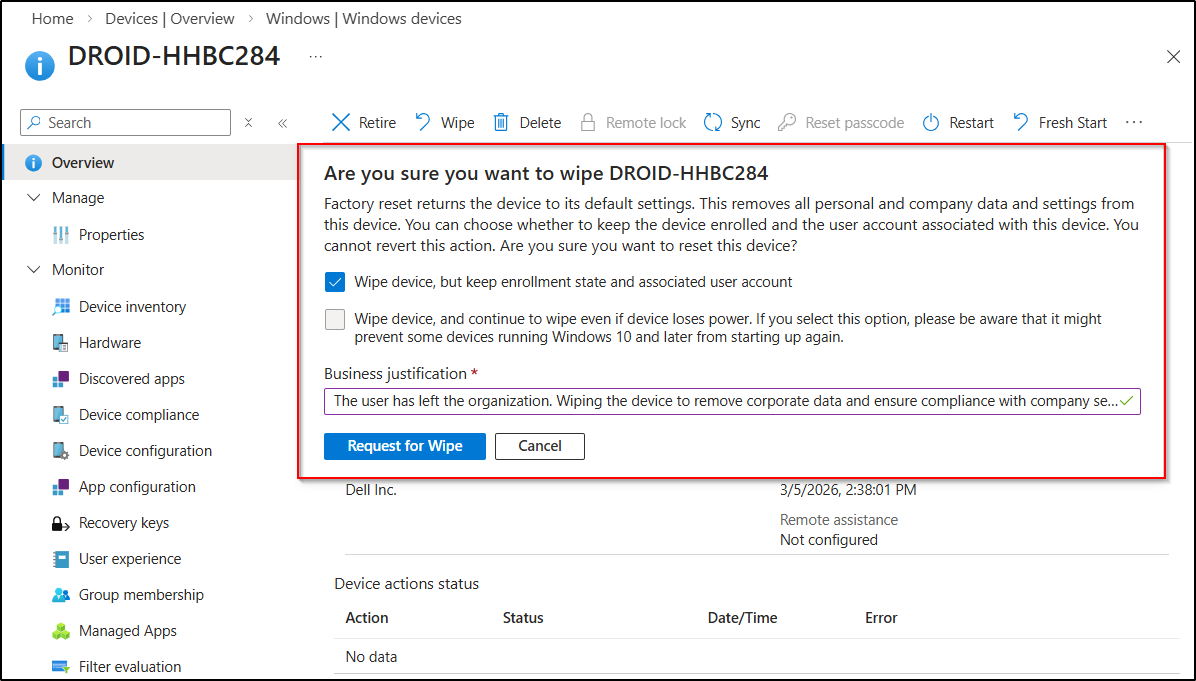
However, when Multi Admin Approval is enabled for the wipe action, the process changes from an immediate execution to an approval-based workflow. Instead of wiping the device right away, the admin must first provide a business justification and submit a wipe request.
After the admin submits the request, Intune creates an approval request and waits for another admin from the designated approver group to review it. The approver can examine the request and decide whether to approve or reject the action.
By implementing an approval workflow for device wipe actions, organizations can significantly reduce the chances of accidental or unauthorized wipes. This safeguard becomes especially important in scenarios such as bulk wipe operations, delegated device management, or compromised administrative accounts.
Key Scenarios for Using Multi Admin Approval in Device Wipe Intune?
Multi Admin Approval is especially useful in situations where device wipe actions can have significant operational or security impact. Some common scenarios include:
- Protection Against a Compromised Admin Account: If an administrator account is compromised, an attacker could attempt to trigger device wipe actions to disrupt operations or cover their tracks. This means an attacker would need to compromise another account with approval permissions to complete the request. As a result, the blast radius of a single compromise is significantly reduced, helping protect critical devices from malicious actions.
- Bulk Device Management Environments: Device wipe actions are often performed in bulk, especially during large-scale device refreshes, user offboarding processes, or when responding to lost or stolen devices. During such operations, unintended devices may be selected accidentally. With Multi Admin Approval in place, another admin can review the list of targeted devices before approving it, helping identify and prevent accidental wipes.
- Delegated Device Management Scenarios: When device management responsibilities are delegated to different administrators or teams, the chances of accidental device wiping are higher. Introducing an additional approval step ensures that these actions are verified before they are carried out, reducing the risk of unintended or unauthorized device wipes. For example, a helpdesk admin may initiate a device wipe during user offboarding, while a senior admin reviews the request to confirm the correct device is being wiped.
- Protection Against Insider Threats: Multi-Admin Approval also helps protect against insider threats or rogue administrator scenarios. If an admin with elevated permissions attempts to intentionally wipe devices or disrupt operations, they cannot perform the action alone. The request must still be reviewed and approved by another authorized admin. This ensures that no single individual has unchecked control over critical device actions.
- Preventing Accidental Device Wipes: Human error is one of the most common causes of service disruption. During routine tasks like user offboarding or troubleshooting, admins may accidentally select the wrong device and trigger the wipe action. In such cases, an additional approval step helps catch such mistakes before the wipe is executed. It acts as a second pair of eyes, helping prevent costly mistakes.
Now that you understand how Multi Admin Approval helps protect devices from unintended wipes, let’s look at how to configure it in Microsoft Intune
Prerequisites to Configure Multi Admin Approval in Microsoft Intune
To create an access policy for Multi Admin Approval in Microsoft Intune, ensure the following requirements are met.
- You must have the Intune Administrator, Global Administrator or an Intune custom role with required permissions to create and manage Multi Admin Approval access policies.
- Your tenant must have at least two admin accounts to use Multi Admin Approval. One admin to initiate the device action and another one to review and approve the request.
- You must create a Microsoft365 security group with the appropriate admin accounts to approve MAA access policy requests.
- Microsoft Intune Plan 1 license is required for both the admin who initiates the device wipe and the admin who approves it through MAA.
Set Up Multi Admin Approval to Prevent Accidental Device Wipes in Intune
Follow the steps below to configure Multi Admin Approval and control device wipe action in the Intune admin center.
Create an Access Policy to Use Multi Admin Approval in Intune
To create an access policy and enforce MAA and prevent unauthorized or accidental device wipe actions, follow the steps below.
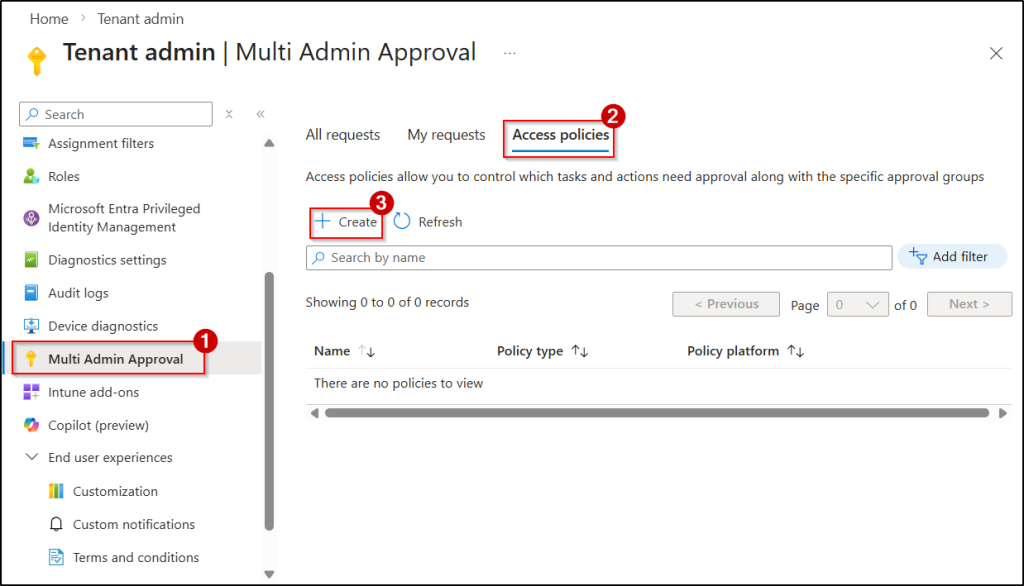
- Sign in to the Microsoft Intune admin center, navigate to Tenant administration → Multi Admin Approval → Access policies, and click Create.
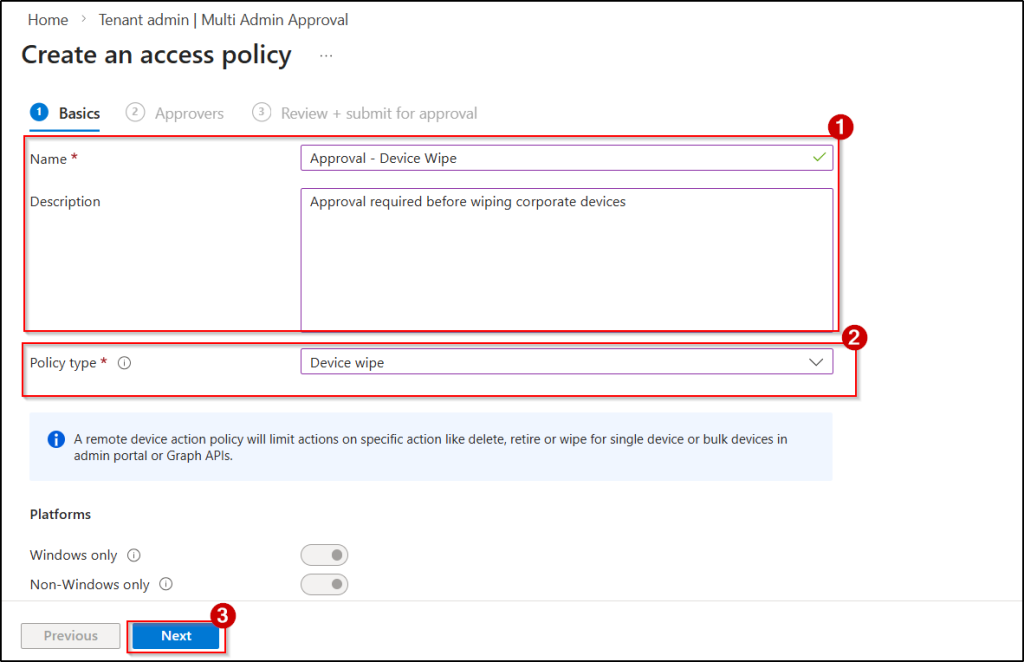
- On the Create an access policy page, provide a Name for the policy and an optional Description.
- In the Profile type drop-down, select Device wipe, and click Next.
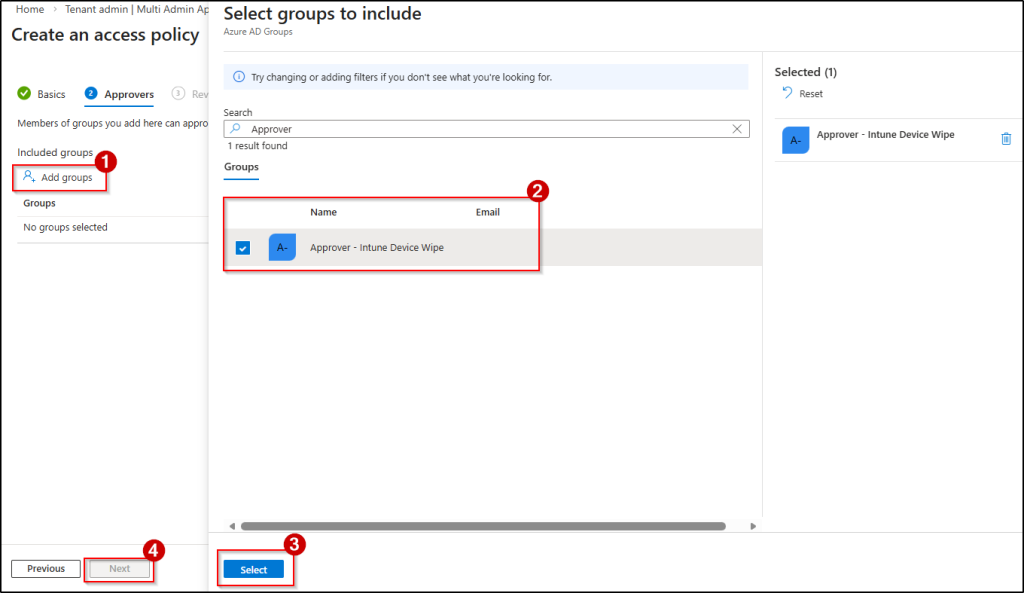
4. Under Include groups, click Add groups and select the Microsoft Entra security group that contains the admins responsible for approving the device wipe requests.
5. Then, click Select and click Next.
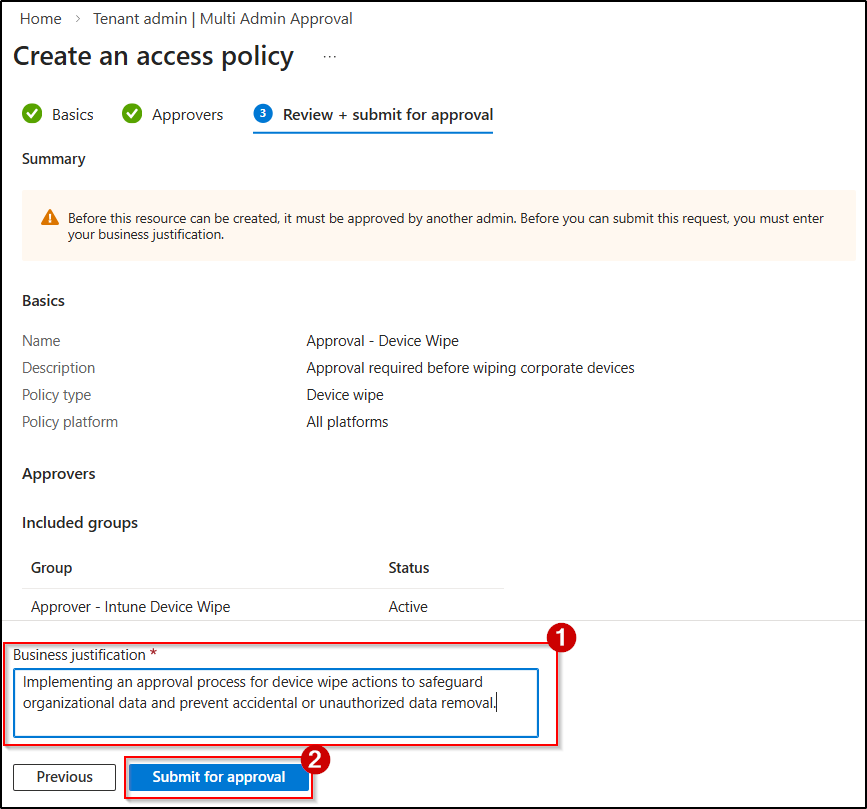
6. Review the configuration, specify a business justification so the approvers understand the purpose of the request, and click Submit for approval.
Approve the Device Wipe Access Policy Request in Intune
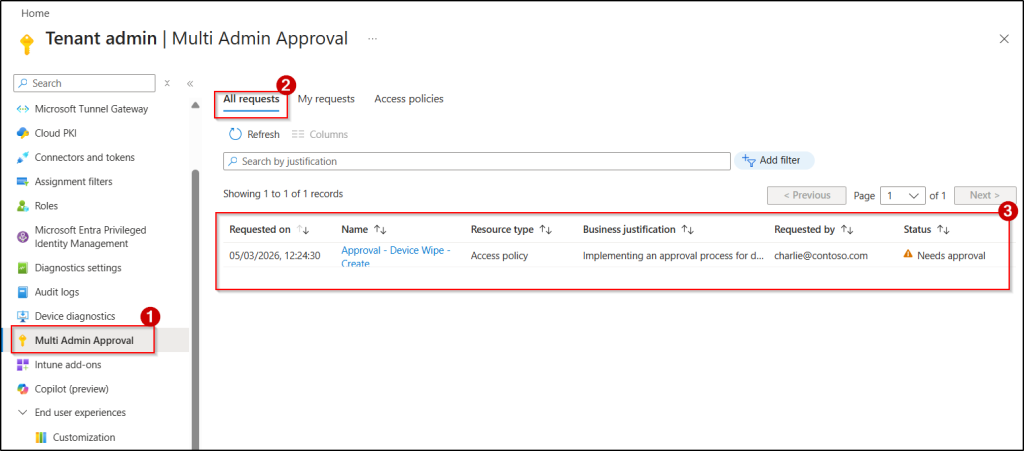
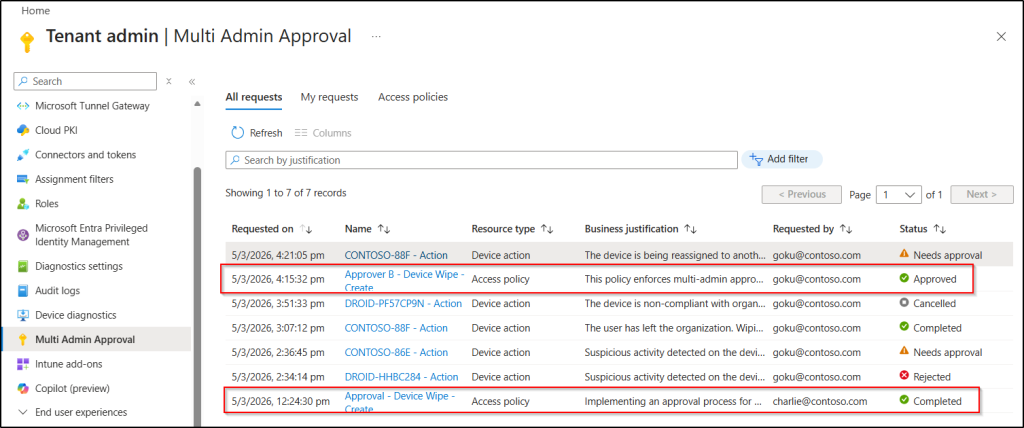
Once an admin initiates the creation of an access policy, its status is set to Needs Approval. To move forward, a different admin from the designated approval group must review and accept the request. To approve a pending access policy request in Microsoft Intune, a separate admin from the approver group can follow the steps below.
- Open the Microsoft Intune admin center and go to Tenant administration → Multi Admin Approval → All requests.
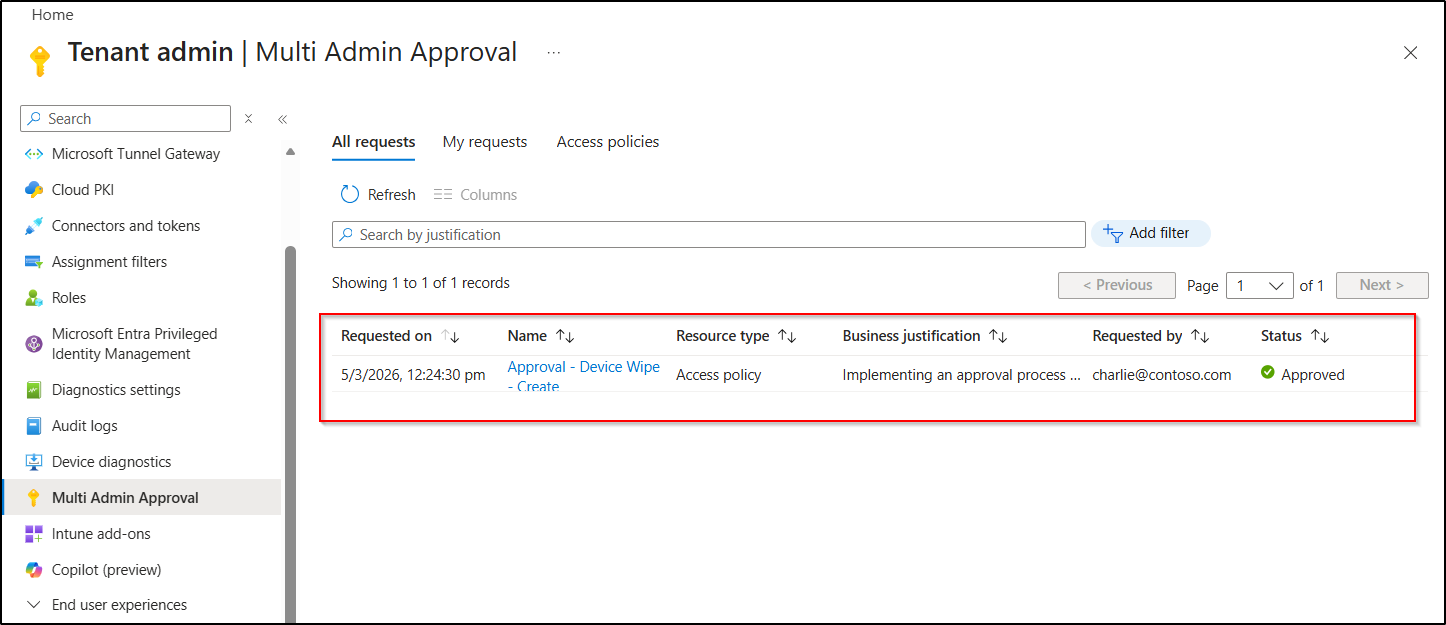
- Select the newly created approval request for the access policy, provide an Approver note, and click Approve request.
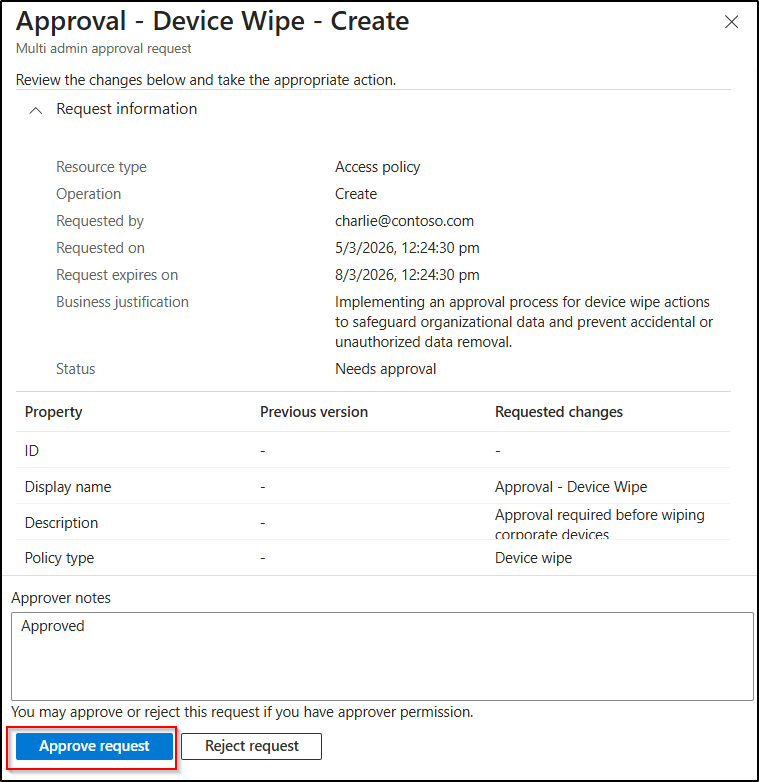
After the approver approves the request, the access policy status will be updated to Approved.
Complete the Device Wipe Access Policy Creation in Microsoft Intune
Once the request is approved, the admin who initiated the policy must complete the process to finalize the Multi Admin Approval access policy for device wipe actions. To complete the request, follow the steps below.
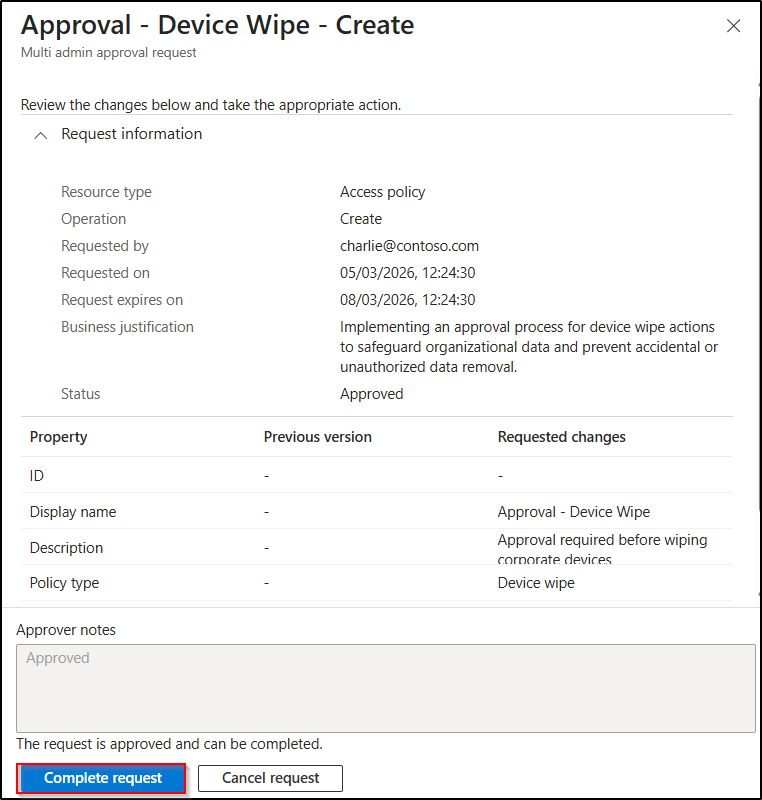
- Go to the All requests tab in Microsoft Intune Multi Admin Approval page and select the approved access policy request for the device wipe action.
- Then, click Complete request to apply the access policy.
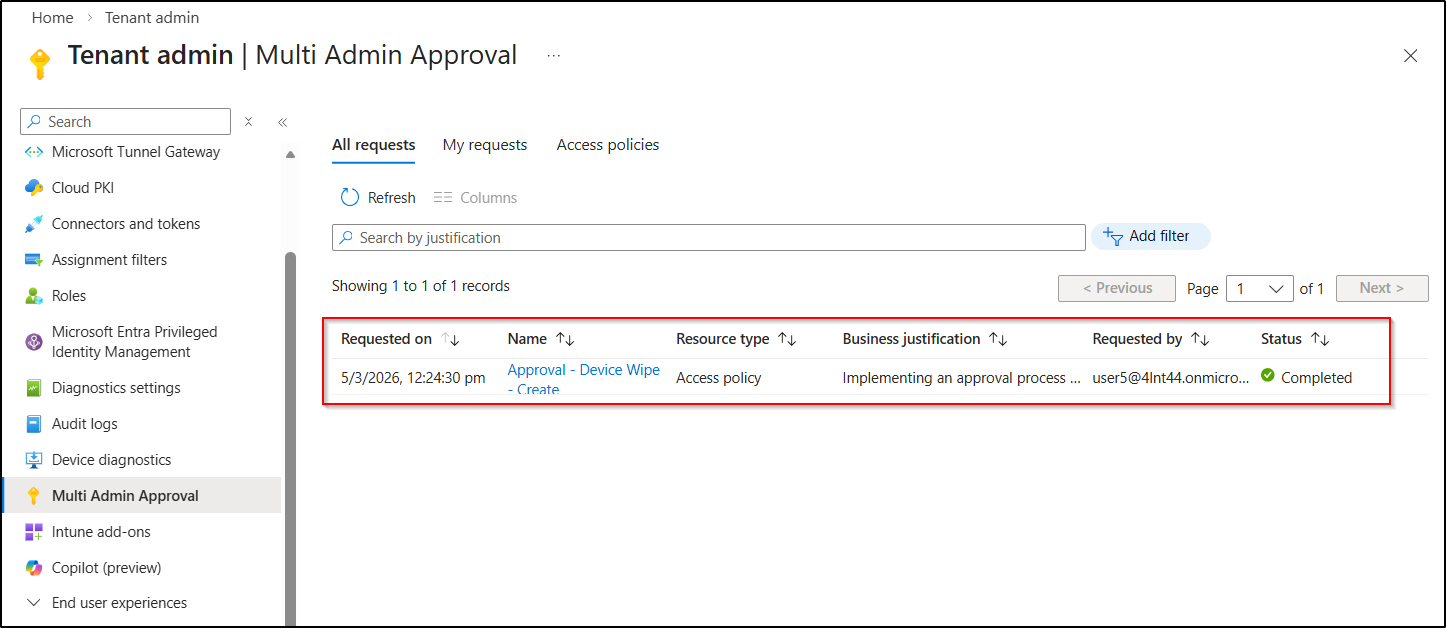
Once you have finalized the request, the policy status will be updated to Completed. From then on, whenever an admin initiates a device wipe action, Intune prompts the admin to submit the request for approval along with a business justification.
Admin Experience When Performing a Device Wipe After Multi Admin Approval
Let’s walk through a hands-on admin experience of how a device wipe request is initiated, reviewed, and completed using Multi-Admin Approval in Microsoft Intune.
Device Wipe Request
- First, let’s select the device in the Microsoft Intune admin center and click Wipe to reset the device completely. As you can see, the usual Wipe option is replaced with Request for wipe. Instead of executing the action immediately, Intune requires the admin to submit a request.
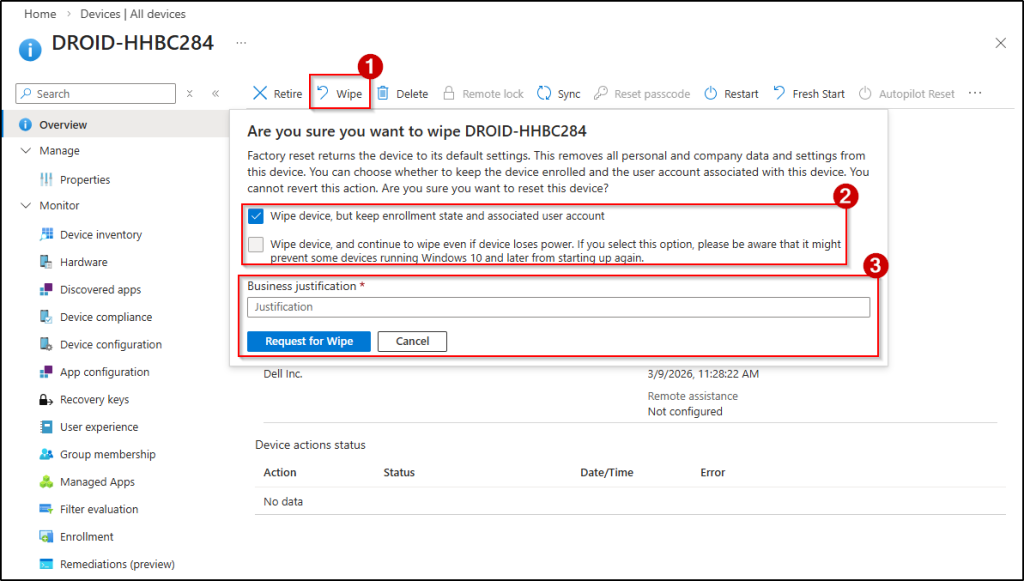
- Let’s enter a business justification explaining why the wipe action is required and submit the request.
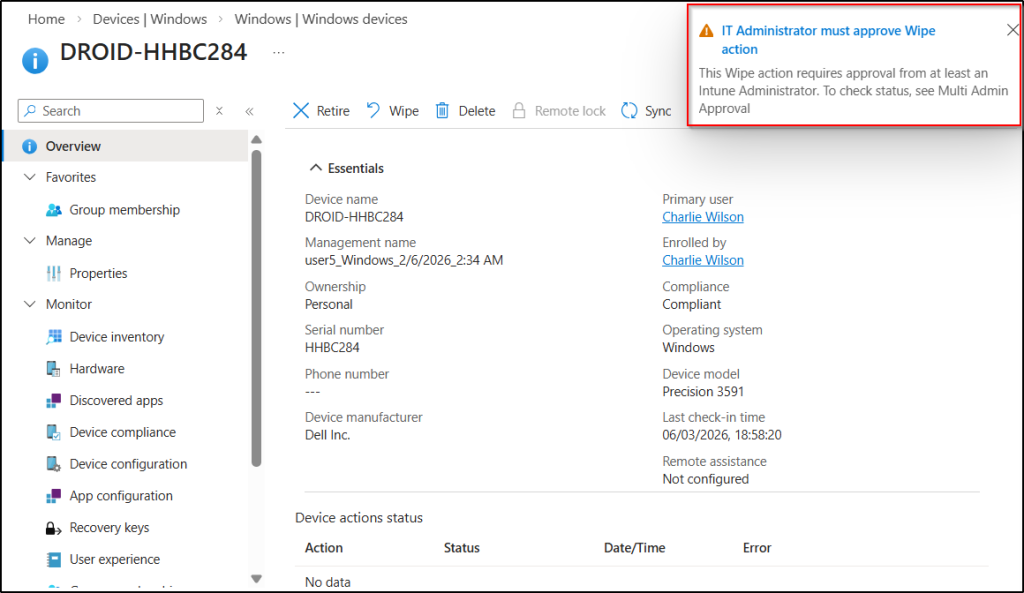
Once submitted, the request status changes to Needs approval. Now the request waits for an admin from the designated approver group to review it.
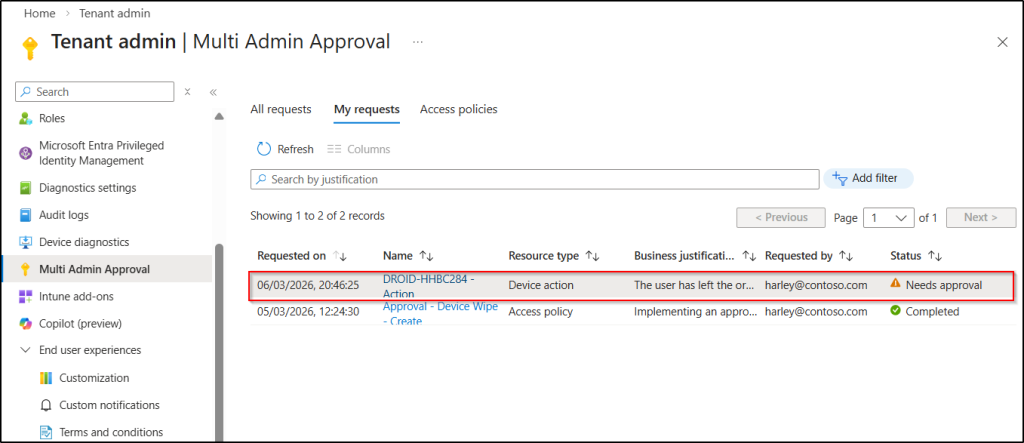
Device Wipe Review
Next, let’s sign in with a different admin account that has approver permissions and navigate to the Multi Admin Approval page in the Intune admin center. The newly created request should now be visible.
1. Select the request and click Approve to allow the wipe action to proceed.
Note: If the request is rejected, it will be canceled immediately, and no further action will be taken.
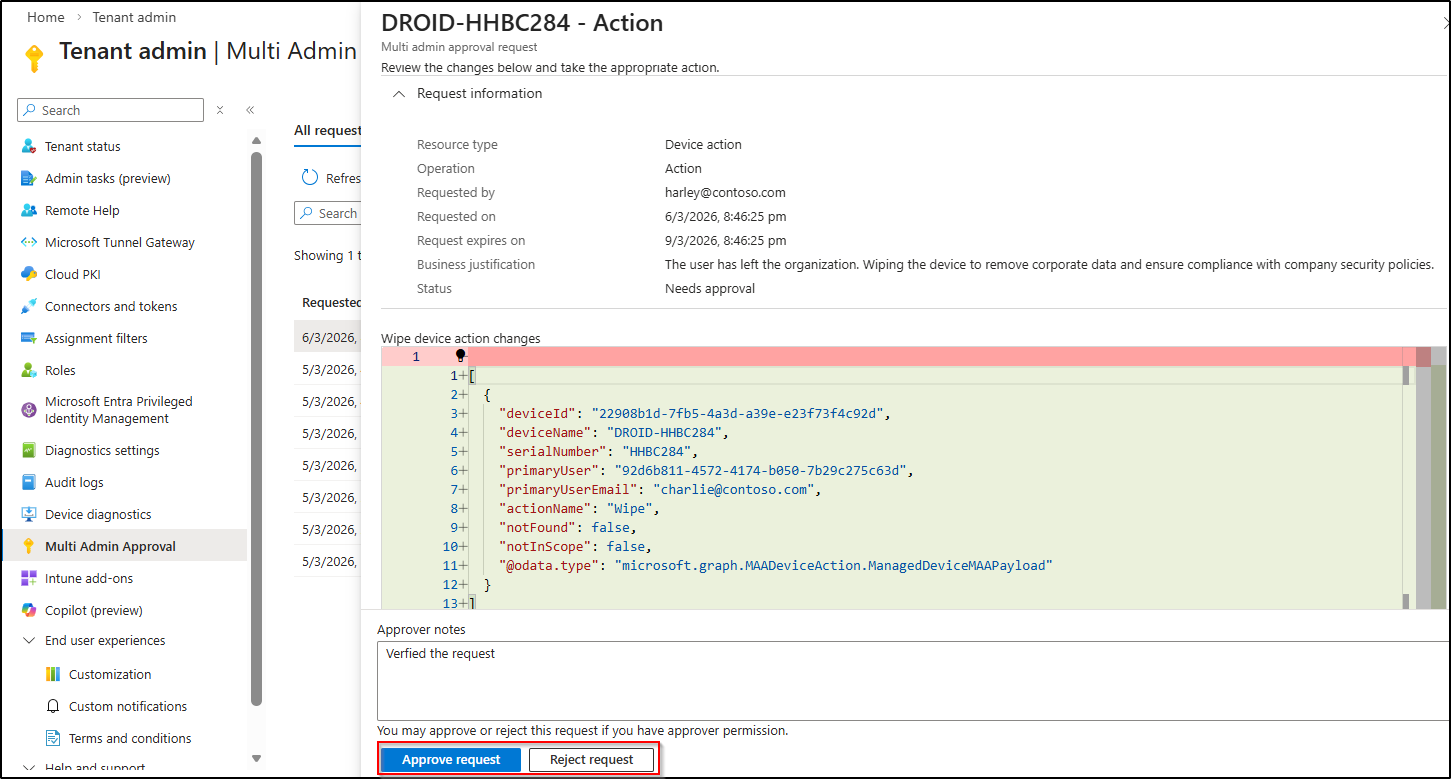
Device Wipe Complete
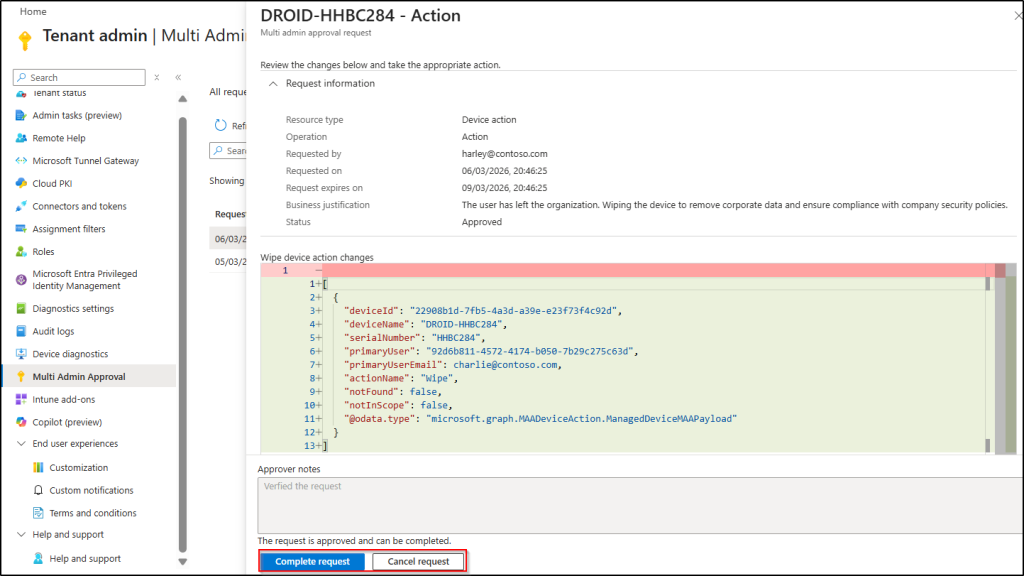
Now let’s switch back to the account that initiated the request. You will see that the request status has changed to Approved.
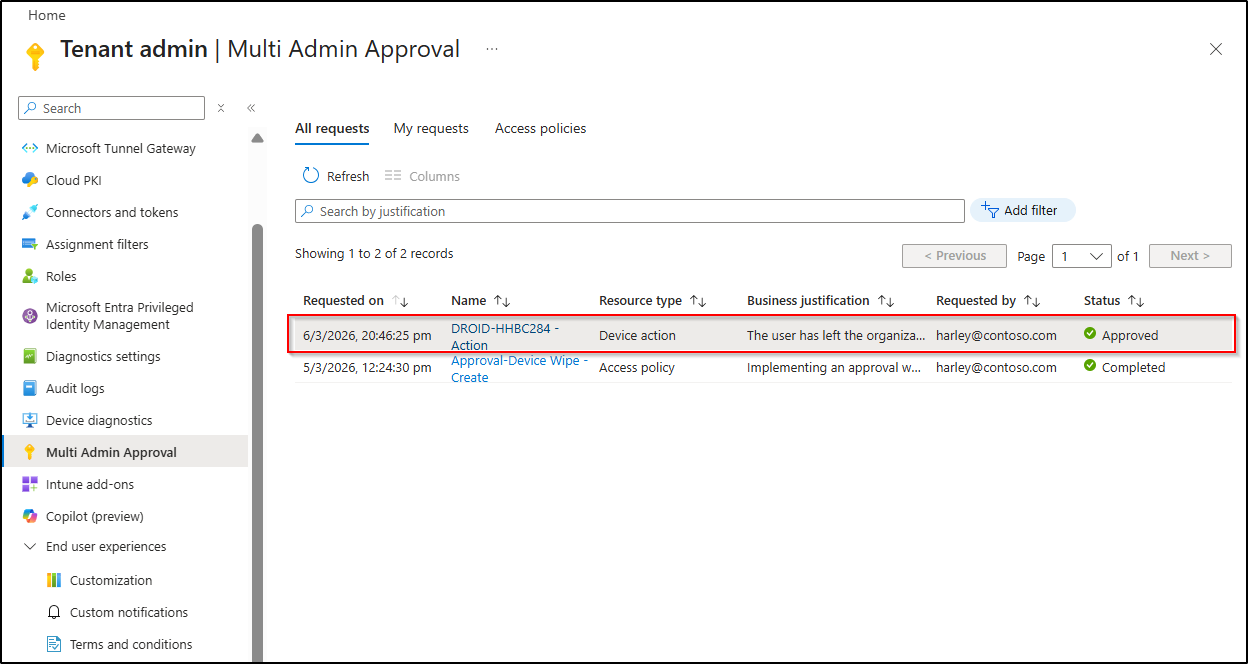
To confirm and execute the device wipe action, open the request and click Complete request. After completion, Intune executes the device wipe action on the selected device.
Monitor Multi Admin Approval Events for Device Wipe in Intune Audit Logs
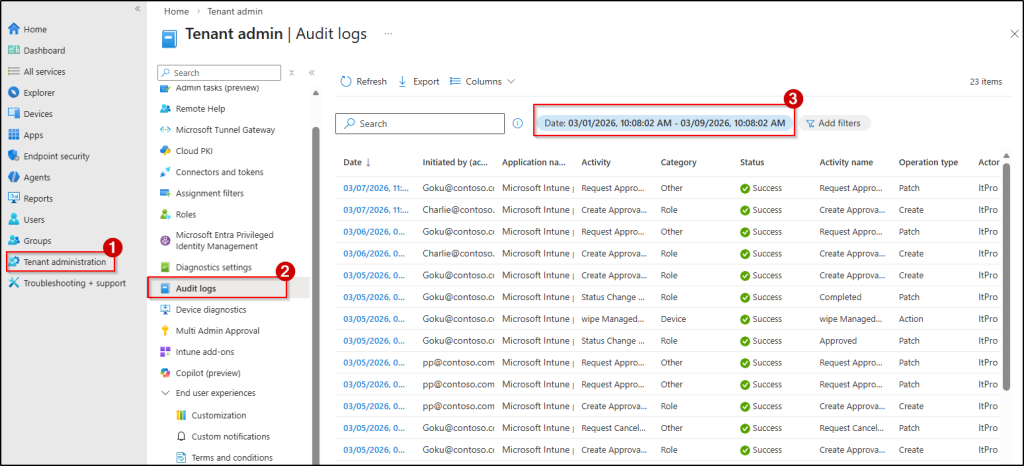
You can use the Intune Audit logs to view events related to Multi Admin Approval, such as when a request is created, approved, rejected, canceled, or completed. These logs help track activities related to device wipe actions protected by Multi Admin Approval and provide visibility into every stage of the approval workflow.
By reviewing these logs, you can verify who initiated the wipe request, who approved it, and when the action was executed. This helps maintain accountability and ensures that critical device actions are properly monitored.
To access the device wipe action logs, follow the steps below.
- Sign in to the Intune admin center.
- Navigate to Tenant administration → Audit logs and customize the date range to view audit records related to Multi-Admin Approval for device wipe actions for a specific time period.
Key Considerations for Multi Admin Approval in Microsoft Intune
While configuring Multi Admin Approval in Microsoft Intune, admins should be aware of a few important behaviors and limitations in the policy creation and approval workflow. Understanding these points helps avoid confusion when managing approval requests for sensitive actions such as device wipes.
- Intune currently doesn’t send alerts when a new request is created or when the status of an existing request is changed. So, if you’re performing a time-sensitive device wipe, it’s best to manually notify your approvers to let them know a request is waiting for approval.
- If there is already a pending approval request for a device wipe action, you cannot submit another request for that same device until the existing request is either completed, rejected, or canceled.
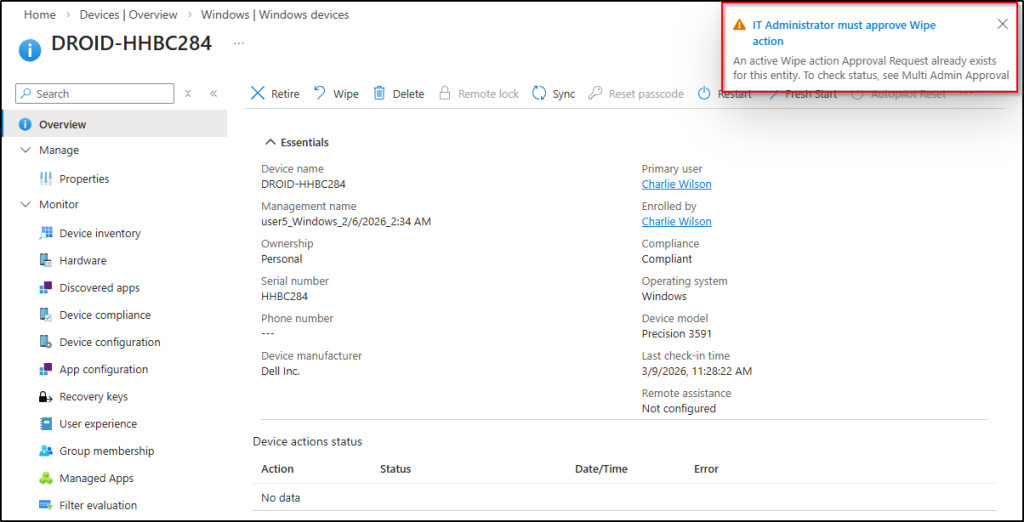
- The admin who initiated the wipe request cannot approve the request, even if they are a member of the approver group. As a requester, they can either cancel the request or complete it once the approver accepts the request.
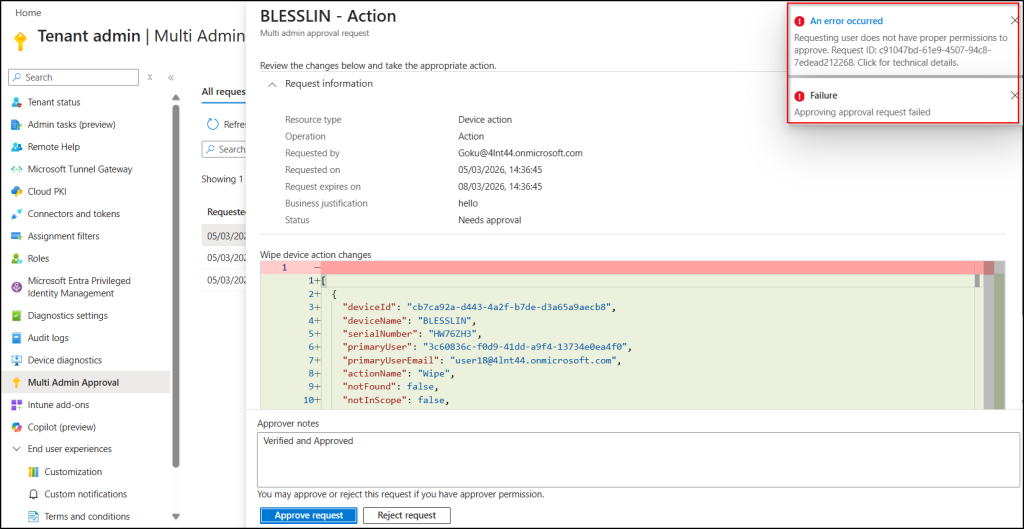
- Any user who has access to the Intune admin center can see the submitted device wipe requests on the Multi-Admin Approval page. However, if a user who is not a member of the approver group try to approve the request, they will see the error message shown below.
- If multiple access policies are created for the device wipe action in Multi Admin Approval, approvers from any of these policies can approve the request. To avoid unintended approvals, you should carefully monitor access policy creation and restrict permissions for creating new policies.
- When approving a bulk device wipe request, approvers cannot selectively approve or reject individual devices; the entire request must be approved or rejected, requiring the requester to resubmit only the correct devices if changes are needed.
And that’s a wrap! Device wipe is a powerful action in Microsoft Intune that permanently removes organizational and personal data from a device. By enabling Multi Admin Approval for device wipe actions, you can ensure that such high-impact operations are reviewed and approved by another admin before they are executed, reducing the risk of accidental or unauthorized wipes.
We hope this blog helped you understand how to prevent accidental device wipe actions in Microsoft Intune with Multi Admin Approval and how it can help strengthen IT administration by adding an extra layer of control over critical device actions.
If you have any questions, feel free to share them in the comments—we’d love to hear from you. Stay tuned for more blogs coming soon!😊