At some point, every Active Directory environment reaches a stage where a domain controller (DC) needs to be retired. As a DC sits at the center of authentication, authorization, DNS, and replication, taking it out of service requires more than just disconnection.
A proper demotion ensures Active Directory recognizes that the DC server is being removed and avoids leaving broken references that can surface issues later. So, in this blog we’re going to explore:
- Why domain controllers are demoted
- Pre-demotion checks for DCs
- Domain controller demotion validation
- How to demote a domain controller
- Frequently asked questions
- Common errors and real fixes
Why Administrators Demote Domain Controllers in Active Directory
Over time, admins may need to remove a domain controller from Active Directory as part of maintenance, modernization, or troubleshooting. Below are some of the most common reasons to demote a domain controller in Active Directory.
- Hardware Changes: Organizations often decommission older domain controllers when migrating Active Directory workloads to newer hardware to improve reliability and performance.
- Network Consolidation: During branch office closure, site redesign, or domain restructuring, admins may remove unwanted DCs to simplify replication and reduce management overhead.
- Operating System Upgrades: Major Windows Server upgrades for domain controllers are often handled by introducing a new server instead of upgrading the existing DC directly. Admins usually promote the new server as a DC, then transfer required roles and demote the older DC to avoid upgrading related directory risks.
- Troubleshoot Issues: If a DC encounters persistent replication errors, DNS corruption, or Active Directory database issues, admins may demote and rebuild it to restore normal operation.
- Migration to Cloud or Hybrid: During identity modernization, organizations may reduce on-premises DCs after integrating with Microsoft Entra ID or hybrid directory services.
- DC Not Accessible or Trust Broken: If a domain controller is physically unavailable, offline, or unable to contact the domain due to trust or replication issues, admins may need to remove it from AD.
Regardless of the reason, the way a domain controller is removed determines whether the Active Directory environment remains clean or requires additional recovery actions later.
Critical Checks Before Demoting a Domain Controller
Before demoting a domain controller, it is important to verify whether the server still holds critical Active Directory responsibilities. Even if the server appears ready for removal, it may still perform important roles, and skipping these checks can lead to authentication issues, replication gaps, or DNS failures later.
1. FSMO Role Check
Flexible Single Master Operation (FSMO) roles are specialized Active Directory responsibilities assigned to specific domain controllers. Before demoting a DC, confirm that it does not hold any of the operation master roles.
Although graceful demotion can automatically move FSMO roles to another domain controller, it is still recommended to transfer them manually beforehand. This gives administrators full control over which server receives the role instead of leaving the decision to automatic placement.
2. Global Catalog (GC) Check
A Global Catalog server stores searchable information about objects across the forest and plays a major role in user logon and directory searches. If you demote the last remaining Global Catalog server in a domain, users may experience authentication delays, group membership issues, and slower directory searches.
Therefore, ensure another active domain controller is configured as a GC before demoting one.
3. Bridgehead Server Check
A bridgehead server handles replication traffic between Active Directory sites. In multi-site environments, it either gets selected automatically or is manually assigned to transfer directory changes across sites.
If the domain controller being demoted is acting as a bridgehead server, replication between sites may be disrupted until another server takes over that role. Before demotion, verify that another domain controller can handle inter-site replication. This is especially important in environments with multiple branch offices and site links.
4. DNS Role Check
Many domain controllers also host Domain Name System services. If the server being demoted is also acting as a DNS server, ensure another DNS server is available before removal.
If DNS is removed without an alternative in place, clients may fail to locate domain controllers, Kerberos services, and LDAP services. So, verify that DNS zones have replicated correctly to another server before proceeding. Also, ensure client systems and other DCs point to an operational DNS server.
5. Replication Health Check
Before demotion, verify that Active Directory replication is healthy across the domain controllers to confirm that a recent state backup is available. If replication issues exist, recent directory changes may not yet be synchronized, which can leave stale objects or missing updates after removal.
Resolve any replication failures before proceeding and ensure the target domain controller is fully synchronized with its replication partners. Admins can use the ‘repadmin /replsummary’ command to review replication health.
6. Last Domain Controller Check
Always confirm whether the server is the last domain controller in the domain. Demoting the final DC is different from normal demotion because it removes the entire domain along with its Active Directory partitions, and domain-specific DNS records.
If only one domain controller exists, understand that demotion becomes a domain removal operation rather than a simple DC retirement.
Domain Controller Demotion Validation Using PowerShell
Active Directory provides a built-in PowerShell cmdlet to test whether a domain controller is ready for demotion. This cmdlet performs prerequisite checks and confirms whether Windows can proceed with demotion.
|
1 |
Test-ADDSDomainControllerUninstallation | FL |

Execution of this cmdlet prompts you to enter and confirm the new password for local administrator. If the Status field in the output shows Success, the server has passed the prerequisite checks and you can proceed with demotion.
Although the cmdlet indicates whether demotion can proceed, it does not guarantee that the target server is the ideal candidate for removal. It may still return success even when the server remains the preferred DNS host for clients, acts as the FSMO role holder, or has stale DNS dependencies.
How to Demote a Domain Controller in Active Directory
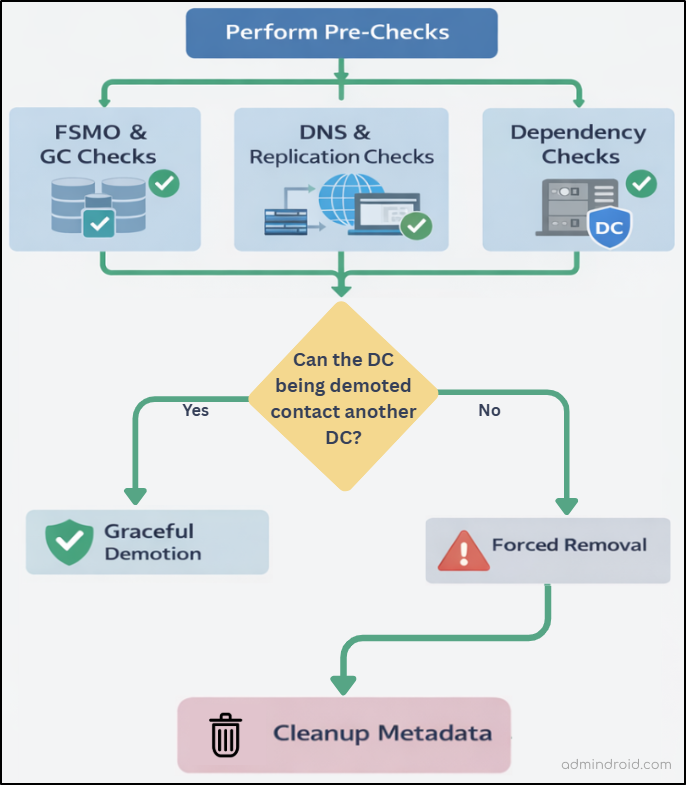
The actual demotion approach depends on the condition of the domain controller. If the server is healthy and Active Directory communication is intact, graceful demotion is the preferred method. If the server cannot complete normal checks because of directory corruption, replication failure, or connectivity issues, forced demotion becomes the recovery option.
A domain controller can be decommissioned using either PowerShell or Server Manager. The recommended process for demoting a domain controller in Active Directory is illustrated below.
| Warning: Do not use Deployment Image Servicing and Management (Dism.exe or the PowerShell DISM module) to remove the AD DS role from an active domain controller. Because, DISM has no inherent knowledge of AD DS or its configuration. |
1. Demote a Domain Controller Using Server Manager
Server Manager lets you gracefully or forcefully demote a domain controller by using the Active Directory Domain Services Configuration Wizard.
A. Gracefully Demote a Domain Controller
To safely demote a domain controller, follow the steps below. The process includes removing DC promotion, uninstalling the AD DS role, and then deciding whether to keep the server as a member server or remove it from the domain.
a. Decommission a Domain Controller in AD
- Log in to the domain controller using Domain Admin privileges.
- Open Server Manager, go to the Manage menu, and select Remove Roles and Features.
- In the Before you Begin page, click Next. Then, in the Server Selection page, choose the respective domain controller from the server pool and click Next.
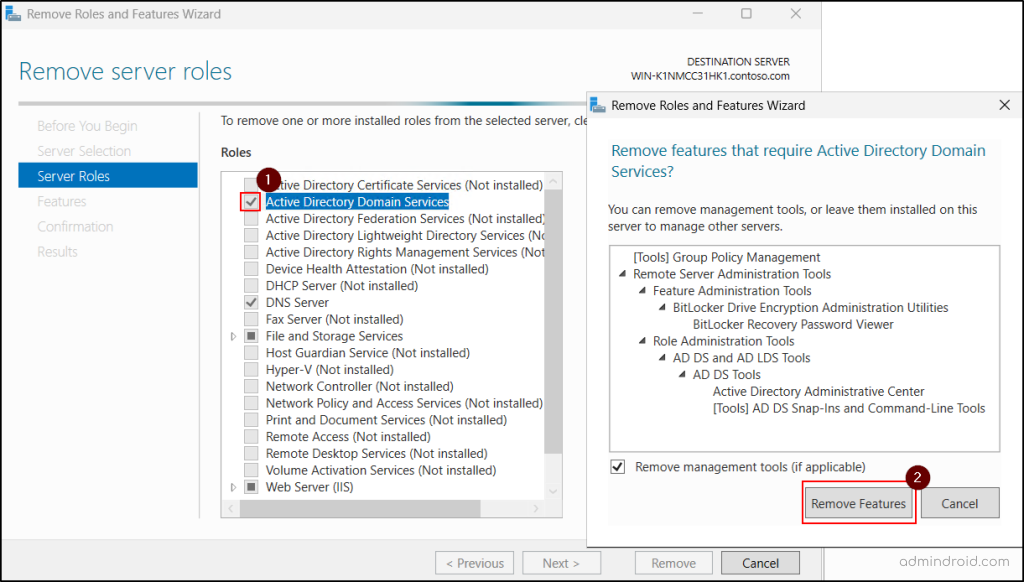
- In the Server Roles page, clear the Active Directory Domain Services checkbox. Then, click on Remove Features.
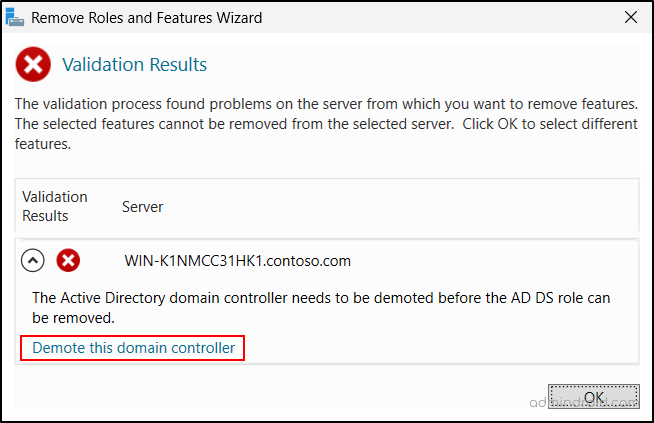
- The wizard then displays a validation warning, where you can click Demote this domain controller to continue.
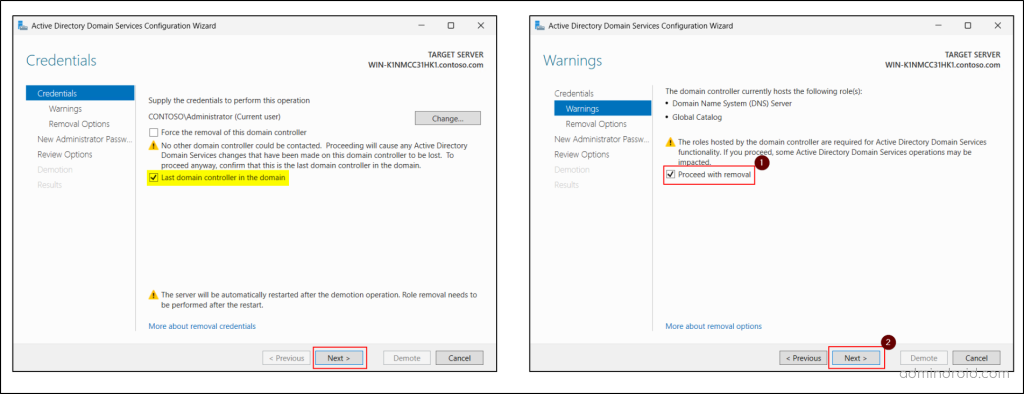
- In the DCPROMO wizard, leave the Force the removal of this domain controller option unchecked for the graceful removal of DC.
- Select Last domain controller in the domain only if this is the final DC, and you intend to remove the domain completely. (To use this option, ensure you have Enterprise Admin privilege, as Domain Admin rights alone are not sufficient.) Then, click Next.
- The Warnings page displays the possible impacts of removing the domain controller. Select Proceed with removal and click Next to continue.
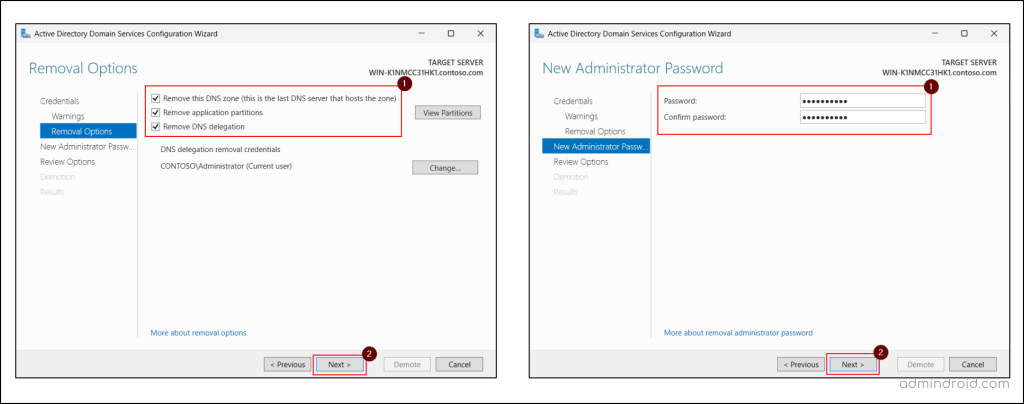
- On the Removal Options page, configure settings such as, Remove this DNS zone, Remove application partitions, and Remove DNS Delegation. These options appear only when relevant. For example, if no DNS delegation exists for the server, that option will not be shown. Then click Next.
- Provide and confirm a new password for the built-in local Administrator account to be used after the DC is demoted to a member server.
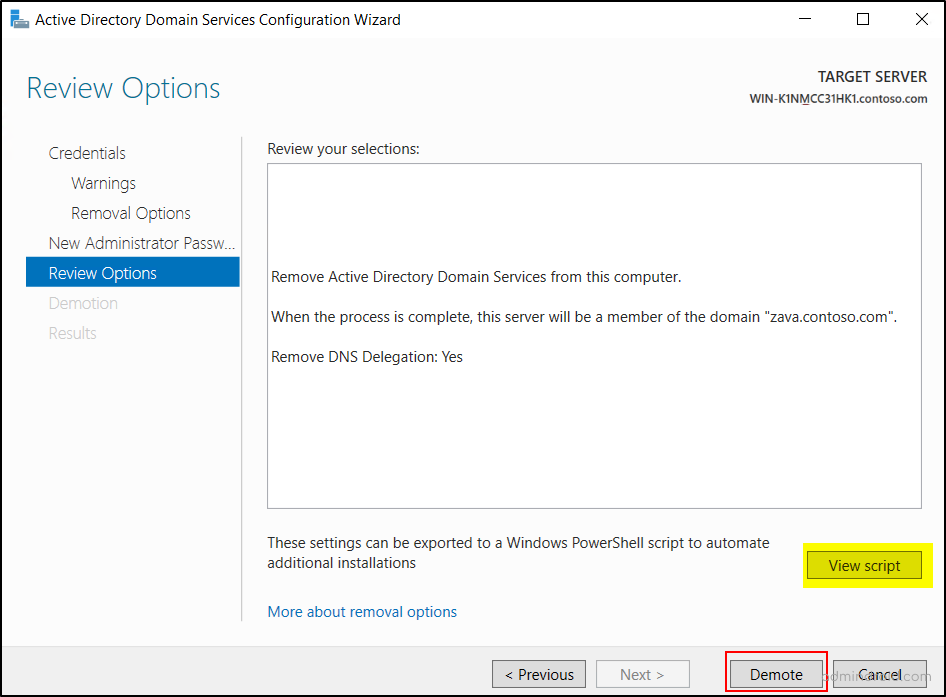
- Finally, review the settings on the Review Options page and hit Demote. There is a View Script button that generates a PowerShell script to automate all the steps we just walked through. If you have additional domain controllers to remove, you could use this script.
- You will see a message stating ‘Successfully demoted the Active Directory domain controller’ when the demotion process completes. Then, the server will restart automatically.
b. Remove the AD DS Role
Once rebooted, the domain controller becomes the member server in the Active Directory domain. Now, we need to remove the ADDS role with the steps below to complete the demotion.
- Open the Remove Roles and Features wizard from the Server Manager.
- Navigate to the Server Selection page and choose the domain controller.
- On the Server Roles page, uncheck the Active Directory Domain Services option.
- Select the Remove management tools check box to remove the management consoles (RSAT tools) along with the role removal.
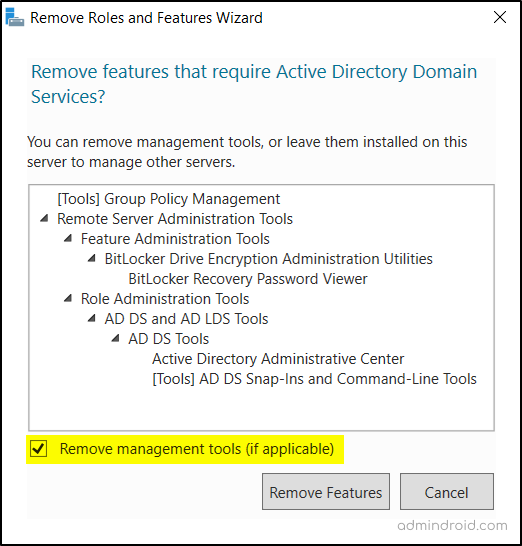
- Then, click Remove Features and choose Next.
- Select the Restart the destination server automatically if required option and click Remove.
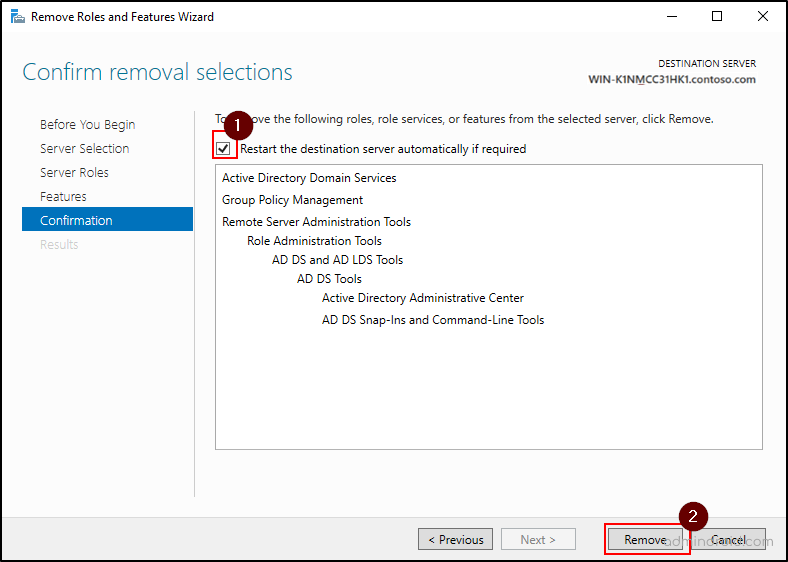
- Finally, click Close on the Results page. The server will restart again and complete the role removal.
c. Disjoin the Member Sever from the Domain (Optional)
At this stage, the domain controller has been demoted, and the Active Directory Domain Services role has been removed from the server. The machine now functions as a normal member server in a multi-DC environment.
If you want to completely remove the demoted server from the domain, you can disjoin it and move it to a workgroup. This step is optional and usually required only when the server is being retired, renamed, or repurposed outside the domain.
- Open System Properties by executing ‘sysdm.cpl’ in the Run console.
- Under the Computer Name tab, click Change.
- Select the Workgroup radio button and provide a workgroup name.
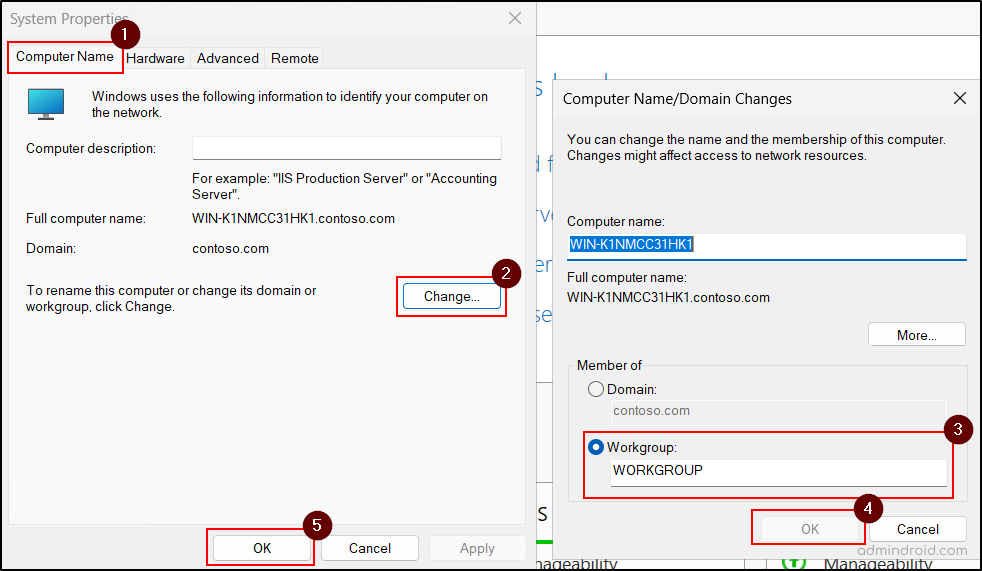
- Click OK and enter domain administrator credentials when prompted.
- Restart the server to remove it from the Active Directory domain.
B. Forcefully Demote a Domain Controller
To forcefully demote a domain controller in Active Directory, follow the steps below. Unlike a graceful demotion, this process converts the domain controller directly into a standalone server instead of a member server.
| Caution: Don’t go for this method unless the domain controller can’t contact other DCs and there’s no reasonable way to resolve that network issue. In addition, all unreplicated changes on that domain controller, such as passwords or new user accounts, are lost forever. If you choose this method and the current domain controller holds FSMO roles, you must seize those FSMO from another domain controller immediately after demotion. |
- Open Server Manager and proceed with decommissioning the domain controller until the Credentials page (Step 6), as in the graceful demotion.
- Choose the option Force the removal of this domain Controller and choose Next.
- Select Proceed with removal and click Next to continue.
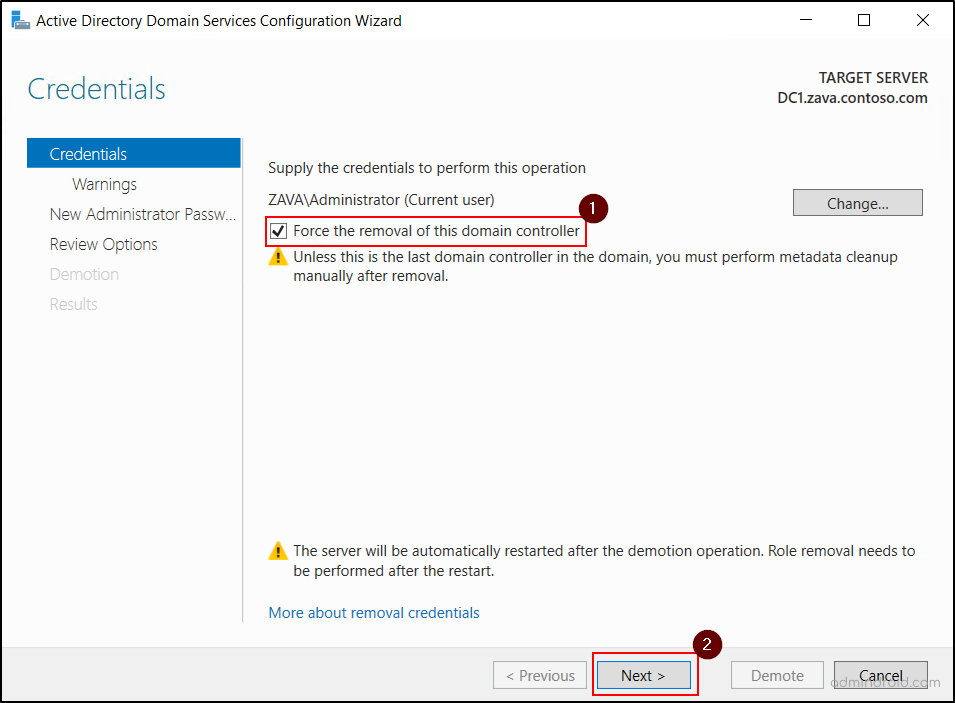
- Provide and confirm the password for the built-in local administrator account that the server will use after demotion as a standalone server and click Next.
- Click Demote to complete the process and allow the server to restart automatically. Then, remove the AD DS role from the server by navigating to Server Manager → Remove Roles and Features.
| Warning: If forced demotion was used, Active Directory still retains stale DC references until metadata cleanup is completed manually. These leftover objects may not cause immediate failure, but they can later trigger replication errors, stale DNS responses, failed DC discovery, and unexpected role conflicts. Orphaned metadata is the root cause in a significant percentage of Microsoft customer support cases for AD DS, Exchange, SQL Server, and other software. If you forcibly demote a domain controller, you must manually perform metadata cleanup immediately. |
2. Demote a Domain Controller Using PowerShell
To gracefully demote a domain controller using PowerShell, use the following cmdlet and provide a new local Administrator password when prompted.
|
1 |
Uninstall-ADDSDomainController -Force |
To forcefully demote a domain controller using PowerShell, use the following cmdlet.
|
1 |
Uninstall-ADDSDomainController –ForceRemoval -Force |
After demotion, remove the AD DS role using the cmdlet below. This will restart the machine automatically.
|
1 |
Uninstall-WindowsFeature AD-Domain-Services –IncludeManagementTools –Restart |
3. Clean Up Domain Controller Server Metadata
After a forced removal of Active Directory Domain Services, metadata cleanup is necessary. It removes stale domain controller objects from Active Directory that still identify the removed server as part of the replication topology.
This cleanup also removes the domain controller metadata used by File Replication Service (FRS) or Distributed File System (DFS) Replication connection objects. Without metadata cleanup, Active Directory may continue trying to contact a domain controller that no longer exists.
Active Directory metadata cleanup can be performed using both GUI tools and command line tools.
A. Metadata Cleanup of Domain Controller Using GUI Tools
If you are using Windows Server 2008 or later, deleting a domain controller computer account automatically performs metadata cleanup. In versions earlier than Windows Server 2008, metadata cleanup had to be performed separately.
You can use either Active Directory Users and Computers or Active Directory Sites and Services to remove domain controller object that no longer exist.
a. Delete Domain Controller Using Active Directory Users and Computers
- First, open the ADUC console and ensure that the appropriate domain is selected in the tree view.
- Go to the Domain Controllers container and choose the respective machine.
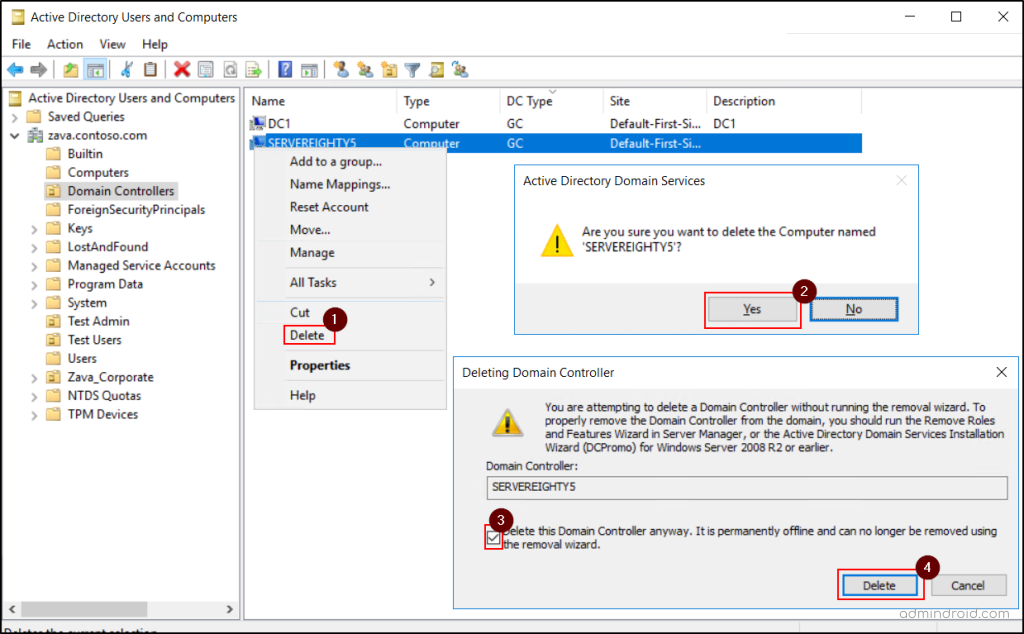
- Right-click the target domain controller, click Delete, and accept the confirmation prompt.
- Select the ‘Delete this Domain Controller anyway. It is permanently offline and can no longer be removed using the removal wizard’ option and click Delete.
- If the domain controller holds any operations master roles, click OK on the next screen to transfer them to the domain controller shown there.
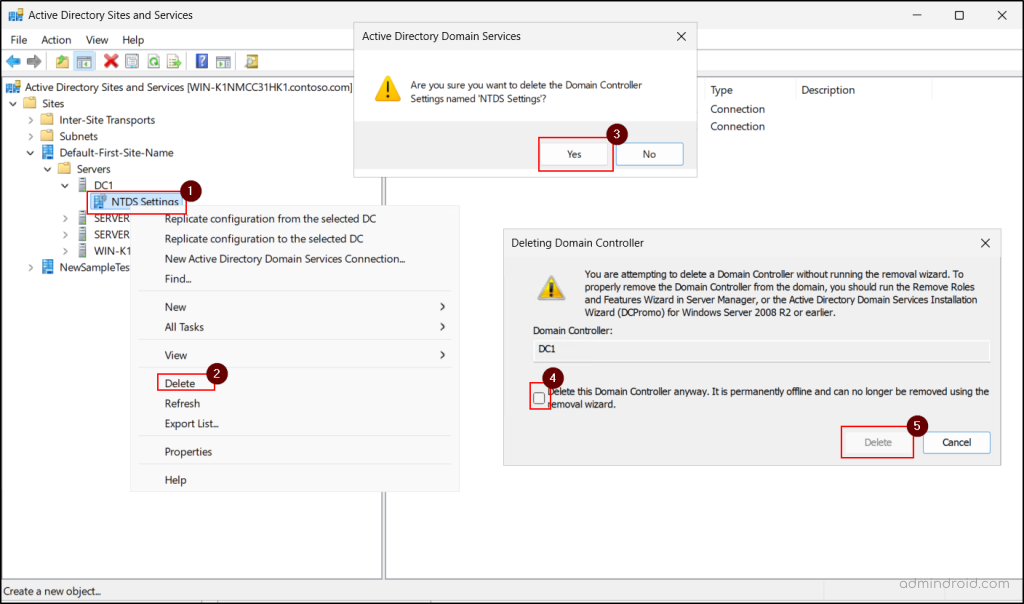
b. Delete Domain Controller Using Active Directory Sites and Services
- Launch the Active Directory Sites and Services console.
- Expand the site containing the forcibly removed domain controller.
- Expand Servers, then expand the domain controller name.
- Right-click NTDS Settings, click Delete, and accept the confirmation prompt.
- Select the ‘Delete this Domain Controller anyway. It is permanently offline and can no longer be removed using the removal wizard’ option and hit Delete for cleanup.
- If the domain controller holds any operations master roles, click OK in the next screen to transfer them to the domain controller shown there.
- Finally, right-click the removed domain controller and click Delete.
B. Metadata Cleanup for Domain Controller Using Command Line
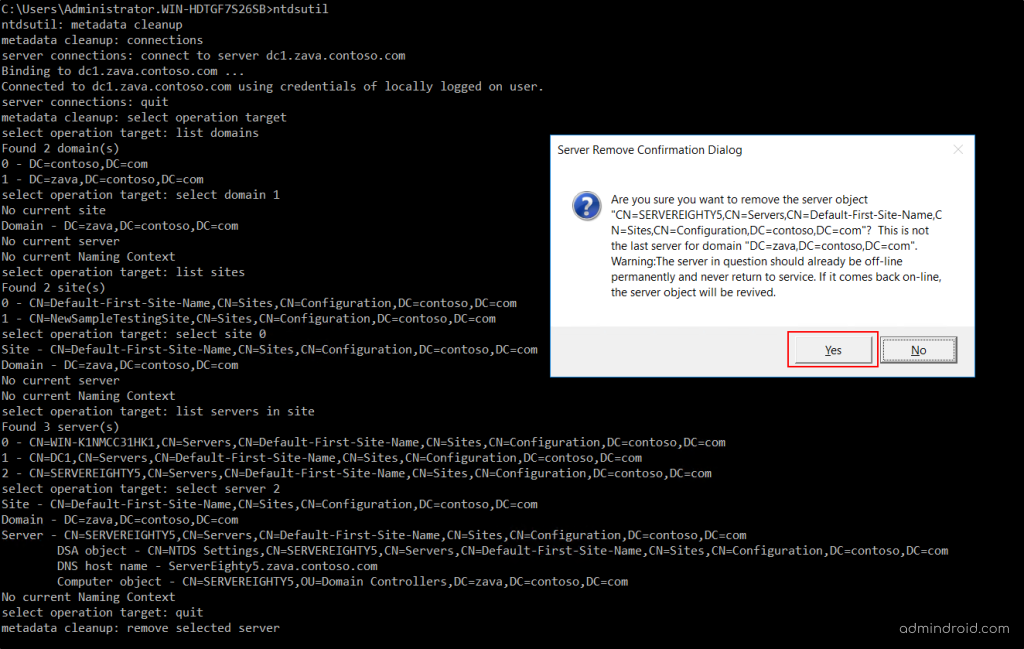
You can use the Ntdsutil.exe command-line tool to perform the meta data cleanup for the domain controllers.
- Open command prompt as an administrator and execute the following command to launch the Ntdsutil.exe.
1ntdsutil
- Start metadata cleanup context using the following command.
1metadata cleanup
- Open the connection context to specify which domain controller will initiate the cleanup.
1connections
- Connect to an active domain controller which can perform meta data cleanup usin the command below. Replace <AnyActiveDCName> with the fully qualified domain name or NetBIOS name of the domain controller.
1connect to server <AnyActiveDCName>
- Exit the connection context and return to meta data cleanup mode.
1quit
- Enter the target selection context to select the forcefully demoted domain controller.
1select operation target
- List the available domains in the Active Directory forest.
1list domains
- Select the domain where the removed domain controller belongs using the domain number.
1select domain <DomainNumber>
- List the available sites in the selected domain.
1list sites
- Select the site where the stale domain controller exists using the site number.
1select site <SiteNumber>
- List the servers in the selected site and identify the stale domain controller.
1list servers in site
- Select the stale domain controller using its server number.
1select server <ServerNumber>
- Exit the target selection context and return to metadata cleanup mode.
1quit
- Remove the stale domain controller using the following command and accept the confirmation prompt.
1remove selected server
- Exit the meta data cleanup context and close NTDS utility by entering ‘quit’ twice.
Note: Metadata cleanup is also required when a DC becomes permanently unavailable due to hardware failure, OS corruption, or any other issue that prevents normal demotion. In such cases, its objects may still remain in Active Directory.
If metadata cleanup is completed for a domain controller, that server cannot simply be brought back online as the same domain controller in the same domain.
Frequently Asked Questions About Demoting a Domain Controller
1. Which FSMO roles should be online when there is an addition or removal of a domain controller?
During domain controller demotion, the RID Master should be online because Active Directory may need to update directory objects during removal.
During domain controller promotion, the following roles are especially important:
- Schema Master – required when schema changes are involved
- Domain Naming Master – required when adding or removing domains
- RID Master -required to allocate security identifiers (RIDs) to the new domain controller
2. Why are both graceful and forced demotion available even in a single-domain-controller environment?
Even in a single-DC domain, graceful demotion is used when the server is healthy and can remove the domain cleanly. Forced demotion exists for failure scenarios where the server cannot complete normal Active Directory cleanup because of corruption, hardware failure, or directory service issues.
3. Does metadata cleanup require after graceful demotion?
Normally, no. Graceful demotion removes most domain controller objects automatically from Active Directory. This includes server objects, NTDS Settings objects, and replication references. However, in unstable environments, incomplete cleanup may still leave stale references.
4. Does forced demotion the same as deleting a domain controller object?
No. Forced demotion and deleting a domain controller object are not the same. Forced demotion removes Active Directory locally from the server but does not fully remove the server’s identity from the directory. Deleting the object removes the visible domain controller’s entry and performs metadata cleanup.
Common Errors During Domain Controller Demotion and Their Fixes
1. Error: Uninstall-ADDSDomainController: This domain controller holds operations master roles, is a global catalog server or is a DNS server.
Cause: The domain controller being force demoted still holds one or more critical Active Directory responsibilities such as Global Catalog (GC), FSMO roles, or DNS server role.
Fix: Before demotion, verify and transfer the dependencies manually:
- Transfer FSMO roles to another healthy domain controller.
- Enable Global Catalog on another domain controller.
- Ensure another DNS server is available if the current server hosts DNS.
2. Error: Uninstall-WindowsFeature: A prerequisite check for the AD-Domain-Services feature failed. The Active Directory domain controller needs to be demoted before the AD DS role can be removed.
Cause: The server is still functioning as a domain controller in Active Directory. Windows blocks direct role removal until the domain controller identity is first removed from Active Directory.
Fix: First, demote the domain controller, then remove the AD DS role.
3. Error: Uninstall-ADDSDomainController: Verification of prerequisites for Domain Controller promotion failed. You indicated that this Active Directory domain controller is not the last domain controller for the domain “<DomainName>”. However, no other domain controller for that domain can be contacted.
Cause: The error occurs when the server is not marked as the last domain controller in the domain, but no other domain controller can be contacted during the demotion process.
Fix: If the other DC is permanently unavailable and you intentionally want to proceed with demotion, use ‘IgnoreLastDCInDomainMismatch’ parameter as shown below.
|
1 |
Uninstall-ADDSDomainController -IgnoreLastDCInDomainMismatch |
4. Error: Uninstall-ADDSDomainController: Verification of prerequisites for Domain Controller promotion failed. This Active Directory domain controller appears to be the last DNS server for the following Active Directory-integrated zones.
Cause: The current domain controller hosts the last writable copy of one or more AD-integrated DNS zones, and Active Directory cannot confirm another DNS server is available to host them.
Fix: If this is the last domain controller, use the following cmdlet to override the check.
|
1 |
Uninstall-ADDSDomainController -IgnoreLastDCInDomainMismatch –IgnoreLastDNSServerForZone |
If other domain controllers exist, first move DNS responsibility to another active server, confirm zone replication, and retry demotion.
5. Error: Windows cannot delete object <DCObjectName> because: Access is denied.
Cause: The current account does not have permission to delete the domain controller object from Active Directory, or the object is protected from accidental deletion.
Fix: Ensure you have Domain Admin or Enterprise Admin privileges. Also, verify that Protect object from accidental deletion is disabled in the Object tab before retrying the deletion.
We hope this blog has helped you gain a clear understanding of how to gracefully and forcefully demote domain controllers in Active Directory. If you have any questions or feedback, feel free to share them in the comments. Stay tuned for more Active Directory insights!