By automatically selecting the strongest registered auth method, system-preferred MFA has been an admin-friendly feature that protects accounts without guesswork. However, until now, it relied on the last used method, which didn’t always align with the user’s current device.
Consider a user who starts their day using Windows Hello on a laptop. When they later switch to a mobile device, the system might still push a desktop-centric prompt suited for their previous session. This mismatch can introduce unnecessary friction and slow down the authentication process.
The latest Microsoft Entra ID update solves this with device-preferred credential logic (preview). Instead of following past usage patterns, the system now intelligently identifies the most secure and compatible method for the specific device in use. This guide explains how the logic operates and how it streamlines the authentication experience for your tenant.
What is Device-preferred Credential in System-preferred MFA?
Device-preferred credential logic is a sign-in enhancement for Microsoft Entra ID authentication process (currently in preview). This logic replaces the traditional most-recently-used (MRU) method within system-preferred MFA, fundamentally changing how the system determines which authentication method to prompt first.
Instead of defaulting to the last used method at the account level, this new logic evaluates the authentication methods available on the user’s current device at the moment of sign-in. Based on this evaluation, it intelligently selects and prompts the most secure, highest-ranked method compatible with the device over weaker legacy options.
For example, consider a user who previously signed in using the Microsoft Authenticator app but also has a passkey registered on their current device. With device-preferred credential logic, the system will prioritize and prompt for the passkey over the Authenticator app, as it identifies the passkey as the more secure, device-bound credential.
Crucially, device-preferred credential logic is scoped to users rather than specific hardware. While the device context is evaluated dynamically during sign-in, administrative control remains at the identity level. This means admins can include or exclude specific users or groups from the preview, but cannot target the policy toward specific devices or device groups.
How Device-preferred Credentials Work Across System-Preferred MFA Modes
The behavior of this new logic depends on how system-preferred MFA is configured in Microsoft Entra ID. To manage this setting, navigate to:
Microsoft Entra admin center → Entra ID → Authentication methods → Settings → System-preferred authentication.
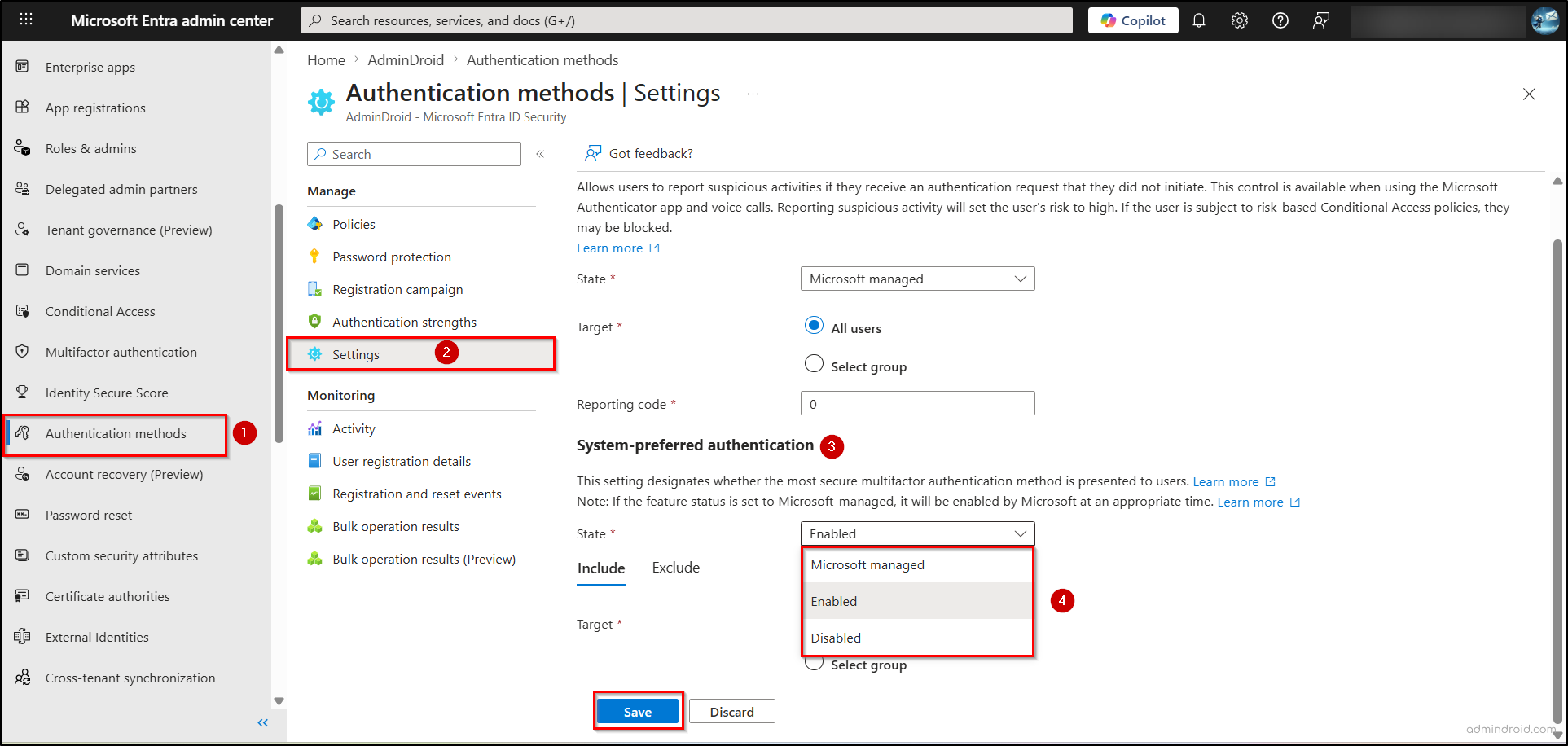
From here, you can configure the system-preferred MFA state, which determines where and how device-preferred credential logic is applied during sign-in.
- Disabled: In this state, the “system-preferred MFA” is turned off. The system reverts to most-recently-used (MRU) logic, meaning it will always prompt the user with whichever method they successfully used last, even if it’s inconvenient for their current device.
- Enabled: The new device-preferred logic is active but strictly focused on the second factor (MFA). When a scoped user reaches the MFA step, the system dynamically scans their current device to trigger the most secure and compatible secondary method available, ignoring past habits.
- Microsoft Managed: This setting defines the default authentication method shown during sign-in, with Microsoft determining the preferred order by prioritizing the most secure methods. In this mode, device-preferred credential logic follows Microsoft-managed MFA settings. It also includes a unique preview toggle, “Apply to both primary and multifactor authentication”.
- Toggle On: The system evaluates the device for the entire sign-in flow (primary and secondary authentication). It can automatically trigger the strongest method for both the initial login and the MFA step, creating a more seamless, hardware-aware experience from start to finish.
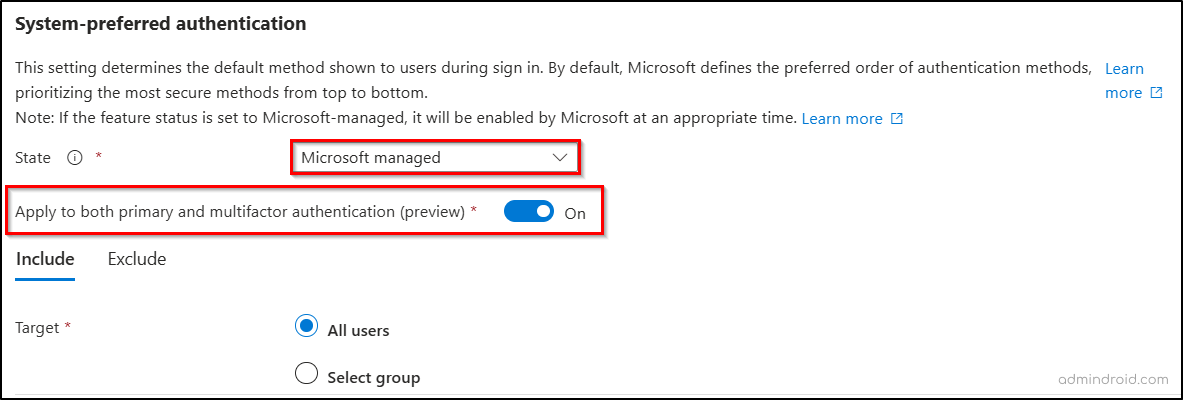
With the logic active, the system identifies the most secure method supported by the user’s current device at the moment of sign-in, automatically prioritizing the highest-ranked credential.
Key Points About Device-preferred Credential Logic
Here are some important points to understand when using device-preferred credential logic in system-preferred MFA:
- User choice remains available: While the system prompts for the most suitable credential, users can still select other allowed authentication methods via “Sign in another way”. This selection is session-specific and does not override the system’s default behavior for future logins.
- No manual priority configuration: Credential priority is entirely system-defined and managed by Microsoft, eliminating the need for admins to configure preferences per user or device. Device-preferred credential logic automatically evaluates available and supported methods at sign-in.
- Flexible rollout control: Administrators can manage rollout by including or excluding specific users and groups in both Enabled and Microsoft Managed modes.
- Policy changes may take time: Updates to policy target groups may not reflect immediately. If a user is added to or removed from a scoped group, the change might not take effect during the very next sign-in but will apply to all subsequent authentication attempts.
- Conditional Access scope: Conditional Access policies are enforced only for MFA (second factor) and do not apply to primary (first-factor) authentication when the system determines the device-preferred credential.
That’s it—by implementing device-preferred credentials, Microsoft Entra ID moves away from “habit-based” authentication and embraces real-time device intelligence. This reduces friction that often leads to MFA fatigue and sign-in delays by ensuring users are prompted with supported and relevant authentication methods. 🔐
Have any doubts or queries? Drop them in the comments below.