Think about the last time you needed to create a simple flow for a SharePoint site—just a basic notification for when a new item lands in a list. What did you do? You probably left the document library, opened Power Automate, chose a built-in workflow or started from scratch, and then spent additional time selecting the correct SharePoint site and list. 🤕
This has been the typical workflow creation experience for many SharePoint users. While this approach worked, it interrupted the user experience. Switching between multiple interfaces made even simple automation tasks feel disconnected and time-consuming.
As part of the SharePoint automation updates, Microsoft has enhanced the workflow experience in SharePoint Online. Instead of pulling you out of your working environment, automation is moving closer to the content and collaboration spaces where you already work.
In this blog, let’s take a quick look at the unified workflow experience in SharePoint Online and how it simplifies workflow management.
Unified Power Automate Flow Integration in SharePoint Online
As automation becomes a larger part of everyday Microsoft 365 operations, workflows in SharePoint Online are growing rapidly. Organizations are increasingly relying on Power Automate flows for content approvals, notifications, onboarding processes, automating administrative tasks, and more. The rise of SharePoint AI and intelligent automation capabilities is further accelerating this shift toward workflow-driven collaboration.
But until now, creating and managing those workflows often felt like stepping out of the SharePoint workspace and entering another world altogether. You stored your data in SharePoint, but you had to travel to the Power Automate portal to make that data do something.
This workflow experience tears down that wall.
By embedding workflows in Microsoft Teams and SharePoint sites, Microsoft is creating a more unified and connected automation experience.
This allows users to discover, manage, and create workflows without constantly navigating away from the SharePoint or Teams environment.
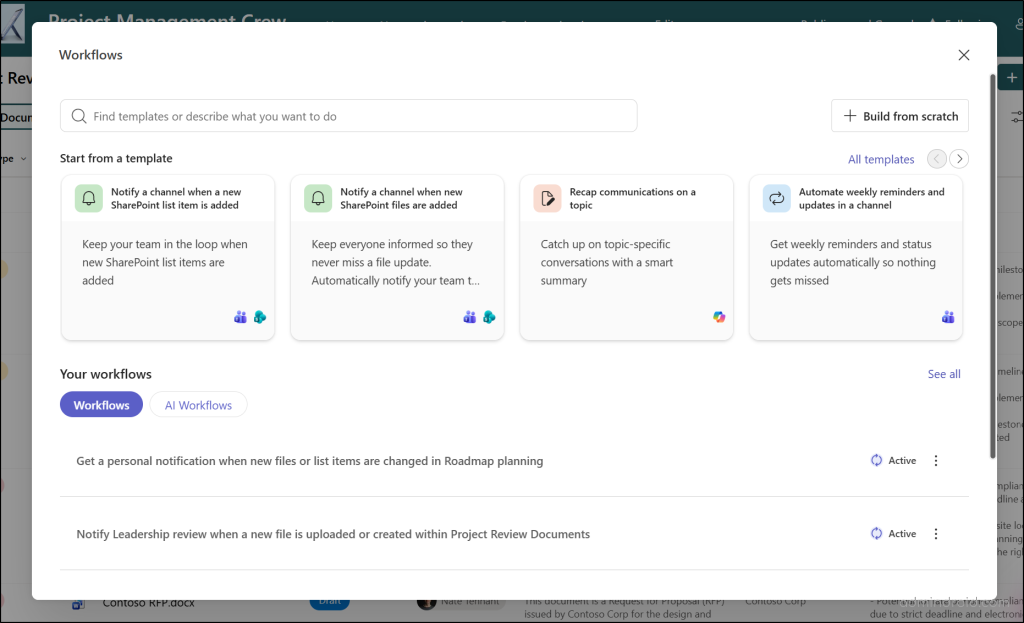
Prerequisites to Access the Workflow Experience in SharePoint Online
Accessing and interacting with the integrated workflow panel depends on your permission levels across both Microsoft SharePoint Online and Microsoft Power Automate.
- SharePoint Site Permissions: You must have appropriate access (such as Owner, Member, or Visitor) to the specific SharePoint site, list, or library where the workflows reside.
- Power Automate Flow Permissions: To view, modify, or delete an existing automation, you must be designated as the owner or co-owner of that specific cloud flow in Power Automate.
For example, imagine a user named “Amy” has “Member” permission for a SharePoint site. When she opens the site and selects the Workflow option from a SharePoint list, she can only view flows where she has been assigned as an owner or co-owner. Flows owned by other users will not be visible to her, and therefore she cannot view, manage, edit, or delete them.
How to Manage the New Workflow Experience in SharePoint Online
The workflow experience is directly available within SharePoint Online, with no additional setup or separate configuration required.
Follow the steps below to access and manage workflows through a SharePoint list or document library.
- Log in to the target SharePoint Online site.
- Select any list or document library where you want to view or manage workflows.
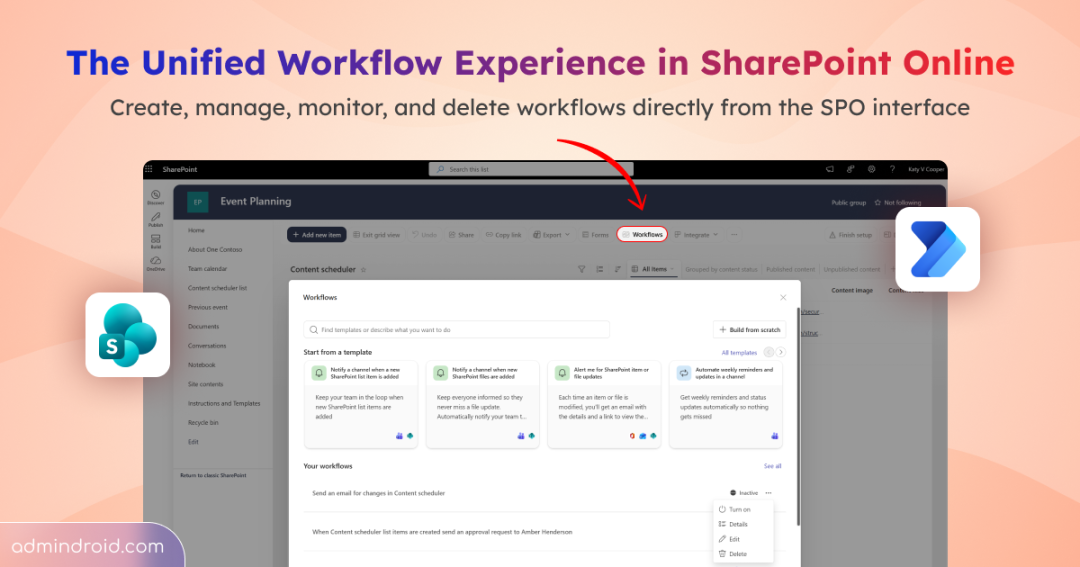
- Look at the top command bar and click Workflows.
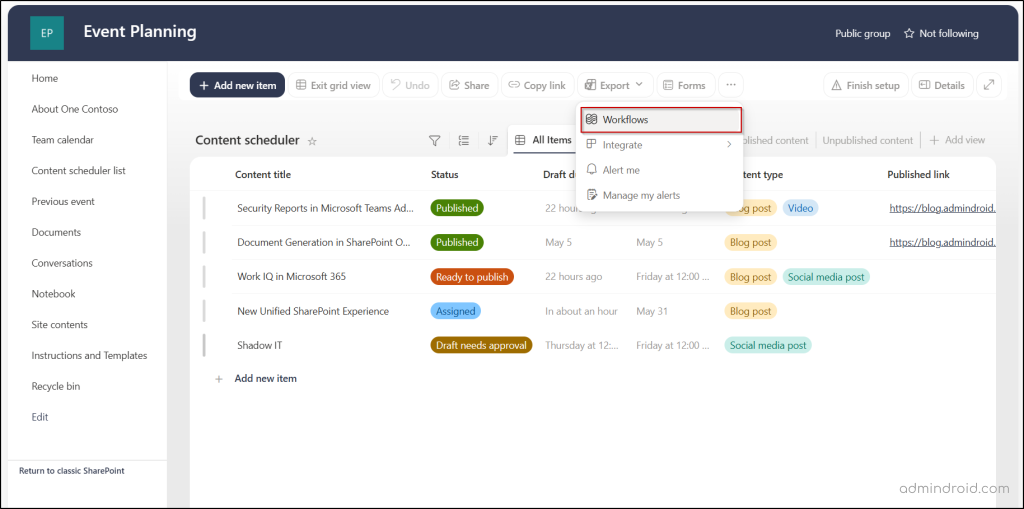
This opens the new workflow experience pop-up, where you can:
- View all built-in workflow templates
- Build workflows from scratch
- Access your workflows connected to SharePoint lists or libraries.
Here, you can also see a visual indicator showing whether a flow is Active or Inactive.
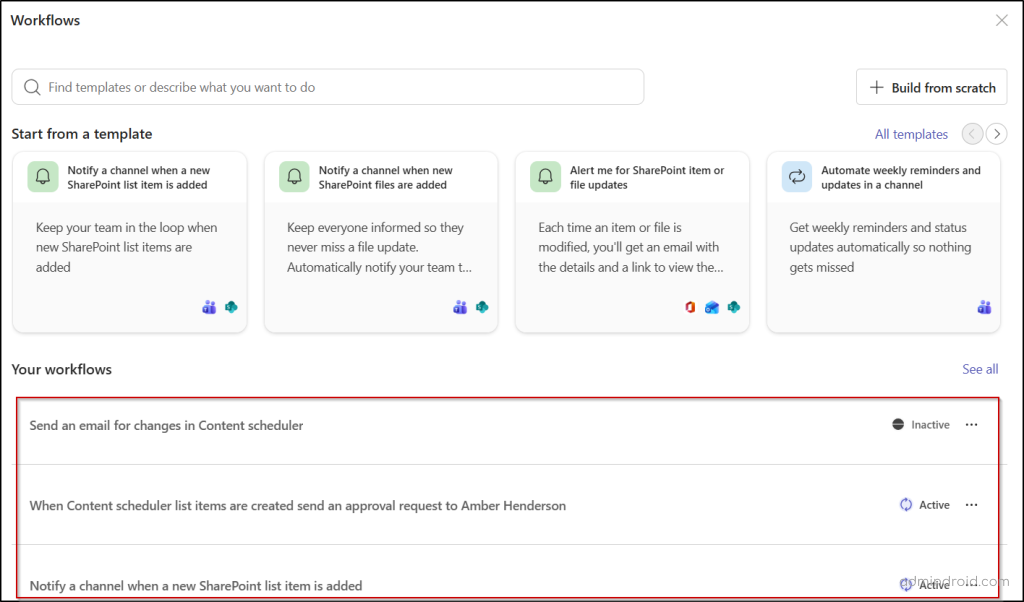
From this centralized interface, you can monitor workflow activity, manage existing automations, and create new workflows directly from SharePoint.
Manage Existing Workflows Directly from SharePoint Online
This experience also makes workflow management much more convenient. By simply clicking the ellipsis (…) beside a workflow, you can access several management options directly from the SharePoint interface.
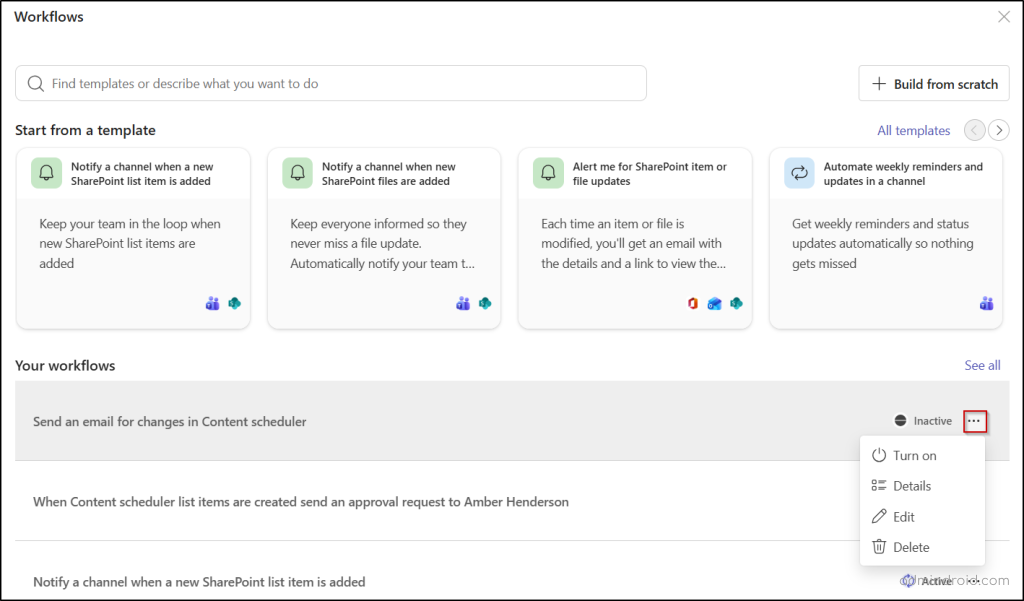
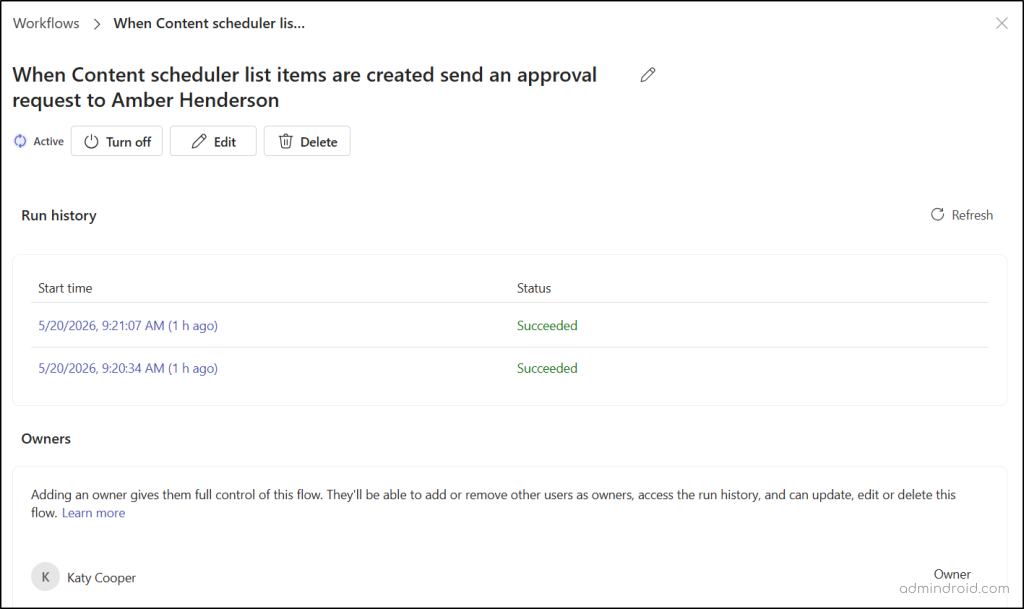
Turn On or Off: Workflows can be enabled or disabled instantly from SharePoint Online itself. This is perfect for temporarily pausing processes during maintenance, testing, or troubleshooting without deleting anything.
Details: When you click Details or select a workflow, the page opens with deeper visibility into the workflow configuration and activity. Here, you can audit the complete Run history to track successes or failures, verify flow ownership, add co-owners, or toggle flow states.
Edit: If any changes are required in the Power Automate flow, you can edit workflow triggers, actions, and automation logic directly from the integrated experience. For advanced customization scenarios, SharePoint also provides the option to open the workflow in the full Power Automate designer. This creates a smoother balance between lightweight workflow management and advanced automation customization.
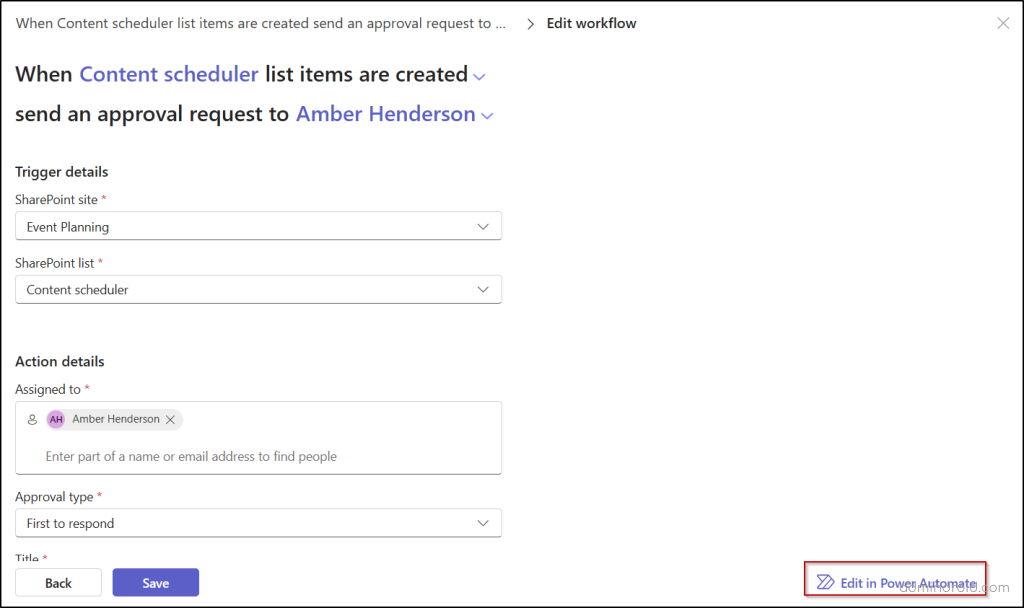
Note: Workflows created from the Power Automate portal can only be edited through the Edit in Power Automate option.
Delete: You can remove unused or outdated workflows directly from SharePoint Online to keep the automation environment clean and manageable.
Create New Power Automate Workflows in SharePoint Online
Beyond workflow visibility and management, Microsoft has also simplified how new automations are created directly from SharePoint.
Traditionally, creating new automations in Power Automate has involved a lot of repetitive setup work. You often had to manually select sites, libraries, lists, triggers, and connectors before you could even start building the actual workflow logic.
With the new integrated workflow experience, SharePoint Online now allows you to create more streamlined and context-aware workflows directly within the SharePoint interface itself. Depending on your needs, you can either start with prebuilt templates or create fully customized workflows from scratch.
Use Built-In Workflow Templates: For faster deployment, Microsoft provides 50+ ready-to-use workflow templates directly within the SharePoint experience.
These templates support common business scenarios such as:
- Sending Teams notifications when a list item is created or updated,
- Approval workflows for SharePoint list and libraries,
- Scheduled reminders,
- Creating Planner tasks, and more.
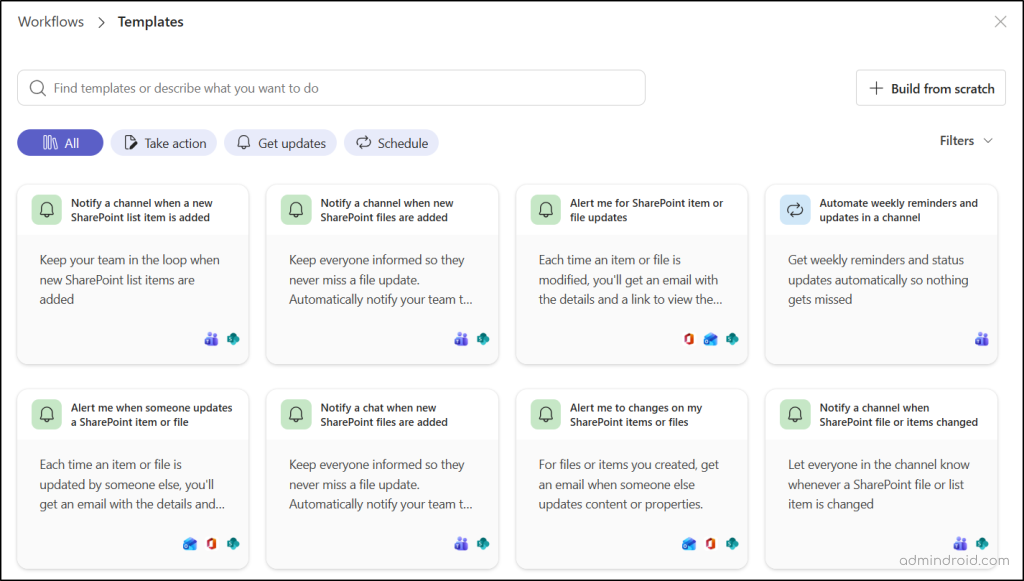
Instead of building workflows completely from scratch, you can simply select a template and quickly configure the required actions in just a few clicks. This significantly reduces the time needed to deploy common automations.
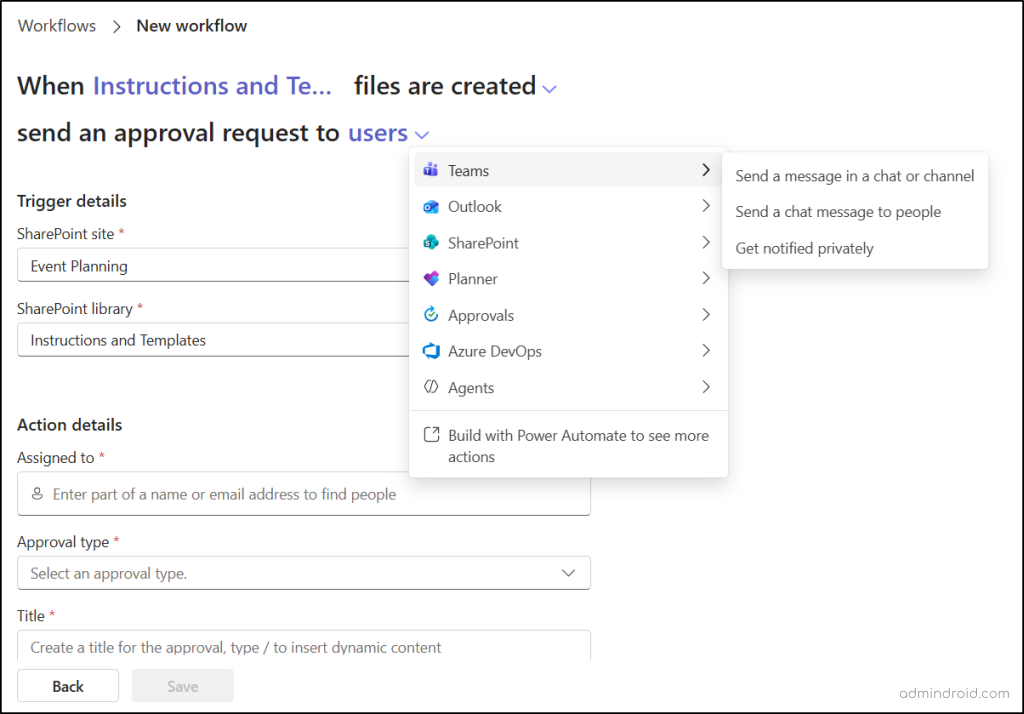
Build Workflows from Scratch: Not every automation requirement fits into a prebuilt template. For custom business processes, you can also create workflows from scratch directly within SharePoint Online. You can define trigger conditions, actions, workflow logic, approvals, and other automation steps based on business requirements.
Mad-Lib Style Automation in SharePoint Online
One of the most notable improvements in the new workflow experience is the “Mad-Lib” style automation.
BEFORE:
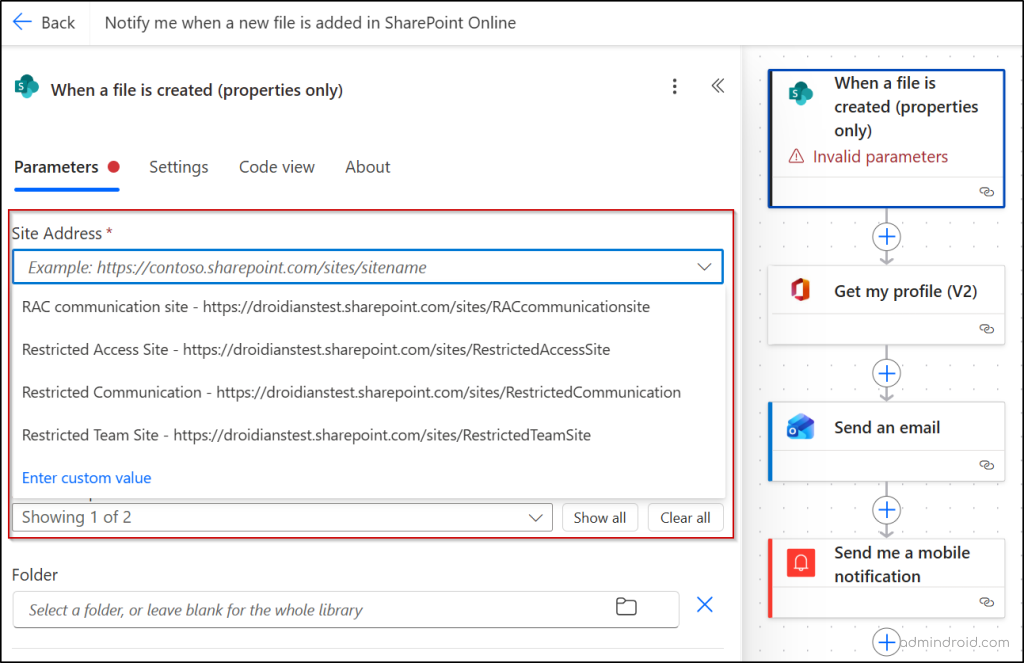
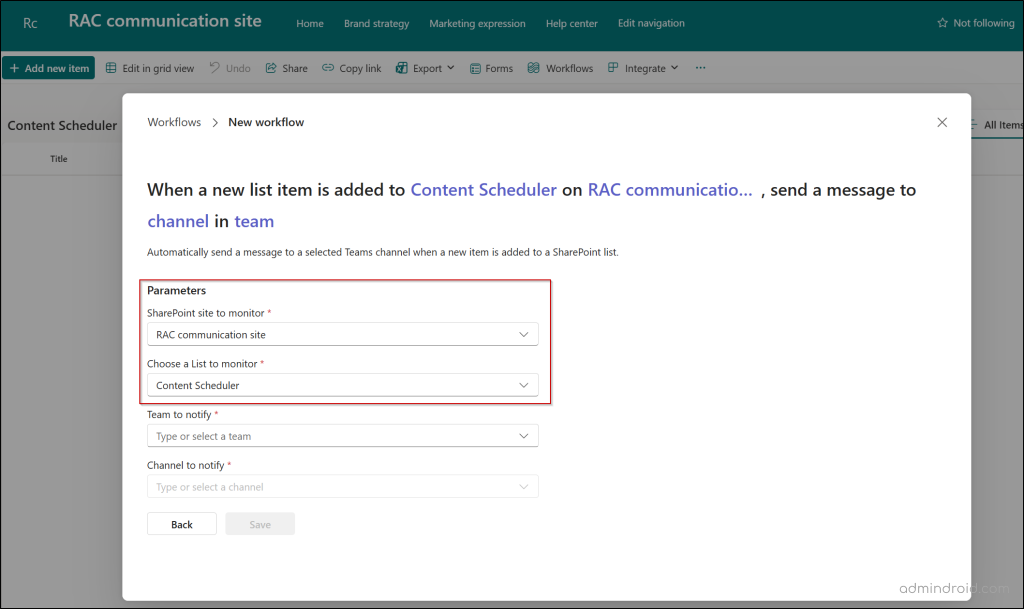
Imagine your communications team uses a SharePoint site named “RAC Communication Site” with a list called “Content Scheduler” to manage upcoming announcements and publishing activities. Whenever a new high-priority content item is added, the team wants an automatic notification sent to a Microsoft Teams channel.
Previously, you had to open Microsoft Power Automate separately, manually select the SharePoint site and the correct list, and then configure the workflow trigger.
AFTER:
With the new “Mad-Lib” style experience in Microsoft SharePoint Online, you can simply open the “Content Scheduler” list, select Workflows, and start building the automation directly from SharePoint. Since the workflow is launched from the list itself, SharePoint automatically understands the site and list context, reducing setup effort and configuration errors. As a result, it can automatically prefill details such as site URL, library name, list information, and related workflow connections.
If more advanced automation is needed later, you can still extend the workflow further using additional actions, conditions, and external connectors through the full Power Automate experience.
Workflow Automation, Now Just a Few Clicks Away
By bringing workflow management directly into SharePoint, Microsoft is making automation feel far more connected to the everyday collaboration experience. While Power Automate continues to remain the automation engine behind the scenes, this new unified experience significantly simplifies how workflows are accessed and managed within Microsoft 365. It’s faster, cleaner, and keeps your focus exactly where it belongs.
We hope this blog helped you explore the new integrated workflow experience in SharePoint Online. If you have any doubts, please share those in the comments section below.