Microsoft Teams has become one of the most widely used collaboration platforms for organizations today. With employees constantly sharing messages, links, files, and communicating across chats and channels, threats like phishing and impersonation are becoming more common.
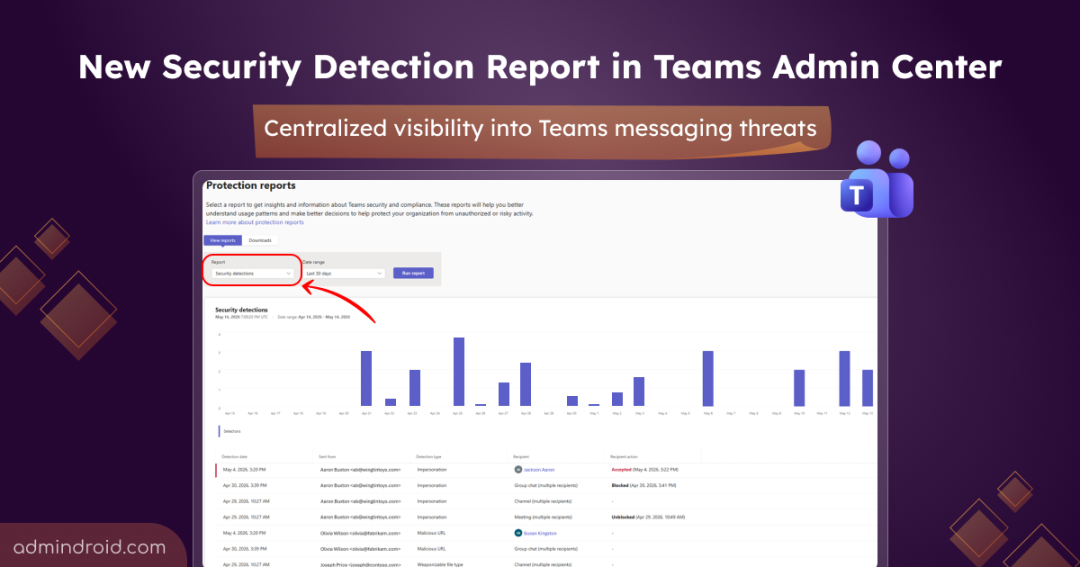
To help organizations handle these risks, Microsoft introduced Protection reports in the Teams admin center. These reports provide centralized visibility into user-reported security submissions across calls, chats, and channels. Now, Microsoft is expanding the Protection reports experience with a new Security Detection Report in the Teams admin center.
In this blog, we’ll take a quick look at what the report is, where to access it, and how it helps admins monitor messaging threats in Teams.
Security Detection Report in Teams Admin Center
The new Security Detection Report provides centralized visibility into messaging security detections across Microsoft Teams. It consolidates threat signals detected through Microsoft’s built-in messaging protection mechanisms into a single reporting experience.
The report includes detections related to:
- Impersonation attempts
- Malicious URLs
- Unsafe or weaponizable file types
Note: To ensure all detections are properly surfaced in the report, review messaging safety settings for malicious link and unsafe file scanning. Impersonation detection is automatically enabled.
This report will be generally available worldwide starting late June 2026.
How to Access the Teams Security Detection Report
To access the new security detections report in Teams admin center,
- Sign in to the Teams admin center
- Go to Analytics & reports -> Protection reports
- Select Security detections from the Report dropdown list.
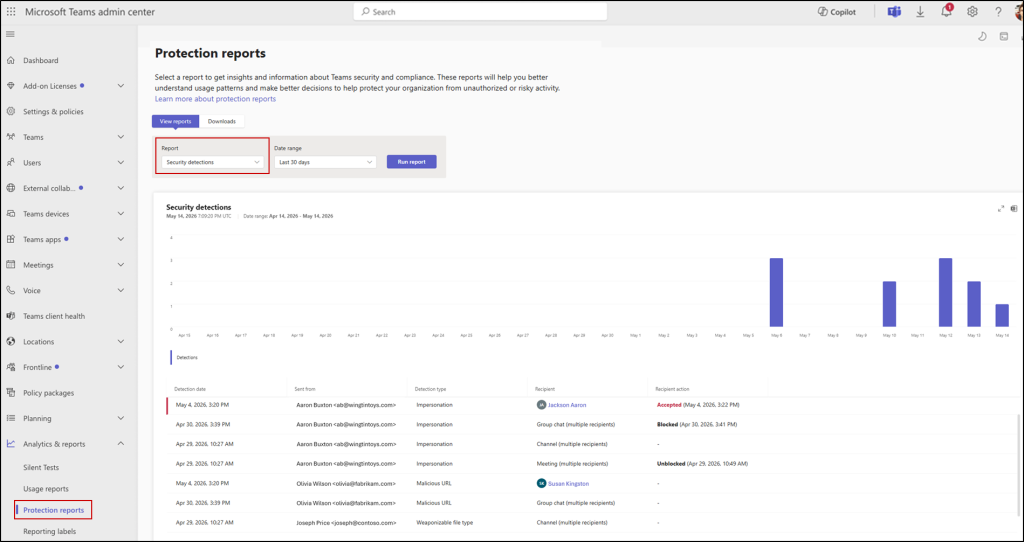
The report includes the following details:
- Detections graph – Provides a visual overview of detected threats across the selected time range to help identify security trends and activity spikes.
- Detection date – Shows when the security detection occurred.
- Sent from – Shows who sent the message or file.
- Detection type – Indicates the type of detected threat, such as impersonation attempts, malicious URLs, or weaponizable file types.
- Recipient – Displays the user, chat, channel, or meeting targeted by the activity.
- Recipient action – Shows the action taken by the recipient, such as accepted, blocked, or unblocked.
Block Malicious External Users Identified in Teams Security Detection Report
Admins can use the report to identify and block malicious external users through Teams external access settings. To configure this,
- Navigate to the Teams admin center
- Under External collaboration settings, select External access
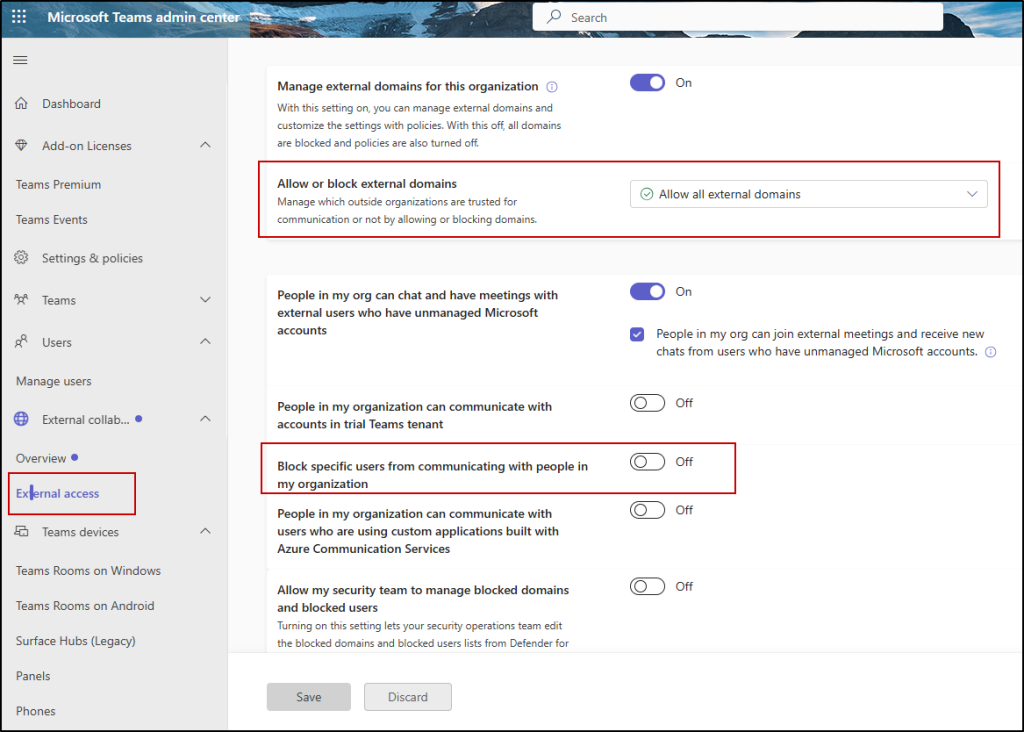
From this page, you can block malicious users based on your organization’s requirements by either restricting specific external users or by managing communication at the domain level.
Overall, the new Security Detection Report gives Teams admins a centralized way to monitor messaging-based threats and investigate suspicious activity across the organization. By bringing detections into a single report, admins can improve visibility and strengthen Teams security.
We hope this blog provided a helpful overview of the new Security Detection Report in the Teams admin center. Thanks for reading. If you have any questions or thoughts, feel free to share them in the comments section.