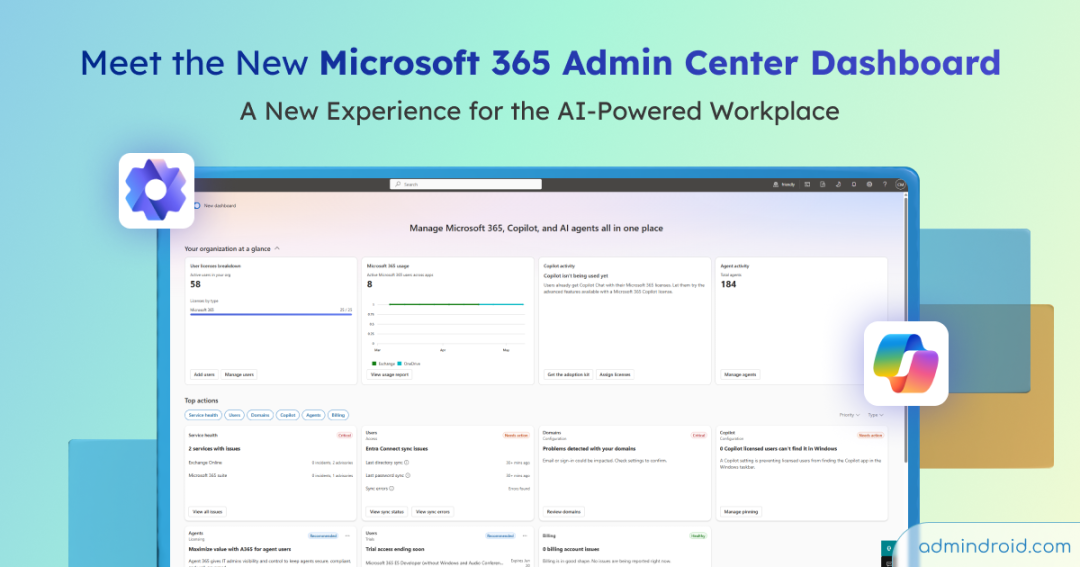
Microsoft is steadily shifting toward a truly AI-first experience, with Copilot becoming a core part of the experience rather than just an add-on feature. To support this vision, Microsoft has already introduced dedicated Copilot and Agent tabs within the admin center.
Building on this vision, Microsoft has revamped the Microsoft 365 admin center to bring Microsoft 365 services, Copilot, and AI agents into a single, centralized view. In this blog, we’ll walk through the new Microsoft 365 admin center UI experience and how it simplifies administration while enhancing the overall Copilot and AI-powered workflow.
The Microsoft 365 Admin Center Dashboard: Old vs New Experience
The earlier M365 admin center dashboard primarily focused on operational insights such as service health, user management, and recommended actions required to keep your services secure.
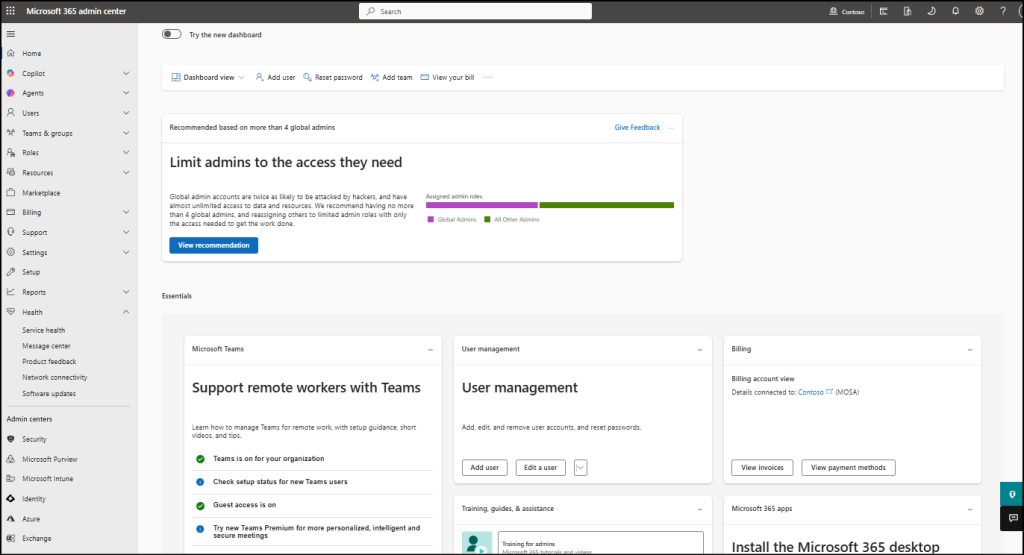
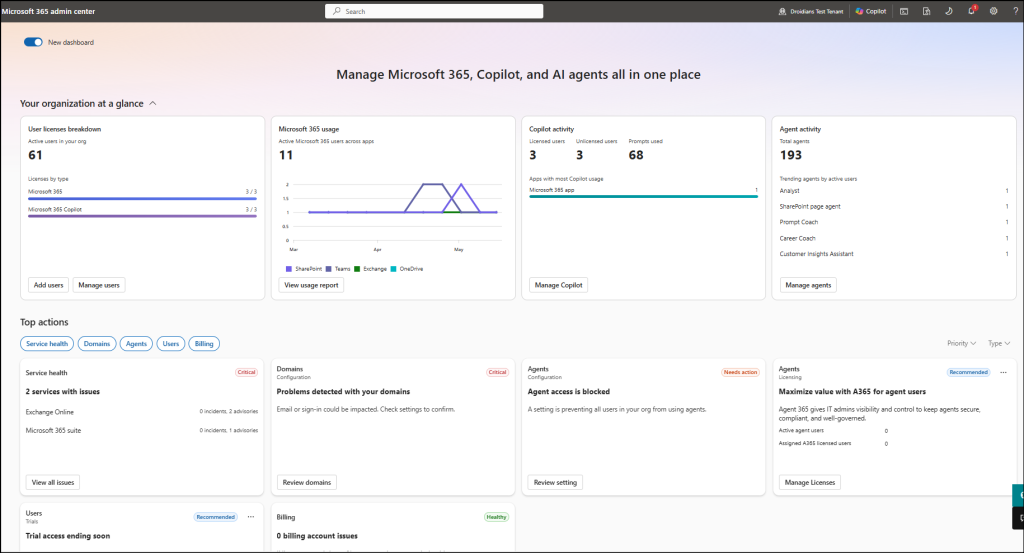
Now, to improve visibility into Copilot and AI agent usage, Microsoft has completely redesigned the dashboard experience. The new dashboard also highlights Copilot usage, the number of active users interacting with AI agents, along with service health issues, in addition to the features available in the older dashboard.
How to Enable the New Microsoft 365 Admin Center Dashboard?
Microsoft has made it easy to explore the new dashboard experience in Microsoft 365 admin center. Just toggle the Try the New dashboard option at the top of the Microsoft 365 admin center page to switch to the refreshed interface instantly.
Note: In some tenants, the M365 admin center opens in ‘Simplified view’ by default. If so, switch to ‘Dashboard view’ to access this option.
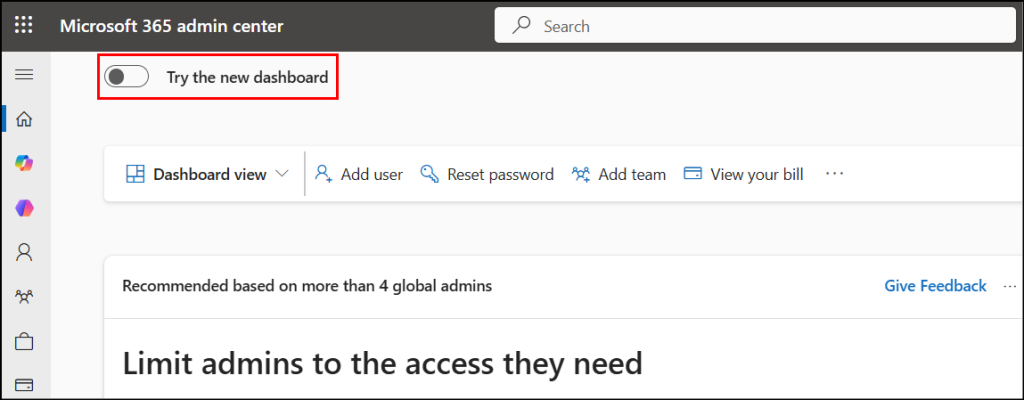
If you prefer the classic experience or if your organization does not rely heavily on AI features, you can easily switch back to the old dashboard at any time.
What’s Included in the New M365 Admin Center Dashboard Experience
The new AI-first Microsoft 365 admin center dashboard introduces a more organized layout with dedicated cards for key insights. These include Microsoft 365 service usage and health, Copilot and AI agent activity trends, and Message Center updates. Let’s break down these features in detail:
1. Microsoft 365 Services and AI Usage Overview
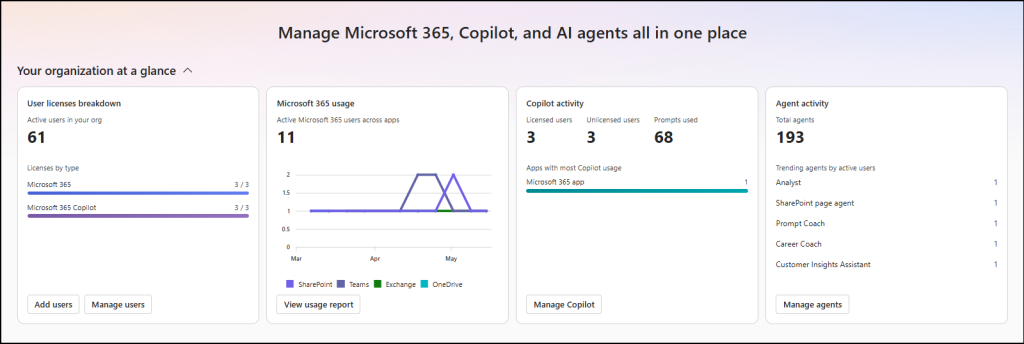
The ‘Your organization at a glance” section in the new M365 admin center dashboard provides a quick snapshot on usage of Microsoft 365 services, licenses, Copilot activity, and other AI agents.
This section includes key insights such as:
- User licenses breakdown: This section helps administrators understand the number of Microsoft 365 licenses, Copilot license, and more. It provides visibility into usage by license type, making it easier to identify all the utilized licenses. You can use the Add users option to create new users or select Manage users to navigate directly to the Active users page for user and license management.
- Microsoft 365 usage: These reports offer insights into how actively Microsoft 365 services such as SharePoint, Teams, Exchange, OneDrive, etc., are being used. It also shows the number of users actively using each service along with quick navigation button to the Microsoft 365 services usage reports. This helps track adoption trends and measure engagement across different apps and services.
- Copilot activity: This provides visibility into how Microsoft Copilot is being used across the organization. It helps admins understand Copilot adoption trends, the number of licensed/ unlicensed users accessing Copilot, total prompts used, and the number of apps utilizing Copilot features. This card also provides quick access to the Copilot adoption score, active Copilot users, recommended security actions, and more.
- Agent activity: This section helps track active AI agents being used by users within the environment. It provides visibility into agent adoption and usage trends across the organization. Click Manage agents in this section to get a list of all agents in your domain, agents at risk, agent without owner, etc.
2. Microsoft 365 Top Security Recommended Actions
The Top Actions section in the new dashboard experience, highlights important administrative recommendations, security incidents, and service-related actions that require attention. These actions are categorized based on priority levels such as Critical, Needs action, Healthy, or Recommended.
This centralized section surfaces actionable recommendations across Microsoft 365 services, domains, billing, users, AI agents, and Microsoft Copilot experiences, making it easier to monitor issues and take corrective actions directly from the dashboard.
You can further refine the displayed actions using filters based on:
- Services such as Service Health, Domains, Agents, Users, and Billing
- Priority levels including Critical, Needs action, Recommended, and Healthy
- Action types like Configuration, Licensing, and Trials.
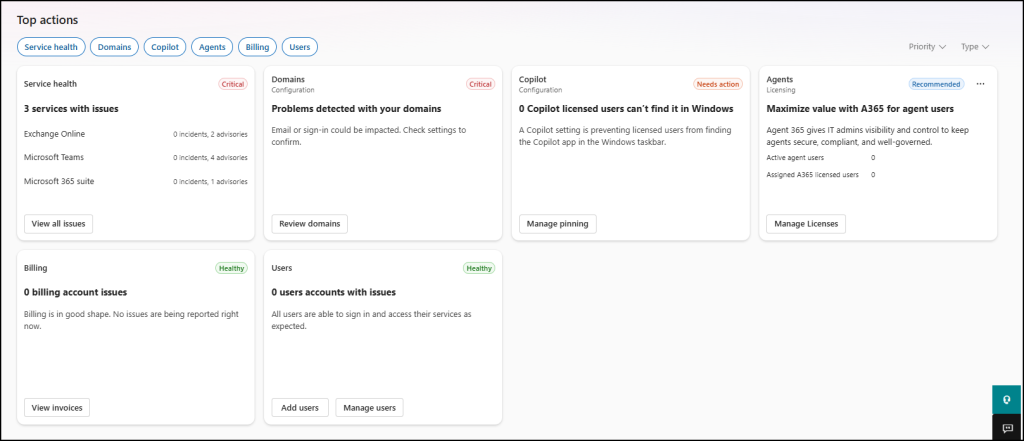
Some of the issues you may find here include:
1. Microsoft 365 Service Health
This card shows whether any MicrosofThis card shows whether any Microsoft 365 services are experiencing issues, along with the number of incidents and advisories currently reported. You can view issues across services and get additional insights by clicking View all issues, which navigates to the Service Health page.
2. Microsoft 365 Domain Management
The domain configuration card helps admins quickly identify domains with incomplete setup or configuration issues within the tenant. This ensures that domain-related problems affecting Microsoft 365 services, user access, or email functionality can be resolved efficiently. You can click the Review domains button on the card to navigate to the Domains page and complete the required configurations.
3. Copilot Configuration in Windows
This recommendation requires admins to pin the Microsoft Copilot app to the Windows taskbar on Intune-managed devices. This helps provide quicker access to Copilot features such as chat, search, and AI agents, improving the overall user experience. You can click Manage pinning to navigate to the Copilot settings page to manage this configuration.
4. AI Agent Licensing Insights
The Agent 365 card provides insights into the number of users actively using AI agents, along with the number of assigned Agent 365 licenses within the organization. To get more detailed information, click Manage licenses, and you’ll be redirected to the Subscriptions page, where you can manage all Agent 365 licenses and their assigned users.
5. Microsoft Licenses Billing Issues
This section provides a quick view of issues related to Microsoft 365 license billing. This helps identify and track any billing or subscription-related concerns efficiently.
6. User Management
This card shows active users and sign-in access status. You can quickly add new users by clicking the Add user button. Click Manage users to go to the Active users page to manage existing users and accounts.
A New Look for the Microsoft 365 Admin Center Icon
The Microsoft habit of changing icon designs seems never-ending. 😄
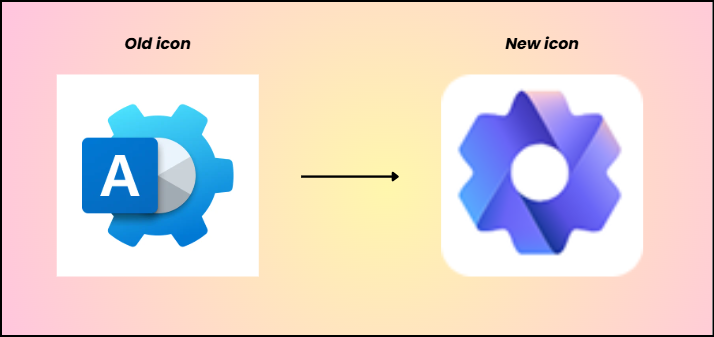
Previously, they refreshed the icons for Word, Copilot, Outlook, Excel, and more. Now, the Microsoft 365 admin center has also joined the club with a brand-new icon.
Here’s a simple look at the old and new admin center icons.
Wrapping Up
That’s it! Hope this blog helped you explore the new Microsoft 365 Admin Center dashboard experience. Let us know how much this update helped you or what you feel about it. We’d love to hear your feedback.