As content grows across teams, projects, and sites, SharePoint site storage can gradually reach its limit. Organizations often manage this growth by cleaning up unused content, adjusting versioning settings, and optimizing storage consumption. However, when these measures are insufficient to meet storage requirements, additional storage capacity may be needed.
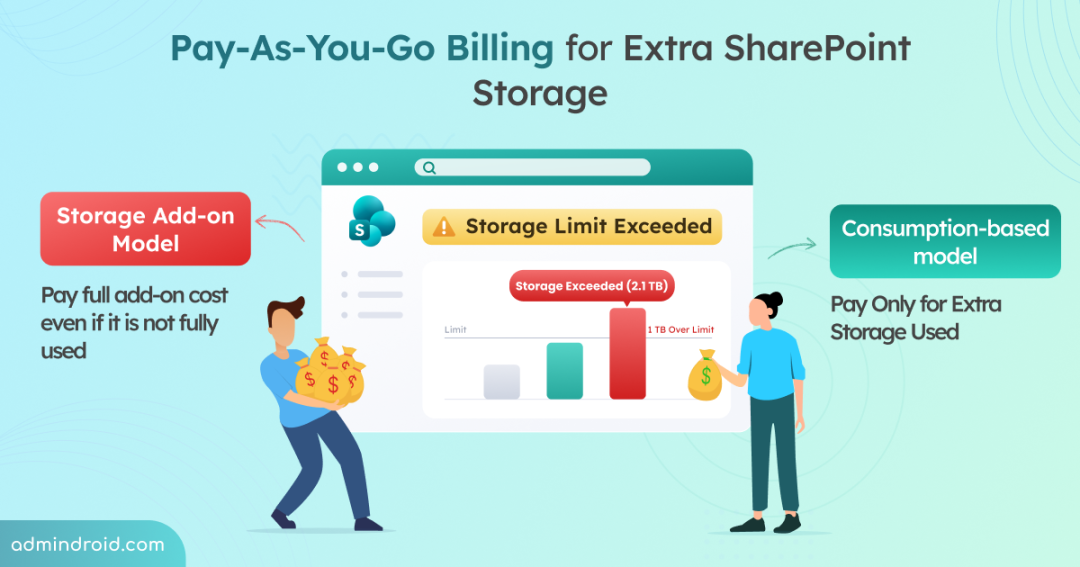
Historically, organizations relied on the Office 365 Extra File Storage add-on, which provided capacity in fixed 1 GB increments. However, this often led to organizations paying for more storage than they actually consumed.
To address this challenge, Microsoft has introduced a pay-as-you-go billing model for additional SharePoint storage, currently available in Public Preview. This opt-in feature helps eliminate over-provisioning by allowing organizations to pay only for additional SharePoint site storage consumed beyond the included quota. In this blog, we’ll explore the pay-as-you-go billing and its benefits for managing SharePoint storage costs more efficiently.
Microsoft 365 SharePoint Storage with Pay-As-You-Go Billing
Rather than purchasing storage in fixed increments, the pay-as-you-go model provides a more flexible approach to storage expansion. Organizations pay only for the storage they actually consume beyond the capacity included with their Microsoft 365 subscription.
This does not mean the traditional Office 365 Extra File Storage add-on is replaced. Organizations can continue to use it to purchase additional SharePoint storage in fixed-capacity increments.
The pay-as-you-go model offers a more flexible alternative. Rather than purchasing storage in advance, organizations can allow storage to grow as needed and pay only for the additional storage consumed beyond their included allocation.
The pay-as-you-go billing for Microsoft 365 SharePoint Storage is a consumption-based service that enables organizations to add storage to their SharePoint sites and pay only for the additional storage used. It is currently available as a Public Preview feature.
Once enabled, SharePoint continuously monitors tenant-level storage usage. Any consumption beyond the included quota is automatically recorded and billed based on actual usage. This enables organizations to scale storage up or down without pre-purchased capacity.
This feature is opt-in and must be enabled by administrators through the Microsoft 365 admin center by configuring a billing policy before usage-based billing begins.
Rollout Timeline
The rollout is expected to begin in early June 2026 and reach all eligible tenants by mid-June 2026. General availability is expected to begin in early November 2026, with completion targeted by the end of November 2026. At present, the feature is not supported for Education tenants, GCC environments, or Microsoft 365 services operated by 21Vianet in China.
Pay-As-You-Go Billing vs Office 365 Extra File Storage Add-On
Now, let’s understand the difference between traditional Office 365 Extra File Storage add-on and the new pay-as-you-go billing model (Microsoft 365 SharePoint storage) with a simple example.
Assume your organization has a SharePoint storage quota of 1 TB. Over time, your storage usage may grow, requiring an additional 200 GB of capacity (i.e., reaching 1.2 TB).
Scenario 1: Using Traditional Office 365 Extra File Storage Add-on
In the traditional SharePoint storage purchase method, admins go to Microsoft 365 admin center and purchase the Office 365 Extra File Storage add-on. From there, they select the required amount of additional storage (in gigabytes) and complete the purchase.
Under this old model, even if only 200 GB is needed, organizations may still need to purchase a 1 TB storage add-on.
| Storage Requirement | Purchased Storage | Billed For |
| 200 GB | 1 TB | Entire 1 TB |
As a result, organizations pay for the full 1 TB of additional storage, even though 800 GB remains unused.
Scenario 2: Using Pay-As-You-Go Billing (Microsoft 365 SharePoint Storage)
With Microsoft’s pay-as-you-go billing model, there is no need to purchase storage add-ons. Instead, the system automatically tracks the additional storage consumed beyond the included quota and charges only for that usage.
With this model enabled, Microsoft charges only for the storage consumed beyond the intended quota.
| Storage Requirement | Additional Storage Used | Billed For |
| 200 GB | 200 GB | Only 200 GB |
Note: For multi-geo tenants, billing is based on the overall tenant storage quota rather than individual geo quotas, which may allow storage to grow beyond a specific geo’s assigned limit. But from June 2026, billing will instead be based on each geo’s own storage usage and quota.
Now that we understand how the new pay-as-you-go billing model works, let’s look at how to add the Microsoft 365 SharePoint storage.
Prerequisites for Enabling SharePoint Pay-As-You-Go Billing
Before configuring pay-as-you-go billing, ensure your Microsoft 365 tenant meets the required prerequisites and that you have the necessary permissions.
- Billing Requirements: You must have at least one SharePoint license, or a license that includes SharePoint, assigned to your tenant.
- Azure Subscription Requirements: You must have an Azure subscription and an Azure resource group in the same tenant as Microsoft 365. If these are not available, they can be created during the billing policy setup process.
- Role Requirements:
- You must have SharePoint Administrator or Global Administrator role is required to access and configure the settings.
- You must be a Billing Account Owner or a Billing Account Contributor to create a new subscription in the Microsoft 365 admin center.
- You must also have Owner or Contributor rights on the Azure subscription and the associated resource group.
- Tenant requirements:
- For tenants using a Microsoft Customer Agreement (MCA), you must have Billing Account Owner, Billing Account Contributor, Billing Profile Owner or Billing Profile Contributor to manage billing resources and subscriptions.
- For tenants using a Microsoft Online Subscription Agreement (MOSA), Billing Administrator privileges are required.
If you’re unsure which billing account type your organization uses, review your billing account details in the Microsoft 365 admin center before proceeding.
How to Set Up Pay-as-you-go Billing for Extra Microsoft 365 SharePoint Storage
Once the necessary billing permissions are in place, you can add pay-as-you-go billing for SharePoint storage in your tenant through the Microsoft 365 admin center.
- The first step is to set up pay-as-you-go billing in the Microsoft 365 admin center. For a detailed walkthrough, refer to this doc to set up pay-as-you-go billing in Microsoft 365 admin center.
- You can apply this policy to all users in the tenant.
- After creating the billing policy in the tenant, you must connect Microsoft 365 SharePoint Storage to a billing policy. In the Review and create billing policy step, select the Microsoft 365 SharePoint Storage service and set the connection status toggle to Connected.
- Once connected, the tenant becomes eligible for SharePoint Online pay-as-you-go billing, and any additional storage consumed beyond the included allocation is charged to the associated Azure subscription.
- If a billing policy already exists, you can also link SharePoint storage to that existing policy.
This ensures that SharePoint storage can scale beyond the included quota while billing is applied only to the additional usage.
For example, if a user has 1 TB of SharePoint storage and the limit is increased to 3 TB, they can use up to 3 TB. But they are only charged for what they use beyond the first 1 TB. So, if they use 1.5 TB, they are billed only for the extra 0.5 TB.
After enrollment, any SharePoint storage consumed beyond the tenant’s included quota is automatically billed based on actual usage. Since usage is treated as within the configured limit, storage quota warning notifications may no longer appear while the pay-as-you-go model is active.
Note: If you no longer require pay-as-you-go billing for SharePoint storage, you can disconnect the Microsoft 365 SharePoint Storage service from the billing policy later.
While pay-as-you-go billing offers more flexibility, it is still important to monitor SharePoint storage usage regularly to avoid unexpected costs. Tracking usage trends can also help estimate future storage needs.
Ultimately, It’s All Up To You
SharePoint’s new pay-as-you-go billing model provides a more flexible way to manage storage growth. Depending on your organization’s storage needs, it may help reduce costs by charging only for the additional quota you use and optimizing SharePoint storage usage. However, the best option ultimately depends on your storage consumption patterns, budget, and business requirements.
If you have any questions or thoughts about SharePoint’s new consumption-based billing model, feel free to share them in the comments. Stay tuned for more Microsoft 365 updates and insights.