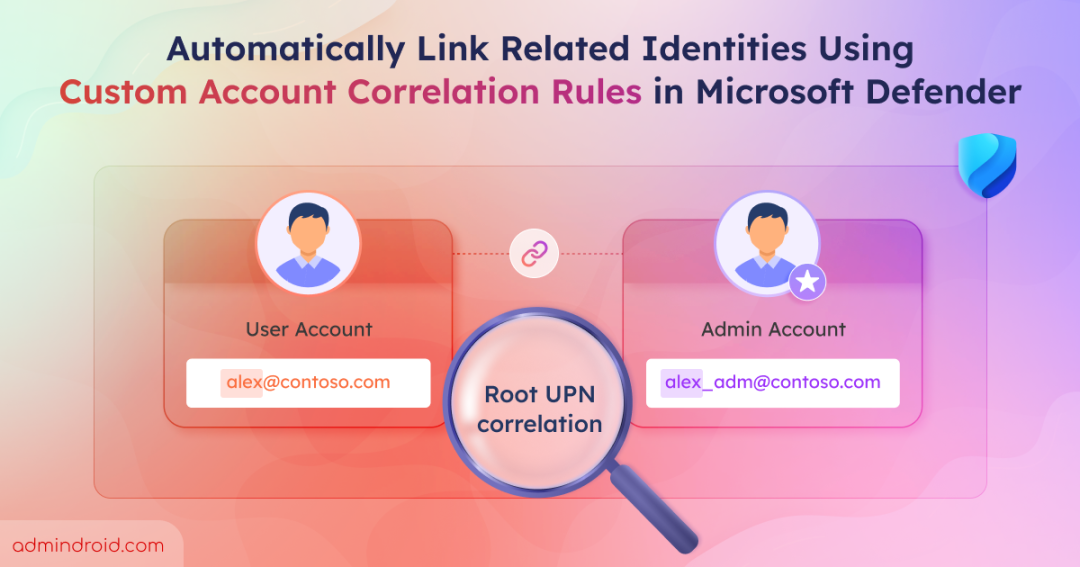
A single user often holds multiple accounts in Microsoft 365, such as one for daily work and another for admin tasks. While this supports various operational workflows, it can also introduce visibility gaps for security analysts during an incident investigation.
The real danger surfaces when these split accounts lack strong common identifiers. A user clicks a phishing link from their primary account. Minutes later, their secondary account triggers an anomalous login alert. Without linking these identities, Microsoft Defender treats them as two separate incidents, potentially hiding the full extent of the attack.
That is exactly where custom account correlation rules, a new preview feature in Microsoft Defender, come in to bridge the gap. Without delay, let’s dive into what account correlation is, why your security team needs this feature, and how to configure it!
What is Account Correlation in Microsoft 365 and Why Do You Need It?
When a user has multiple accounts across your environment, their activity becomes fragmented. In a typical Microsoft 365 environment, this means John might use john@contoso.com for everyday activities such as email and collaboration, while using john_adm@contoso.com for privileged administrative tasks.
At its core, account correlation is the process of identifying these related identities and mapping multiple accounts back to the single person who owns them. Common examples include:
- Cross-platform identities spanning Active Directory, Entra ID, Okta, and Ping.
- Legacy or secondary accounts tied to a user.
- Personal and service accounts managed by the same individual.
- Accounts used across different business units or domains.
When an attack hits, threat actors actively exploit the blind spots between these disconnected profiles. This highlights the need for account correlation in Defender. It provides a unified view of multiple user accounts to uncover hidden behaviors. This allows analysts to map out the full attack path and correlate alerts under a single identity for faster investigations.
Ultimately, this allows security teams to accelerate incident response and empowers admins to take remediation actions on all correlated identities simultaneously.
Different Ways to Correlate Accounts in Microsoft Defender
To bridge the gaps between scattered profiles, Microsoft Defender for Identity offers 3 different methods to link user accounts. Understanding how these types work and where they fall short is essential for strengthening identity protection.
- Automatic correlation in Defender for Identity
- Manual account correlation in Microsoft Defender
- Rule-based account correlation in Microsoft Defender (New)
1. Automatic Correlation in Defender for Identity
By default, Microsoft Defender automatically correlates accounts that share strong identifiers such as account ID, security identifier (SID), object ID, or UPN. When accounts use these common identifiers, Defender can seamlessly recognize them as related identities without requiring manual configuration.
2. Manual Account Correlation in Microsoft Defender
In some cases, admins know that two accounts belong to the same user, but Defender can’t link them automatically because they use different identifiers. In such situations, admins can manually link related identities through the Defender portal.
To manually link related accounts, follow the steps below:
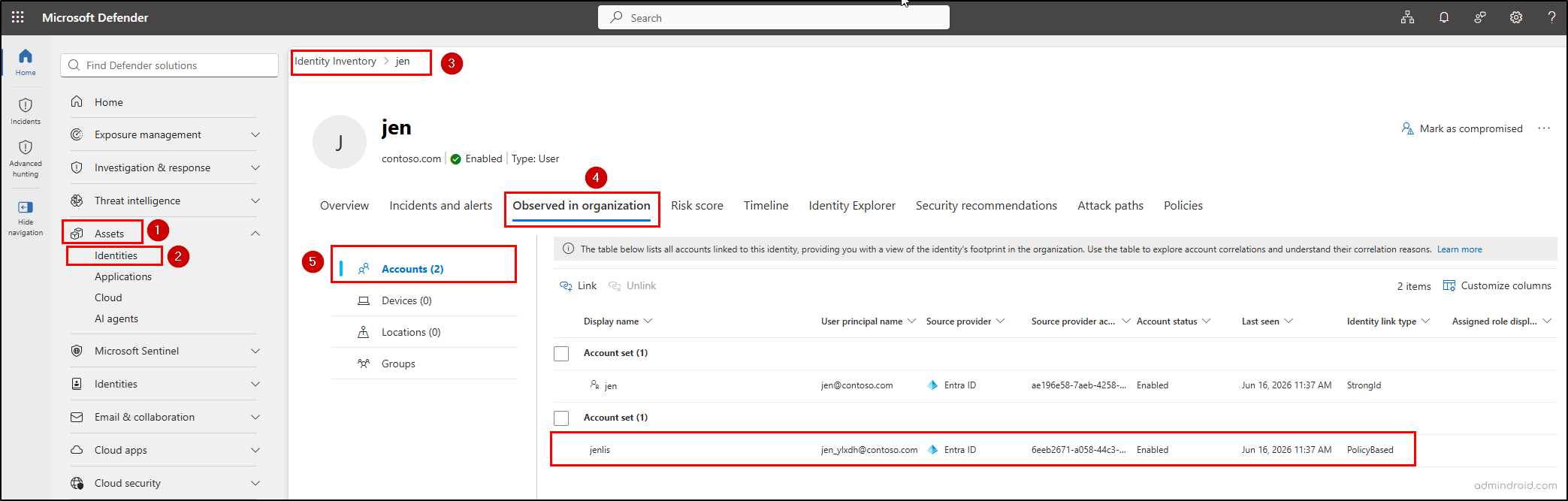
- In the Microsoft Defender portal, go to Assets ➔ Identities.
- Select a user identity from the inventory list and navigate to the Observed in organization tab.
- Under the Accounts section, click Link. Then search and select the related identity before clicking Next.
- Enter a justification comment, then click Next. Finally, review the related identity details and hit Submit.
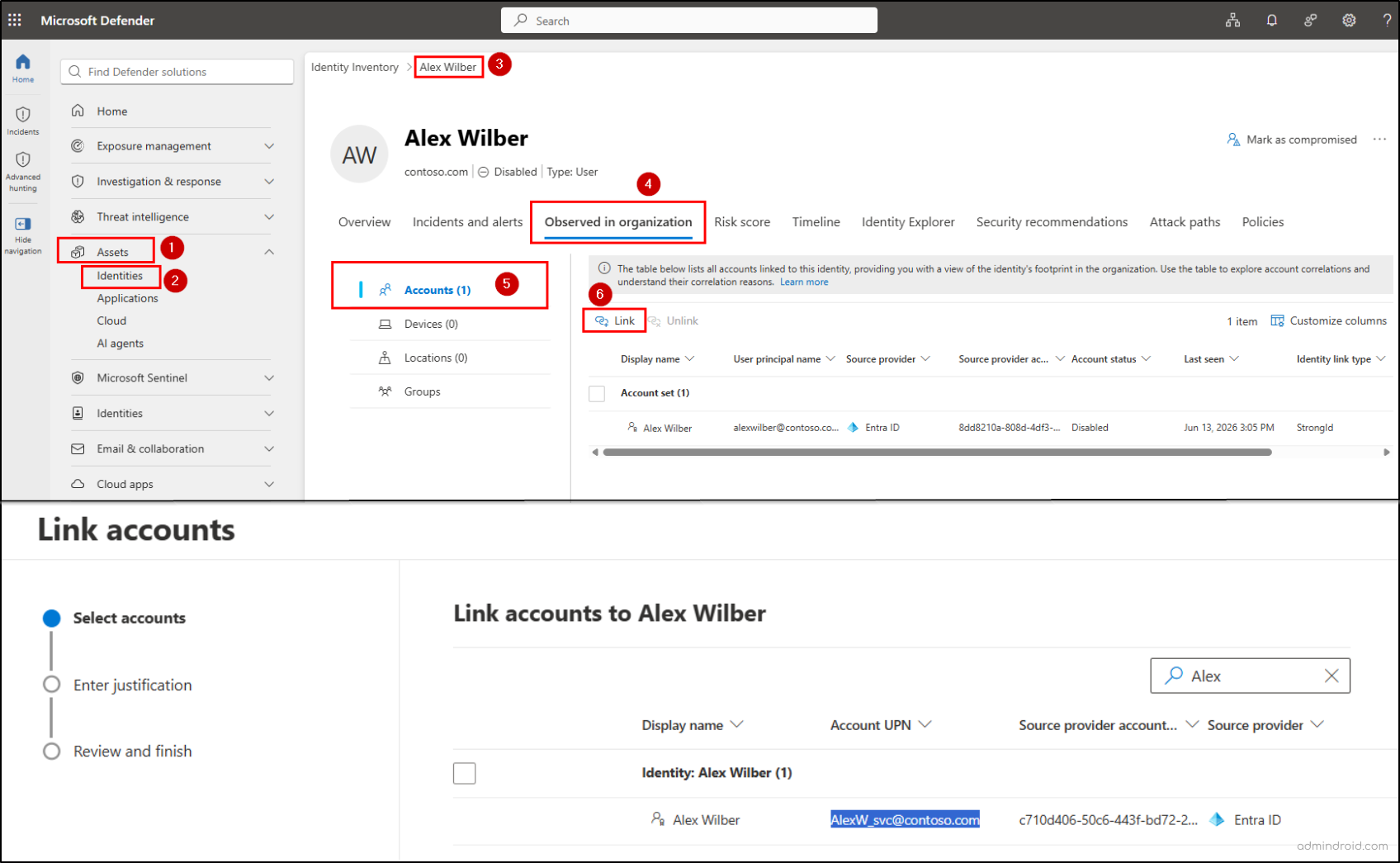
Manual account linking associates related accounts with a single identity profile in Microsoft Defender. While manual account linking might work for small teams, it comes with severe disadvantages for growing organizations, such as:
- High operational overhead: Manually linking accounts for hundreds or thousands of employees is incredibly time-consuming and tedious.
- Prone to human error: Missed accounts or incorrect mappings can leave related identities unlinked, creating a security blind spot.
- Lacks scalability: Each new account or role change adds to the manual effort of linking and unlinking identities.
To eliminate these limitations and automate identity mapping at scale, Microsoft recently introduced a third approach—the latest capability: rule-based account correlation. Without further delay, let’s dive into the details of custom account correlation rules.
What Are Custom Account Correlation Rules in Microsoft Defender?
Custom account correlation rules in Microsoft Defender for Identity automatically link related identities that don’t share strong identifiers using custom pattern-matching rules. Once configured, Defender evaluates accounts across on-premises Active Directory, Microsoft Entra ID, and connected third-party identity providers, then correlates matching accounts into a single Identity Profile based on your defined rules.
This reduces manual mapping efforts and improves identity visibility by providing a unified view of each user’s accounts.
Custom Account Correlation Types in Microsoft Defender
Microsoft Defender for Identity provides three custom account correlation types to help you automatically link related accounts based on your organization’s naming conventions.
- Root UPN Prefix: This correlation type matches accounts based on the root username before the @ symbol. It is useful when organizations apply consistent prefixes to their administrative or service accounts.
- Example: Correlates alex@contoso.com and pa_alex@contoso.com, where the ‘pa_’ prefix identifies a privileged account associated with the same user.
- Root UPN Suffix: With this correlation type, Defender identifies accounts that share the same root username but include a consistent suffix pattern. It is commonly used for service, elevated, or functional accounts associated with the same user.
- Example: Links alex@contoso.com and alex_legacy@contoso.com when the ‘_legacy’ suffix is defined as a matching pattern in the account correlation rule.
- Domain UPN: This correlation type links accounts that have the same username across different domains. It is highly effective for large enterprises managing multi-tenant setups or hybrid business units.
- Example: Relates alex@emea.contoso.com and alex@global.contoso.com, where the same user has accounts across regional and global domains.
When configured, custom account correlation rules help ensure that related accounts are consistently associated with the same identity, improving investigation accuracy and identity visibility.
Prerequisites to Create Account Correlation Rules in Defender for Identity
Before setting up automated correlation rules, ensure your environment meets the following licensing and role configuration requirements:
License Requirements:
- Active Defender for Identity Subscription: An active license for Microsoft Defender for Identity (MDI), or an enterprise plan that includes it (such as Microsoft 365 E5), is required. Otherwise, the Account Correlation configuration page is available only in read-only mode, preventing rule creation or modifications.
Role & Permission Requirements:
Access to view or manage these rules depends on your assigned roles within either Microsoft Entra ID or Microsoft Defender.
| Capability | Entra ID Roles | Microsoft Defender Roles |
| View Account Correlation Rules | Security Reader Security Operator Security Admin | Security Operations Security Data Alerts (manage) permission |
| Manage Correlation Rules | Security Admin | Security Operations Security Data Alerts (manage) permission |
How to Create Custom Account Correlation Rules in Microsoft Defender?
Follow the steps below to set up automated correlation logic based on your company’s identity naming conventions:
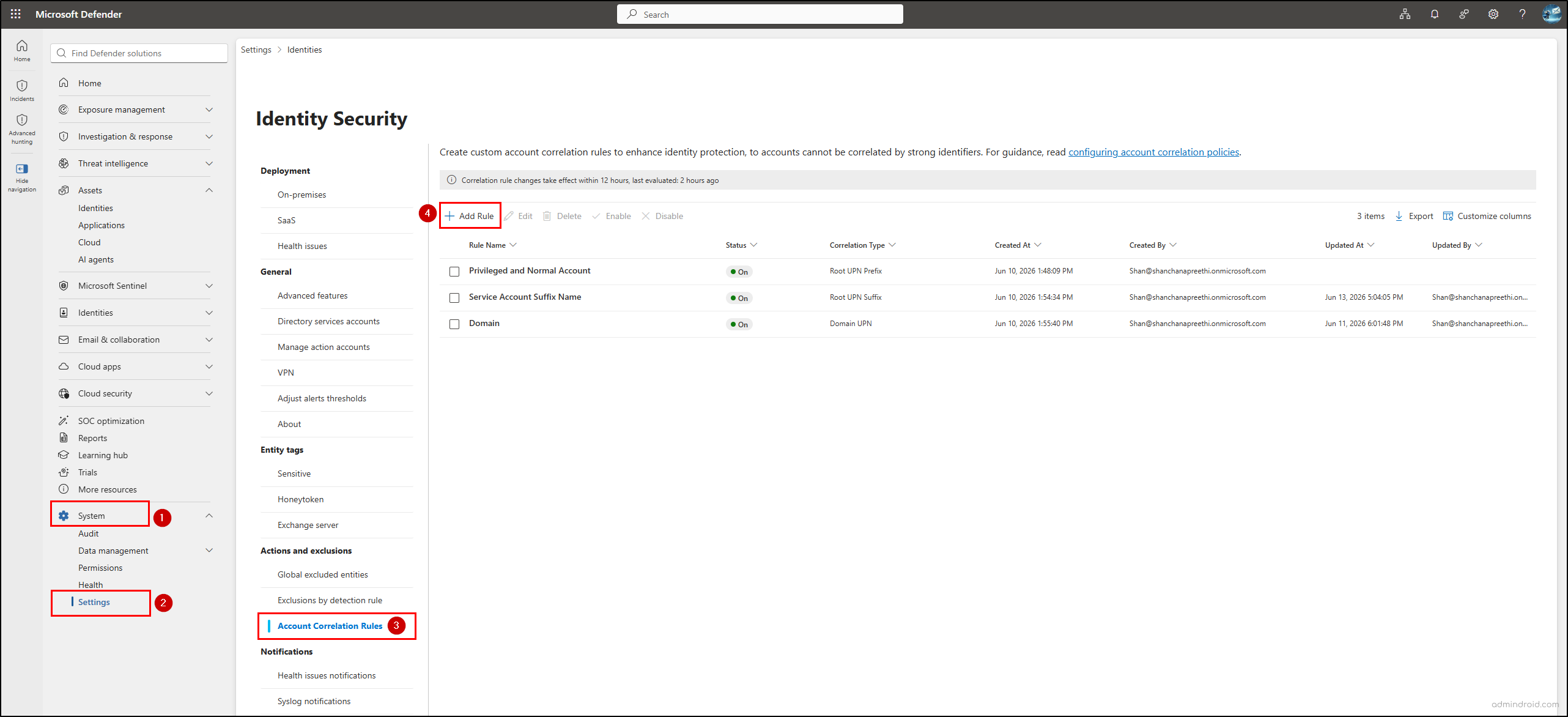
- In the Microsoft Defender portal, navigate to System ➔ Settings ➔ Identities ➔ Actions and exclusions ➔ Account Correlation Rules.
- Click Add Rule, enter a distinct name for your rule (up to 50 characters), and click Next.
- Choose your preferred evaluation logic from the available correlation types (Root UPN prefix, Root UPN suffix, or Domain UPN), input the matching criteria values for your environment, and click Next.
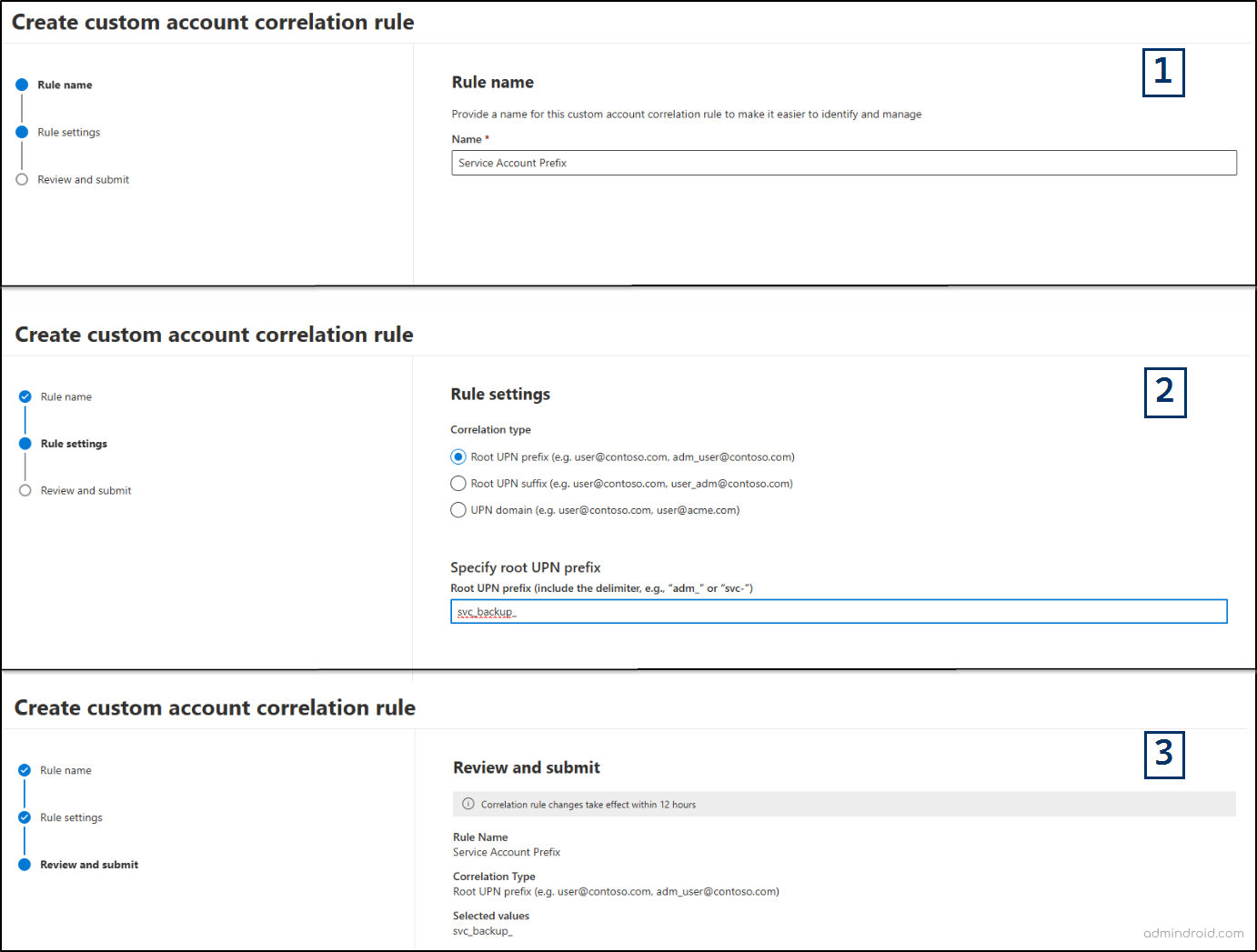
- Review the rule summary to verify the configuration details, then click Submit to activate it.
Note: Once submitted, newly created or modified custom account correlation rules typically take up to 12 hours to fully process and take effect across your enterprise data.
Find Identities Correlated by Account Correlation Rules in Microsoft Defender
Once the account correlation rule is created and activated after 12 hours, you can identify accounts related by your correlation rules using advanced hunting in Microsoft Defender. You can query the IdentityAccountInfo table to view identities that have been linked based on the configured correlation policies.
1. View All Policy-based Correlated Identities
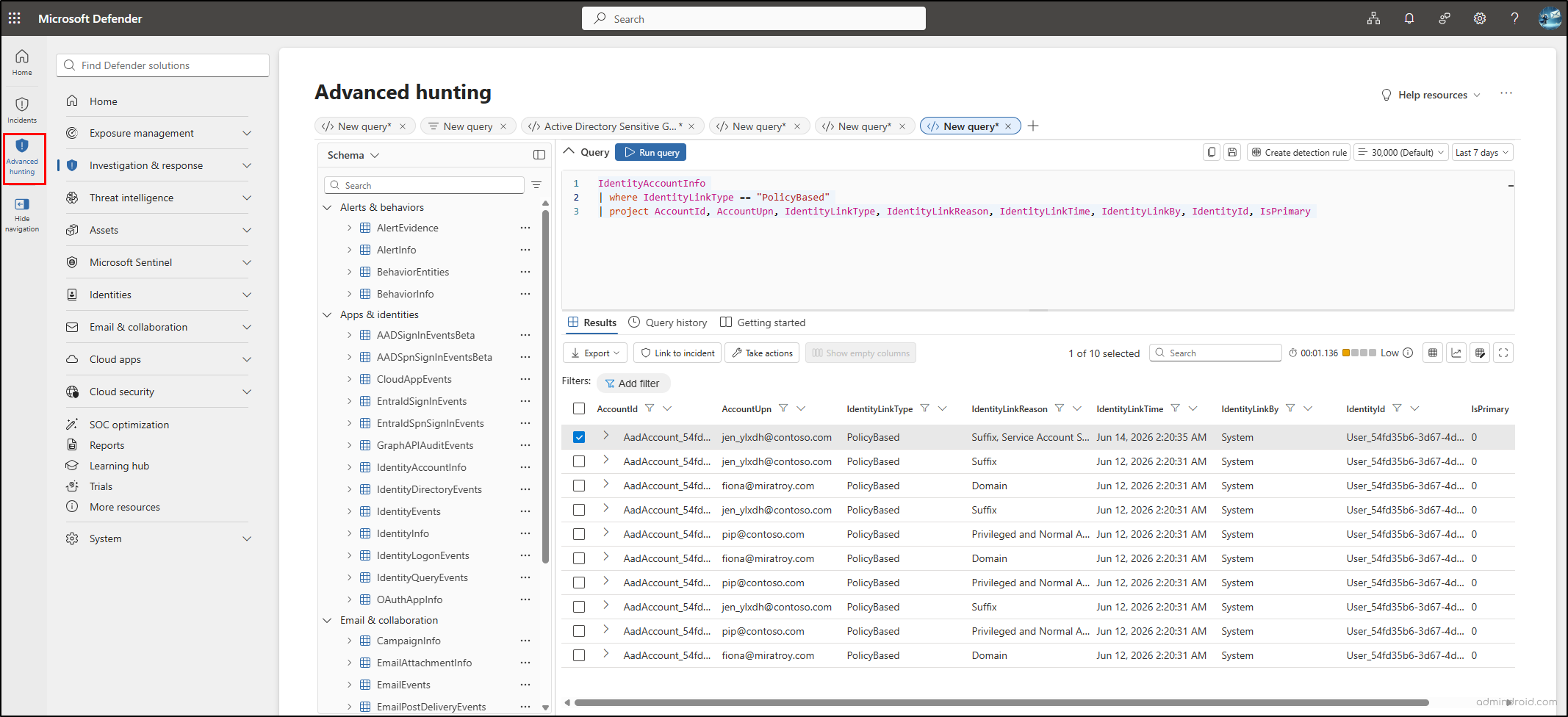
The IdentityLinkType parameter tracks exactly how accounts were correlated within your tenant. It categorizes the correlation into three distinct types: PolicyBased (via custom correlation rules), Manual (manually linked by an administrator), or StrongId (automatically linked by default system identifiers).
You can use the following query to list all identities linked through account correlation policies by filtering PolicyBased. To track other connection types, simply swap the value out for Manual or StrongId depending on your investigation needs:
|
1 2 3 |
IdentityAccountInfo | where IdentityLinkType == "PolicyBased" | project AccountId, AccountUpn, IdentityLinkType, IdentityLinkReason, IdentityLinkTime, IdentityLinkBy, IdentityId, IsPrimary |
2. Find Accounts Linked by a Specific Account Correlation Rule
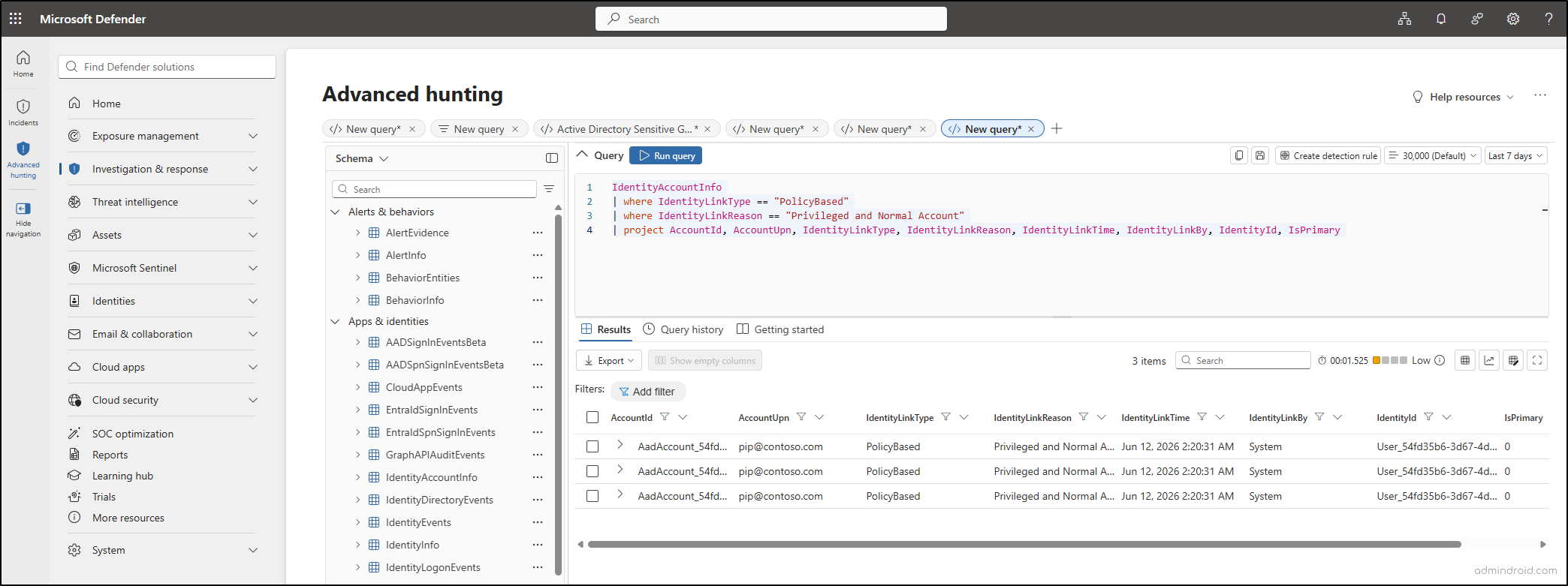
To isolate and verify the actions of a single account correlation policy, filter your results using the custom rule’s name in the IdentityLinkReason column.
|
1 2 3 4 |
IdentityAccountInfo | where IdentityLinkType == "PolicyBased" | where IdentityLinkReason == "<PolicyName>" | project AccountId, AccountUpn, IdentityLinkType, IdentityLinkReason, IdentityLinkTime, IdentityLinkBy, IdentityId, IsPrimary |
Replace <PolicyName> with your specific policy name before executing the KQL query.
3. Track Policy-based Linked Accounts for a Specific User
To find all accounts linked to a specific user, filter the results using their User Principal Name (UPN) with the AccountUpn.
|
1 2 3 4 |
IdentityAccountInfo | where IdentityLinkType == "PolicyBased" | where AccountUpn == "<UserUPN>" | project AccountId, AccountUpn, IdentityLinkType, IdentityLinkReason, IdentityLinkTime, IdentityLinkBy, IdentityId, IsPrimary |
Ensure to replace <UserUPN> with the specific target UPN before execution.
Manage Custom Account Correlation Policies in Microsoft 365
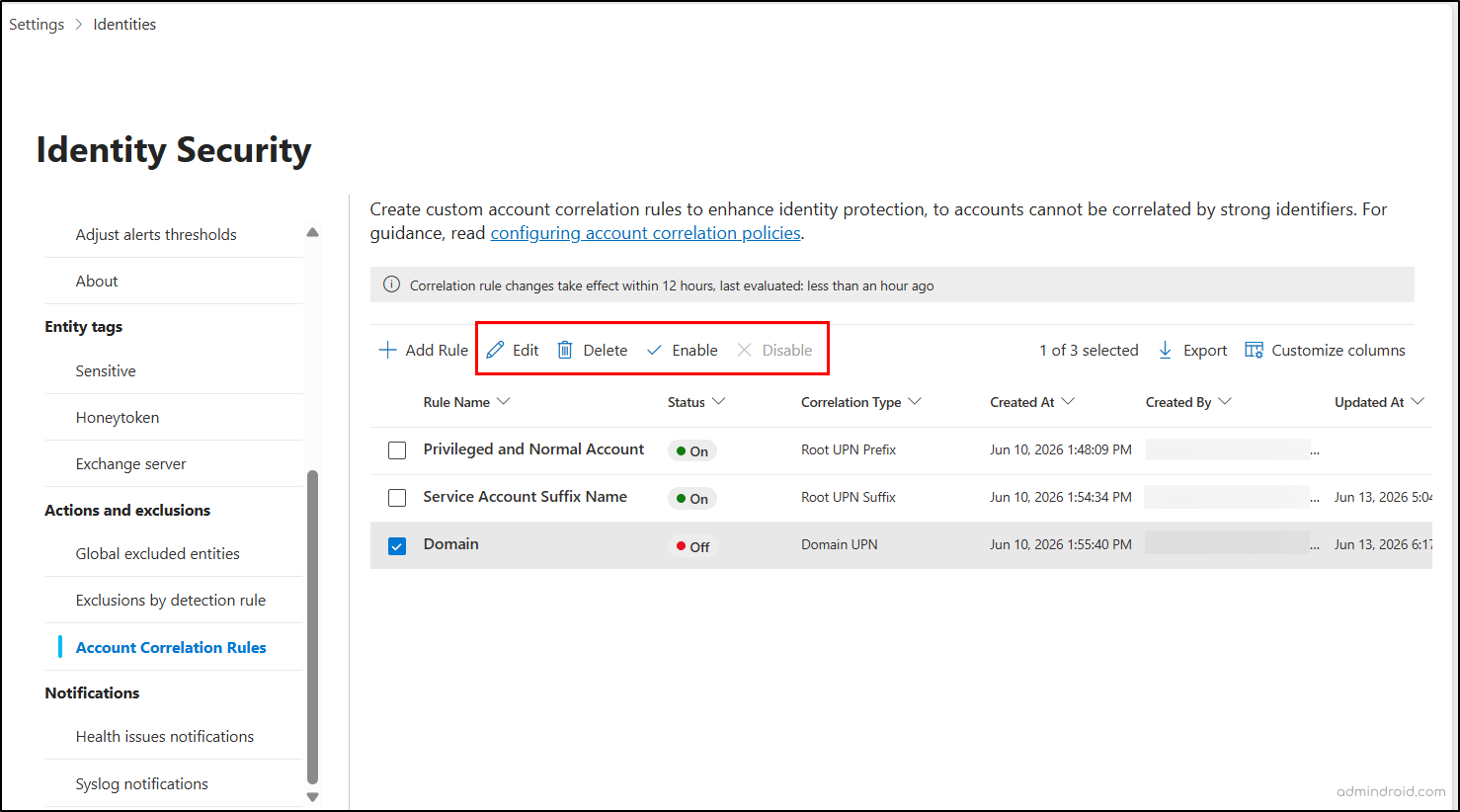
You can manage custom account correlation rules directly from the Account Correlation Rules page. To keep account correlation aligned with evolving naming conventions and policy changes, select the target rule and choose one of the following management actions:
- Modify policies: Click Edit to adjust your matching criteria or string patterns. Save your changes on the final summary screen to apply the updates.
- Enable or disable rules: To pause a rule without losing its configuration, select Disable. This stops active evaluation while keeping settings intact for future use. You can select Enable at any time to turn the rule back on.
- Delete policies: If a rule is no longer needed or was created by mistake, click Delete and confirm the prompt to permanently remove it from your tenant.
Benefits of Account Correlation in Microsoft Defender
Account correlation does more than linking related accounts into a single identity profile. Once accounts are correlated, Microsoft Defender uses that relationship across identity investigations and response workflows for better identity management.
1. Unified Identity Inventory and Visibility
Related identities are mapped directly to the primary user account and seamlessly showcased in the Defender identity inventory page. This centralized view lets admins evaluate security posture at a glance and track security recommendations across all linked identities.
2. Consolidated Remediation and Management Actions
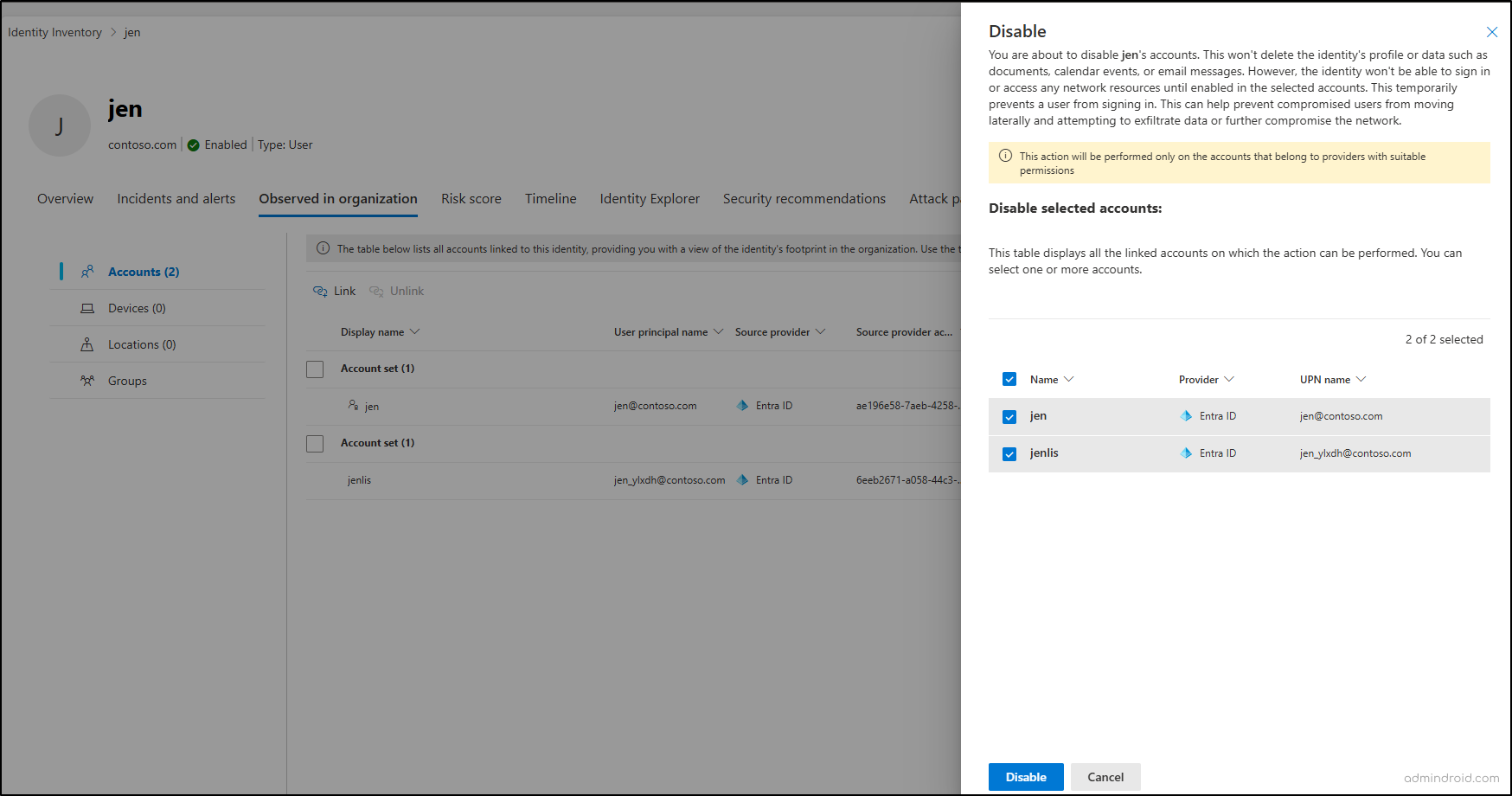
While marking an account as compromised, revoking sessions, disabling, or enabling an account in Microsoft Defender, its correlated identities are explicitly displayed. This helps you recognize the accounts as related and apply the action to all correlated accounts or only selected ones.
3. Streamlined Inactive Account Cleanup and Hygiene
Historically, administrators have struggled to find a reliable way to map related identities while cleaning up legacy or inactive accounts. This correlation capability makes it simple to identify linked accounts, effectively improving identity hygiene, and reducing the organization’s overall attack surface.
4. Unified Risk Assessment Across Correlated Accounts
When combined with Unified Risk Signals in Entra (Preview), account correlation can help create a unified identity risk view across related accounts. This capability, available through Microsoft Entra ID Protection dashboard, enables organizations to evaluate risk signals collectively and apply Conditional Access policies based on the overall identity risk posture.
Limitations of Account Correlation Rules in Microsoft Defender
While account correlation rules improve identity visibility, they come with certain limitations:
- Limited rule criteria: Rules are currently restricted to naming conventions (like matching strings or formats). You cannot yet correlate accounts based on employee IDs, custom attributes, or other unique identifiers.
- Dependence on naming conventions: Custom correlation rules rely on consistent account naming standards. Organizations with inconsistent naming practices may find it difficult to create reliable correlation rules.
- Isolated portal visibility: Correlated identities can be viewed and managed only within Microsoft Defender. Administrators cannot view or manage correlated identity relationships from the Microsoft Entra admin center or Microsoft 365 admin center.
That wraps up our look at account correlation in Microsoft Defender. By automatically linking related accounts, these rules eliminate manual mapping and give you a unified view of your identity footprint. This sharpens your threat investigations and clarifies complex attack paths.
Have any doubts or questions about setting up these rules? Drop them in the comments section below!