Admins often need visibility into Microsoft Entra ID group health to maintain proper ownership, membership, security, and lifecycle management. But, traditional Microsoft Graph cmdlets like Get-MgGroup provide only basic group information. Retrieving identity insights such as groups without owners, groups approaching expiration, groups with guest members, etc. often requires collecting data from multiple endpoints and building custom scripts.
To simplify this, Microsoft introduced the groupAnalytics resource in Microsoft Graph which is currently in public preview. It provides ready-to-use group identity insights through a single endpoint, helping you build customized reports and dashboards more efficiently. In this blog, we’ll explore the groupAnalytics resource in Microsoft Entra ID and know how to retrieve group identity insights using them efficiently.
What is Group Analytics Resource API in Microsoft Entra ID
The groupAnalytics resource API is a Microsoft preview endpoint that provides a point-in-time analytics snapshot for supported Microsoft Entra ID groups. It includes group identity properties that provide insights such as member count, owner count, guest member count, soft-deleted groups, expiring groups, and more.
The resource is currently available through the Microsoft Graph beta endpoint. To access it, ensure the required permissions and roles are configured.
- Microsoft Graph permissions: Reports.Read.All and Directory.Read.All (available for both Delegated – work or school account and Application permissions).
- Role Permission: For delegated access, the signed-in user must have at least one of these roles: Reports Reader, Security Reader, or Security Administrator.
Once the pre-requisites are in hand, follow these steps to retrieve group analytics insights:
- Open Microsoft Graph Explorer and sign in using your Microsoft Entra ID account to connect to your tenant.
- Ensure the HTTP method is set to GET.
- Set the endpoint version to beta.
- Enter the following request URL in the URL bar: https://graph.microsoft.com/beta/reports/identityAnalytics/groups
- Click Run query. The response returns a comprehensive analytics snapshot of your Microsoft Entra ID groups.
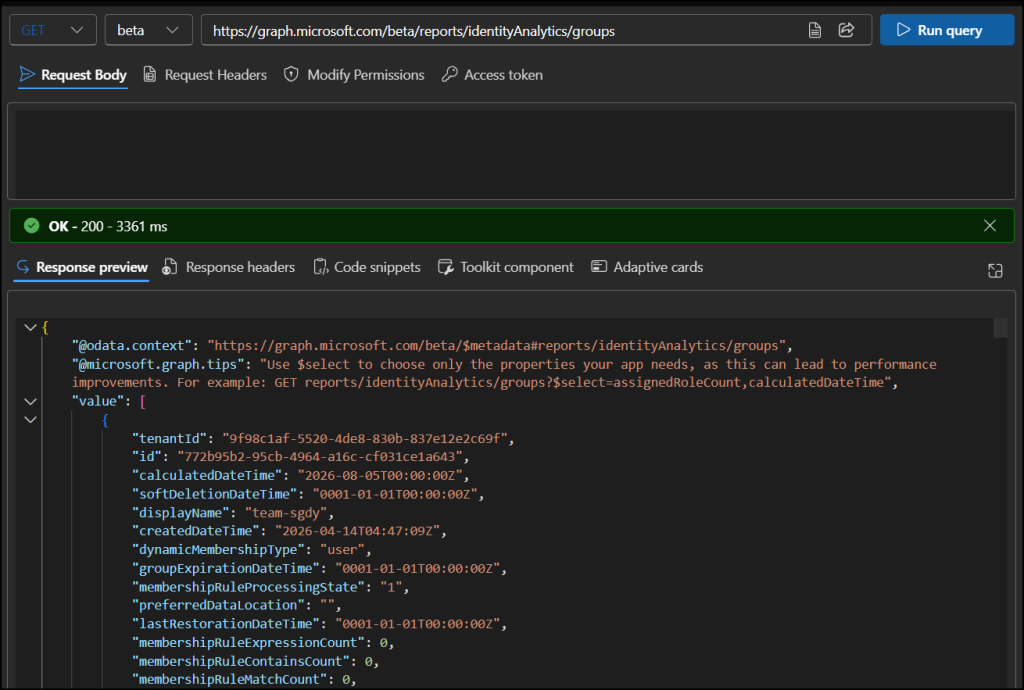
Important: The groupAnalytics resource doesn’t return real-time data. Use the calculatedDateTime property to verify when the analytics snapshot was generated, as recent group changes may not be reflected immediately.
With this API, you can transform group identity data into custom dashboards, reports, and analytics experiences based on your requirements.
Group Identity Insights in Microsoft Entra Admin Center
Microsoft uses the groupAnalytics resource internally to power the Group Insights feature (currently in preview) in the Entra admin center. This experience provides administrators with a visual overview of group health, ownership, membership, and lifecycle insights without requiring custom queries.
To access this feature, follow the steps below:
- Sign in to the Microsoft Entra admin center.
- Navigate to Identity –> Groups –> Groups | Insights (Preview).
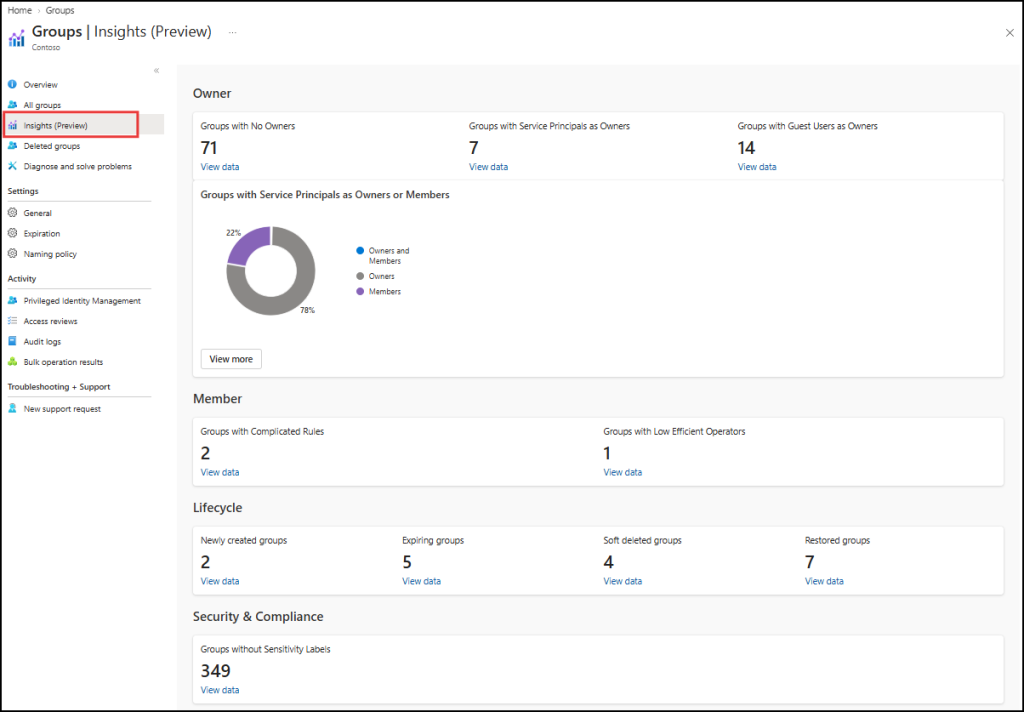
Now that you’ve explored what the groupAnalytics resource offers, let’s look at how you can use it to get the most out of your group identity insights.
Real-World Use Cases of the groupAnalytics Resource
The groupAnalytics resource helps you build customized group identity reports and dashboards. You can use available query parameters such as $count, $filter, $orderby, $select, and $top to refine insights and retrieve the exact group data you need.
Here are a few important use cases that use filters to retrieve group insights:
- Find ownerless Entra ID groups
- Identify role-assignable groups with guest members
- Get soon-to-expire Entra ID groups
- List soft-deleted groups in Entra ID
- Retrieve specific Entra ID group properties
- Sort and limit group analytics results
1. Find Ownerless Entra ID Groups
When user offboards or change roles, some Entra ID groups may end up without active owners. Identifying these ownerless groups helps ensure there is always someone available to manage memberships, settings, and lifecycle operations.
To retrieve orphaned Entra ID groups, use the $filter query parameter along with $count=true to return the total number of matching groups.
|
1 |
https://graph.microsoft.com/beta/reports/identityAnalytics/groups?$filter=isCloudM365Group eq true and memberOwnerCount eq 0&$count=true |
This query returns all Entra ID groups that have no owners of any supported type, including member owners, guest owners, and service principal owners.
The $filter parameter supports operators such as eq, ne, gt, ge, lt, and le, along with logical operators like and and or to help narrow down results. Based on the property type, you can also use string functions like startsWith, endsWith, and contains to refine your search.
Note: The ‘not’ and ‘has’ operators are not supported. For large result sets, Microsoft Graph provides an @odata.nextLink property, which you can follow to retrieve additional pages of results.
2. Identify Role-Assignable Groups with Guest Members
Role-assignable groups should be carefully monitored because they can grant privileged access. Finding groups that contain guest members helps you review potential security risks and validate whether guest access is intentional.
To identify role-assignable groups that include guest members, use the below query.
|
1 |
https://graph.microsoft.com/beta/reports/identityAnalytics/groups?$filter=guestTransitiveUserCount gt 0 and assignedRoleCount ge 1&$count=true |
In this query, the $filter query parameter is used to combine both conditions and $count=true to return the total number of matching groups.
3. Get Soon-to-Expire Entra ID Groups
Since Entra ID groups can have expiration policies configured, it is essential to identify groups that are approaching their expiration date. This helps administrators review group activity, renew active groups, and take necessary actions before they are being deleted.
To retrieve groups that are nearing expiration, use the $filter query parameter with groupExpirationDateTime and $count=true to return the total number of matching groups.
|
1 |
https://graph.microsoft.com/beta/reports/identityAnalytics/groups?$filter=groupExpirationDateTime ge 2026-08-20T00:00:00Z&$count=true |
This query returns groups with an expiration date on or after the specified date. You can adjust the date value in the filter based on your organization’s review period.
4. List Soft-Deleted Groups in Entra ID
When a group is deleted, it is moved to a soft-deleted state and can be restored within the retention period. Identifying soft-deleted groups helps administrators track deleted groups, review recovery requirements, and manage group lifecycle effectively.
To retrieve soft-deleted Microsoft 365 groups, use the $filter query parameter with isValidGroup and $count=true to return the total number of matching groups.
|
1 |
https://graph.microsoft.com/beta/reports/identityAnalytics/groups?$filter=groupExpirationDateTime ge 2026-08-20T00:00:00Z&$count=true |
This query uses isValidGroup eq false to identify groups that are no longer active or valid in the directory, helping administrators find soft-deleted groups. If you need to retrive active/valid groups, then set as isValidGroup eq true.
5. Retrieve Specific Entra ID Group Properties
When building custom reports or dashboards, you may not need every property returned by the groupAnalytics resource. Retrieving only the required fields helps reduce the response size and improves query efficiency.
To return specific properties, use the $select query parameter and specify only the fields you need.
|
1 |
https://graph.microsoft.com/beta/reports/identityAnalytics/groups?$select=displayName,memberCount,memberOwnerCount |
This query returns only the display name, member count, and owner count for each group, making the response easier to process in custom reports and dashboards.
6. Sort and Limit Group Analytics Results
Large groups may require additional review for governance and access management. To find which groups have the highest number of members, combine $orderby and $top to sort groups by membership count and return only the top results.
|
1 |
https://graph.microsoft.com/beta/reports/identityAnalytics/groups?$select=displayName,memberCount,memberOwnerCount |
Now that we’ve explored the practical examples of groupAnalytics resource, let’s see how it differs from using traditional Microsoft Graph cmdlets.
GroupAnalytics API Vs. Standard Microsoft Graph Group APIs
The table below highlights the key differences between standard group APIs (such as /groups in Microsoft Graph and Get-MgGroup in Microsoft Graph PowerShell) and the new groupAnalytics resource in Microsoft Graph.
| Aspect | groupAnalytics | Standard group APIs |
| Pre-calculated Group Insights | ✅ Pre-calculated metrics (owner count, member count, guest count, expiration, etc.) | ❌ Not available |
| Filtering capabilities | ✅ Supports filtering on analytics properties like owner count, member count, guest count, etc. | ⚠️ Available, but only for standard group properties. |
| Listing owners, members, or transitive members | ❌ No | ✅ Yes |
| Exchange Mail-related information | ❌ Not available | ✅ Available including mail-related properties such as mail, proxyAddresses, mailEnabled, and more. |
| Soft-deleted group visibility | ✅ Included as an analytics property | ❌ Separate endpoint ( Get-MgDirectoryDeletedItem) required |
| API availability | Beta | v1.0 and beta |
| Use case | Reporting, dashboards, governance | Administration and group management |
| Data Refresh | ⚠️ Provides analytics snapshots that may not immediately reflect the latest directory changes. | ✅ Returns live, real-time group information directly from the directory. |
We hope this blog helped you understand the groupAnalytics resource and inspired you to build your own custom Microsoft Entra ID group reports and dashboards. If you’ve already started using this resource, we’d love to hear how you’re using it and the insights you’ve built. Share your experience in the comments. Stay tuned for more blogs.