AI agents are becoming increasingly common across organizations. As their adoption grows, organizations need better ways to discover, monitor, and manage these agents. Agent 365 provides a centralized way to manage agents within a single tenant. However, when agents are used across multiple connected tenants, maintaining visibility and managing them across tenants can become more challenging.
To address this need, Microsoft has introduced multi-tenant agent management in the Microsoft 365 admin center. Currently in public preview, this capability brings agent management for connected tenants into a single view. In this blog, we’ll walk through how it works and how to manage agents across connected tenants.
What is Multi-Tenant Agent Management in Microsoft 365?
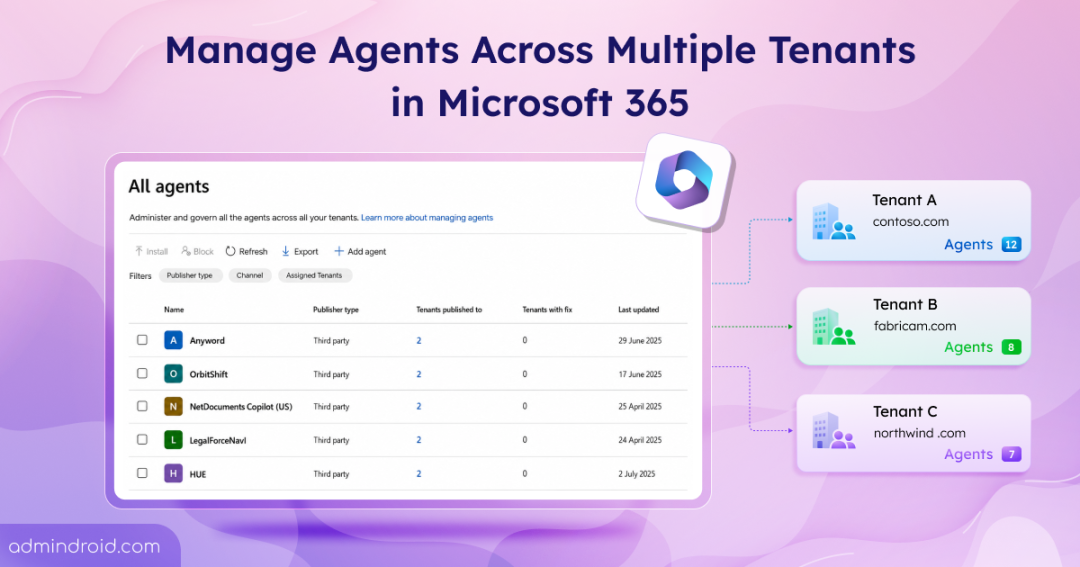
Multi-tenant agent management is a centralized experience in the Microsoft 365 admin center that allows enterprise admins and partners to view and manage agents.
With this experience, admins can:
- Use the tenant switcher to access eligible governed tenants without signing out.
- View a consolidated agent inventory across governed tenants.
- Add agents to the inventory and install them across all eligible governed tenants or selected tenants.
- Review agent risk, permissions, and activity from a centralized view.
- Block agents or update their availability across selected governed tenants.
Rollout Schedule
Microsoft expects the public preview rollout of multi-tenant agent management to be completed by mid-August 2026. The exact general availability timeline has not yet been announced.
Now, let’s look at the prerequisites for setting up multi-tenant agent management.
Prerequisites for Multi-Tenant Agent Management Experience in Microsoft 365
Before you start managing agents across multiple tenants, make sure the following requirements are met:
- At least one governed tenant: The governing tenant must have at least one governed tenant that the administrator is authorized to manage.
- Established relationship:
- Partners: Establish a Granular Delegated Admin Privileges (GDAP) relationship with customer tenants through Partner Center.
- Enterprise admins: Establish tenant relationships through Microsoft Entra tenant governance.
- Admin role: The signed-in user must have a supported delegated role, such as AI Administrator, Global Administrator, or Global Reader, in each governed tenant.
Note: All three roles can view the agent inventory. However, only AI Administrators and Global Administrators can add, install, block, or change the availability of agents. - License requirement: Multi-tenant agent management does not require an additional Microsoft license. However, to view agent risk information and review agent activity, you must have a Microsoft Agent 365 license.
Once these prerequisites are in place, you can manage agents across tenants through the multi-tenant agent experience.
Manage Agents Across Multiple Tenants in the Microsoft 365 Admin Center
The multi-tenant agent experience allows you to perform the following management actions across governed tenants:
- Switch tenants using the tenant switcher
- View agents across multiple Microsoft 365 tenants
- Install an agent in multiple Microsoft 365 tenants
- Review agent details in a Microsoft 365 tenant
- Block agents across specific Microsoft 365 tenants
1. Switch Tenants Using the Tenant Switcher
The tenant switcher is a key part of the multi-tenant agent management experience. It lets you quickly move between the Microsoft 365 tenants connected to your account without signing out.
- Sign in to the Microsoft 365 admin center.
- In the top command bar, select the tenant switcher next to the current tenant name.

- On the My Tenants page, search for or select the governed tenant you want to administer.
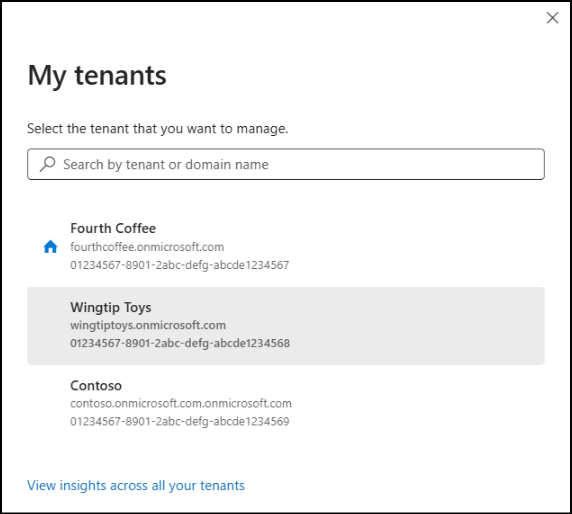
Note: The All tenants option is available only when the governing tenant has at least one supported tenant relationship and the signed-in administrator has a supported delegated role.
2. View Agents Across Multiple Microsoft 365 Tenants
The Agents page provides a consolidated view of agents across eligible governed tenants,such as:
- Agent name: Specifies the name of the agent.
- Publisher Type: Shows whether the agent is published by Microsoft or a third party.
- Published tenants: Displays the number of tenants where the agent is published. Click on the count to view the tenants.
- Tenants with risk: Shows the tenants where the agent has identified risk information.
- Last updated: Shows when the agent information was last updated.
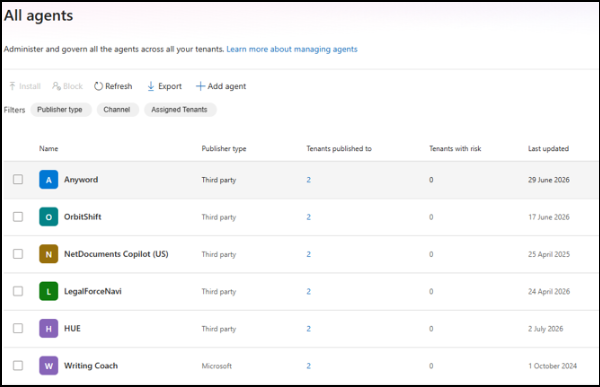
You can also use the summary cards, search, filters, and columns to find key agent information such as:
- Total agents: Shows the agents discovered across eligible governed tenants.
- Risky agents: Highlights agents with security information that requires review.
- Assigned tenants: Shows where an agent is available. Select the tenant information to review its specific agent instance.
The Agents page also lets you add custom agents using the Add agent option. Once added, the agent becomes available for review and later installation in governed tenants.
3. Install an Agent in Multiple Microsoft 365 Tenants
Once an agent is added to the inventory, it is not automatically installed in other tenants. It remains available in the inventory until you choose to deploy it. To make the agent available across other eligible tenants, you need to install it separately.
- On the Agents page, select the agent, and then select Install.
- Select ‘All tenants’ or ‘Specific tenants’. For specific tenants, search for and select the required governed tenants.
- Review the agent configuration and required permissions for the selected tenants.
- Choose the users or groups who can access the agent in each tenant.
- Review the installation summary and select Install.
Note: The installation options and steps may vary depending on the agent.
4. Review Tenant-Specific Agent Details
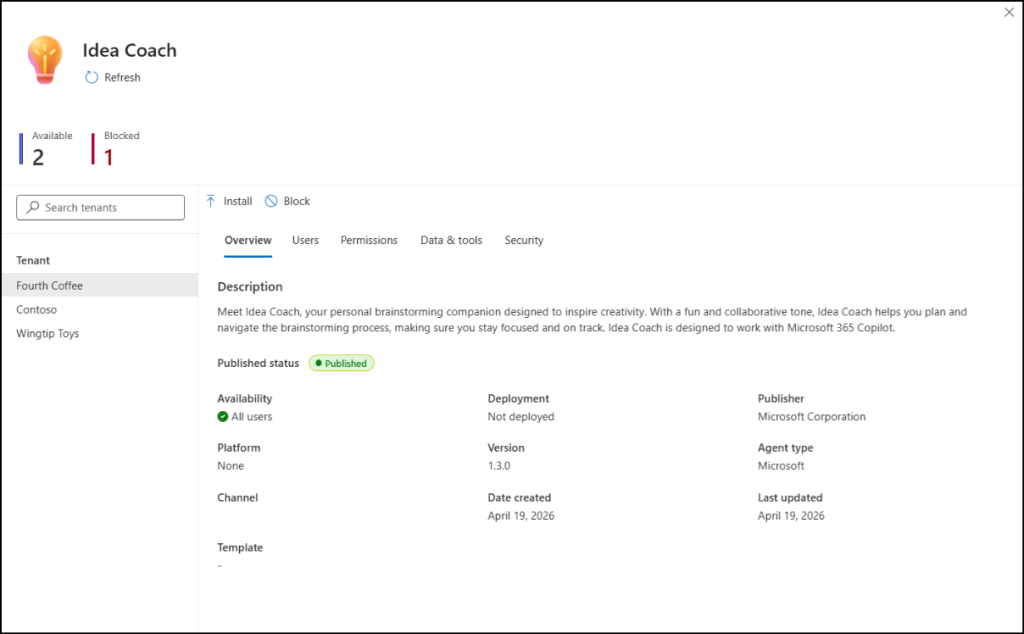
Agent details can vary across tenants. An agent may have different permissions, availability, risk information, and activity depending on the tenant where it is deployed. To review the details for an agent in a specific Microsoft 365 tenant:
- On the Agents page, select the required agent.
- From the left pane, select the tenant you want to review.
- You can see tabs such as Overview, Users, Permissions, Data & tools, Security & Compliance, and Activity.
- Overview: View the key details and current status of the agent.
- Users: Check the users who have access to the agent.
- Permissions: Review the permissions granted to the agent.
- Data & tools: View the data sources and tools the agent can access.
- Security & Compliance: Use this tab to review risky agents using the security and protection information. When available, use the provided links to continue the investigation in Microsoft Purview, Microsoft Entra, or Microsoft Defender.
- Activity: Use this tab to review agent activity. Select a date range to review total sessions, exceptions, active users, and last activity. Use Export to CSV when you need to analyze the activity data outside the admin center.
5. Block Agents Across Specific Microsoft 365 Tenants
During your review, you may find agents that are unsafe, non-compliant, or no longer approved for use. In such cases, you can block them in the governed tenants where they should no longer be available.
- On the Agents page, select one or more agents.
- Select Block.
- Choose the governed tenants where you want to block the agents.
- Review the affected agent instances and confirm the action.
The block is applied separately to each selected tenant. Tenants where you have read-only access remain visible, but you cannot block agents in those tenants.
Closing Thoughts
Managing agents across connected tenants does not have to mean chasing them across different admin centers. Multi-tenant agent management brings them into one place so admins can see what is deployed, identify what needs attention, and take action across governed tenants. As your agent footprint grows, this centralized experience can make multi-tenant administration simpler and more manageable.
We hope this blog helped you understand how multi-tenant agent management can simplify agent administration across connected tenants. Share your experience or questions in the comments. We’d love to hear you! Stay tuned for more blogs.