Microsoft recently introduced pay-as-you-go storage for SharePoint Online to give organizations a more flexible way to handle additional storage. The same challenge can arise with OneDrive.
As projects grow, users store more files, documents, and other content in OneDrive. Once a user reaches their storage quota, admins need to provide additional space. However, OneDrive Extra Storage comes in fixed-capacity packs, which offers more storage than the user actually needs, leaving organizations paying for unused capacity.
Now, Microsoft is bringing the same pay-as-you-go approach to OneDrive, allowing admins to pay based on the additional storage a user actually consumes instead of purchasing a fixed amount of extra capacity.
Let’s see how it works.
Why Pay-As-You-Go Billing for OneDrive Storage
What usually happens when a user tells an admin, “I’ve run out of OneDrive storage?”
The admin checks the user’s storage usage and, if more space is required, purchases additional OneDrive storage for the account. This solves the immediate problem, but there is another consideration: how much additional storage does the user actually need?
For example, a user may need only 200 GB of additional storage, while OneDrive Extra Storage is available as fixed capacity packs of 100 GB, 500 GB, and 1 TB through 6 TB. If the required capacity doesn’t match the available pack, the admin needs to purchase the entire pack, even if the user doesn’t use all of it.
- These capacity packs are assigned to individual users and cannot be split across multiple users, although admins can later unassign, reassign, or cancel them as needed.
This is where Microsoft 365 OneDrive Storage pay-as-you-go, consumption-based opt-in billing option for additional OneDrive storage comes in. It is currently in public preview for commercial tenants and is expected to reach general availability across all environments from early November through early December 2026.
With pay-as-you-go, admins can set a higher storage limit (upto 25TB) for individual OneDrive accounts and pay only for the storage actually used above the user’s licensed quota. This means admins don’t have to purchase a fixed amount of additional capacity upfront when the user’s storage requirement may vary. Let’s see the difference clearly!
OneDrive Extra Storage vs. Pay-As-You-Go Storage
Here are the different factors that can help you decide whether OneDrive Extra Storage or pay-as-you-go is the right option for your requirements.
| Factors | OneDrive Extra Storage | Microsoft 365 OneDrive Storage PAYG |
| Storage model | Fixed additional capacity | Usage-based additional storage |
| How it works | Purchase a storage pack and assign it to a user | Set a higher storage limit for the user |
| Billing | Pay for the additional capacity purchased | $0.20/GB/month for storage used above the user’s licensed quota |
| If usage is lower | You still pay for the purchased capacity | You pay based on the actual additional storage consumed |
| Maximum limit | Based on the available capacity packs and applicable limits | Up to 25,600 GB (25 TB) per user’s OneDrive account |
| Cost example | Purchase 1 TB of additional capacity and pay for the full purchased capacity | If the user consumes 500 GB above the licensed quota, 500 × $0.20 = $100/month |
So, the difference is simple: OneDrive Extra Storage charges for the additional fixed packs you purchase, while pay-as-you-go charges for the additional storage the user actually consumes.
Now that you know how pay-as-you-go storage works, the next question is: which users actually need it?
Instead of enabling a higher storage limit for everyone, admins can first identify users who are approaching their OneDrive storage quota and provide additional capacity only where needed.
Get OneDrive Usage Reports of Microsoft 365 Users
There are several ways to check how much OneDrive storage users are consuming.
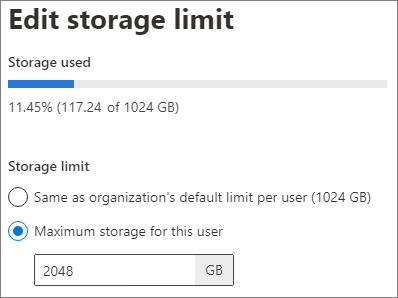
1. Check Specific User’s OneDrive Storage in the Microsoft 365 Admin Center
The Microsoft 365 admin center lets you check an individual user’s OneDrive storage consumption directly from their user account. To access it, use the below navigation:
Microsoft 365 admin center → Users → Active users → Click the specific user → OneDrive tab → Storage used.
2. Track OneDrive Storage Usage with Microsoft 365 Reports
If you need to review OneDrive storage consumption across multiple users, the OneDrive for Business usage reports in Microsoft 365 can provide an organization-wide view of OneDrive usage.
3. Use Microsoft Graph PowerShell to Retrieve OneDrive Storage
The Get-MgReportOneDriveUsageAccountDetail cmdlet provides OneDrive usage information for individual users, including storage consumption and other usage details.
Cmdlet:
|
1 |
Get-MgReportOneDriveUsageAccountDetail -Period "<period>" -OutFile "<FilePath>" |
Replace <period> with the required reporting period (D7, D30, D90, or D180) and <FilePath> with the location where you want to save the generated report.
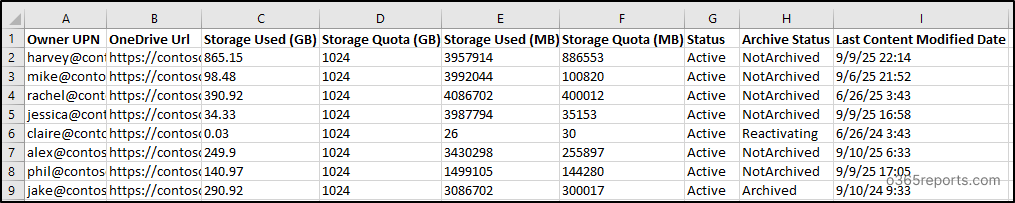
4. Export OneDrive Usage Details with PowerShell Script
You can also use the PowerShell script to get OneDrive storage details and identify users exceeding their licensed quotas. This PowerShell script addresses the reporting gaps in the above cmdlet by providing OneDrive site URLs along with detailed storage information, status, and archive status. This gives administrators a more complete view of storage utilization across all OneDrive sites, helping them identify the right users and make storage decisions more quickly.
Once you’ve identified the users who need additional storage, you can configure pay-as-you-go storage for those specific accounts.
Set Up Pay-As-You-Go Billing for Microsoft 365 OneDrive Storage
Before increasing storage limits for users, set up pay-as-you-go billing for Microsoft 365 OneDrive Storage. During the billing policy setup, select Microsoft 365 OneDrive Storage from the available services.
Once the billing policy is created, you can configure higher storage limits for selected users.
Update Storage Limits for Selected Users
After setting up pay-as-you-go billing, you can change the OneDrive storage space for a specific user identified using the methods mentioned above.
When PAYG service billing is enabled, you can set a storage limit higher than the storage included with the user’s license. The maximum configurable limit is 25,600 GB (25 TB) per user’s OneDrive account.
For example, if a user has a 1 TB licensed quota and the admin sets the storage limit to 5 TB, the user can consume storage up to that configured limit. If the user actually consumes 3 TB, only the 2 TB above the licensed quota is billed.
Also, if you no longer want to use Microsoft 365 OneDrive Storage pay-as-you-go, you can disconnect pay-as-you-go billing.
Wrap Up
When users need more OneDrive storage, admins now have a flexible alternative to purchasing fixed-capacity storage packs. With Microsoft 365 OneDrive Storage pay-as-you-go, you can identify users who need additional space, set an appropriate storage limit, and pay only for the storage they actually consume beyond their licensed quota. This makes it easier to provide additional storage while keeping the cost aligned with actual usage.
Thanks for reading! If you have any questions, please reach out to us through the comments section below.