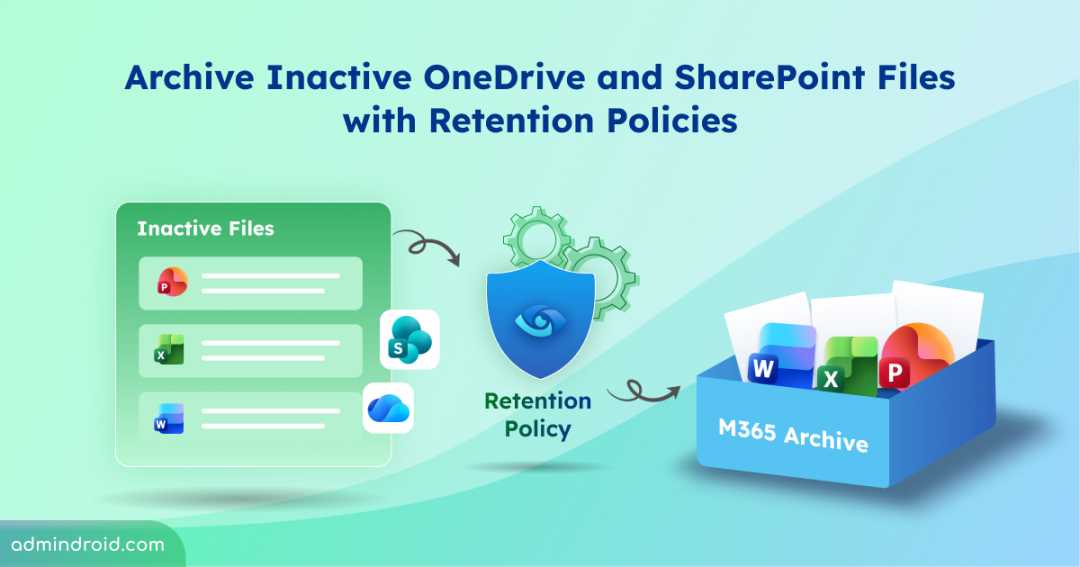
Organizations accumulate millions of files across OneDrive and SharePoint over time. While many become inactive after projects end or during user offboarding, they still need to be retained for compliance, legal, and business requirements.
Microsoft previously introduced file-level archiving for SharePoint, allowing admins to manually archive inactive files. Now, Microsoft is extending this capability to Microsoft Purview Data Lifecycle Management that brings automated file archiving to retention policies for OneDrive and SharePoint.
In this blog, we’ll show you how to configure a Microsoft Purview retention policy to automatically archive inactive OneDrive and SharePoint files.
New Archiving Capability for Microsoft Purview Retention Policies
Microsoft Purview Data Lifecycle Management now includes a new Archive option within retention policies for SharePoint and OneDrive. Instead of manually archiving files, admins can now automate the process through retention policies.
This policy-based archiving offers a few key benefits:
- Helps organizations retain inactive files in SharePoint and OneDrive for compliance, legal, and business needs.
- Optimizes SharePoint and OneDrive storage by moving inactive files out of active storage, helping reduce storage costs.
- Keeps archived files available for compliance scenarios, including Microsoft Purview eDiscovery.
- Allows archived files to be reactivated whenever they’re needed.
- Excludes archived files from Microsoft 365 Copilot indexing, helping keep inactive content out of Copilot search results.
Note: This feature is not enabled by default. Existing retention policies and compliance configurations remain unchanged until admins configure or update a retention policy with the Archive action.
Microsoft has started rolling out this feature in mid-September 2026, with worldwide rollout expected to complete by late September 2026.
Prerequisites for Microsoft Purview Retention Policy-Based File Archiving
Before configuring retention policies to automatically archive inactive files in SharePoint and OneDrive, make sure to meet the following prerequisites.
- Role requirements: You must have either Compliance Administrator or Global Administrator role.
- License and subscription requirements: To use this feature, your tenant must have:
- An active Microsoft 365 E5 license for file-level archiving.
- An active Pay-As-You-Go subscription enabled for Microsoft 365 Archive storage. No additional licensing setup is required to use the Archive action in retention policies.
- Enable Microsoft 365 Archive: Make sure to enable Microsoft 365 Archive in your tenant.
Now that the prerequisites are in place, let’s see how to set up a Microsoft Purview retention policy that automatically archives inactive SharePoint files.
How to Configure a Retention Policy to Archive Inactive OneDrive and SharePoint Files
Follow the steps below to archive SharePoint and OneDrive files under retention.
- Sign in to the Microsoft Purview portal.
- Navigate to Solutions –> Data Lifecycle Management.
- Under Policies, select Retention Policies.
- Click + New retention policy and enter a name for the policy, and click Next.
- You can choose any admin units if required and click Next.
- Select the retention policy type as you need and click Next.
- In the Locations page, make sure that the SharePoint and OneDrive locations are enabled and click Next.
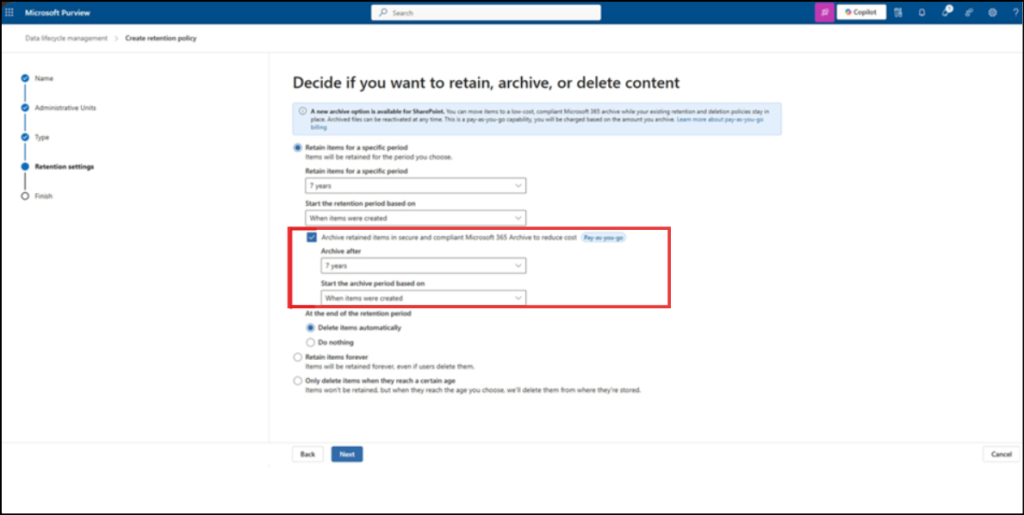
- On the Retention settings page, select Retain items for a specific period.
- Then, select Archive retained items in a secure and compliant Microsoft 365 Archive to reduce costs and configure the archive settings:
- Archive after: Specify how long items should be retained before they’re moved to Microsoft 365 Archive.
- Start the archive period based on: Choose the event that starts the retention period, such as when items were created or when items were last modified.
- Review the policy and click Submit to create the retention policy.
Once configured, files that meet the retention policy criteria are automatically moved to Microsoft 365 Archive after the specified retention period ends.
That’s it! I hope this blog helped you understand how the new archive capability in Microsoft Purview Data Lifecycle Management works for SharePoint and OneDrive files. Have you tried this feature in your Microsoft 365 tenant yet? Share your experience in the comments below. Stay tuned for more blogs.