Pausing notifications in Microsoft Teams isn’t new. When we’re heading into an important meeting or trying to focus without interruptions, many of us switch our presence status to Do Not Disturb, mute chats, or adjust notification settings. But there’s a small catch: we must remember to switch it back when we’re done. Otherwise, important messages and notifications would stay silenced, delaying responses and disrupting team collaboration.
So, wouldn’t it be easier if notifications paused for a certain period and then resumed on their own? 😉
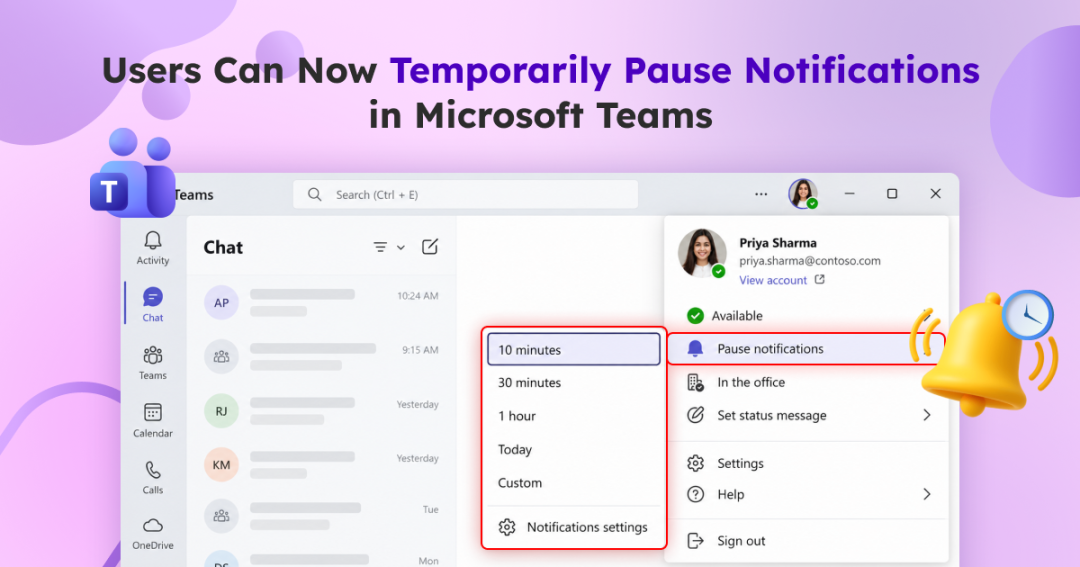
That’s exactly what Microsoft Teams now offers with the new pause notifications capability. In this blog, we’ll explore how this feature works and how to temporarily pause Teams notifications.
What’s New with Pause Notifications in Microsoft Teams?
The new ‘pause notifications’ option in Microsoft Teams lets users temporarily silence all notifications for a selected period. Users can choose from predefined durations, such as 10 minutes, 30 minutes, 1 hour, a full day, a week, or set a custom end time. When the pause ends, Teams automatically resumes sending notifications based on your existing notification preferences. The pause duration also syncs across Teams on the user’s devices and platforms, providing a consistent experience wherever they use Teams.
This feature is useful in several everyday situations:
- During customer presentations and screen sharing: Avoid unexpected notification banners popping up while you’re sharing your screen or presenting a demo.
- While troubleshooting technical issues: Focus on reviewing logs, debugging scripts, or resolving Microsoft 365 issues without constant chat and channel alerts.
- When working against a deadline: Set aside time to complete a report, proposal, or documentation without repeatedly switching between tasks and conversations to minimize distractions and avoid unnecessary multitasking
- During meetings and training sessions: Reduce distractions while leading a discussion, delivering training, or participating in a session that requires your full attention.
Rollout Timeline for Microsoft Teams Pause Notifications Capability
The rollout schedule is as follows:
- Targeted Release: Rollout began in mid-September 2026 and was expected to complete by early October 2026.
- General Availability: Rollout began in early October 2026 and is expected to complete by late October 2026.
The feature is rolling out worldwide across Microsoft Teams web, desktop, and mobile. Availability may vary by tenant during the rollout.
How to Pause All Microsoft Teams Notifications for a Set Time
All Microsoft Teams users can pause notifications without requiring any administrator configuration. Follow these steps to pause notifications for a selected period:
- Open Microsoft Teams and click your profile picture in the top-right corner to open the profile menu.
- Select Pause notifications and choose your preferred pause duration.
(If you don’t see this option, it might not have reached your account yet.)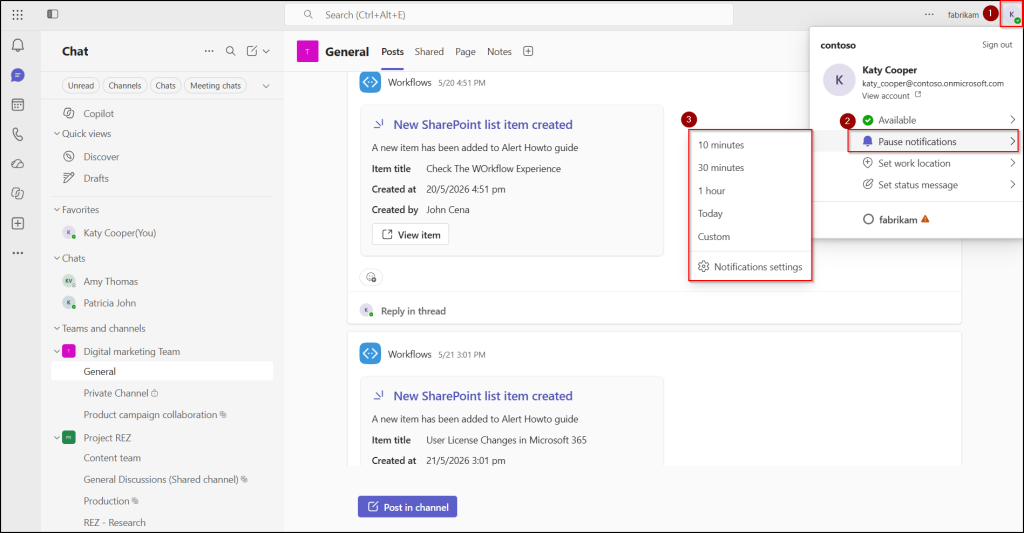
- If you need to pause notifications for a custom period, select Custom and set your preferred end date and time. Notifications will remain paused until the specified duration.
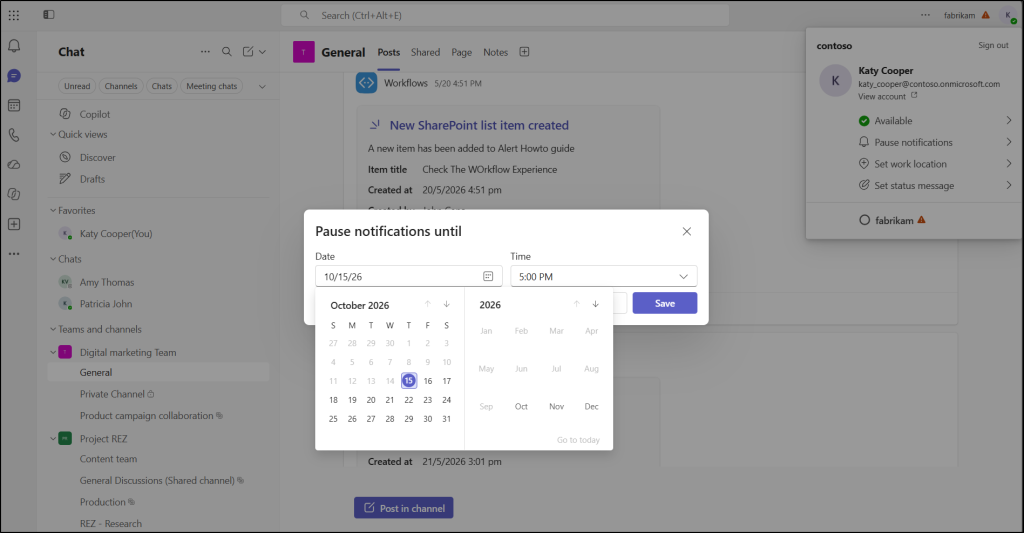
That’s it! Teams will pause notifications for the selected period and resume them automatically when the period ends.
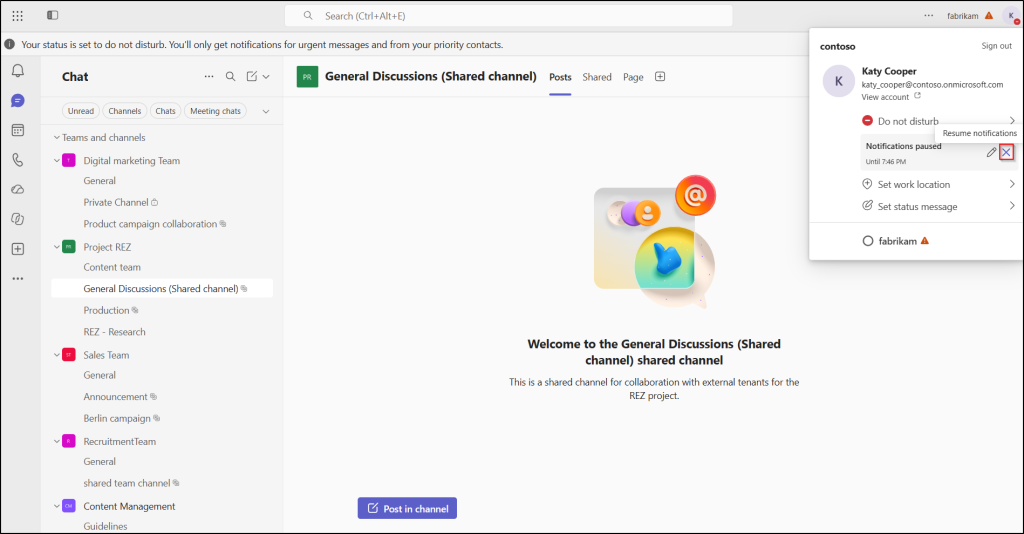
To extend the pause, open your profile menu, hover over Notification paused, and select “Edit pause duration”. Choose a new duration to keep notifications paused for longer.
If you want to resume notifications before the selected period, open the same menu and select the X (Resume notifications) option. You can also click Do not disturb to adjust the duration or change your presence status if you want to modify or remove the pause.
What Happens When Users Pause Notifications Temporarily in Teams?
Here’s what happens when users use this option:
- Presence status changes to Do Not Disturb – When a user pauses notifications, Teams sets their presence status to Do Not Disturb for the selected period.
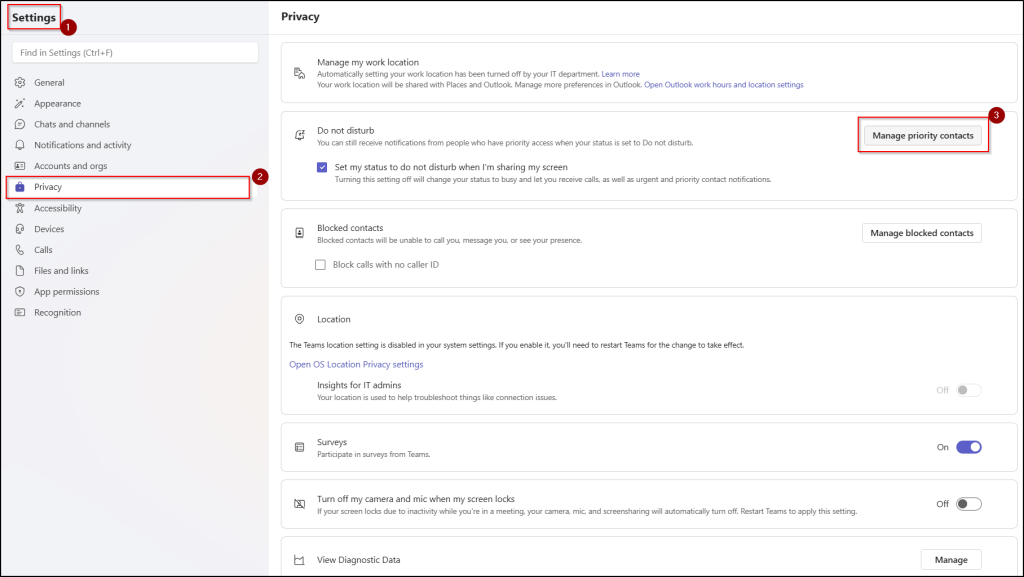
- Notifications are temporarily silenced – Teams suppresses all notifications during the pause, except for urgent messages and notifications from priority contacts. Users can manage these contacts through Microsoft Teams Settings -> Privacy -> Manage priority contacts.
- Notifications resume automatically – Once the selected period ends, Teams resumes notifications based on users’ existing Teams notification preferences.
This gives users more control over interruptions and makes it easier to focus on meetings, tasks, and other important work.
Small interruptions can add up throughout the workday. While Do Not Disturb helps users limit interruptions, Pause notifications in Microsoft Teams offers more flexibility by letting them choose how long notifications stay paused.
Once the selected period ends, Teams automatically resumes notifications based on the user’s existing notification preferences. With just a few clicks, users can take control of disruptions without having to remember to restore their notification settings manually.
Have questions about pausing notifications in Teams? Drop them in the comments, and we’ll be happy to help!