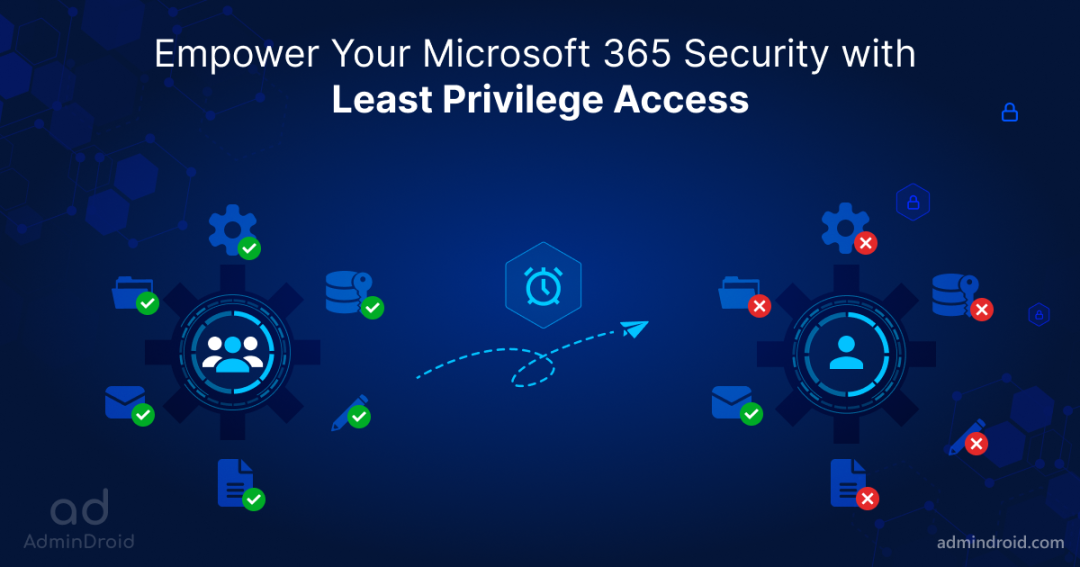
On Day 17 of Cybersecurity Awareness Month, learn to deploy least privilege access across your organization and reduce insider risks. Stay tuned for more blogs in the Cybersecurity blog series.

Does your organization grant multiple access rights to users? Then you are in grave danger! Because users in some organizations have access and permissions beyond what would be required to perform their daily tasks.
- Researchers estimate that improper access control leads to the loss of millions of dollars each year.
- Forrester’s research estimates that at least 80% of security breaches involve privileged credentials.
- Also, Microsoft is worried that “most security-related training courses and documentation discuss the implementation of a principle of least privilege, yet organizations rarely follow it.“
That’s a lot of analysis, isn’t it? If excessive privileges pose such a massive threat, why don’t organizations pull it out entirely? But there is no serious concern about how access control is handled in Microsoft 365.
So with the rate of cyber threats on the rise, organizations must change their cybersecurity strategies and implement security measures such as least privilege access, unmanaged device restrictions, etc. Having less access privilege reduces security risks and business disruptions. Moreover, the zero-trust strategy relies heavily on least privilege access to achieve its objectives.
The Best Defense for Insider Risks- Least Privilege Access:
What is least privilege access?
Users, admin accounts, and computing processes should be restricted to access only those resources required to perform their tasks. Therefore, users are granted only the necessary authority for specific activities, tasks, or resources.
The purpose of least privilege access is to prevent users, administrators, applications, or different services from having “overprivileged access.” By doing so, organizations can ensure that the right people have access to the right resources under the right circumstances.
Gain the Entire Benefits of Least Privileged Access:
Therefore, least privileged access allows users to perform privileged tasks under trusted policy guidelines and reduce security risks. The following are some of the benefits,
- Too many over-privileged users are always a risk – IAM reports that three-quarters of organizations are assigning more privileges than are needed to their users. Therefore, users must have least-privileged or required-privilege access.
- Reduce malware incidents – When the principle of least privileged access is applied at the endpoints, malware cannot migrate into highly privileged accounts.
- Seamless user experience – Granting access only to what users require and locking down unnecessary user privileges reduces the burden on employees and increases user productivity & efficiency.
- Attain regulatory compliance – Organizations are now mandated to implement the least privilege regime as part of their security practices. In this way, systems are protected from malicious or erratic damage.
When to Implement Least Privilege in Microsoft 365?
In the following section, we will discuss when this defense mechanism should be implemented.
Cyber attackers often target privileged accounts because gaining access to a highly privileged account can help them access everything. Finally, one compromised user with local administrator privileges is enough to take complete control and steal the most sensitive data. So, Microsoft suggested a descriptive idea of when to implement least-privilege access.
For example, if an administrator logs on with a privileged account and inadvertently runs a virus program, the virus has administrative access to the local computer and the entire domain. If the administrator had instead logged on with a non-privileged (non-administrative) account, the virus’s scope of damage would only be the local computer because it runs as a local computer user, Microsoft said.
Thus, least privileged access should be your organization’s first line of defense against data breaches.
Guidelines to Deploy the Least Privilege Access Strategy
Having recognized the importance of least privileged access, now it’s time to set it up in your Office 365 tenant. So, we’ve outlined a set of guidelines you must follow to deploy the least privileged access below.
Step 1: ‘Identify’ all the existing highly privileged accounts. Get a complete view of all the local administrator and domain administrator accounts, as they hold much sensitive data.
Step 2: ‘Validate’ the existing privileges, such as who has access to which applications, systems, servers, devices, etc.
Step 3: ‘Revoke’ all unnecessary & unused privileges and make sure no extra privileges are granted to any users.
Step 4: ‘Monitor’ all the accounts that are provisioned for high-privileged roles (administrator accounts).
Step 5: ‘Grant’ only just-in-time access and just enough access for the accounts whenever necessary.
Step 6: ‘Review’ – Review permissions granted to all applications, users, or other cloud-based environments. Implement privileged access management in your organization to work with zero-standing privileges and have a deeper level of security against suspicious vulnerabilities.
Incorporating all these steps into your security plan will significantly reduce the risks due to high-privileged accounts. In today’s threatening landscape, where risks and breach rates are constantly rising, least-privilege access is more than just a smart idea. By doing so, an organization can improve its security standards and empower its cyber-fatigue environment.
What is Privileged Access Management in Microsoft 365?
Too many over-privileged users can be a serious security threat to your organization. So, to overcome all the hardships, Microsoft introduced privileged access management in Microsoft 365.
Privileged access management means granular control over your privileged tasks in Microsoft 365. With PAM, you can grant control to users based on a just-in-time and just-enough-access approach. The administrator or user will only be granted access when it is necessary. After the task completion, it revokes the granted permissions for the admin/users.
Thus, you can protect critical assets in your organization and comply with compliance regulations. Generally, PAM is available in the Entra ID P2 license. Also, it is necessary to have a P2 license for users who submit or respond to requests for privileged access management.
Workflow of PAM:
Privileged access management prevents users from having privileges assigned to them for a long time. It works in a time-bounded system.
Users must request privileges if needed, and the approvers decide whether to grant or deny access. Once permission is granted, users can perform the privileged task within the time duration (default 4 hours). But users cannot access the tasks after the time limit has expired. Thus, it helps prevent insiders from causing threats.
Step-by-Step Instructions to Set Up PAM: https://learn.microsoft.com/en-us/microsoft-365/compliance/privileged-access-management-configuration
RBAC – Enforce Least Privilege Without PIM
Microsoft 365 offers two just-in-time access options, and both need premium licenses:
- Privileged Access Management (Microsoft Purview): Microsoft 365 E5 or a supported add-on.
- Privileged Identity Management (Microsoft Entra): Microsoft Entra ID P2.
So what about organizations that don’t have these licenses? They can still enforce least privilege with role-based access control (RBAC), which is built into every Microsoft 365 subscription. RBAC grants access through roles instead of individual permissions. Each role assignment answers three questions:
- Who gets access: a user, group, or service principal
- What they can do: the role and its permissions
- Where it applies: the entire tenant, an administrative unit, or a single resource
Built-in Microsoft Entra roles are free to use. However, advanced capabilities have separate licensing requirements:
| RBAC capability | Licensing requirement |
| Built-in roles | Free with Microsoft Entra ID. No premium license required. |
| Custom roles | Microsoft Entra ID P1 is required for each user assigned a custom role. |
| Role-assignable groups | Microsoft Entra ID P1 or P2 to assign Entra roles to groups instead of individual users. |
| Administrative units | Microsoft Entra ID P1 for each admin assigned a role scoped to an administrative unit. -Creating administrative units is free, and members need only a Free license. -Dynamic membership rules require P1 for each member. |
Tip: Microsoft 365 E3 and Microsoft 365 Business Premium already include Microsoft Entra ID P1.
By assigning only the roles needed for each administrator’s responsibilities, you can reduce excessive privileges and strengthen security governance, even without just-in-time access. Microsoft 365 supports role assignment through different admin centers, depending on the scope of access:
- Microsoft 365 admin center: for Microsoft Entra admin roles that apply across Microsoft 365.
- Service-specific admin centers: Manage permissions within individual services. For example, Exchange Online RBAC lets you delegate Exchange administrative tasks without granting broader administrative access across Microsoft 365.
Assign Admin Roles for Users Using Microsoft 365 Admin Center:
The Microsoft 365 admin center includes a wide range of built-in admin roles, such as Exchange Administrator, Teams Administrator, Helpdesk Administrator, and Password Administrator. Each role maps to a business function and grants only the permissions that function needs.
To apply least privilege, assign the most limited role that covers the task. For example, if someone only needs to reset user passwords, assign the Password Administrator role, not the Global Administrator role. The Compare roles option lets you compare up to three roles side by side to find the least privileged one.
Important: By default, these roles apply to the entire tenant. To limit an admin to a specific set of users or groups, such as a department or region, scope the role to an administrative unit (requires Microsoft Entra ID P1).
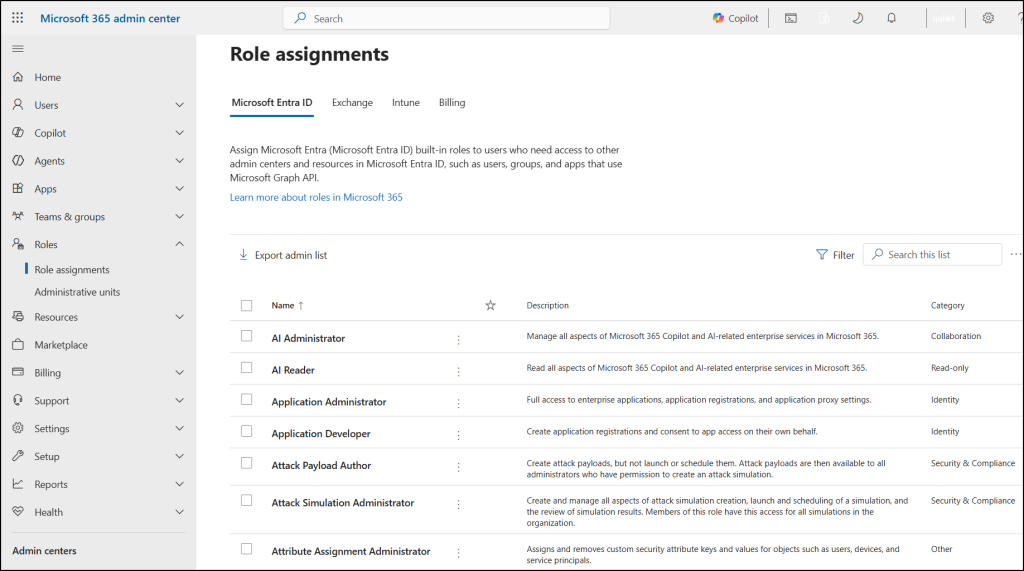
Steps to assign admin roles using Microsoft 365 admin center: https://learn.microsoft.com/en-us/microsoft-365/admin/add-users/assign-admin-roles
Role-based Access Control in Exchange Online:
Exchange Online has its own RBAC model, built on management roles and role groups. Each role group bundles the roles needed for a specific responsibility. You can grant admins only the Exchange tasks they need instead of broad administrative access.
For example, members of the Recipient Management role group can manage mailboxes, contacts, and distribution groups, but can’t change organization-wide settings.
These permissions apply only within Exchange Online and don’t extend to other Microsoft 365 workloads. If the built-in role groups don’t match your admins’ job functions, you can create custom role groups that include only the roles they need.
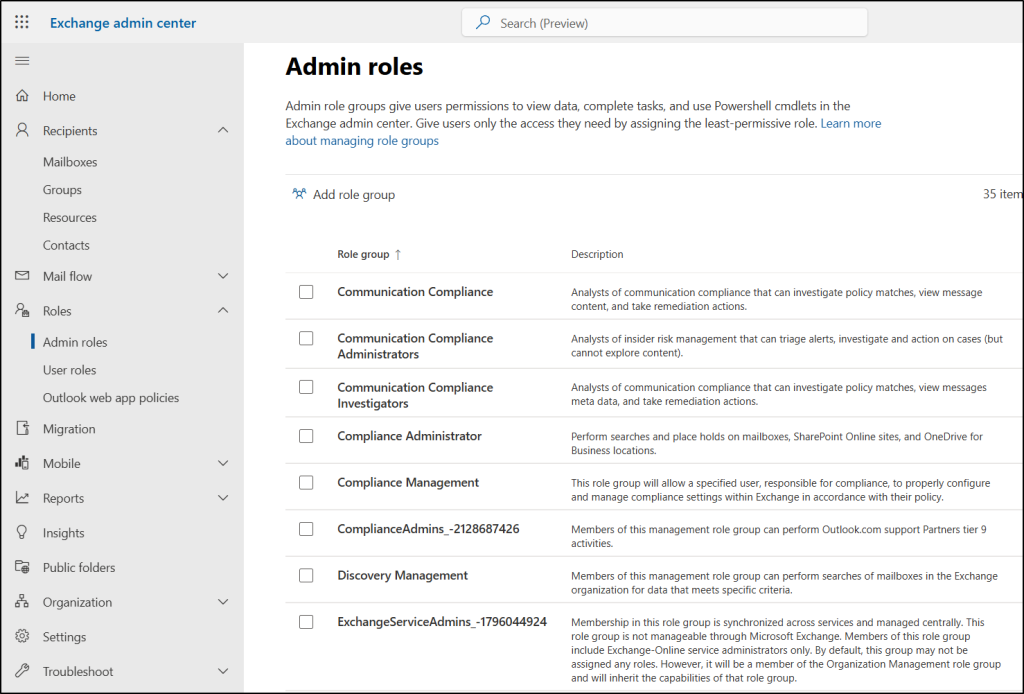
Detailed step-by-step procedure to setup role-based access control in Exchange Online: https://learn.microsoft.com/en-us/exchange/permissions-exo/permissions-exo
Used well, RBAC saves admin time, lowers costs, and tightens security. Although role-based access is less granular than setting permissions for each user, it’s more secure because it’s less error-prone.
At the end of the day, the goals are simple: safety and security.
-Jodi Rell
Finally, I hope we have provided you with enough ideas and suggestions about granularly delegating access, permissions, and tasks on this topic. Ensure a cyber fatigue-free environment by implementing the appropriate steps. To further strengthen your security posture, use Microsoft Entra Private Access, which utilizes Zero Trust principles, including least privilege, to provide secure access to internal applications and resources.
If you need assistance with ideas on least-privilege access, feel free to reach us on our platforms. We would be glad to provide suggestions for your queries!