With increasing security threats, every organization started to adopt MFA to protect their sensitive data. Multifactor authentication prevents identity-related attacks like password spray, phishing, and replay attacks. As an Office 365 admin, it’s required to enable MFA to protect their organization from account compromise. Multifactor authentication is typically performed through various methods including passwords, SMS, phone calls, authenticator app, or an external authentication method.
This blog will help you in following topics.
- How to configure MFA
- How to check users’ MFA status through PowerShell
- Get MFA status report without PowerShell
How to Configure MFA?
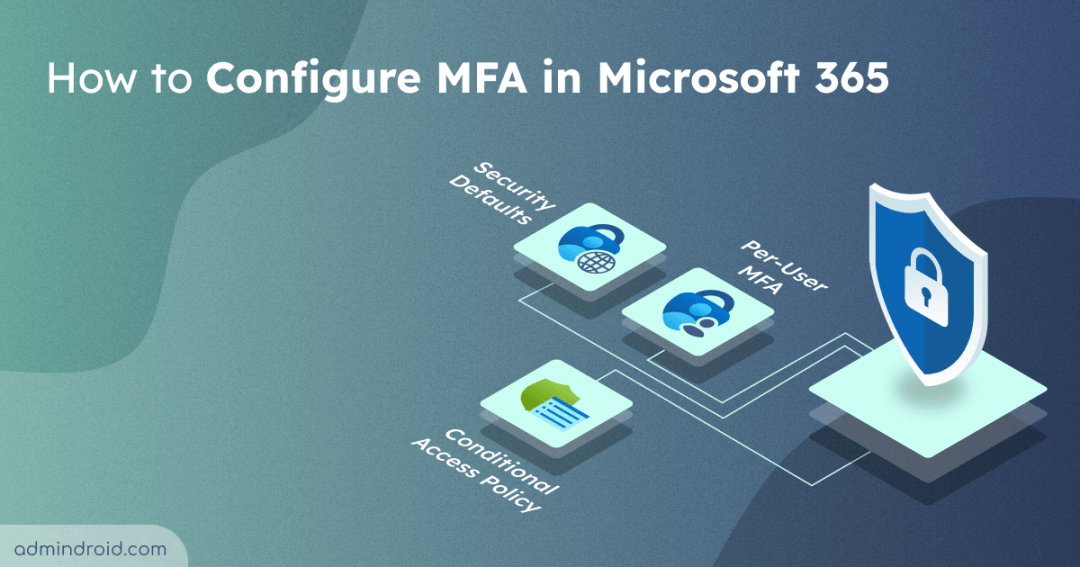
In Microsoft 365, multifactor authentication can be configured in multiple ways. You can choose any one of the below methods.
- Enable Security Defaults (SD)
- Use Conditional Access (CA) policy
- Legacy Per-user based MFA (Not recommended)
Enable Security Defaults:
For most organizations, security defaults provide an additional level of security with no extra cost. Microsoft has designed to make it available for everyone. You can turn on Security Defaults in the Entra portal. If your tenant is created after October 22, 2019, then Security Defaults are enabled by default.
Admin can enable or disable Security Defaults from the Entra admin center → Entra ID → Overview → Properties → Manage Security Defaults.
If Security Defaults are enabled, then it
- Requires all user to authenticate MFA through the Microsoft Authenticator app
- Blocks legacy authentication
Users have to register MFA within 14 days, which begins after their first successful sign-in after enabling security defaults.
When to choose Security Defaults?
- If your organization uses the free tier of AzureAD licensing, then you can choose Security Defaults.
- If your organization wants to increase security but you don’t know how or where to start, then you can start with Security Defaults.
Require Multifactor Authentication Using Conditional Access Policy:
Conditional Access policy provides more flexibility to enable MFA for users during specific sign-in events. For example, If the user account is a member of the global administrator role, then prompt for MFA before allowing access.
You can use Conditional Access policies with:
- Microsoft 365 Business Premium
- Microsoft 365 E3 and E5
- Azure AD Premium P1 and Azure AD Premium P2 licenses
You configure Conditional Access policies from the Entra admin center → Entra ID → Conditional Access.
Note: You need to turn off per user MFA and Security Defaults before enabling Conditional Access.
When to choose Conditional Access?
- If your organization uses the Azure AD Premium license, then you can choose Conditional Access.
- If your organization needs to prompt for MFA at certain conditions like requiring MFA for users with administrative roles, requiring MFA for specific applications, etc., then you should go for Conditional Access.
Tip: The choice between security defaults and Conditional Access policies is a long-standing debate. So, think wisely, consider your organization’s needs carefully, and select the best option.
Legacy Per-User Based MFA:
You can enable multifactor authentication for individual user accounts from the Microsoft Admin Center → Users → Active Users → Multi-factor Authentication.
After enabling MFA, users are prompted to register for MFA when they sign in next time.
When to choose Legacy MFA?
If your organization can’t adopt Security Defaults or Conditional Access, Microsoft strongly recommends enabling per-user based MFA.
After the MFA configuration, you need to find the MFA status whether the user has enabled MFA or not.
How to Check if MFA is Enabled for Office 365 User?
You can check MFA status through Graph API or Microsoft admin center. To get MFA status through graph API, follow the steps below.
- Sign in to the Microsoft Graph Explorer.
- Select GET as the HTTP request method.
- Use the following URL in the request box.
1https://graph.microsoft.com/v1.0/reports/authenticationMethods/userRegistrationDetails
- Click Run query and grant the required permissions if prompted.
But it will be useful only if you enabled MFA through per-user based MFA. Because if you enable MFA through Security Defaults or Conditional Access, MFA status remains disabled.
You can also use MS Graph to get per-user MFA status. However, Microsoft has not given any way to identify MFA status if it was enabled through Security Defaults or Conditional Access, which are more adopted techniques nowadays.
So, what is the way to identify the MFA Status of Office 365 users? Our tool, AdminDroid management tool, is specifically designed for Office 365 reporting, auditing and managing needs.
Get MFA Status Report with AdminDroid Office 365 Reporting Tool:
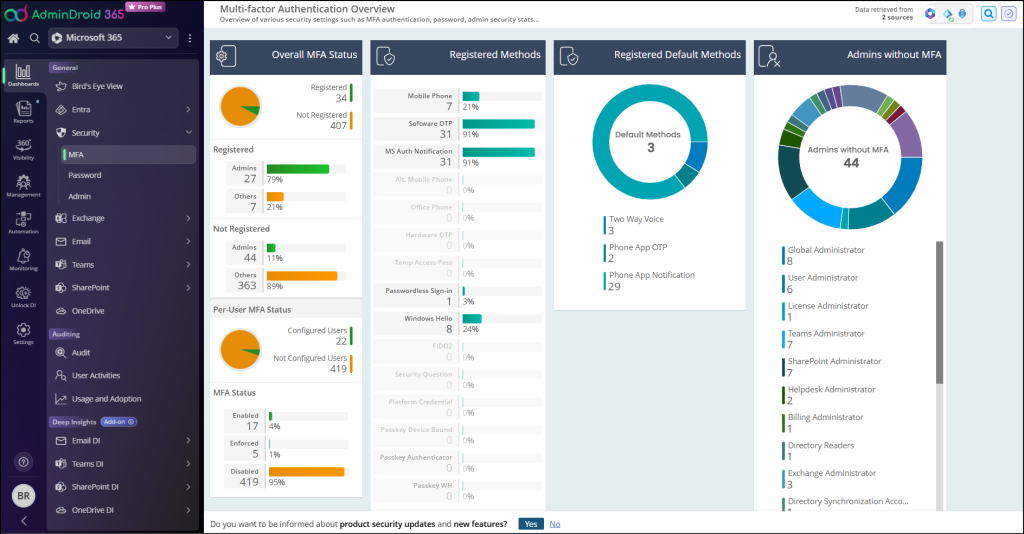
AdminDroid has MFA dashboard to view your organization’s MFA status on the go and eight dedicated reports on Office 365 MFA status.
MFA Dashboard:
MFA Status Reports:
These MFA reports show users’ MFA status based on three different MFA status (Enabled, Enforced, and Disabled) and MFA activation status.
- MFA registered users
- Users without MFA i.e., MFA Disabled users report
- MFA enabled/enforced users report
- MFA enabled users report
- MFA enforced users report
- Users with Valid MFA report
- MFA disabled users repport
- MFA device details report
- MFA summary report
You can also export these reports to CSV, HTML, PDF, XLS, XLSX, and RAW formats and send them to email.
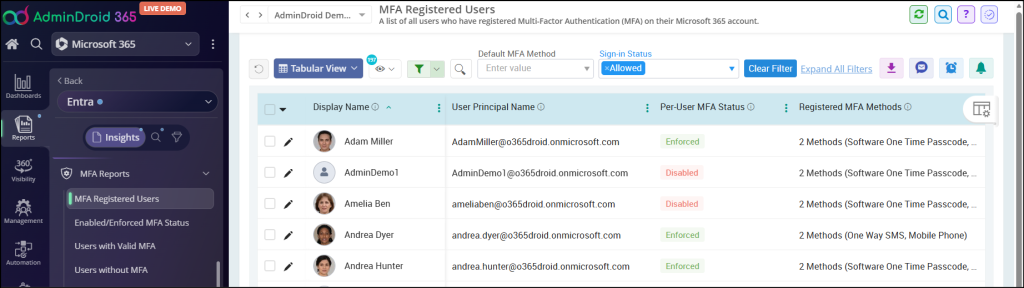
MFA Registered Users Report:
The MFA registered users report will export all users who have registered MFA. Along with the status, the report shows MFA activation status, configured authentication methods, default authentication method, etc.
This report displays results based on the Legacy MFA method.
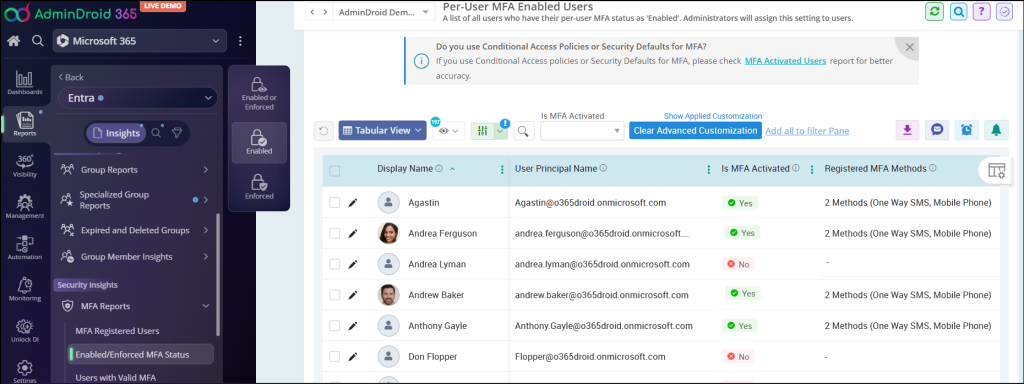
MFA Enabled Users Report:
The MFA enabled users report shows users with MFA enabled status. I.e., the report shows users who have enrolled for MFA but have not completed their registration process. By referring to this report, admins can send a security reminder to users to complete their MFA registration.
This report shows results based on the Legacy MFA methodology.
MFA Enforced Users Report:
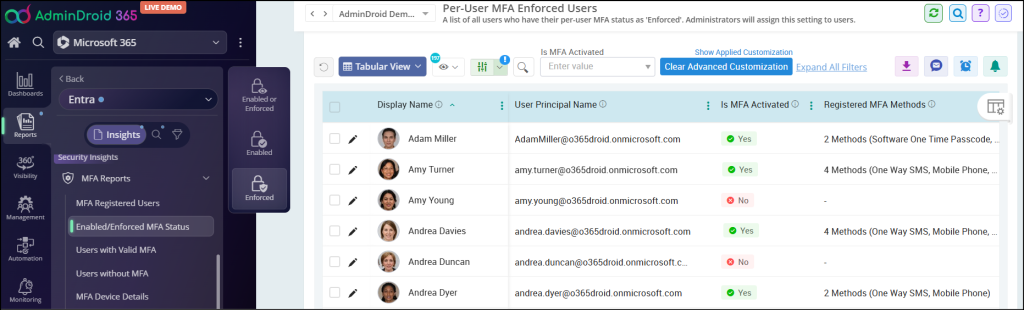
The MFA enforced users report displays users with MFA status set as ‘Enforced’. When the user completes their MFA registration, then MFA status set to enforced. This report will help you to identify how secure your organization from identity-related attacks.
MFA enforced report lists users based on the Legacy MFA method.
Users with Valid MFA Report:
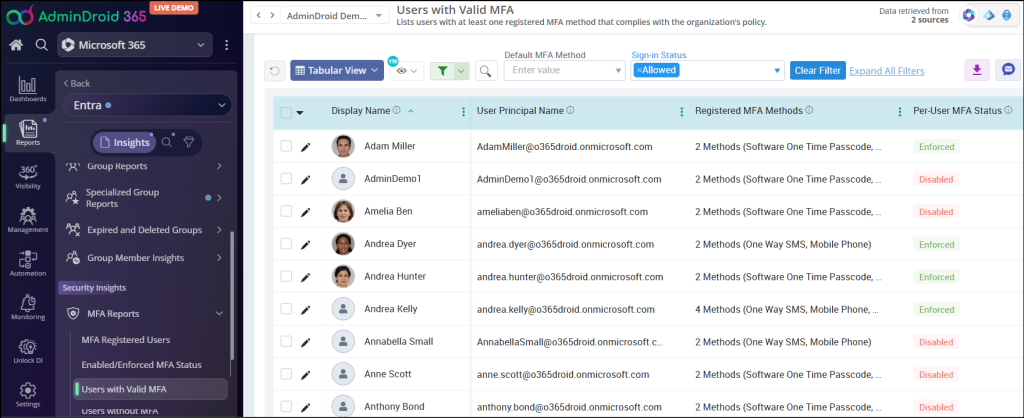
The users with valid MFA report will export all users with MFA enabled or enforced. Along with the status, the report shows MFA activation status, configured authentication methods, default authentication method, etc.
This report displays results based on the Legacy MFA method.
MFA Disabled Users Report:
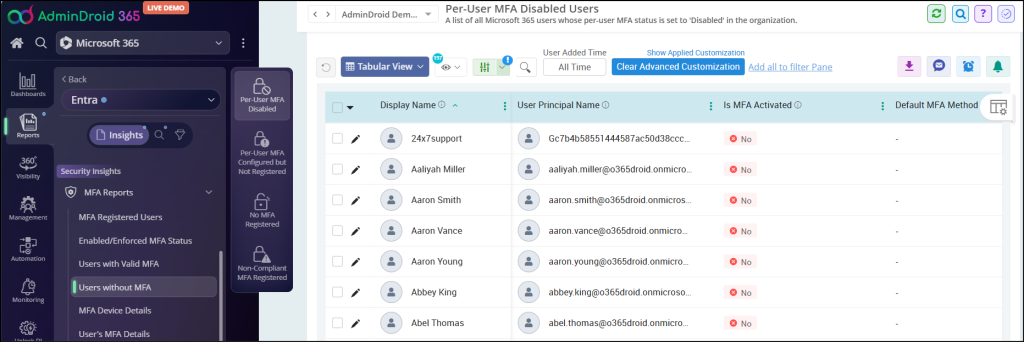
The MFA disabled users report helps to view all the MFA disabled users. By referring to this report, administrators can notify users to enable MFA for their account.
MFA disabled users shows results based on the Legacy MFA method.
MFA Device Details Report:
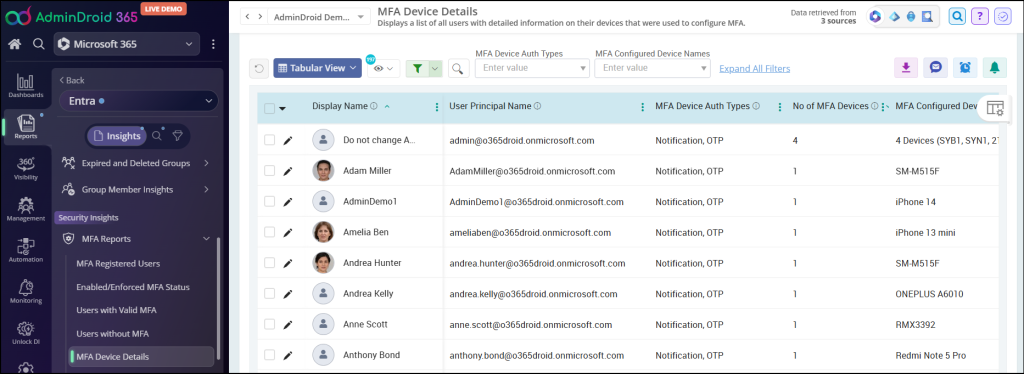
The MFA device details report shows a list of MFA configured users and detailed information of their devices used to configure MFA. This report includes MFA auth types, No. Of MFA devices, MFA device names, etc.
MFA device report lists all MFA activated users (activated through SD, CA, and Legacy MFA) along with the device details.
MFA Summary Report:
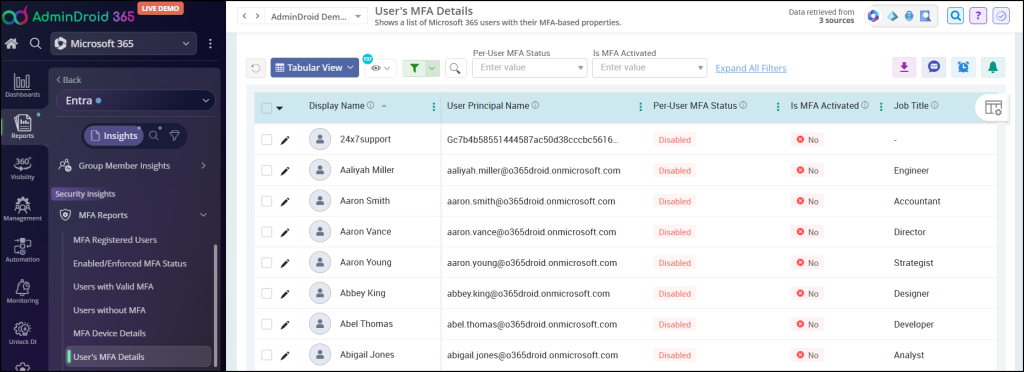
The MFA summary report lists all users with their corresponding MFA based properties such as MFA status, MFA activation status, Configured MFA methods, Default MFA methods, Authentication Phone numbers, Authentication email, MFA devices, etc.
This report shows all users in the organization and their detailed MFA properties.
MFA Audit Reports:
Often administrator wants to know
- When MFA was enabled for the particular user
- Login attempts that failed to pass the MFA challenge
To ease administrators’ work, AdminDroid has dedicated MFA audit reports to monitor MFA activities. You can get the required reports with few mouse clicks.
MFA Enabled Audit Report:
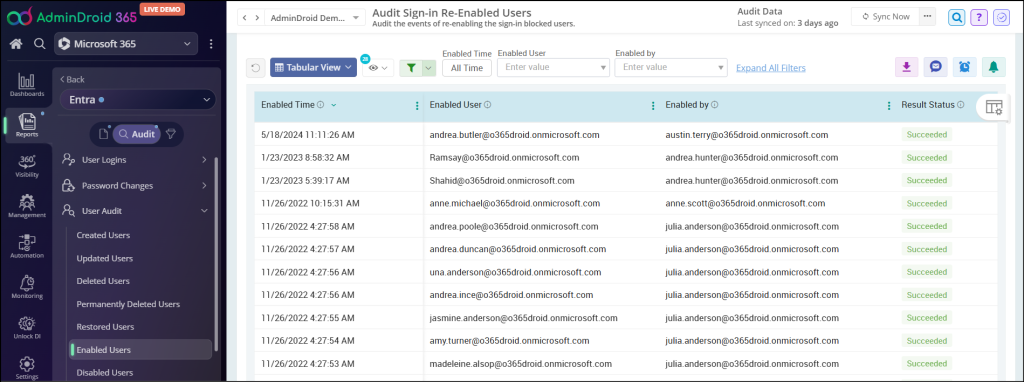
The MFA enabled audit report helps you to check when MFA was enabled for the user. MFA enabled audit report shows MFA enabled users with MFA enabled time and the Admin who configured the Multi-factor Authentication.
Audit Login Attempts Which Failed to Pass MFA Challege:
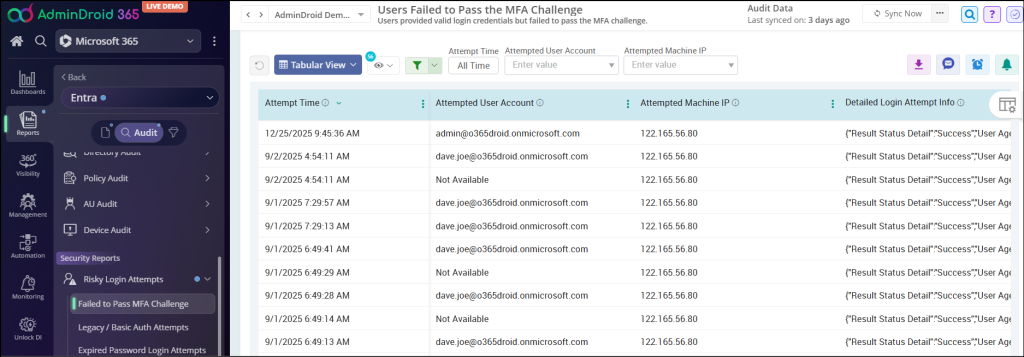
After configuring MFA, Admins need to identify risky login attempts. The users failed to pass MFA challenge report shows a list of login attempts in which the user (or attacker) has given the valid user credentials but the login failed because MFA was not completed successfully.
By referring to this report, you can identify unusual login attempts and attacks.
I hope AdminDroid Microsoft 365 reporting tool will save you some time and give you a quick win with simple mouse clicks. Importantly, don’t stop configuring multifactor authentication and checking its enforcement in M365; it’s equally important to keep track of how often users are prompted for MFA. So, you can use the “Authentication prompts analysis Workbook” in Entra ID to investigate MFA prompts on users. Furthermore, if you have queries, reach out to us in the comment section. We are here to help!