As organizations increasingly rely on SharePoint Online for collaboration and project management, inactive sites can accumulate over time. These unused sites not only consume SharePoint storage but also create governance challenges, making it harder for admins to maintain a well-organized Microsoft 365 environment.
Many organizations still depend on periodic manual reviews to identify inactive sites, which can be time-consuming. This becomes difficult to maintain when the number of sites grows.
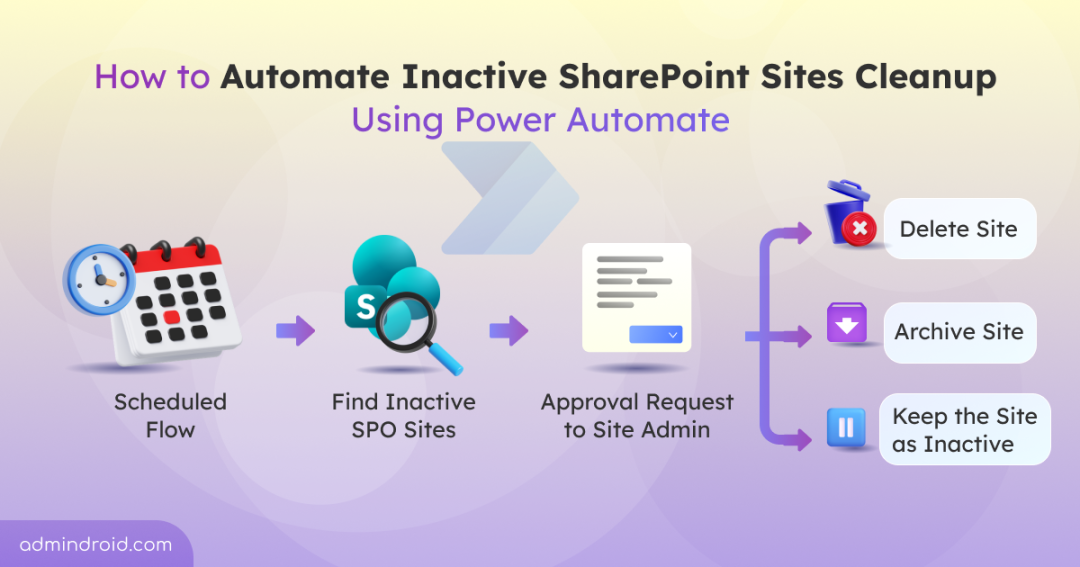
To simplify inactive site management, we built an approval-driven Power Automate workflow that automatically identifies inactive SharePoint Online sites and initiates appropriate action based on site admin response.
Without further delay, let’s explore how this workflow works and how you can automate inactive SharePoint site lifecycle management in Microsoft 365.
What Are the Native Methods to Identify and Manage Inactive SharePoint Sites?
Before diving into the Power Automate workflow, it’s helpful to explore the various methods organizations use to identify and manage inactive SharePoint Online sites. They are:
- Detect inactive SharePoint sites using SharePoint admin center
- Identify inactive SharePoint Online sites via PowerShell
- Notify site inactivity using inactive site policy
Detect Inactive SharePoint Site Using SharePoint Admin Center
The SharePoint admin center helps admins identify inactive sites using the Last activity date column. Navigate to Sites → Active sites to review site activity manually. This method is easy to use and requires no setup, but managing many sites in large environment can become time-consuming.
Identify Inactive SharePoint Online Sites via PowerShell
Since there SharePoint PnP PowerShell provides admins with greater flexibility for identifying inactive sites. Admins often use custom scripts with properties like LastItemModifiedDate to identify inactive SharePoint sites. Based on the items’ last modified date, they can determine whether the site can be deleted or archived.
Although PowerShell helps automate data collection, site reviews and lifecycle decisions still require manual effort.
Notify Site Inactivity Using Inactive Site Policy
The Microsoft 365 provides an Inactive Site Policy that helps identify inactive SharePoint Online sites and notify site owners for review. Admins can also configure the policy to archive sites after a specified period of inactivity.
However, the feature has a few limitations:
- No built-in option to delete inactive sites.
- Requires a SharePoint Advanced Management (SAM) license.
- Lifecycle actions are not approval-driven.
While these native approaches help identify and manage inactive SharePoint Online sites, admins are still required to review sites and perform lifecycle actions manually in many scenarios.
How Can Power Automate Simplify Inactive SharePoint Site Lifecycle Management?
To simplify inactive site governance, Power Automate can be used to build an approval-driven lifecycle management workflows. Here, SharePoint site management flow automatically detects inactive sites and performs admin actions based on the approval.
With this approach, organizations can:
- Automatically identify inactive SharePoint Online sites.
- Send approval requests to site admins.
- Archive, delete, or retain sites based on approval responses.
- Configure custom inactivity thresholds.
- Generate detailed audit and governance reports.
- Reduce manual effort involved in reviewing and managing inactive sites.
By automating the entire site lifecycle, organizations can manage inactive SharePoint sites more efficiently while maintaining governance and administrative control.
An Overview of How the Inactive SharePoint Site Management Flow Works
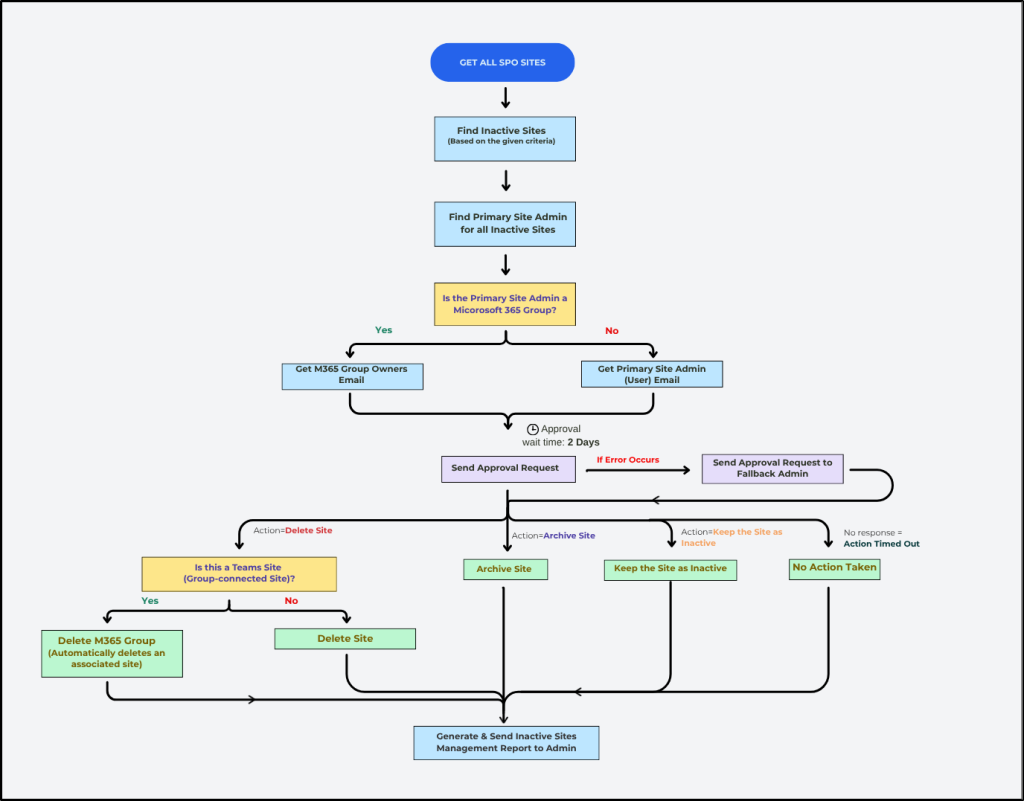
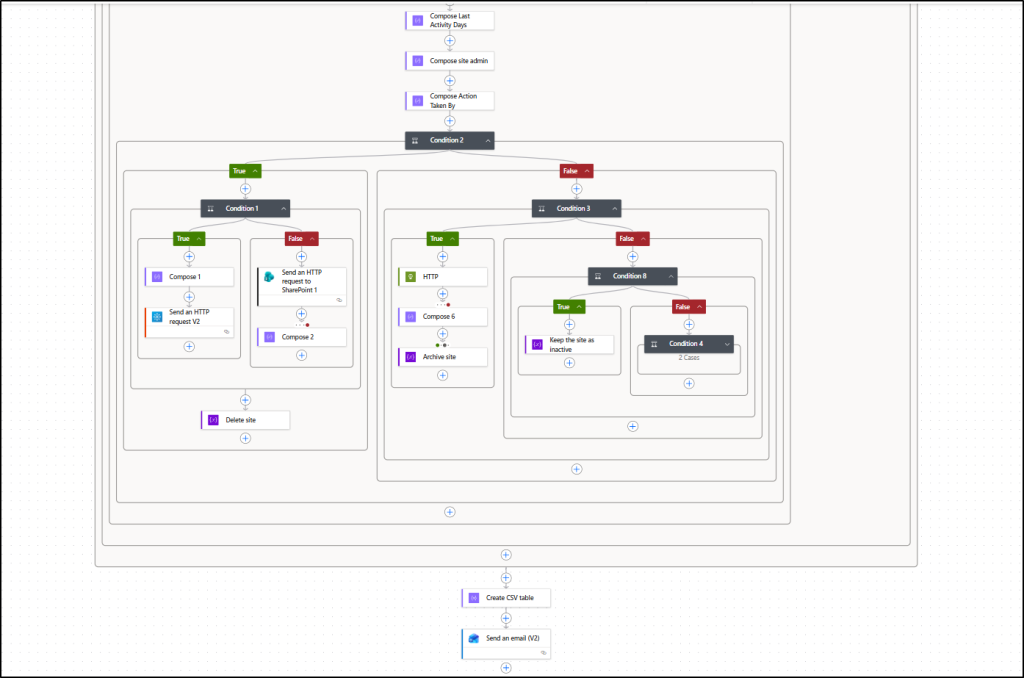
This workflow is designed to run on a scheduled basis, typically every 90 days, to identify and manage inactive SharePoint Online sites automatically.
- The flow retrieves all SharePoint Online sites in the organization and excludes recently created sites based the number of days specified by the user (for example, the last 30 days). This ensures that only sites that are not active for a long time are evaluated for inactivity.
- Next, flow identifies sites that are inactive for the configured period (i.e., 90 days) by excluding certain sites like SharePoint Root Site and App Catalog Site as they can’t be deleted or archived.
- For each inactive site, the flow retrieves the primary site admin.
- The flow sends approval requests to the primary site admin and automatically routes them to a fallback admin if delivery fails.
- Based on the approval response, the flow can delete the site, archive the site, or keep it as inactive.
Note: Hub sites can’t be deleted or archived as they serve as important organizational resources. Therefore, no lifecycle action is performed on them. - If no response is received within two days, the approval request is marked as timed out and no action is taken.
- Finally, a detailed report of containing inactive sites identified, approval outcomes, actions performed, and any errors encountered is shared with the SharePoint admin.
The flowchart below provides a visual overview of the inactive SharePoint site management Power Automate flow.
Download Flow Package from GitHub: Inactive SharePoint Site Lifecycle Management
Download the .zip package and deploy the inactive SharePoint site management workflow directly to your environment.
After downloading the package, you have to check the prerequisites and then import the flow to configure & deploy it.
- Prerequisites for inactive SharePoint site management flow
- Steps to import inactive site lifecycle management flow
Prerequisites for Inactive SharePoint Site Lifecycle Management Flow
Ensure the required configurations and permissions are in place to enable smooth execution for the lifecycle management of inactive sites workflow. The below table covers the prerequisites needed for this workflow.
| Requirement | Purpose |
| Power Automate Premium License | Required to use premium connectors used in the solution. |
| Azure Subscription | Needed to perform site archiving operations in Microsoft 365. |
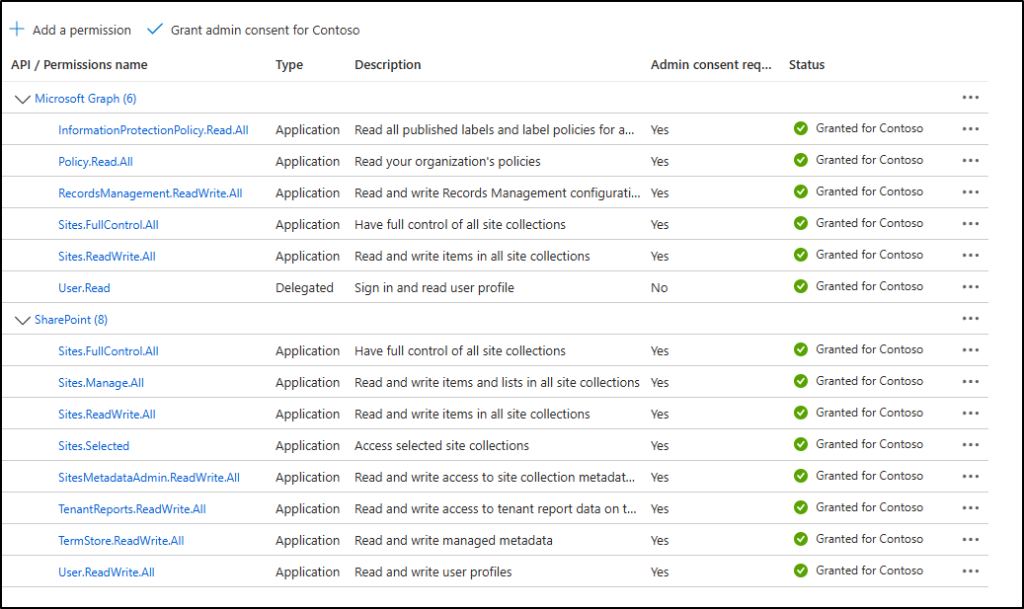
| Custom Application Registration | Register a custom application Add all the required permissions to the application that are shown in the screenshot after the table. |
| Client Secret | Create it for secure authentication. Ensure to store it safely for application access. |
| Application (Client) ID | Required to uniquely identify the registered application during authentication. |
| Directory (Tenant) ID | Required to find the M365 tenant where the application is registered. |
These permissions allow the workflow to retrieve SharePoint site activity data, identify inactive sites, and perform lifecycle actions such as archiving or deleting sites based on approval responses
With these prerequisites in place, you are ready to import the flow.
Import the Inactive SharePoint Site Cleanup Management Workflow
After downloading the inactive SharePoint Online site management workflow, follow the steps below to deploy and import the inactive SharePoint Online site governance workflow.
- Open Power Automate with the required permission and navigate to Solutions >> Import solution.
- Under Select a file, click Browse, choose the downloaded ZIP file and click Next.
- Verify the details and click Next to import connections.
- Then, select Next and replace the default environment variables with tenant ID, client secret, SharePoint admin site URL, site inactive days, and site inactivity threshold.
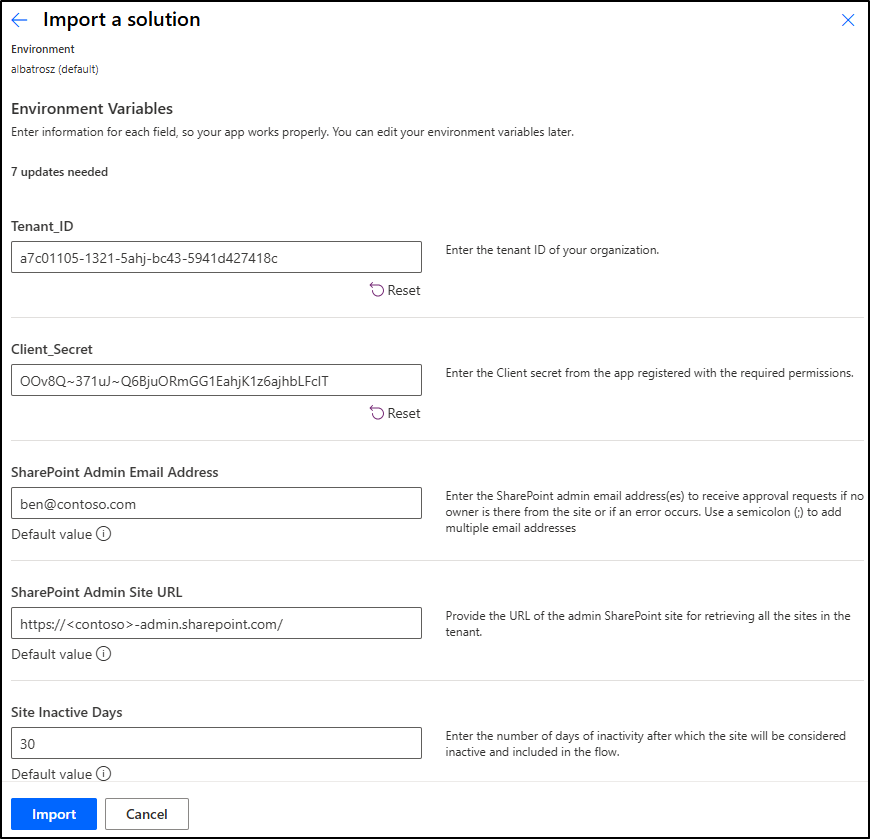
- Once you have replaced the default values, click Import to start importing the flow in solutions.
- After the import has been successful, navigate to the imported file under Solutions tab and click on the cloud flow “Inactive SharePoint Site Management”.
- Run a test submission to check if the flow works correctly in your environment.
⚠️ Note: If the default values are not replaced correctly, then warnings will appear and flow will not turn on.
Here is a snapshot of the inactive SharePoint site lifecycle automation workflow.
Inactive SharePoint Site Management Report and Audit Details
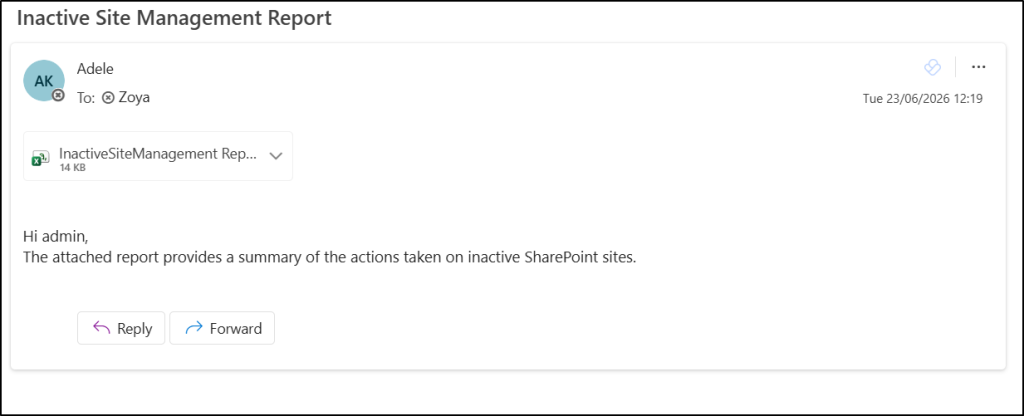
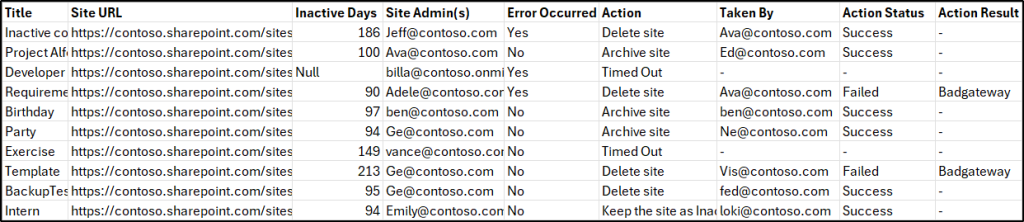
After the flow successfully tested, a detailed execution of Inactive site management report is automatically sent to the SharePoint administrator via Outlook and can be downloaded for review and audit purposes. This improves visibility for reporting and auditing of SharePoint Online site activity.
The table below shows the columns included in the report and their details.
| Column Name | Purpose |
| Title | Displays the name of the SharePoint site. |
| Site URL | Shows the URL of the SharePoint site. |
| Inactive Days | Indicates the number of days that the site is inactive. |
| Site Admin(s) | Lists the site admins associated with the site. |
| Error Occurred | Shows whether any issue occurred during the approval request handling, such as missing or deleted admin accounts. If the request is routed to a fallback admin, it is marked as Yes otherwise No. |
| Action | Specifies the selected action for the site such as delete archive or keep site as inactive. |
| Taken By | Identifies the admin who approved or performed the action. |
| Action Status | Shows whether the action was successful or failed. |
| Action Result | Displays details or error messages related to the executed action. |
Once the report is generated, SPO admin can receive below the report through Microsoft Outlook.
Note: The flow uses an “Apply to each” loop to evaluate inactive sites and take the required action. It processes 50 sites at a time and then moves to the next batch of 50 after the previous approval is completed or timed out.
How to Decide Whether to Delete, Archive, or Retain an Inactive SharePoint Site
When the approval request is received, admins may be unsure whether an inactive site should be deleted, archived, or retained. The following guidelines can help admins choose the most appropriate action based on the site’s business value and future relevance.
Delete site:
Choose this action when the site has served its purpose and is no longer needed.
- When the site is created solely for testing, training, or demonstration and is no longer in use.
- The site has no active users and no ongoing business relevance.
- All content has been migrated to another SharePoint site or repository.
- A review confirms that the site is abandoned and unlikely to be used again.
Archive site:
Choose this action when the site is inactive, but its content must be preserved to optimize SharePoint storage and for future reference.
- The site contains historical records, completed project documentation, or reference materials.
- The content may be required for audits, compliance requirements, legal matters, or investigations.
- The site is not actively used, but the information must remain accessible when needed.
Retain the site:
Choose this action when additional review is required before making a lifecycle decision.
- The site is currently under review and stakeholder input is still pending.
- There is uncertainty regarding the site’s future ownership or business relevance.
- The site is temporarily inactive but is expected to be used again in the near future.
Ultimately, the decision should be based on the site’s usage history, business importance, compliance requirements, and anticipated future use.
Common Questions About the Inactive SharePoint Site Management Flow
When setting up and working with the inactive SharePoint Online sites cleanup workflow, admins often have questions about how it operates, how it can be configured, and which scenarios it supports. The section below covers some of the most common queries related to the workflow’s behaviour and usage.
- What types of sites are supported in the inactive site lifecycle management flow?
The inactive site lifecycle management flow supports most modern and classic SharePoint Online sites in Microsoft 365. However, certain classic site templates such as Community Portal, Discovery Center, and eDiscovery Center are not supported and are excluded.
- How the flow handles a site with a retention policy applied?
A site with an active retention policy can still be archived. However, the delete action is blocked by the retention policy and will fail. Other supported actions continue to function normally.
- What happens if a Group Expiration Policy is configured?
Sites governed by a Microsoft 365 Group Expiration policy are excluded from the workflow and are not processed.
- How does the flow handle special SharePoint site scenarios?
The workflow automatically applies only supported lifecycle actions based on site type:
- Hub Sites can only receive inactivity notifications and cannot be archived or deleted.
- Content Center sites can be deleted but cannot be archived.
- Visio Process Repository sites can be deleted but cannot be archived.
- What happens if a site is locked?
If a site is locked, the flow may be unable to retrieve the site admin. In such cases, the approval request is automatically routed to the configured fallback administrator, ensuring that the site can still be reviewed and appropriate lifecycle actions can be taken.
- Can a SharePoint site be recovered after deletion in the lifecycle flow?
Yes. Deleted SharePoint sites are not permanently removed immediately. The site enters a 93-day retention period, during which it can be restored through the SharePoint admin center or Microsoft 365 administration tools. However, the workflow itself does not provide a built-in restore option.
- What happens if an approval response is received after the 2-day timeout?
After two days, the approval request is marked as Timed Out, and no action is performed. Responses submitted after the timeout period are ignored by the workflow. The site remains inactive and will be evaluated again during the next review cycle.
- What happens when a Teams-connected site is deleted?
Deleting a Teams-connected SharePoint site also removes the associated Microsoft 365 Group and Microsoft Teams workspace.
The Microsoft 365 Group then enters a 30-day soft-delete period, during which it can be restored. If the group is not restored within that period, both the group and the associated SharePoint site are permanently deleted.
- How the flow executes when the site is a hub site?
If the site is identified as a hub site, admins will be notified via approval. They can’t delete or archive the inactive SharePoint site. Instead, they can select ‘Keep the site as inactive’. Below is the approval message that admin receives when the site associated with the hub.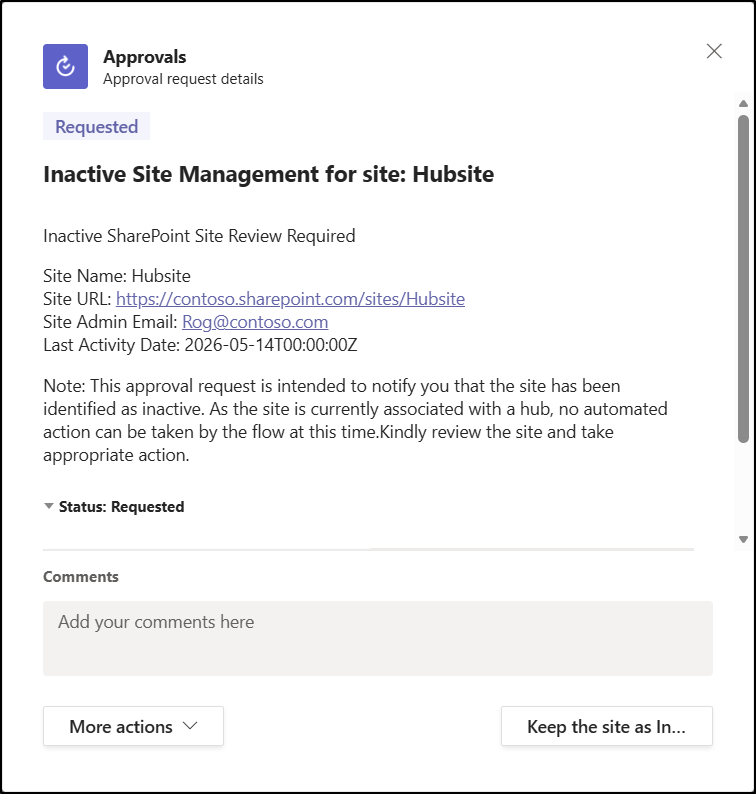
And that’s a wrap!
With this inactive SharePoint site management workflow, inactive sites are automatically identified and reviewed through an approval process. Based on the decision, sites can be deleted, archived, or kept inactive, ensuring better control and reduced manual effort.
Similarly, you can extend these governance capabilities to manage inactive guest users, user onboarding, offboarding, and other administrative tasks in Microsoft 365 for a more secure and streamlined environment. You could also extend to automate approval workflows for external sharing of SharePoint files so that every file reviewed before external exposure.
Feel free to share your thoughts or questions in the comments about the flow and its implementation.