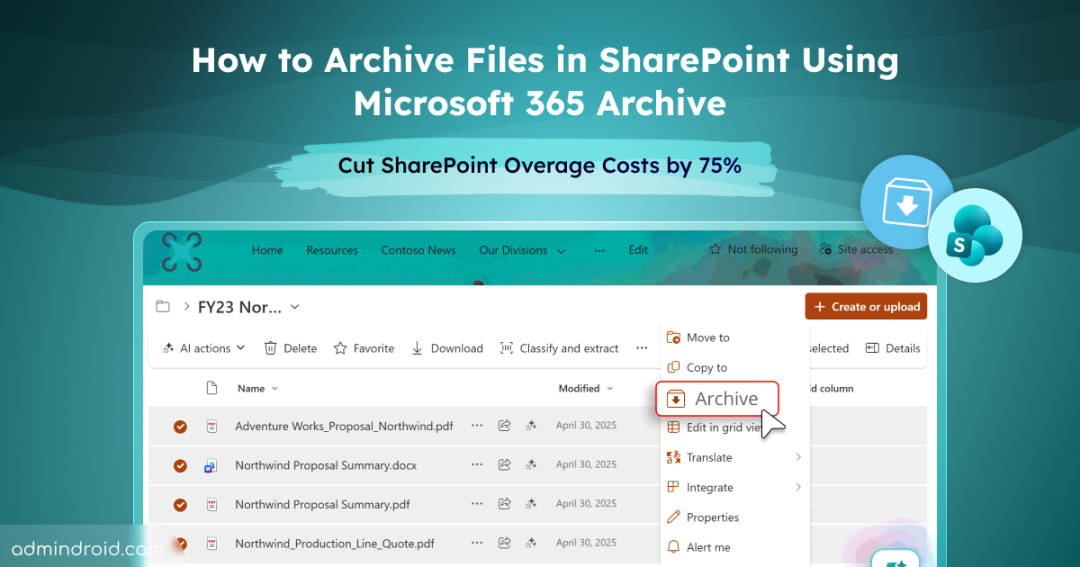
Back in 2023, Microsoft announced one of its most requested features: Microsoft 365 Archive. It helps organizations move inactive SharePoint and OneDrive content to a lower-cost storage tier, and we know everybody welcomed it!
Microsoft 365 Archive started with site-level archiving and gave organizations a way to archive entire SharePoint Online sites that no longer require active use. However, not every archiving scenario involves an entire site. Organizations often need a more granular approach, where specific files need to be archived while the rest of the site remains active and accessible.
The ‘file-level archiving’ capability extends Microsoft 365 Archive beyond site-level archiving. Microsoft will make the feature generally available in July 2026. It allows organizations to archive individual files within an active SharePoint site and move them to a lower-cost cold storage tier without affecting the site itself.
What is File-Level Archiving in Microsoft 365 Archive?
Instead of pushing an entire site to cold storage, file-level archiving lets you select specific files to archive.
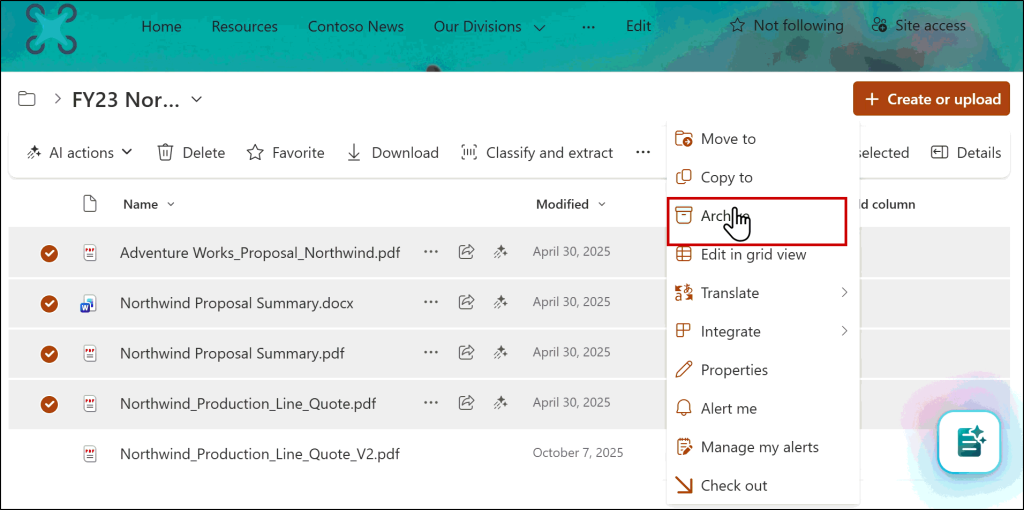
- The archived file remains in SharePoint along with its metadata, permissions, and version history.
- Microsoft 365 Archive then moves the file to a lower-cost archive storage tier, reducing the cost of storing inactive content without affecting the rest of the site.
Archived files use a $0.05/GB/month storage tier instead of incurring storage overage charges at $0.20/GB/month.
👉Archiving also preserves existing governance controls. Retention labels, sensitivity labels, permissions, eDiscovery coverage, and audit logs continue to apply to archived files. Organizations can reduce storage costs without compromising compliance or auditability.
If you’ve used site-level archiving (generally available since May 2024), the key difference is that the site doesn’t go offline. You’re not archiving the container. You’re archiving what’s inside it.
From an admin perspective, this doesn’t add operational overhead. Users with the right permissions can archive and reactivate files themselves, without raising requests or involving admins every time.
Microsoft Copilot Doesn’t Access Archived Files
There’s also a direct impact on Copilot. Microsoft 365 Copilot excludes archived content from its responses. If Copilot is surfacing expired contracts, outdated proposals, or three-year-old project decks alongside current content, archiving those files is the fastest way to clean up the noise, without touching a single Copilot setting.
How Archiving and Reactivation Work in SharePoint Online
File-level archiving doesn’t remove files or free up site storage. Instead, it reclassifies your storage at the tenant level. When you archive files:
- Active storage decreases by the size of the archived files
- Archived storage increases by the same amount
- Total tenant storage stays the same
Now you might wonder, if the total doesn’t change, why bother archiving at all? That’s the part worth understanding.
Billing is based on how that storage is classified. That means archived data is only charged when your total storage (active + archived) exceeds your licensed quota. If you’re within your quota, you don’t pay anything extra, even for archived data!
If you do exceed the quota, Microsoft bills archived storage at $0.05/GB/month. That’s significantly lower than the $0.20/GB/month you’d pay for additional active storage. That’s exactly why archiving is the smarter option over buying more storage!
And another piece of good news is that reactivation is also now free. Microsoft originally charged $0.60/GB to restore archived content, but eliminated that fee in 2025. You can restore any archived file or site at no cost.
The only thing to plan around is the re-archive cooldown. After users reactivate a file, Microsoft prevents them from archiving it again for 30 days. So, reactivate only when you genuinely need access, not as a habit.
Why Archiving Doesn’t Reduce Storage (But Still Saves Cost)
Read this before you enable anything: archiving a file does not free up site storage.
The Microsoft FAQ is explicit: “Archiving a file doesn’t reduce reported storage usage, change storage calculations, or affect quota enforcement. Because archived files continue to consume site storage, file-level archive can’t be used to reduce storage usage or store data beyond a site’s allocated quota.”
If you archive 500 GB on a site with a 1 TB quota, that site still reports 500 GB used. The quota doesn’t budge. The change happens at the tenant level, not the site level. When you archive files, storage is reclassified from active to archived. This doesn’t reduce total storage; it only changes the billing model.
Here’s a simple example:
- Licensed quota: 10 TB
- Current usage: 11 TB
Before archiving:
- 10 TB → covered by license
- 1 TB →You will be billed at $0.20/GB/month for overage
Now, archive 3 TB of old data. The system splits it:
- Active storage → 8 TB → within your 10 TB quota → $0
- Archived storage → 3 TB
- 2 TB fits within remaining quota → $0
- 1 TB exceeds quota → $0.05/GB/month
- 2 TB fits within remaining quota → $0
Total storage remains at 11 TB. But the thing that saves you cost is: if your total storage (active + archived) stays within your licensed quota, you pay nothing extra, even for archived data! If archived storage exceeds the quota, Microsoft bills you only for the excess storage.
Billing now works differently:
- 10 TB → still covered by license
- Remaining 1 TB → billed as archived storage at $0.05/GB/month
That’s the key benefit. You’re still over quota, but instead of paying $0.20/GB, you’re paying $0.05/GB for that excess.
👉 You reduce overage costs by 75%, not storage consumption.
| Pro Tip: For maximum savings, trim file versions before archiving. Version history can account for a significant portion of a file storage footprint. Reducing versions first means a smaller file moves to the archive tier, lowering both active and archived storage consumption. |
Rules Before You Start: Archive and Reactivate Files
Now that the math and how it works are clear, let’s look at the prerequisites and key rules to ensure a smooth start before enabling it.
- Only users with edit permissions on a file can archive it. They select the file, click Archive, and confirm. No tickets, no admin involvement.
- Reactivation is even easier. Anyone with read access can reactivate a file from archived files. That means when someone needs an archived file, they don’t need to find whoever archived it. They restore it themselves.
Archive States and Reactivation Timing
Once archived, a file moves through three states that determine how quickly you can get it back:
| State | Duration | Reactivation Time | Allowed Actions |
| Recently Archived | First 7 days after archiving | Instant | Reactivate, Delete |
| Archived | After 7 days | Up to 24 hours | Reactivate, Delete |
| Reactivating | While restoration is in progress | N/A | Delete only |
If a user realizes they archived the wrong file, they have a 7-day window where reactivation is instant. After that, they may wait up to 24 hours. Consider reactivation timelines before archiving files that users may need on short notice.
How to Enable File-Level Archiving for SharePoint Online
Currently, administrators must enable file-level archiving through PowerShell. At General Availability in July 2026, Microsoft will enable it by default for sites covered by Microsoft 365 Archive unless administrators restrict its availability.
Prerequisites for File-Level Archiving
Before running any commands, confirm these are in place:
- Azure subscription and resource group configured for pay-as-you-go billing
- Microsoft 365 Archive turned on in the M365 admin center (Settings > Org settings > Pay-as-you-go services > Archive)
- SharePoint Online Management Shell updated to version 16.0.26714.12000 or later (required for tenant-level commands)
- SharePoint Administrator or Global Administrator role
End users will see the Archive button only when all four prerequisites are met.
Enable File-Level Archiving at the Tenant Level
Make sure your SharePoint Online Management Shell is above 16.0.26714.12000; if not, update it and connect using the cmdlet below.
|
1 2 |
Update-Module -Name Microsoft.Online.SharePoint.PowerShell Connect-SPOService -Url "https://<tenant>-admin.sharepoint.com" |
Replace <tenant> with your tenant name. Now flip the switch for the entire tenant.
|
1 |
Set-SPOTenant -AllowFileArchive $true |
This is the global switch. When set to $false, no user on any site can archive files, regardless of site-level settings.
Note: The tenant-level flag always overrides site-level configurations. If you disable it after users have already archived files, those files remain archived, and users can still reactivate them. No data loss occurs.
How to Allow File-Level Archiving for Specific Sites
File-level archiving doesn’t have to be enabled everywhere. Administrators can allow it across all SharePoint sites, limit it to selected sites, or disable it entirely. They can also control whether newly created sites receive the feature automatically.
To manage availability, use the AllowFileArchive and AllowFileArchiveOnNewSitesByDefault PowerShell parameters.
If you want to pilot file-level archiving on specific sites before a broad rollout, enable it selectively.
|
1 |
Set-SPOSite -Identity https://contoso.sharepoint.com/sites/Marketing -AllowFileArchive $true |
This cmdlet enables file-level archiving only for the Marketing site. Users on other sites won’t see the Archive option unless administrators enable file-level archiving for those sites as well. To disable file-level archiving for a site, run:
|
1 |
Set-SPOSite -Identity https://contoso.sharepoint.com/sites/Marketing -AllowFileArchive $false |
Make ‘File Archive’ Available by Default on New Sites
Rather than enabling file-level archiving manually for every new site, you can configure SharePoint to apply it automatically during site creation:
|
1 |
Set-SPOTenant -AllowFileArchiveOnNewSitesByDefault $true |
New sites will inherit this setting when they are created. Set the value to $false if you prefer to enable file-level archiving on a site-by-site basis.
How to Find Archived File Storage Using PowerShell
After your users start archiving, you’ll want to see how much storage is moved to the archived tier on each site.
|
1 |
Get-SPOSite -Identity https://<tenantname>.sharepoint.com/sites/SiteName | Select ArchivedFileDiskUsed |
The ArchivedFileDiskUsed property shows the total archived file storage on the site, in bytes.
End User Experience: How to Archive Files from a SharePoint Site
Once a SharePoint or Global Admin enables file archiving for the tenant/site, any user with edit permissions can archive files, just like we would move, download, or copy them.
Select the file(s) you want to archive and hit Archive. That’s it!
Archiving completes quickly, usually within minutes, regardless of the file size or volume. Once archived, a file moves through three states that determine how quickly it can be reactivated.
If a user realizes they archived the wrong file, they have a 7-day window where reactivation is instant. After that, they may wait up to 24 hours. Plan accordingly when archiving files that might be needed on short notice.
File-level Archiving: Limitations and What’s Coming Next
With General Availability rolling out in July 2026, there are a few limitations everyone should be aware of.
Not All Microsoft 365 Apps Handle Archived Files Properly
This is the biggest operational risk during preview. Several Microsoft 365 apps do not yet handle archived files gracefully. When users interact with an archived file in these apps, they see generic or misleading error messages. There is no clear “this file is archived” notification.
Known affected apps:
- Word Online and PowerPoint Online
- Teams, OneDrive, and SharePoint mobile apps
- macOS with the OneDrive sync client
- Windows 10 and earlier with the OneDrive sync client
- Windows devices are not configured for frequent updates
- Office desktop apps that haven’t received updates since March 1, 2026
- Clipchamp, Power BI, and other apps that import SharePoint content
- Before enabling file-level archiving, communicate to your users about what archived files look like and how to reactivate them.
Files and Libraries That Cannot Be Archived
Not all file types support archiving:
- OneNote files
- SharePoint pages
- SharePoint agents
- Files in the Site Assets library
These file types simply won’t show the Archive option. There’s no error message. The option is silently unavailable.
File Archiving is Available Only for SharePoint Online
If someone moves or copies an archived file to OneDrive, the archived state may not render correctly in the OneDrive UI. You’ll confuse your users.
Another important thing to note is that this is not a backup. Archiving moves a file to a different storage tier within the same Microsoft datacenter. It does not create an independent copy. If an archived file is deleted and the recycle bin expires, the file is gone permanently. You need a separate backup solution like Microsoft 365 Backup to protect against this.
What’s Coming
- GA: July 2026 — Microsoft will enable file-level archiving by default on all sites covered by Microsoft 365 Archive.
- Policy-based archiving: Late 2026 — rules like “archive files not accessed in 12 months.” This is the piece that makes it work at scale.
- Graph API: Already in preview for custom workflows and ISV integrations.
Frequently Asked Questions on File-Level Archiving
Does file-level archiving reduce my SharePoint site’s storage quota?
No. If you are running low on site storage, archiving files will not help. The quota relief happens at the tenant level only. To actually free up site-level space, you need to delete files or move them off the site entirely.
What happens when someone opens an archived file in Word Online?
During the public preview, Word Online and PowerPoint Online display generic error messages. Users need to go back to the library and click Reactivate. Communicate this before you enable.
Can I archive OneNote files?
No. OneNote, SharePoint pages, SharePoint agents, and Site Assets files are excluded. Focus on documents, spreadsheets, PDFs, and large media files.
Do archived files appear in Microsoft 365 Copilot responses?
No. If your Copilot responses surface outdated proposals, expired contracts, or legacy project documents, archiving those files removes them from the pool. This is one of the fastest ways to improve Copilot relevance without retraining or configuring anything on the Copilot side.
Is there a fee to reactivate archived files?
No. Eliminated March 31, 2025. The only restriction is the 30-day re-archive cooldown.
What happens to version history?
Archiving a file also archives all its versions. Reactivating the file restores the complete version history, and you can’t archive individual versions independently.
File-level archiving gives organizations a middle ground between archiving everything and archiving nothing! Start with a pilot site, tell your users what to expect, and build a baseline before policy-based automation lands later this year.