Organizational units are more than just container in Active Directory environment. They act as boundaries for Group Policy application and administrative delegation. This makes them a core part of your management model. Any change to an OU can impact access, policies, and large groups of users or devices.
To prevent unintended changes, Active Directory enables accidental deletion protection for OUs in most cases at the time of creation. This safeguard is useful in most scenarios. However, it can become a hurdle during routine tasks like cleaning up unused or unwanted OUs.
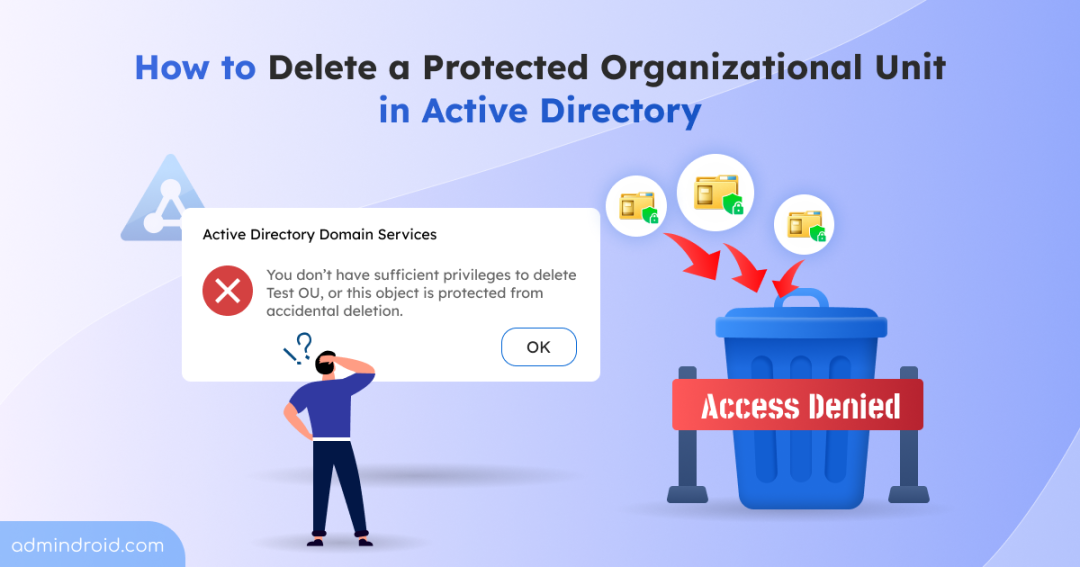
Even with elevated permissions, you will encounter errors such as:
- You do not have sufficient privileges to delete ‘OU’ or this object is protected from accidental deletion
- Access is denied
These errors can appear even when the OU is empty or not the default OU. In this blog, we’ll walk you through how to disable and delete protection enabled OUs in Active Directory.
Why You Can’t Delete a Protected Organizational Unit in Active Directory
Whenever you create an OU using Windows administrative tools, the Protect container from accidental deletion option is enabled by default. Although this can be disabled during creation, such as when setting up AD test environment, most administrators keep the default configuration.
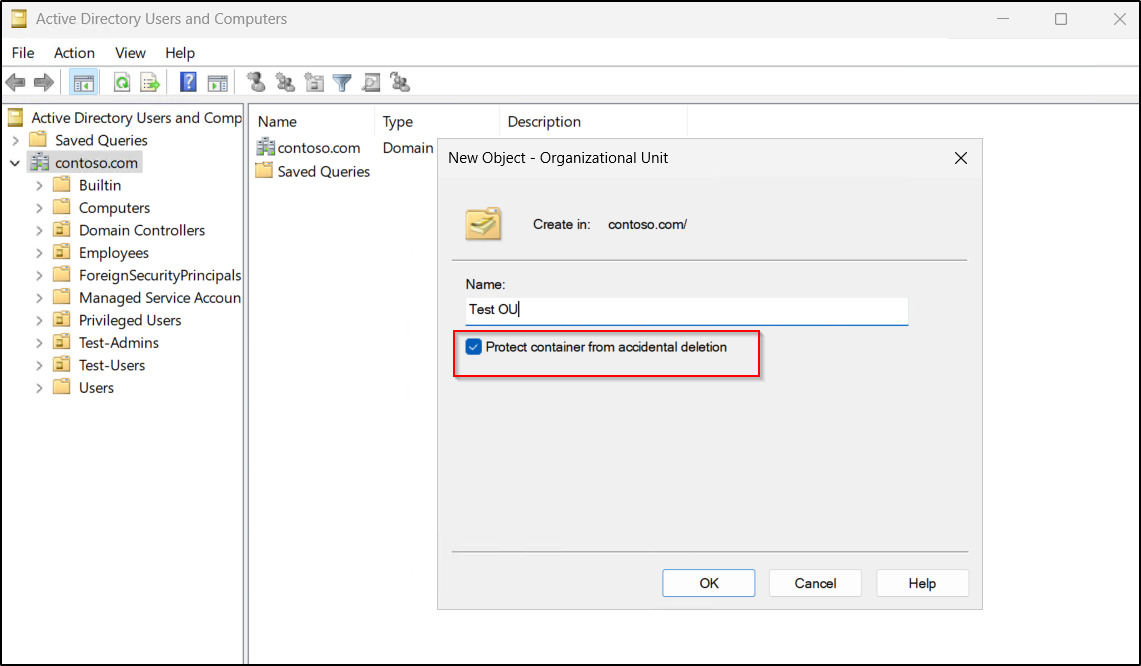
As a result, any future attempt to delete that OU will fail with access-related errors. This is not due to a lack of “Allow” permissions. Instead, this setting works by applying an explicit “Deny” ACE (Access Control Entry) to the object. Specifically, it denies the Delete and Delete Subtree permissions for the ‘Everyone‘ group.
An explicit Deny permission entry always takes precedence over an inherited Allow permission entries in Active Directory. As a result, even an account with Full Control or Domain Admin rights is blocked from removing the object.
Beyond deletion, this protection also prevents the OU from being moved, as Active Directory treats a “Move” as a deletion from the original parent container. This additional layer of protection ensures your administrative hierarchy remains stable and secure.
Key Scenarios for Deleting Protected OUs in Active Directory
Deleting protected OUs in Active Directory is necessary in scenarios such as:
OUs Contains Inactive Objects
Some OUs contain only contain stale objects, such as decommissioned devices or off-boarded accounts. Retaining these OUs adds unnecessary clutter and can complicate management. Therefore, deleting them helps keep the environment clean and organized.
Temporary OUs Created for Testing Group Policies
Admins often create temporary OUs to test Group Policy Objects (GPOs) before deploying them to production. Once testing is complete, these OUs are no longer required and can be removed.
Unused OUs from After Migration
Over time, OUs created for projects or temporary departments, may become obsolete due to restructuring or migration. Even if unused, OU deletion may be blocked by protection settings. Removing them helps maintain a well-organized Active Directory environment.
How to Delete Protected Organizational Units in Active Directory
To delete a protected organizational unit, you must first disable the Protect container from accidental deletion setting on the OU.
Permissions Required:
Before attempt to delete organizational units, ensure that the following prerequisites are met:
- Domain Admin privileges or delegated permissions, including Write all properties, Delete All Child Objects and Delete permissions on the OU.
You can delete protected OU objects in Active Directory using the following methods:
- Delete a protected OU in Active Directory using ADUC
- Remove protected OU in Active Directory using ADAC
- Bulk delete protected OUs using PowerShell
1. Delete a Protected Organizational Unit in Active Directory Using ADUC
To remove protected organizational units using Active Directory Users and Computers (ADUC) console, follow the steps below.
- Open Active Directory Users and Computers, navigate to the desired OU, and right-click it.
- Next, select Properties and go to the Object tab. Then, uncheck Protect Object from accidental deletion, then click Apply and OK.
Note: If you are unable to view the Object tab in the Properties section, right-click the OU, select ‘View’, and then click Advanced Features. Next, reopen Properties and check again.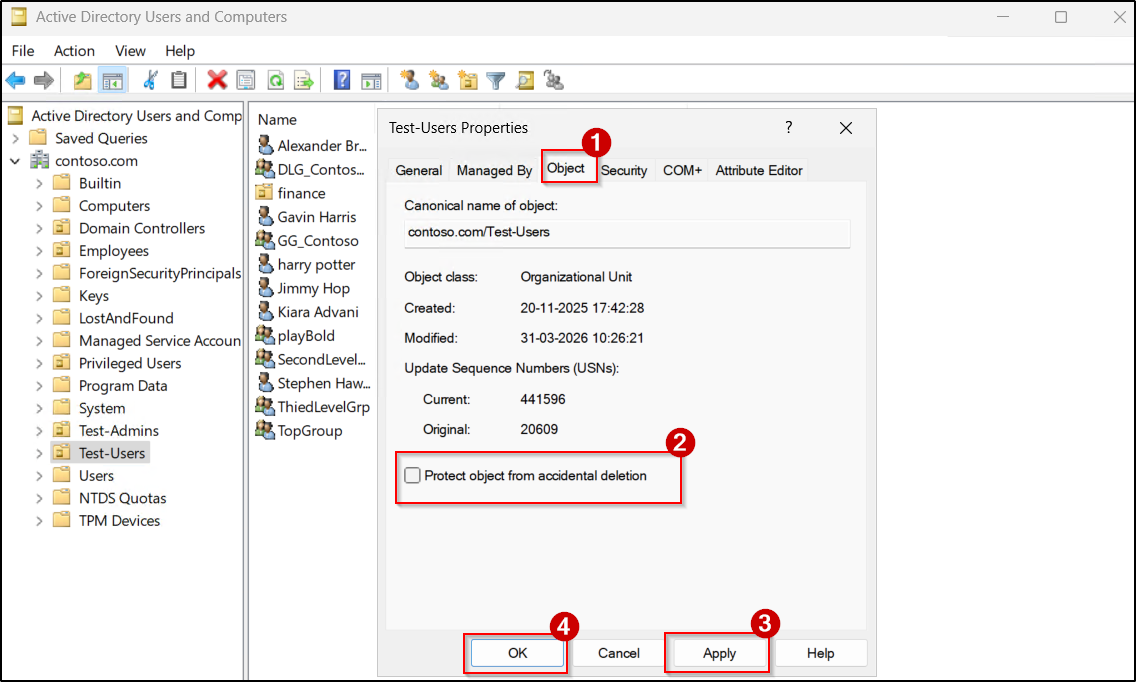
- Right-click the OU again, select Delete, and click Yes on the confirmation prompt.
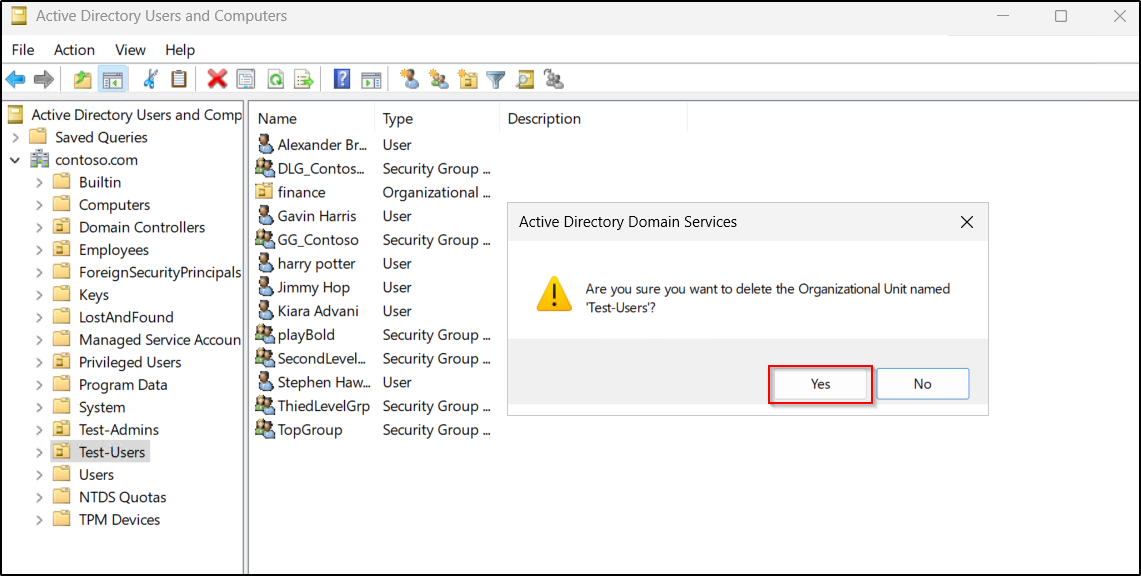
- Then, check “Delete Subtree server control” and click Yes to delete all objects (both protected and unprotected) within the OU.
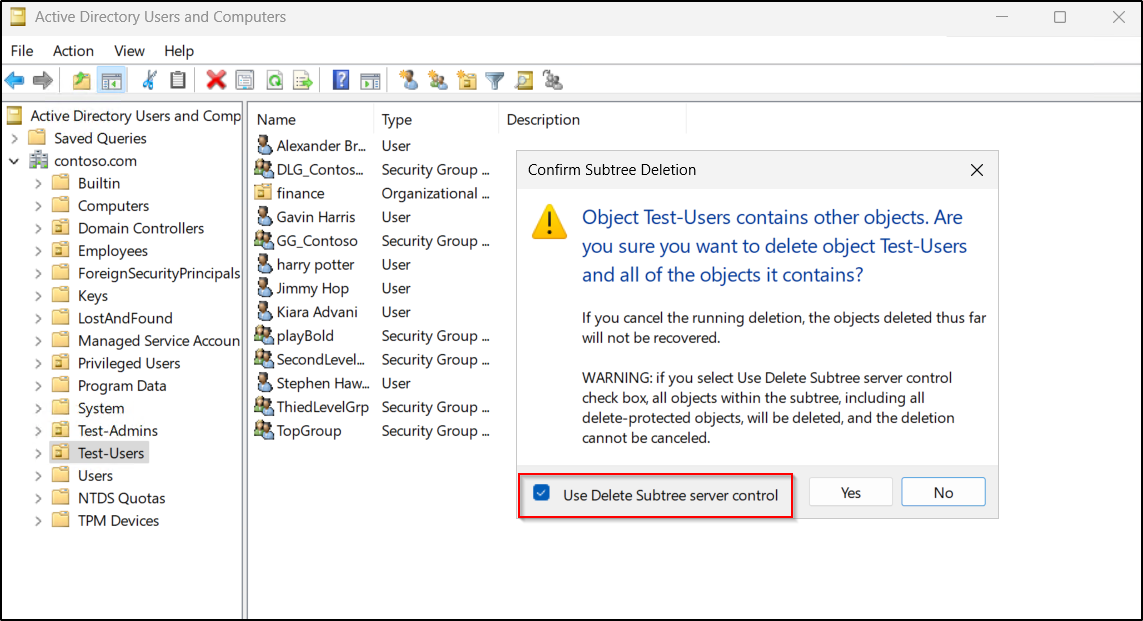 Once completed, the protected OU and all objects within it will be moved to Recycle Bin (if enabled) or Deleted Objects container.
2. Delete a Protection Enabled Organizational Unit Using ADAC
You can also delete protected OUs through ADAC console by following the steps below.
- Open Active Directory Administrative Center by navigating to Start → Windows Tools or Server Manager → Tools.
- In the left navigation pane, navigate to your domain and locate the OU you want to modify.
- Then, right-click the respective OU and select Properties.
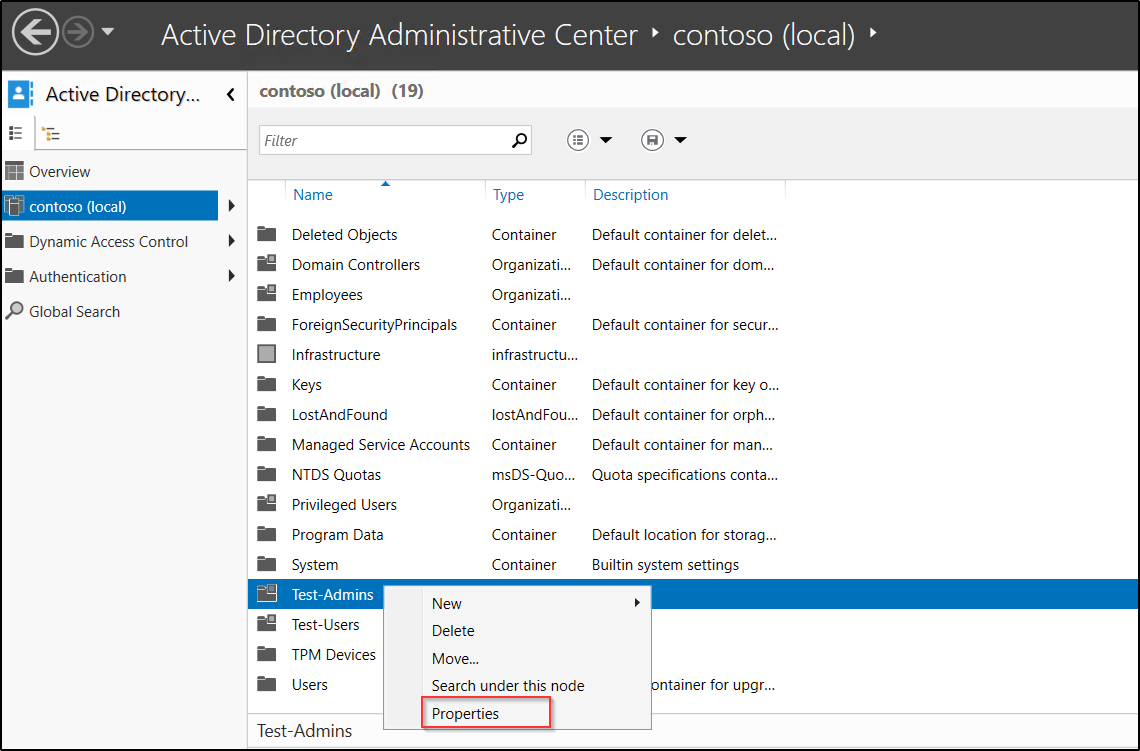
- In the Properties section, uncheck the Protect object from accidental deletion option, and then click OK.
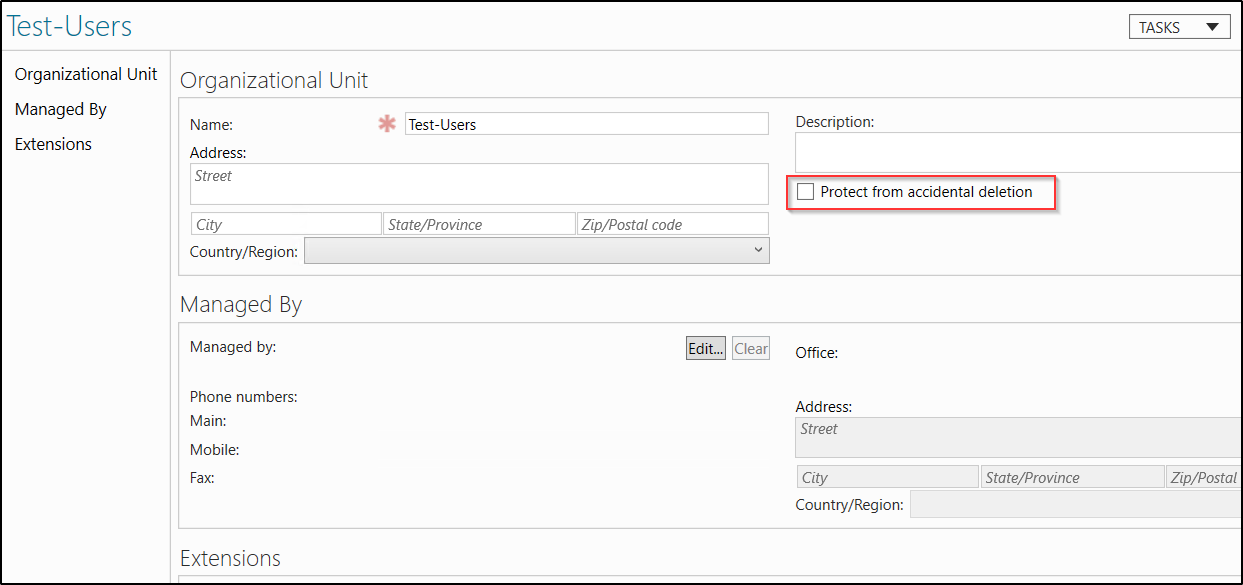
- Then, right-click the respective OU again and select Delete. Click Yes to confirm the deletion when prompted.
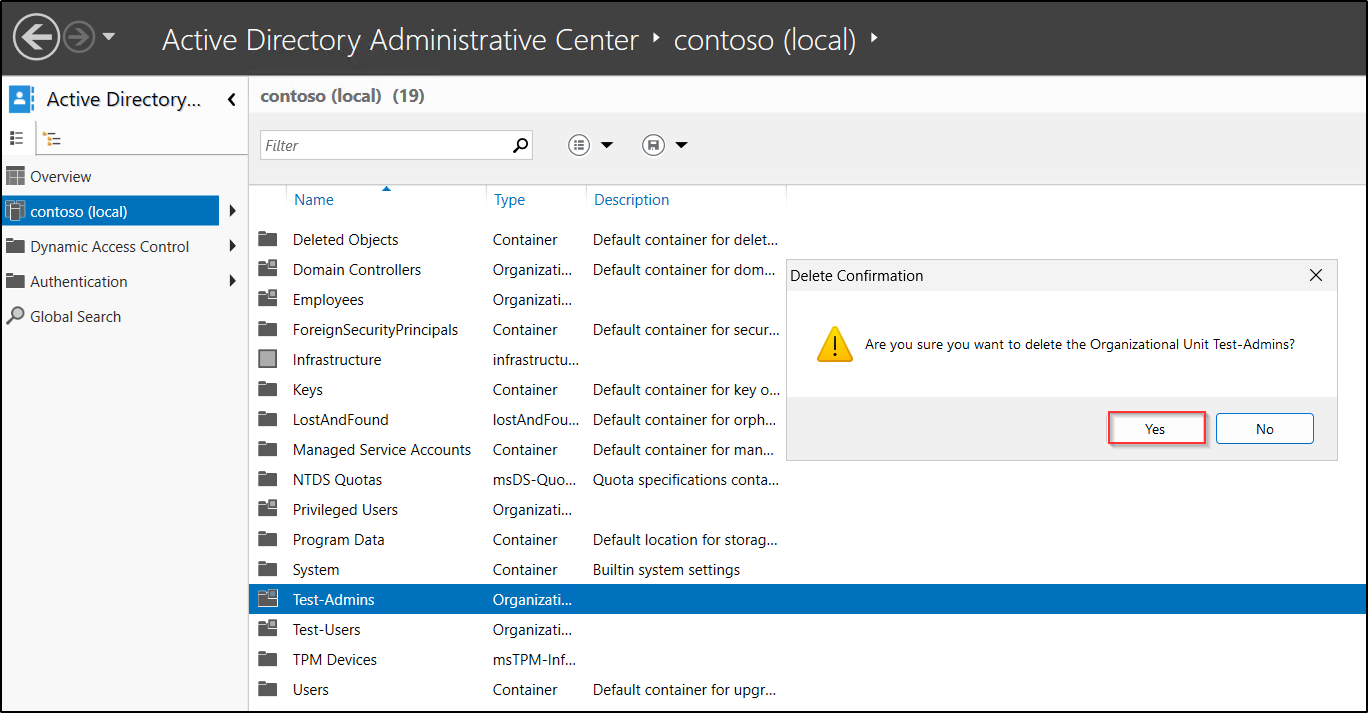
- Next, select Delete Subtree server control checkbox in the Confirm Subtree Deletion prompt and click Yes to delete all protected and unprotected objects within that OU.
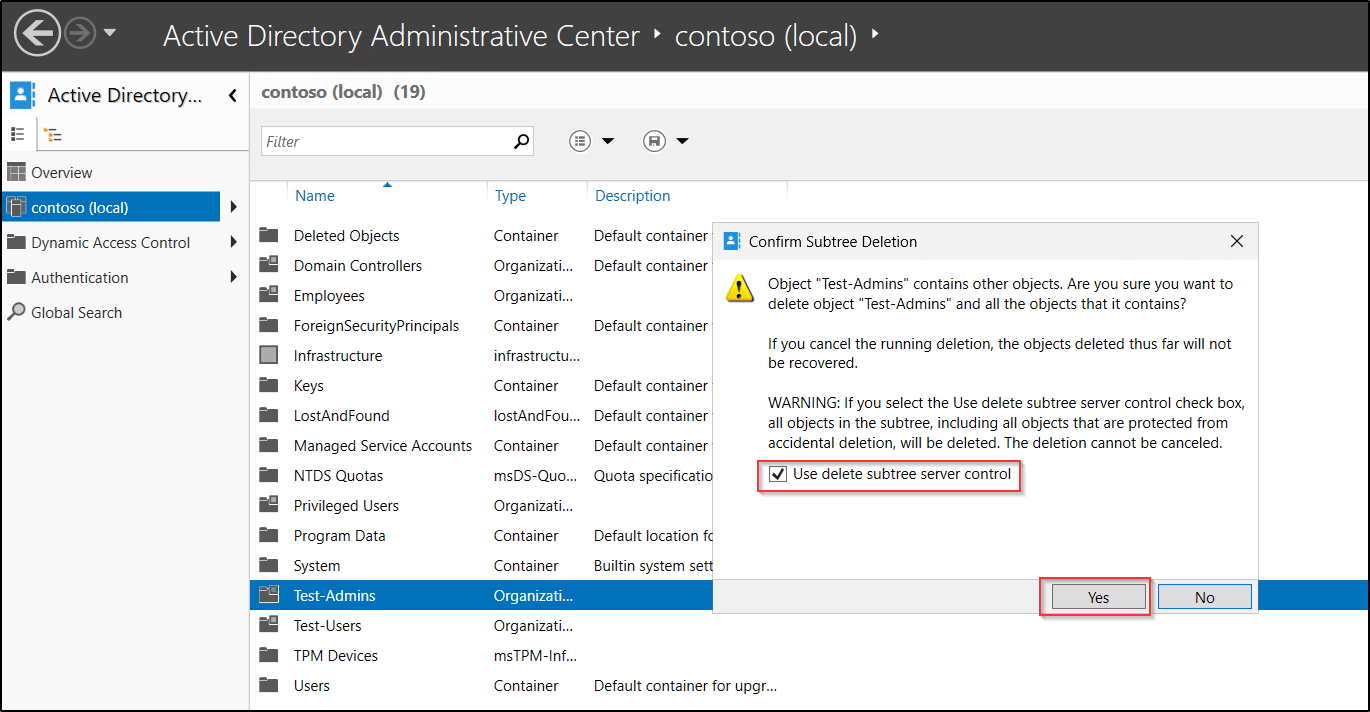
Note: If you do not select the Delete Subtree server control, the OU deletion operation will not proceed, even if it contains a single protected object.
3. Bulk Delete Protected OUs in Active Directory using PowerShell
To do this, you first need to install the Active Directory PowerShell module and then import the Active Directory module using the cmdlet below.
|
1 |
Import-Module ActiveDirectory |
if you’re running the cmdlet on a workstation, ensure you’ve installed Remote Server Administration Tools (RSAT) on your system.
To delete a protected OU along with its child objects in Active Directory, run the following cmdlet. Make sure to replace <OUDistinguishedName> with distinguished name of the target OU.
|
1 2 3 |
$OU = " <OUDistinguishedname>" Set-ADOrganizationalUnit -Identity $OU -ProtectedFromAccidentalDeletion $false Remove-ADOrganizationalUnit -Identity $OU -Recursive -Confirm:$false |
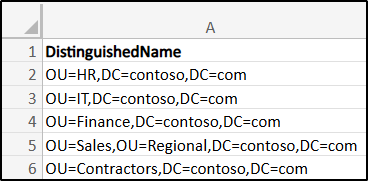
To bulk remove protected OUs, you can use the following PowerShell script. Make sure to replace <InputCSVFilePath> with the path to your CSV file containing the distinguished names of the target OUs.
Sample CSV file:
|
1 2 3 4 |
Import-Csv "<InputCSVFilePath>" | ForEach-Object { Set-ADOrganizationalUnit -Identity $_.DistinguishedName -ProtectedFromAccidentalDeletion $false Remove-ADOrganizationalUnit -Identity $_.DistinguishedName -Recursive -Confirm:$false } |
How to Restore Deleted Organizational Units in Active Directory
In Active Directory, you can restore a deleted OU if the Recycle Bin is enabled in your environment. However, when an OU is restored, the objects within it are not automatically restored. You must first restore the respective OU and then restore each child object individually. To do this, follow the steps below.
- Open Active Directory Administrative Center console.
- Next, right-click the OU that you want to recover, and select Restore.
- If you want to restore the OU to a different location, select Restore To.
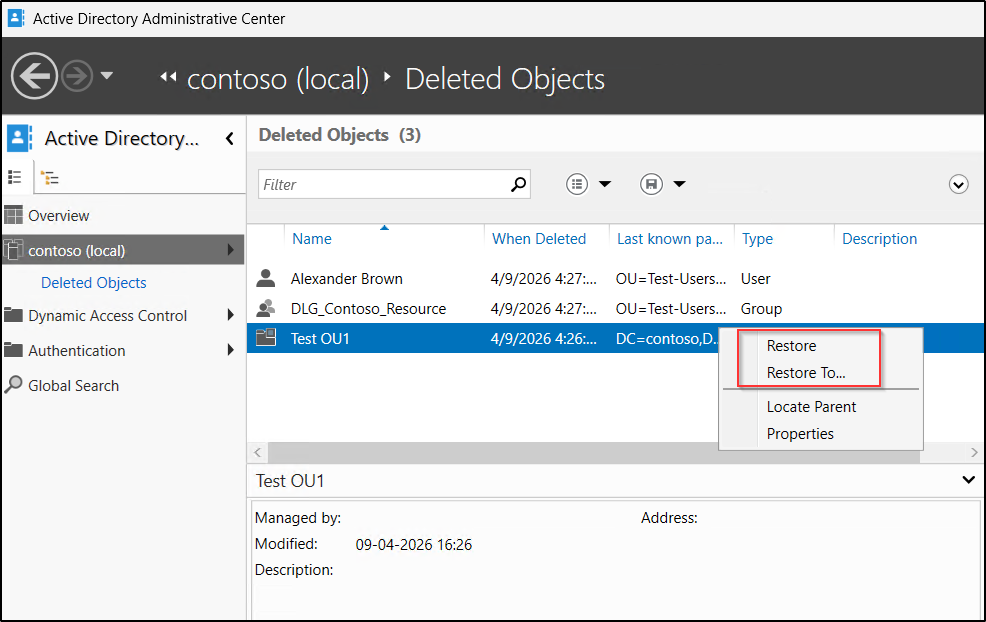
Alternatively, you can use the following PowerShell cmdlet to restore the deleted OU.
|
1 |
Get-ADObject -Filter "Name -like '<OU_SAMAccountName>'" -IncludeDeletedObjects | Restore-ADObject |
To restore a deleted OU to a specific location, you can use the -TargetPath parameter along with the distinguished name of the target location in the above Restore-ADObject cmdlet.
If the Recycle Bin is not enabled in your environment, a deleted OU becomes a tombstone object. While it can still be recovered, its original properties cannot be restored.
Conclusion
We hope this blog helped you understand how to remove protection and delete OUs in Active Directory. By following these steps, you can clean up unused or obsolete OUs while maintaining a well-managed environment.
If you have any questions, feel free to share them in the comments section. Stay tuned for more insights!