Imagine a user copying proprietary code into an OpenClaw agent to debug a complex script. Think of an employee using an AI tool to summarize documents or write code—it’s quick and easy, but often happens without IT’s knowledge. This is Shadow AI, the use of unapproved local AI agents and AI-powered tools on company-managed devices without oversight.
These agents are far more than just chatbots. They are fully capable of reading local files, executing code, and acting on behalf of a user. This isn’t just a “what-if” scenario; it’s a high-stakes reality where data leaks and compliance breaches can happen in real-time.
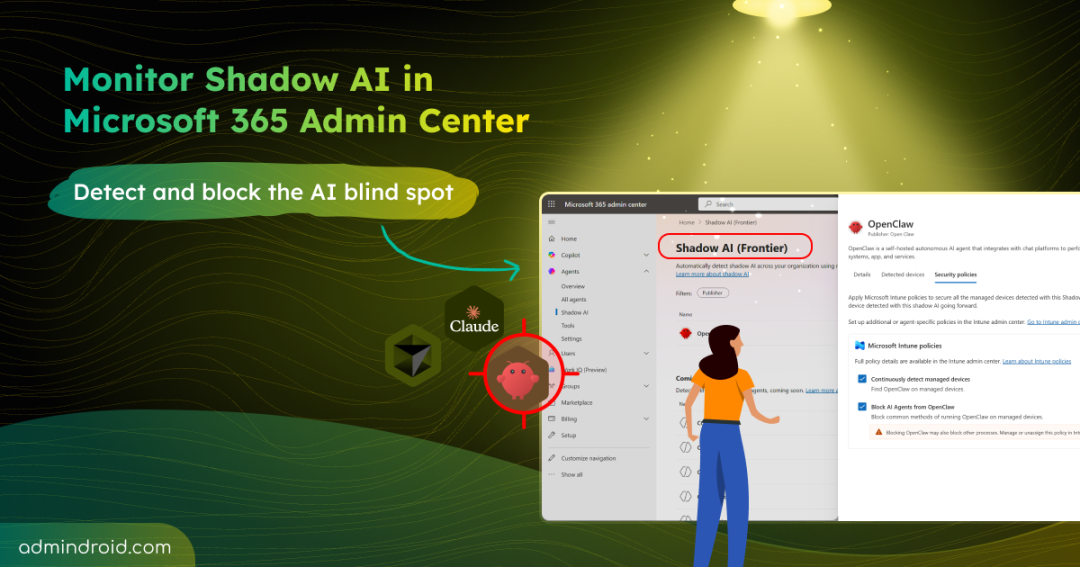
To bring this hidden activity into the light, Microsoft is introducing the Shadow AI page (Frontier preview) in the Microsoft 365 admin center. This new page empowers admins to identify and block unmanaged AI agents, helping you reduce data exposure and maintain compliance.
Let’s explore how this feature helps you address Shadow AI effectively.
New Shadow AI Page in Microsoft 365 Admin Center
The Shadow AI page in Agent 365 helps admins discover, monitor, and govern unapproved local AI agent activity across the Microsoft 365 environment. It is powered by Microsoft Defender and Microsoft Intune and is currently in public preview under the Frontier program.
- The preview is currently optimized to detect and block OpenClaw, with planned support for AI tools like Cursor, Claude Code CLI, and Codex CLI.
- Detection and blocking are limited to managed Windows devices enrolled in Microsoft Intune.
- Admins can apply Intune policies directly from the Shadow AI page to block common methods of running unauthorized AI agents on managed devices.
Prerequisites to Access the Microsoft 365 Shadow AI Page
Before accessing the Shadow AI page, ensure the following requirements are met:
- Licensing: A Microsoft 365 E3 license is required to view Shadow AI agents.
- Administrative Roles: You must be assigned at least one of the following roles:
- AI Administrator or Security Administrator
- Global Reader, Security Reader, or Security Operator
- Intune Administrator, Reports Reader, or User Experience Success Manager
- Frontier Enrollment: Your organization must opt in to the Frontier preview program in the Microsoft 365 admin center.
How to Access the Shadow AI Page in Microsoft 365 Admin Center
Follow these steps to navigate to the Shadow AI page and explore supported agents:
- In the Microsoft 365 admin center, go to Agents and select Shadow AI.
- The Shadow AI (Frontier) page displays a list of known AI agents that can be detected in your environment.
- Select an agent and, under the Details tab, view information such as agent type, last scanned time, and any applied Microsoft Intune security policies.
Enable Intune Security Policies to Detect and Block a Shadow AI Agent
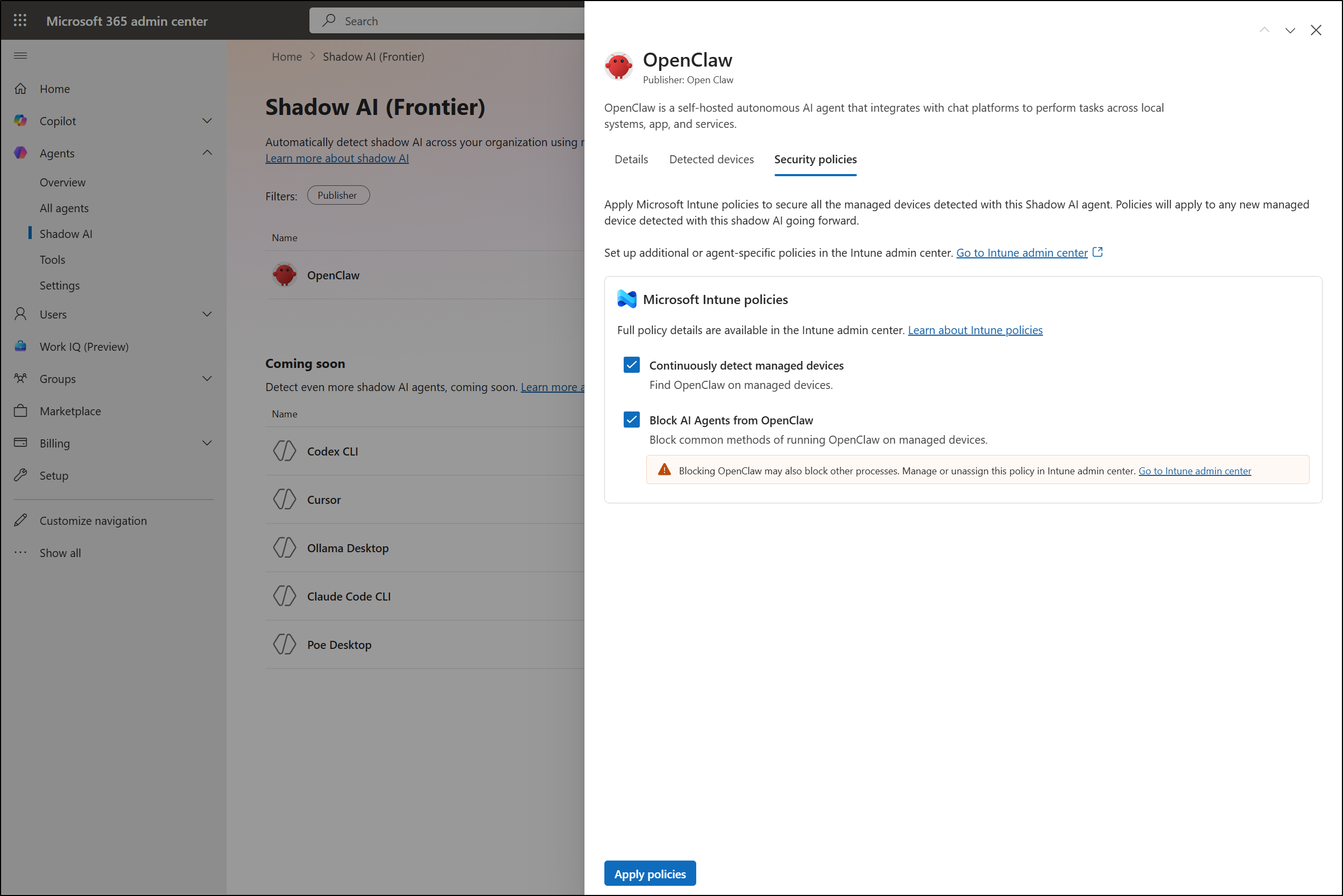
After selecting an agent, under the Security Policies tab, you can view and apply the following Intune policies:
a. Continuously detect managed devices: This Intune policy identifies managed devices using the selected Shadow AI agent. Once enabled, detected devices appear in the Detected devices tab, where you can view details such as device name, device type (desktop or laptop), operating system, and last Intune scan time.
Note that the device list and count are populated only after the detection policy is applied, and it may take some time for devices to sync with Microsoft Intune before they appear.
b. Block AI agents from <Shadow AI agent name>: This policy blocks common execution methods of the selected agent across all managed Windows devices enrolled in Intune after detection. Based on your Intune configuration, enforcement may take between 15 minutes and 8 hours. While the admin center provides the “easy button” for blocking, admins still need to use Intune admin center to edit these policies for even more granular control.
As this feature is currently in preview, its capabilities, supported agents, and behavior may evolve before general availability. However, once fully released, the Shadow AI page is expected to significantly reduce the need for manual effort, such as creating custom scripts or discovery rules to identify hidden AI usage.
Along with the AI security dashboard in Microsoft Defender, the Shadow AI page strengthens Microsoft’s approach to securing AI adoption. It helps admins gain better visibility, control, and protection against emerging AI risks.