Think back to April 2023. That was the year Microsoft completely revamped message recall in Exchange Online, turning it from a hit-or-miss feature into a powerful, cloud-based tool. Since then, the Exchange team hasn’t stopped tweaking it. We’ve seen a steady stream of high-value updates roll out, including recipient recall notifications, maximum recallable message age, etc.
Now, Microsoft is extending the recall feature even further with its most requested upgrade yet: cross-tenant message recall in Exchange Online.
In this blog, let’s explore cross-tenant email recall in detail, understand how it works, and learn how to set it up in an organization.
Cross-Tenant Message Recall in Microsoft Outlook
Let’s face it: accidental emails aren’t polite enough to stay within your organization. We are just as likely to send a sensitive spreadsheet or a half-finished draft to customers, partners, and vendors in other Microsoft 365 tenants. When that happens, the standard internal email messages recall button in Outlook used to hit a brick wall.
With this new email recall update, Exchange Online can now recall emails sent across tenant boundaries—but there’s a catch.
Security and control remain entirely in the hands of the receiving tenant. An external organization cannot just reach in and recall an email unless they have been explicitly granted permission.
A cross-tenant message recall succeeds only when:
- The receiving tenant has enabled cross-tenant message recall.
- The sender’s Microsoft Entra tenant ID is included in the receiving tenant’s allow list.
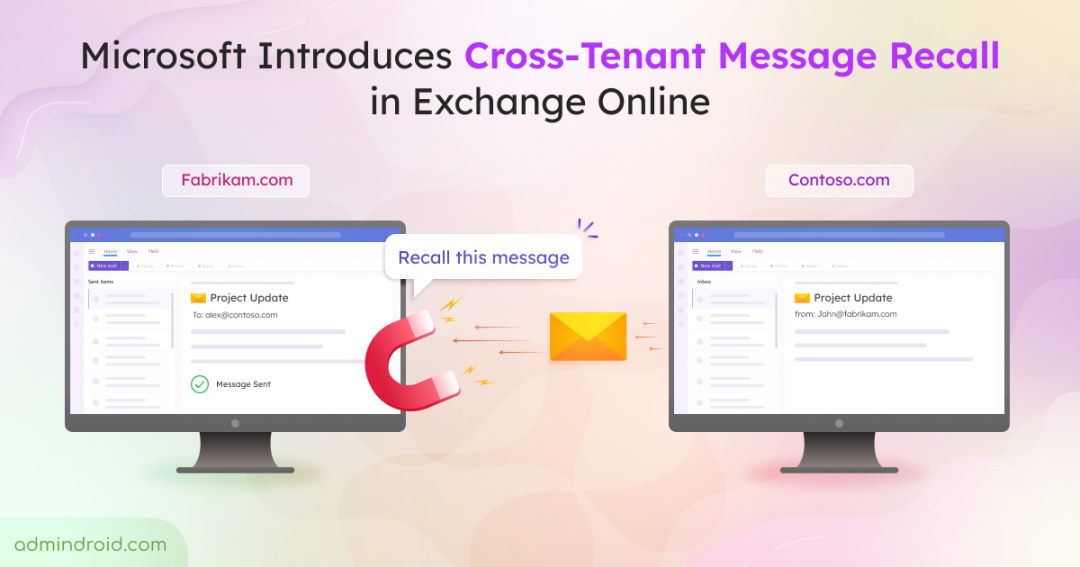
Let’s understand this with a quick example. Imagine a user from Tenant A sends an email to a user in Tenant B by mistake. The sender initiates a message recall from Outlook.
- If the Tenant B admin has enabled cross-tenant message recall and added Tenant A’s tenant ID to its allow list, the recall request succeeds.
- If Tenant B hasn’t enabled the feature or hasn’t added Tenant A’s ID to the allow list, the recall request fails.
Once these requirements are met, the recall experience is identical to an intra-tenant email message recall in Microsoft Outlook.
Rollout Time to Recall Email Messages Sent to External Tenants
The General Availability rollout begins in mid-August 2026 and is expected to be completed by early September 2026. This applies to worldwide tenants, including GCC, GCC High, and DoD environments.
Once the feature becomes available in the tenant, admins must configure it before users can recall emails sent to external Microsoft 365 tenants.
Configure Cross-Tenant Support for Email Message Recall in Outlook
Cross-tenant message recall is disabled by default. To use the feature, admins in the receiving organization must enable message recall. Then, admins need to configure the list of trusted tenant IDs that are allowed to recall messages.
Let’s explore exactly how to set this up using Exchange Online PowerShell.
Enable Cross-Tenant Message Recall in Exchange Online
You need to connect to Exchange Online PowerShell and run the following cmdlet to allow users from approved external organizations to recall messages.
|
1 |
Set-CrossTenantRecallConfiguration -CrossTenantRecallEnabled $true |
If you need to turn it off again, simply run the above cmdlet with -CrossTenantRecallEnabled $false.
Add Trusted External Partners to the Allow List
Next, run the following cmdlet to configure the list of trusted external organizations that are allowed to recall email messages.
|
1 |
Set-CrossTenantRecallConfiguration -AllowedSenderTenantIds @{Add="<TenantID1>","<TenantID2>"} |
Replace the placeholders with the tenant IDs of the external organizations that should be permitted to recall emails sent to the organization.
To remove one or more tenant IDs from the allow list, run the following cmdlet.
|
1 |
Set-CrossTenantRecallConfiguration -AllowedSenderTenantIds @{Remove=="<TenantID1>","<TenantID2>"} |
That’s it! Once the configuration is complete, users from the trusted external tenants can recall eligible messages sent to the organization. For recipients, the recall experience remains the same as an intra-tenant message recall. This includes recall status notifications if they are enabled in the receiving tenant.
We hope this blog helped explain how to configure cross-tenant message recall in Exchange Online. If there are any questions or feedback, feel free to leave a comment below.