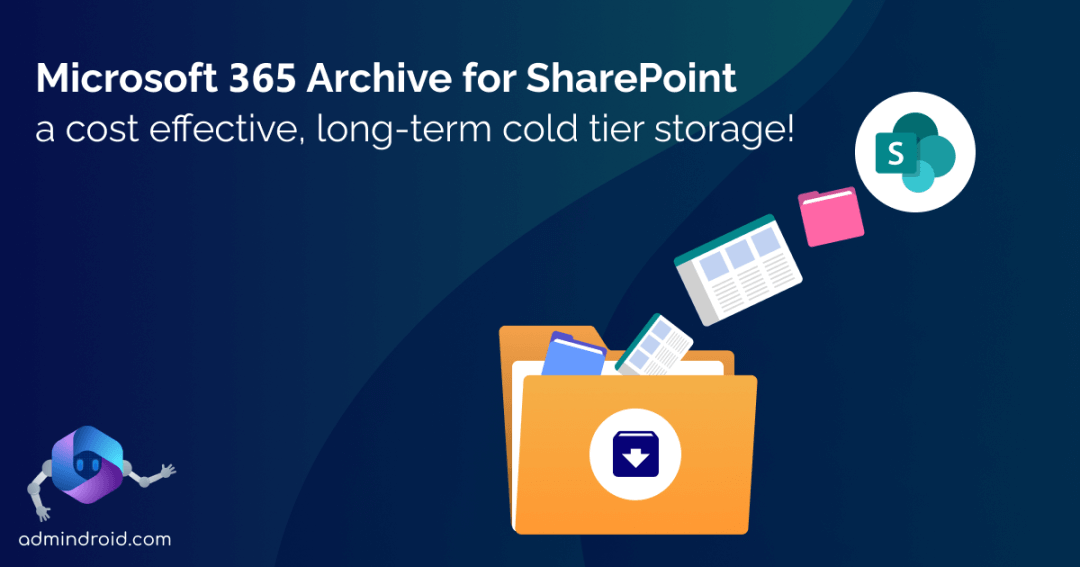
As data ages in SharePoint, its usage typically drops. Yet, completely discarding inactive data proves challenging as it holds vital significance for business records and compliance. Without an efficient archiving solution, organizations struggle with overwhelming data volumes, soaring storage expenses, and inefficient retrieval processes which obstruct productivity. Introducing Microsoft 365 Archive, unveiled at Ignite’23 that lets you store long-term data at a lower cost, matching its value as it ages. Let’s explore more details below!
What is Microsoft 365 Archive?
Microsoft 365 Archive is based on Microsoft Syntex and is available as a pay-as-you-go service like SharePoint Premium and Microsoft 365 Backup. It stores aging SharePoint content and securely archives data from unlicensed OneDrive accounts. It is cost-effective, fast, and highly secure. The best part? With Microsoft 365 Archive, administrators have the option of reactivation of archived data after 7 days.
This process involves transferring the site and its content from the archived (cold tier) storage to the SharePoint tenant (standard) storage. While in this colder tier, the site becomes inaccessible to everyone in the organization except through Microsoft Purview or admin search.
Note: When Microsoft 365 Archive first launched, site-level archiving was the only option. As of March 30, 2026, file-level archiving is in public preview.
Is Microsoft 365 Archive Generally Available?
Microsoft 365 Archive is generally available and is currently rolling out. It’s possible that it hasn’t been universally accessible to every organization yet.
Pricing of Microsoft 365 Archive
The pricing for Microsoft 365 Archive includes a storage cost of $0.05/GB for archived data tier storage and an additional charge of $0.60/GB for reactivating archived data beyond 7 days.
Update: Microsoft has removed the reactivation fee for archived SharePoint sites and content, effective March 31, 2025. Admins can now reactivate archived data at no additional cost. However, once reactivated, content cannot be re-archived for 120 days. This change applies only to SharePoint content, while OneDrive archives continue to follow existing reactivation pricing.
Why Microsoft 365 Archive?
Below are the reasons why you should choose Microsoft 365 Archive!
Speed: Swiftly archive SharePoint sites of any size and any number of sites.
Up to 75% cost saving: Pay for archive costs only when your total storage exceeds the tenant’s storage quota.
Zero migration effort: Archive or reactivate full sites in place without needing to migrate your data outside of Microsoft.
No Metadata Loss: Retain all metadata and permissions when reactivating a site, ensuring no loss of critical information.
Easy admin searchability: Administrators will be able to search for inactive sites and decide which sites to archive. The files in Microsoft 365 Archive would also remain searchable with selective restoration capabilities.
Free 7-day restorability: Reactivate the site and its contents instantly within 7 days from the ‘Archived sites’ page without requiring any cost.
Manage Microsoft 365 Archive in SharePoint Admin Center
Archiving a SharePoint site via the SharePoint admin center requires the following initial configurations.
- Enable Microsoft 365 Archive from the Microsoft 365 admin center
- Archive a site in the SharePoint admin center
1. How to Enable Microsoft 365 Archive?
After activating pay-as-you-go billing through the Microsoft 365 admin center, you can then proceed to enable the Microsoft 365 Archive.
Prerequisites to Enable Microsoft 365 Archive
- An Azure subscription linked with Microsoft Syntex-pay-as-you-go billing.
- An Azure resource group.
- Global admin or SharePoint admin permissions.
Once the necessary permissions are in place, the initial step involves configuring the Microsoft 365 Archive within the Microsoft 365 admin center. Only after this setup is complete, you can proceed to archive a site in the SharePoint admin center.
Step 1: Sign into the Microsoft 365 admin center.
Step 2: Select Setup, and then select Use content AI with Microsoft Syntex.
Step 3: On the Use content AI with Microsoft Syntex page, select Manage Microsoft Syntex.
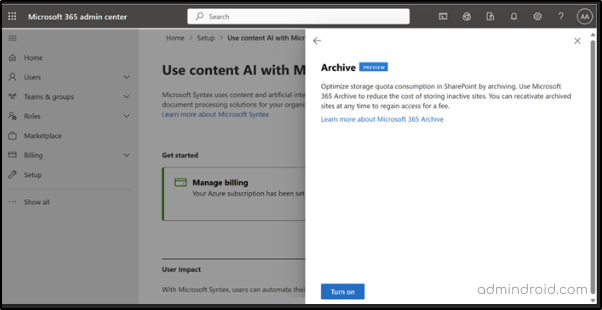
Step 4: On the Manage Microsoft Syntex page, select Archive (Preview).
Step 5: On the Archive (Preview) page, select Turn on, and select Confirm.
Microsoft 365 Archive is now enabled for you, and you can use it to manage content from the SharePoint admin center.
Now, let’s talk about what Microsoft 365 Archive offers specifically for SharePoint and explore the step-by-step process to configure site archiving within SharePoint.
2. Archive In Place Content in SharePoint
When your SharePoint Online storage nears its limit, the typical solution involves purchasing additional storage regardless of the content’s activity. Microsoft 365 Archive offers a cold storage tier that securely retains inactive or older data within SharePoint at a cost-effective rate, aligning with the data’s lifecycle stage. With its built-in workflows, Microsoft 365 Archive helps site owners confirm if a site is active, inactive, or ready for deletion before moving it to the archive.
The primary benefit of moving sites to an archived state is that the storage they use no longer counts against the SharePoint storage quota and thereby Microsoft 365 Archive helps to reduce overall SharePoint Storage costs.
Archiving a site in SharePoint archives everything within it, including document libraries, files, lists, and list data.
How to Archive a Site in SharePoint Online?
After enabling Microsoft 365 Archive, an ‘Archived sites’ section appears in the SharePoint admin center. Follow the steps given below to archive an inactive site in SharePoint.
Step 1: Visit the SharePoint admin center.
Step 2: Click on Active Sites.
Step 3: Select the site you want to archive -> Click Archive.
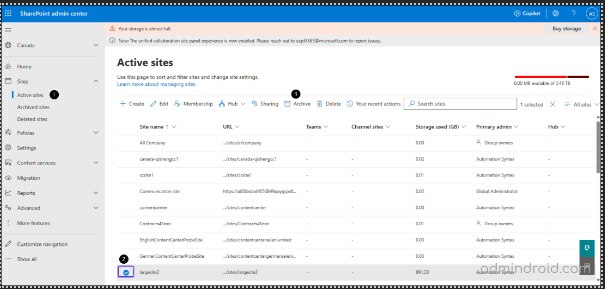
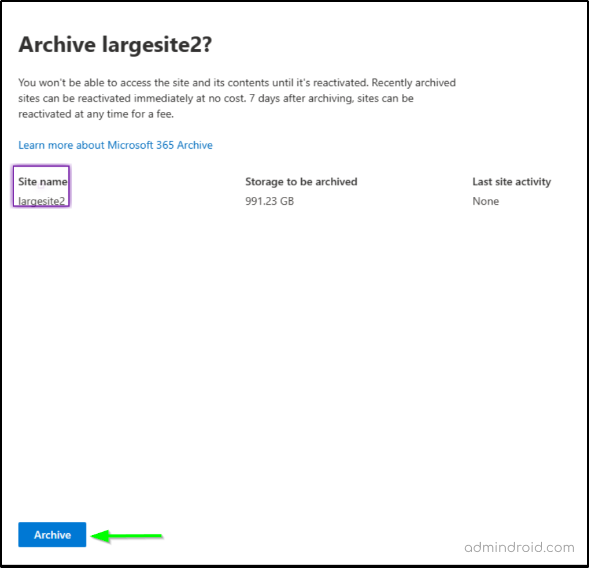
Step 4: This takes you to a flyout page that shows the details of the selected site. After ensuring that you have selected the correct site, click on Archive.
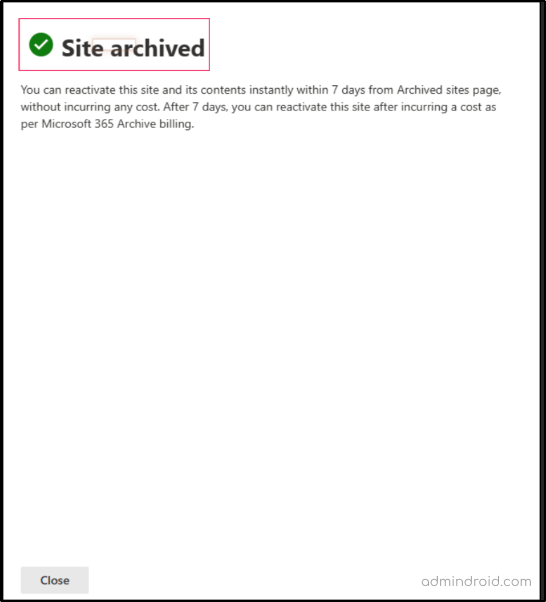
Following this, you will see a ‘Site archived’ message as shown below.
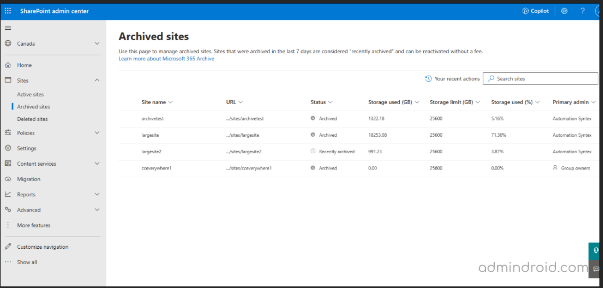
Your newly archived site will appear on the ‘Archived sites’ page of the SharePoint admin center.
Compliance Features in Microsoft 365 Archive
Archived SharePoint sites maintain the following security and compliance baseline level promises.
- All archived data is equally as durable as active SharePoint Online data.
- Archived sites have the same level of security as active sites.
- All archived data stays within your geo compliance boundary.
- All archived data complies with the EU data boundary promise.
- eDiscovery will still be able to find all content even if archived.
- All archived content will comply with the BYOK promises.
- Archived sites will still honor the retention and deletion periods from any retention policies or retention labels.
- Settings and policies will be retained on the site throughout the archive and reactivation lifecycle.
Some Limitations of Microsoft 365 Archive (Preview)
Below are some of the temporary limitations of Microsoft 365 Archive during the preview. These limitations will be resolved when the product is generally available.
- Tenants with a large number of archived sites (exceeding 50,000) may encounter difficulties when attempting to list them on the Archived sites page.
- Archived content is not currently searchable by end users. Additional features like “Archived Date” and “Archived By” columns are planned for future inclusion.
- Due to data residency requirements, moving archived sites in multi-geo tenant environments is not yet supported. Sites must be reactivated prior to any move.
- Renaming a tenant is currently not supported for archived sites. Reactivate the site before initiating a tenant rename.
- Archiving sites enrolled in Microsoft 365 Backup is not allowed.
- Archived sites with libraries syncing to devices will cause errors on the syncing client.
File-Level Archiving is in Public Preview
Microsoft has announced a public preview of file-level archiving in Microsoft 365 Archive on March 30, 2026.
This new capability allows users to archive individual files from an active SharePoint site, moving them into the same lower-cost cold storage tier without taking the site offline.
Note: File-level archiving is currently in public preview and must be explicitly enabled at the tenant level via PowerShell. When it reaches general availability, it will be enabled by default alongside Microsoft 365 Archive.
Difference Between Site-Level vs. File-Level Archiving
Both approaches use the same $0.05/GB cold storage tier and preserve metadata, permissions, version history, and compliance protections. The difference is scope and impact.
| Dimension | Site-level Archiving | File-Level Archiving |
| What gets archived | Entire site (all libraries, lists, files, metadata) | Individual files within an active site |
| Site remains accessible | No, site goes offline | Yes, the site stays fully active |
| Who can archive | SharePoint Admin or Global Admin | Any user with edit permissions on the file |
| Who can reactivate | SharePoint Admin or Global Admin | Any user with read access to the file |
| Re-archive cooldown | 4 months after reactivation | 30 days after reactivation |
| Site storage quota impact | Site removed from active quota | No change to site storage quota |
| Tenant storage impact | Reclassified from active to archived | Reclassified from active to archived |
| Automation available | Manual + PowerShell + Graph API | Manual + Graph API (policy-based planned late 2026) |
| Availability | Generally available (since May 2024) | Public preview (March 2026), GA July 2026 |
On the storage/billing difference, the quota and cost math between site-level and file-level archiving can get nuanced. For a detailed breakdown of how archived storage is counted and billed, refer to File-Level Archiving in Microsoft 365 Archive.
When to Use File-Level vs. Site-Level Archiving
Use site-level archiving when an entire site is inactive. Completed projects, decommissioned team sites, or sites with no activity for 12+ months are good to be archived.
Use file-level archiving when a site is still active but contains a mix of current and outdated content. Old project deliverables, expired contracts, large video files from past events, or reference documents that nobody accesses are ideal targets.
You can use both together. Archive the clearly dead sites at the site level, then go through active sites and archive individual stale files.
We hope that this blog has given you a comprehensive grasp of Microsoft 365 Archive and how to effectively archive sites using the SharePoint admin center. Thanks for reading! Feel free to reach out to us through the comment section for any assistance.