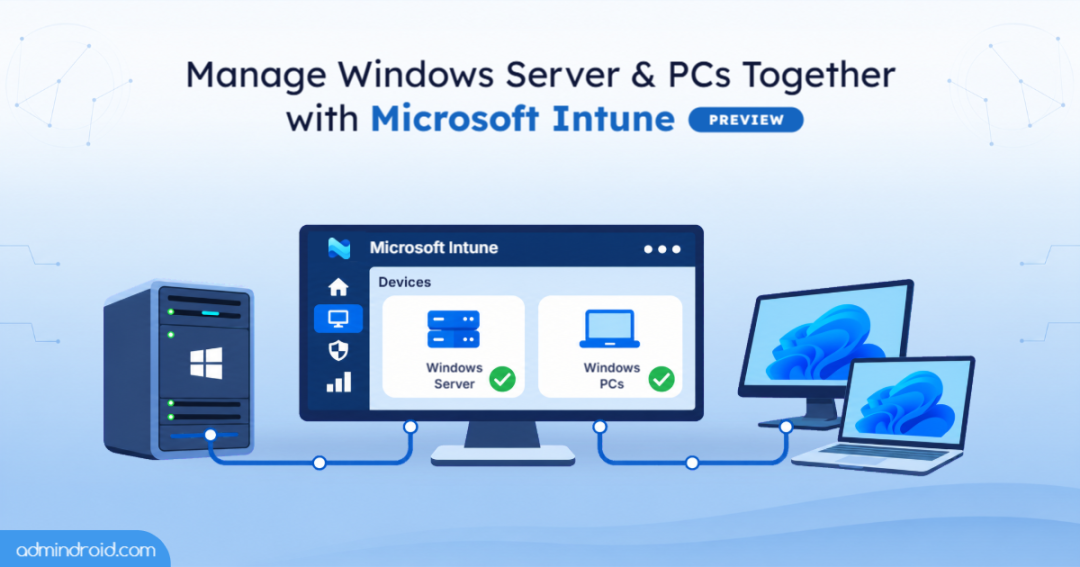
Managing Windows PCs and Windows Servers through separate tools can add complexity for IT teams, especially when the same admins are responsible for both cloud and on-premises environments.
At Ignite 2026,Microsoft is extending its endpoint management capabilities to eligible Windows Server devices. This update helps endpoint administrators manage both environments through a unified console.
Let’s explore what’s new, which Windows Server environments are supported, how to enroll servers, and what administrators should review before getting started.
What’s New in Managing Devices Using Microsoft Intune?
Traditionally, organizations have relied on tools such as Group Policy, PowerShell scripts, and Configuration Manager to manage Windows Server environments. This preview extends selected Intune management workflows to supported servers, giving endpoint administrators another way to manage both environments.
Here are some of the management capabilities available in the preview:
- Manage configurations: Apply supported device settings through the Intune Settings Catalog.
- Deploy applications: Deploy supported Win32 applications to enrolled servers.
- Manage updates: Configure supported Windows Update ring settings and maintenance windows using Windows Autopatch.
- Evaluate compliance: Assess servers against supported device compliance policies and use it as a signal for Microsoft Entra Conditional Access.
- Control administration: Use Intune roles, scope tags, groups, and assignment filters to manage server access and policy assignments.
- Perform remote actions: Use supported actions such as device sync, restart, diagnostics collection, and other available server-management actions.
Enrolled Windows Servers appear under the Windows platform in the Intune admin center > All devices, alongside managed PCs.
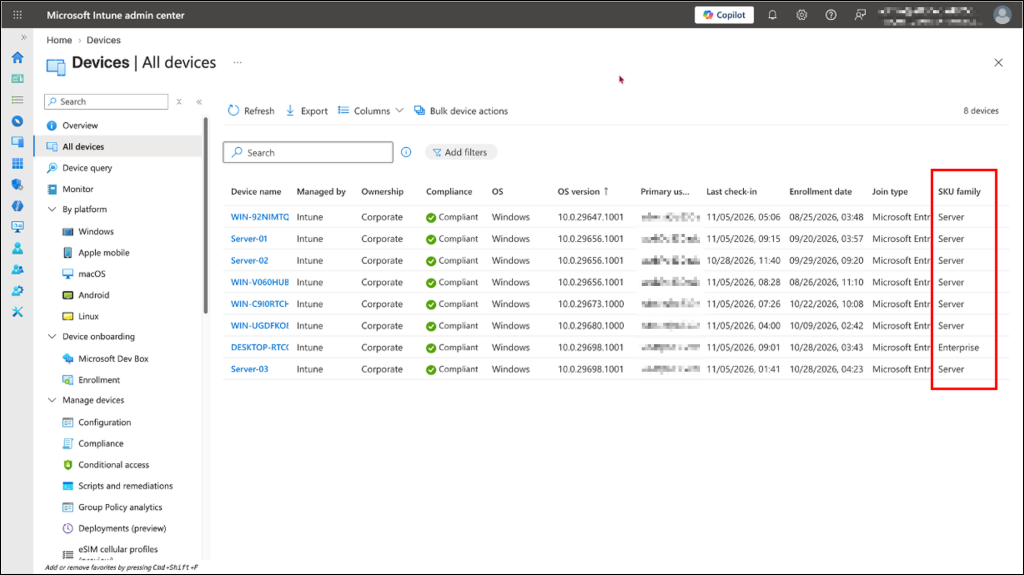
This brings server management closer to the endpoint workflows admins already use, although not every Intune capability available for Windows PCs is supported on Windows Server.
Prerequisites to Manage Windows Server with Microsoft Intune
Not every Windows Server installation is eligible for this preview. Microsoft currently limits enrollment to specific Windows Server Insider builds and supported server configurations.
Here’s a quick overview of the supported scope:
| Area | Preview support |
| Windows Server version | Windows Server vNext Insider Preview build 29621.1000 or later |
| Installation type | Desktop Experience |
| Server type | Persistent physical servers and virtual machines |
| Virtual desktop environments | Persistent single-session hosts |
| Join options | Microsoft Entra join and Microsoft Entra hybrid join |
Important: Microsoft hasn’t announced a general availability date or final licensing details for this capability.
Where Can Organizations Use Intune for Windows Server Management?
Microsoft highlights several scenarios where bringing Windows Server into Intune can help organizations standardize endpoint management. Here are some examples:
1. Privileged Access Workstations and Jump Servers: Organizations use privileged access workstations and jump servers to provide administrators with controlled access to production environments, development systems, and other critical resources.
By bringing eligible servers used for these purposes into Intune, endpoint teams can apply supported configurations, deploy applications, and manage device compliance through familiar workflows.
2. Branch Office and Edge Servers: Organizations operating across retail locations, branch offices, and distributed environments often manage local servers alongside employee PCs.
Intune can help endpoint teams bring eligible branch and edge servers into the same device-management environment they already use for Windows endpoints.
3. Persistent Remote Desktop Session Hosts: Organizations running persistent Windows Server Remote Desktop Session Host (RDSH) environments can manage eligible single-session hosts through Intune. This can be useful in hybrid virtual desktop deployments, such as Azure Virtual Desktop Hybrid, where admins want to apply supported endpoint-management settings to individual sessions.
The virtualization platform continues to manage host pools and images, while Intune handles supported endpoint-management tasks for the individual sessions.
Note: This preview does not support multisession hosts with multiple concurrent user sessions.
Microsoft also identifies Active Directory-joined servers in environments using Microsoft Entra Connect, along with Microsoft Entra ID-joined servers, as eligible scenarios.
How to Enroll Windows Server Devices in Microsoft Intune
Windows Server enrollment is disabled by default, giving admins control over which servers can enter their Intune environment.
Before starting, make sure you have a supported Windows Server Insider build, a non-production test tenant, and a licensed pilot account. Follow these steps to test server enrollment.
Step 1: Join the Windows Server Insider Program
Register for the Windows Server Insider program and obtain a supported Windows Server Insider preview build.
Install the build on a non-production physical server or virtual machine that meets the preview requirements.
Step 2: Allow Windows Server Enrollment in Intune
- Open the Microsoft Intune admin center and navigate to the Devices > Enrollment > Device platform restriction > Windows restrictions > All users > Properties.
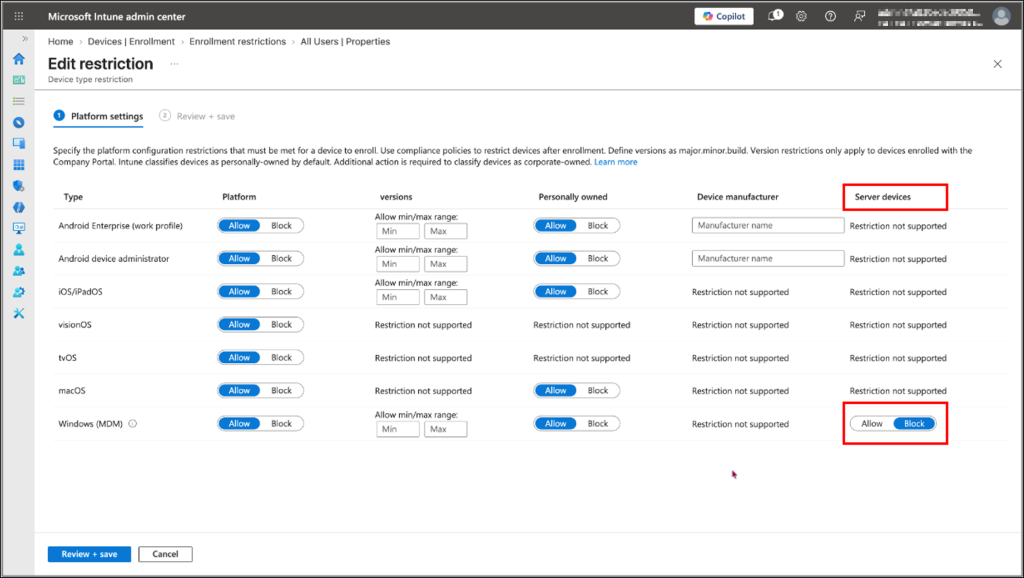
- Edit the applicable restriction and change the Server devices setting from Block to Allow.
You can configure this in the default restriction or create a custom Windows restriction assigned to the relevant pilot users.
Recommendation: For a controlled pilot, use a dedicated custom restriction rather than broadly changing the default restriction.
Step 3: Configure Automatic Enrollment for Windows Server
- Navigate to the Devices > Enrollment > Windows > Automatic Enrollment.
- Configure the MDM user scope to include the pilot users who will enroll the servers.
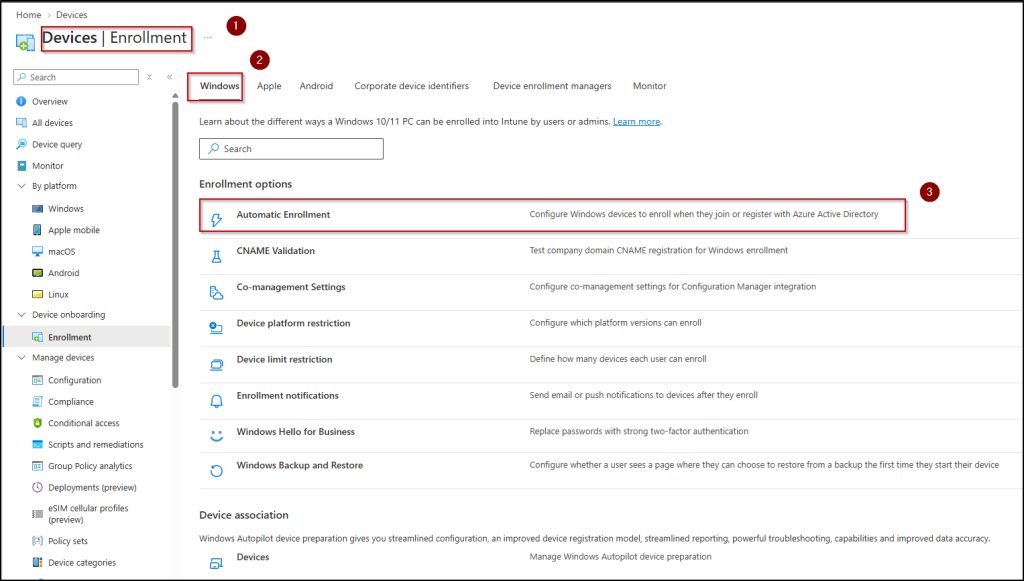
For hybrid-joined servers, configure the required Group Policy-based automatic enrollment settings.
Step 4: Enroll the Windows Server Device
- On the supported server, open Settings > Accounts > Access work or school.
- Add a work or school account and complete the Microsoft Entra join and Intune enrollment process.
Automatic enrollment is also supported for eligible hybrid-joined servers.
Step 5: Verify Enrollment in Intune
- Open the Microsoft Intune admin center and navigate to Devices > All devices.
- The enrolled Windows Server should appear under the Windows platform alongside your managed PCs.
- You can then review its device details, assigned policies, application deployment status, and compliance information.
Important: Existing custom Windows device restrictions can continue to block server enrollment until admins explicitly update them. Review the restrictions and assignments before attempting enrollment.
Will Windows Server Enrollment in Intune Mess Up Your Policies?
Bringing servers into Intune can also expose them to existing device-management assignments and administrative permissions. Before enrolling the first server, review your current Intune configuration to prevent unintended policy assignments or administrative access.
Here are the key checks to complete in your test tenant.
1. Review existing policy assignments:
Before enrolling servers, review your existing configuration policies and their assignments. Broad assignments to All devices, users, or dynamic groups may affect newly enrolled servers, depending on the policy and its supported workloads.
Don’t assume that placing servers in a separate device group automatically excludes them from existing assignments
2. Create server-specific assignment filters:
Use Intune assignment filters to separate Windows Server devices from Windows PCs.
- Navigate to: Intune admin center > Tenant administration > Assignment filters > Create > Managed devices
- Select Windows 10 and later as the platform and create a filter using the operatingSystemSKU property.
For example: (device.operatingSystemSKU -in [“ServerStandard”, “ServerStandardEval”, “ServerDatacenter”, “ServerDatacenterEval”, “ServerTurbine”])
This example targets the listed Windows Server Standard and Datacenter SKUs, including their evaluation editions and Datacenter: Azure Edition.
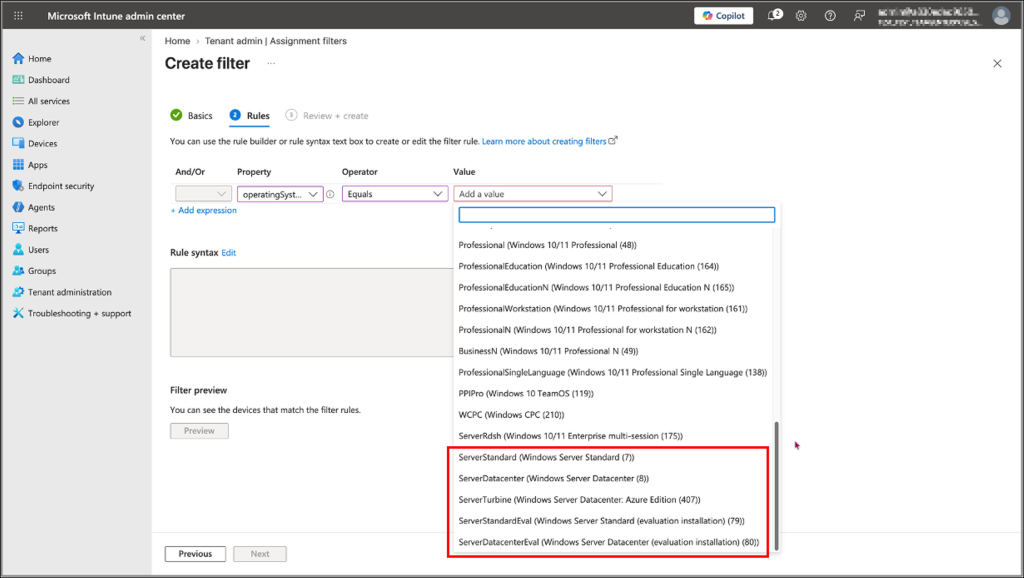
Avoid using a broad rule such as “starts with Server” without checking the results. It could also match ServerRdsh, which is associated with Windows Enterprise multisession editions.
3. Review compliance policies
Review compliance policies that might reach your pilot servers. Leave unsupported checks, such as Firewall, Antivirus, and Antispyware, as Not configured where required by the preview guidance.
Also, review BitLocker settings as it isn’t installed on Windows Server by default. A rule that expects BitLocker protection could cause a server to become non-compliant and may affect device-based Conditional Access.
4. Review Intune roles and scope tags
Existing Intune roles and scope tags can apply to enrolled servers. Admins who currently manage Windows PCs might also gain visibility and permissions to perform actions on enrolled Windows servers.
Before enrollment:
- Create separate scope tags for pilot servers.
- Review which admins have access to those tags.
- Avoid assigning server scope tags to general PC helpdesk roles unnecessarily.
- Review permissions for sensitive remote actions, including wipe operations.
- Consider multi-admin approval for high-impact actions where supported.
Remember that Intune scope tags don’t restrict Microsoft Entra directory roles. Admins with broader roles, such as Intune Administrator, may retain access to sensitive information and actions.
5. Avoid conflicting management policies
Some organizations already use Group Policy, Configuration Manager, Azure Arc, or Azure Policy to manage Windows Servers.
Before introducing Intune, decide which management tool owns each configuration setting or workload. For example, if Azure Arc and Intune both attempt to enforce different configurations for the same setting, administrators could encounter unexpected results.
You can use both platforms but define clear management responsibilities to avoid competing policies.
6. Review Conditional Access requirements
If Conditional Access policies apply to enrolled servers, review their authentication requirements and how they affect device communication and synchronization.
Test the policies with pilot accounts and devices before expanding enrollment. If synchronization issues occur, check the server’s work or school account connection and authentication status.
Thus, if you decide to stop testing, removing the enrollment restriction prevents new server enrollments. However, servers that are already enrolled remain managed. Retire or delete those devices through Intune as appropriate for your testing scenario.
Important Limitations of the Intune Windows Server Management Preview
Although this preview brings several familiar endpoint-management capabilities to Windows Server, it doesn’t provide the complete set of Intune features available for Windows PCs.
Keep these limitations in mind when planning a pilot.
| Area | Current limitation |
| Operating systems | Windows Server 2019, 2022, 2025, and Server Core aren’t supported. |
| Server environments | Multisession, ephemeral, and nonpersistent hosts aren’t supported. |
| Enrollment | Windows Autopilot, MDM-only, bulk, userless, and automatic enrollment for co-managed devices aren’t supported. |
| Compliance | Firewall, Antivirus, Antispyware, and Configuration Manager compliance checks aren’t supported. |
| Updates | Quality, feature, and driver update policies aren’t supported through this preview. |
| Remote management | Only supported remote actions are available. Other actions might appear in the console but won’t work for servers. |
| Other capabilities | Endpoint Privilege Management, Resource Explorer, and disconnected or air-gapped server management aren’t included in the preview. |
Microsoft may expand the supported capabilities as the preview evolves. Admins should refer to the latest planning guide before testing additional workloads.
Is Microsoft Intune the Right Management Tool for Your Windows Servers?
Not every Windows Server needs to be managed through Intune. The right approach depends on the team responsible for the server and the type of management it requires.
Before choosing Intune for your server environment, consider:
- Team ownership: Is the server managed by the endpoint team or the infrastructure team?
- Team responsibilities: Does the team responsible for the server already manage Windows PCs through Intune?
- Existing Azure usage: Is your organization already using Azure services to manage its infrastructure?
- Management standardization: Would managing eligible servers and PCs through a common endpoint-management platform simplify administration?
- Infrastructure requirements: Does the server need infrastructure-level monitoring, governance, and management across hybrid or multicloud environments?
If endpoint management is the primary requirement, Intune can help bring eligible servers into familiar device-management workflows. For broader infrastructure management, Azure Arc remains an important part of the management approach.
I hope this blog gives you a clear understanding of what’s new in the preview, which Windows Server environments are supported, and what administrators should consider before bringing servers into their Intune environment.
Are you planning to manage your Windows Servers through Intune? Let us know what you think in the comments!