Most organizations have adopted hybrid work models, where employees access company data from both office and remote locations. But imagine when users access company data from unmanaged devices like personal laptops or tablets, it can increase the risk of data leaks and compliance issues. Without proper restrictions, SharePoint site access for unmanaged devices can become a major security gap for organizational data.
That’s where restricting access for unmanaged devices becomes a more effective. In this blog, we’ll explore how restricting SharePoint site access for unmanaged devices can help create a more secure and controlled SharePoint Online environment.
Why Microsoft 365 Admins Restrict Access for Unmanaged Devices?
To reduce these risks and maintain better control over organizational data, many organizations restrict Microsoft 365 access from unmanaged devices using device compliance policies and permit access only from trusted or compliant devices. Based on organizational security and compliance requirements, here are some common scenarios where these restrictions are typically implemented.
- Employees accessing corporate resources from shared computers may expose cached credentials, browser sessions, or downloaded company files may be accessed by others.
- Syncing or downloading corporate data to personal computers can lead to uncontrolled data storage, loss of visibility for IT teams, and increased risk of data leakage or misuse.
- Personal computers infected with viruses or trojans may compromise credentials, steal sensitive data, or spread malware into corporate environments.
- Employees accessing corporate resources from outdated or unpatched devices may expose the organization to known security vulnerabilities that attackers can exploit.
By restricting unmanaged device access, organizations can strengthen security, protect sensitive data, and reduce the risk of cyber threats and compliance violations.
How Unmanaged Device Access Controls Work in SharePoint Online?
To better understand how unmanaged device restrictions work in SharePoint Online, let’s look at the access flow that occurs behind the scenes when a user attempts to access SharePoint resources.
When a user signs in to SharePoint Online, Microsoft 365 does not immediately grant access to resources. Instead, Entra Conditional Access policies first evaluate the user identity and device state before deciding what level of access should be allowed.
The following checks occur as part of the authentication and authorization process:
- Identity Check – Verifies the user’s identity and sign-in requirements such as username & password, MFA, etc.
- Device Check – Verifies whether the device is trusted, managed, or compliant.
Based on these evaluations, Conditional Access policies decide whether the user should receive full access, limited access, or be blocked entirely.
What Happens When the Device Is Unmanaged or Non-Compliant?
If the device does not meet organizational compliance or management requirements, Microsoft Entra ID flags the device as unmanaged or non-compliant. Conditional Access policies then apply the configured restrictions automatically.
Organizations typically configure one of the following access controls:
- Limited, Web-only Access: Users can access SharePoint Online only through a secure web browser session.
- Block Access: Organizations can completely deny SharePoint access from unmanaged or non-compliant devices.
Note that, if the device satisfies organizational compliance requirements, Microsoft Entra ID allows ‘Full access‘ to SharePoint Online.
How Limited Access Works for Unmanaged Devices?
When organizations choose to allow limited browser-only access instead of completely blocking users, additional session controls are enforced through Conditional Access using App Enforced Restrictions.
With this configuration, users can still:
- View files in SharePoint Online
- Collaborate through Office web apps
- Edit supported files in the browser
However, advanced actions such as the following may be restricted:
- Downloading files
- Syncing libraries through OneDrive
- Opening files in desktop applications
- Printing sensitive documents
- Copying content in certain scenarios
This helps organizations balance productivity and security without fully denying access.
Configure limited access for unmanaged devices in Entra ID:
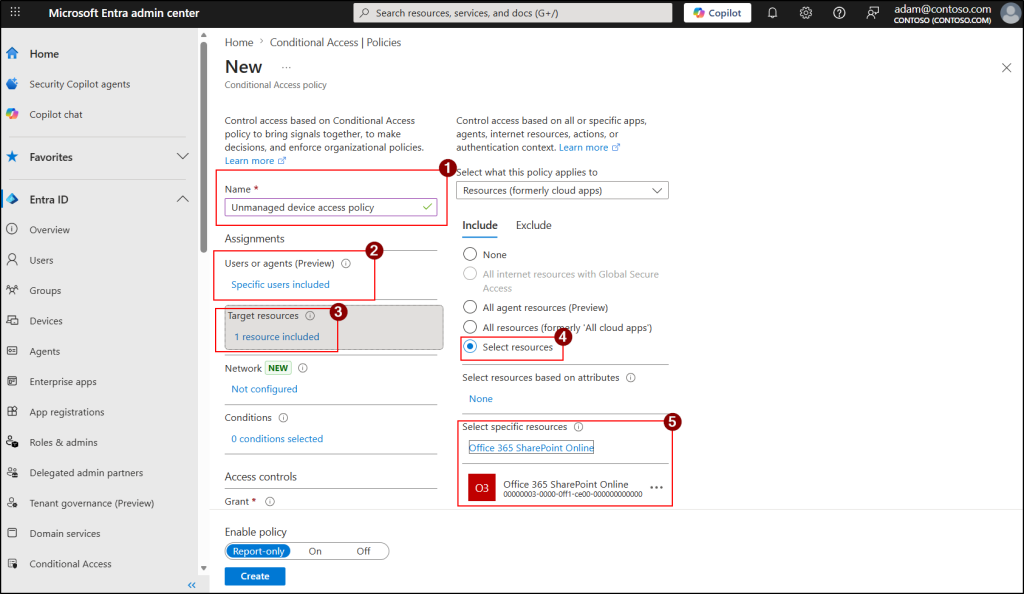
- Open Microsoft Entra admin center and navigate to Entra ID → Conditional Access.
- Click +Create new policy and provide the name for the policy.
- Next, under Assignments select the users and the target apps to apply this policy.
- Users or agents (Preview) – Include all required users to apply the policy for them.
- Target Resources – Choose Select resource, then under “Select specific resources”, select Office 365 SharePoint Online.
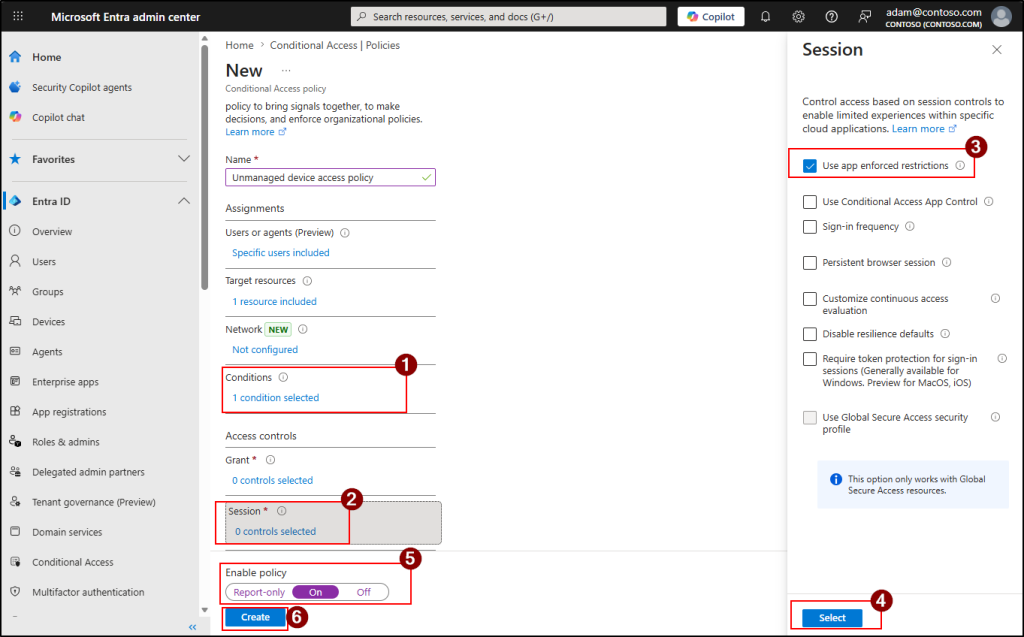
- Then, under the Conditions, choose Client apps, set the Configure to Yes and click Done.
- Next, under Sessions, enable “Use app enforced restrictions” and click on Select.
- Set Enable policy to Report-only and click Create. Observe 24 to 48 hours through Entra sign-in logs, then switch to On.
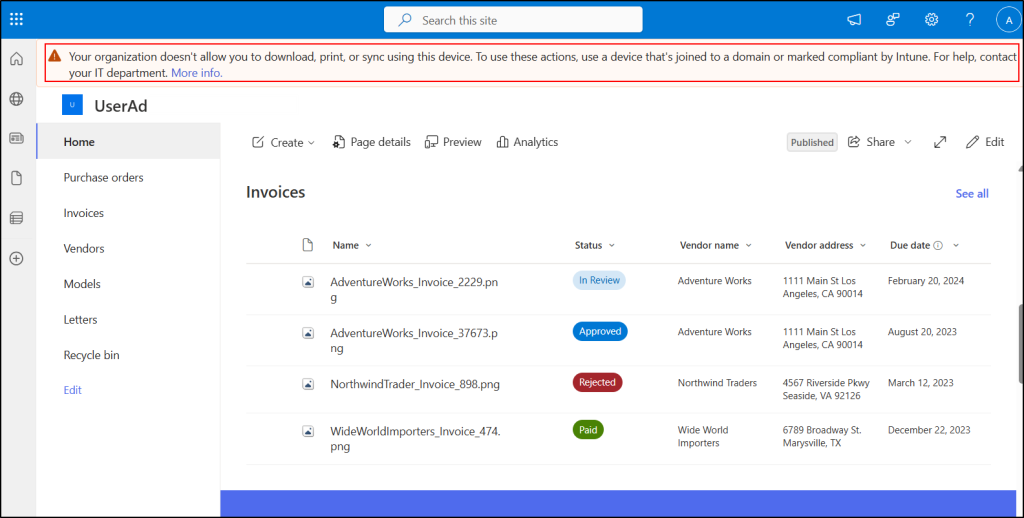
Once limited access is configured, users accessing SharePoint Online from unmanaged devices will see a below restriction message in the SharePoint interface. This message indicates that their access is limited by organizational policies.
What Happens When Access is Blocked Completely for Unmanaged Devices?
If organizations choose to block sharepoint site access for unmanaged devices entirely, users attempting access from untrusted devices will see a below error like:
“Due to organizational policies, you can’t access this resource from this untrusted device.”
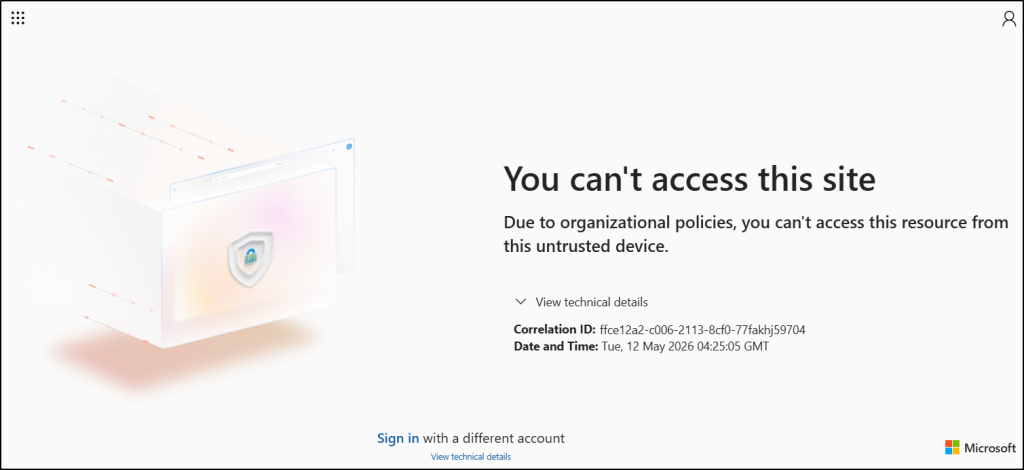
In this scenario, SharePoint access is denied until the user accesses the service from a compliant or managed device.
Note: When access for unmanaged devices is restricted, users on managed devices should use supported browsers. These include the latest versions of Microsoft Edge and Google Chrome on Windows 10 and later, macOS, Android, and Linux desktops.
Now that you understand how unmanaged device controls work in SharePoint Online and how Microsoft evaluates device trust during access requests.
Control SharePoint Site Access for Unmanaged Devices in Microsoft 365
Unmanaged device access restrictions for SharePoint Online can be implemented in multiple ways, but they are generally applied at two levels. These levels determine whether the restriction applies across the entire organization or only to specific SharePoint sites in SharePoint Online.
- Tenant-level restrictions for all SharePoint Online sites
- Site-level restrictions for specific SharePoint sites
Restrict Unmanaged Device Access Across All SharePoint Sites
Setting tenant-level policies define the default unmanaged device access behaviour for the entire SharePoint Online environment. Once configured, the restriction applies across all SharePoint and OneDrive sites in the organization unless more restrictive site-level policies are configured.
This approach helps organizations maintain consistent security controls without configuring access policies individually for each site.
Organizations can configure tenant-wide unmanaged device restrictions using either of the following methods:
- Enable tenant-level restrictions for unmanaged devices across all SharePoint Online sites
- Configure tenant-level unmanaged device restrictions using PowerShell
Enable Tenant-Level Restrictions for Unmanaged Devices Across all SharePoint Online Sites
Use the SharePoint admin center to easily configure an access policy for unmanaged devices. Follow the steps below to configure limited access for unmanaged devices in Microsoft 365.
- Open SharePoint admin center and navigate to Policies →Access control.
- Under Access control, select Unmanaged devices and choose any of the below option Allow limited, web-only access or Block access to control the unmanaged devices access in SharePoint Online sites.
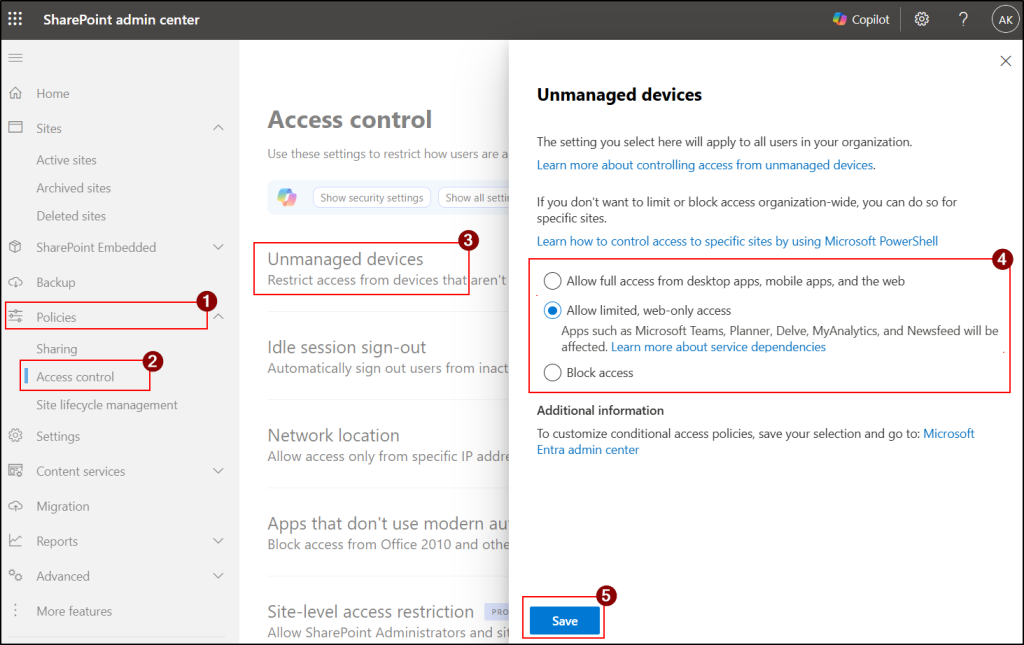
- Next, Click Save to apply the settings.
Note: Policy changes may take up to 24 hours to take effect. They also won’t apply to users who are already signed in from unmanaged devices until they sign out and sign back in.
Configure Tenant-Level Unmanaged Device Restrictions Using PowerShell
You can also use the PowerShell method to restrict access for unmanaged devices in SharePoint online instead of navigating through multiple steps in admin portal.
- First, connect to the SharePoint Online PowerShell module by replacing <TenantName> with your actual tenant name.
|
1 |
Connect-SPOService -Url https://-admin.sharepoint.com |
- Now, run the respective cmdlet to limit or block access for unmanaged devices.
- Execute the following cmdlet to limit the unmanaged devices in SharePoint Online.
|
1 |
Set-SPOTenant -ConditionalAccessPolicy AllowLimitedAccess |
- Use the following cmdlet to block access for unmanaged devices
|
1 |
Set-SPOTenant -ConditionalAccessPolicy BlockAccess |
When should you use tenant-level restrictions for unmanaged devices?
Tenant-level restrictions are recommended when organizations want to:
- Apply consistent security policies across all SharePoint sites.
- Prevent data downloads from unmanaged or personal devices organization-wide.
- Simplify administration by avoiding per-site configurations.
- Secure remote and BYOD access uniformly across Microsoft 365.
Restrict Unmanaged Device Access in SharePoint Online for Specific Access
In some cases, organizations may not want to apply strict unmanaged device restrictions across the entire tenant. Instead, they may want stronger protection only for highly sensitive SharePoint sites. This approach is particularly useful for sites such as Finance, Legal, and HR, as it adds an extra layer of protection from attackers.
Use the following methods to prevent unmanaged device access for a specific SharePoint Online site.
- Set unmanaged device access policy for specific SharePoint sites using PowerShell
- Use sensitivity labels to control unmanaged device access for specific SharePoint sites
Set Unmanaged Device Access Policy for Specific SharePoint Sites Using PowerShell
You can use PowerShell to restrict the unmanaged device controls on specific SharePoint Online sites.
Follow the steps below to configure limited or blocked access for unmanaged devices.
- Connect to Microsoft SharePoint module in PowerShell with at least SharePoint Administrator role.
- Now, run the respective cmdlet to limit or block access for unmanaged devices for a specific site. Replace the <SiteURL> with the actual site URL.
- Run the following cmdlet to limit access to a specific site in SharePoint Online.
|
1 |
Set-SPOSite –Identity <SiteURL> -ConditionalAccessPolicy AllowLimitedAccess |
- Use the following cmdlet to block access for unmanaged devices in a specific SharePoint site.
|
1 |
Set-SPOSite –Identity <SiteURL> -ConditionalAccessPolicy BlockAccess |
- Note, you can also apply restrictions to multiple SharePoint sites simultaneously. Replace the <SiteURL1>, <SiteURL2> with the actual site URL values.
|
1 2 3 4 |
$SURLs = @("<SiteURL1>","<SiteURL2>") foreach ($SURL in $SURLs) { Set-SPOSite -Identity $SURL -ConditionalAccessPolicy AllowLimitedAccess } |
Use the following parameters with the above cmdlet to apply additional restrictions.
- -AllowEditing $false – Prevents users from editing Office files in the browser.
- -LimitedAccessFileType OtherFiles – Allows users to download files that cannot be previewed in the browser, such as .zip and .exe files.
Once the restriction is applied, both block and limit access work the same way as the tenant-level policy. However, this applies only to the specific SharePoint sites where the setting is configured.
When should you use site-level restrictions for non-complaint devices?
- Only sensitive departments require stricter controls
- Business teams need different access policies
- Organization-wide blocking is unnecessary
- Security approach varies between departments
Use Sensitivity Labels to Control Unmanaged Device Access for Specific SharePoint Sites
Sensitivity labels in Microsoft 365 are used to classify and protect SharePoint sites, Microsoft Teams, Microsoft 365 Groups and other files and docs. When a sensitivity label is applied to a site, it works with Conditional Access to control access to restrict the access control for unmanaged devices.
Note: Before creating the sensitivity labels, make sure you have enabled them for the container. If not, run the following cmdlet as global administrator.
|
1 2 3 |
Connect-MgGraph -Scopes "Directory.ReadWrite.All" $grp = Get-MgBetaDirectorySetting | Where-Object { $_.Values.Name -eq "EnableMIPLabels" } $grp.Values |
Follow the below steps to create sensitivity labels in Microsoft 365.
- Sign in to the Microsoft Purview compliance portal as a compliance administrator.
- Navigate to Solutions → Information Protection → Sensitivity Labels.
- Select +Create, choose Label and provide the name and description for the label.
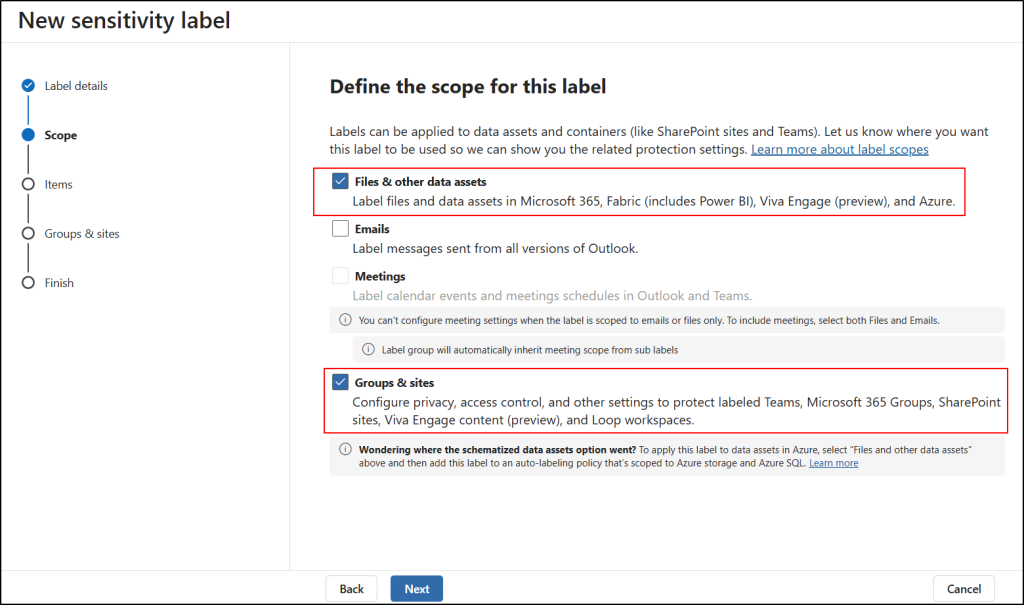
- Click Next to go to Define the scope for this label page.
- Select Groups & sites, Files & other data assets and then click Next.
- On the “Choose protection settings for the types of items you selected” page enable Control access and click Next.
- In the Access control page, check out Configure access control settings.
- Under “Assign permissions to specific users and groups” select the specified users and choose permissions.
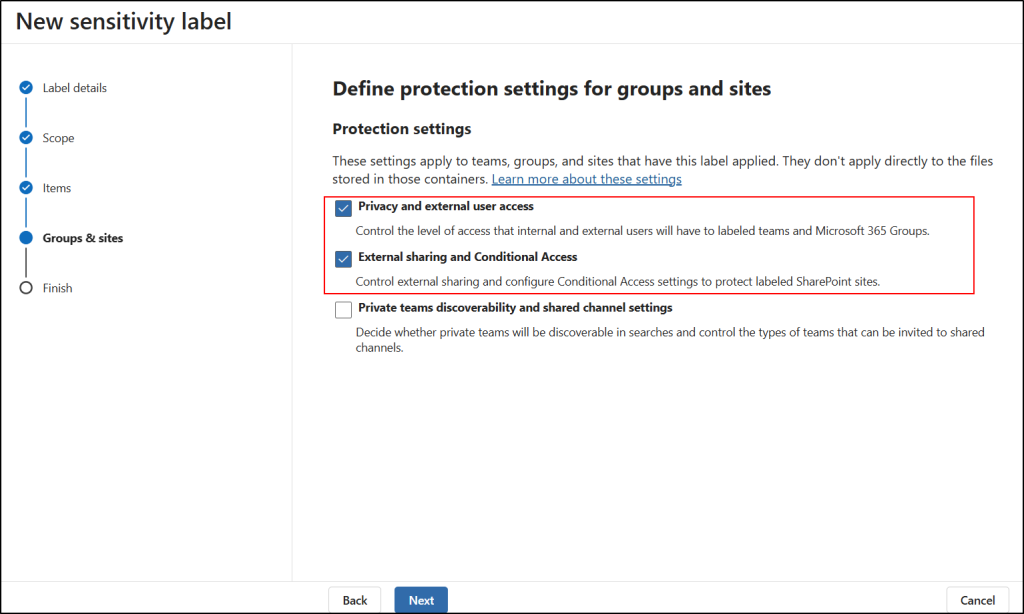
- Click Next and navigate to Define protection settings for groups and sites page.
- Select Privacy and external user access, External sharing and Conditional Access and click on Next.
- In the “Define privacy and external user access settings” page select the privacy on your needs and click Next.
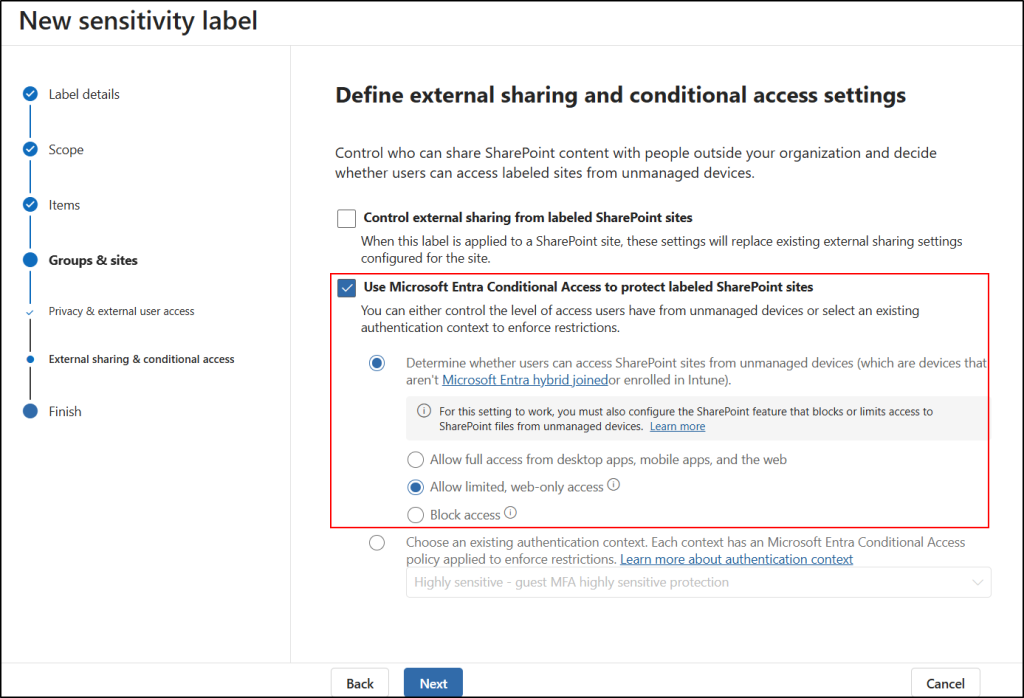
- Then, in the “Define external sharing and conditional access settings” page select Use Microsoft Entra Conditional Access to protect labeled SharePoint sites.
- Here, under Determine whether users can access SharePoint sites option choose the behaviour to limit or block the access according to your need.
- Next, review the setting and select Create label.
- After creating the sensitivity label select Publish label to users’ app to publish the label.
Then publish the sensitivity label to make it available for SharePoint sites. After publishing, you can apply the label to the required site for restricting access from unmanaged devices.
Apply sensitivity labels for SharePoint Online sites:
After publishing the label, follow the below steps to apply label for the SharePoint Online sites.
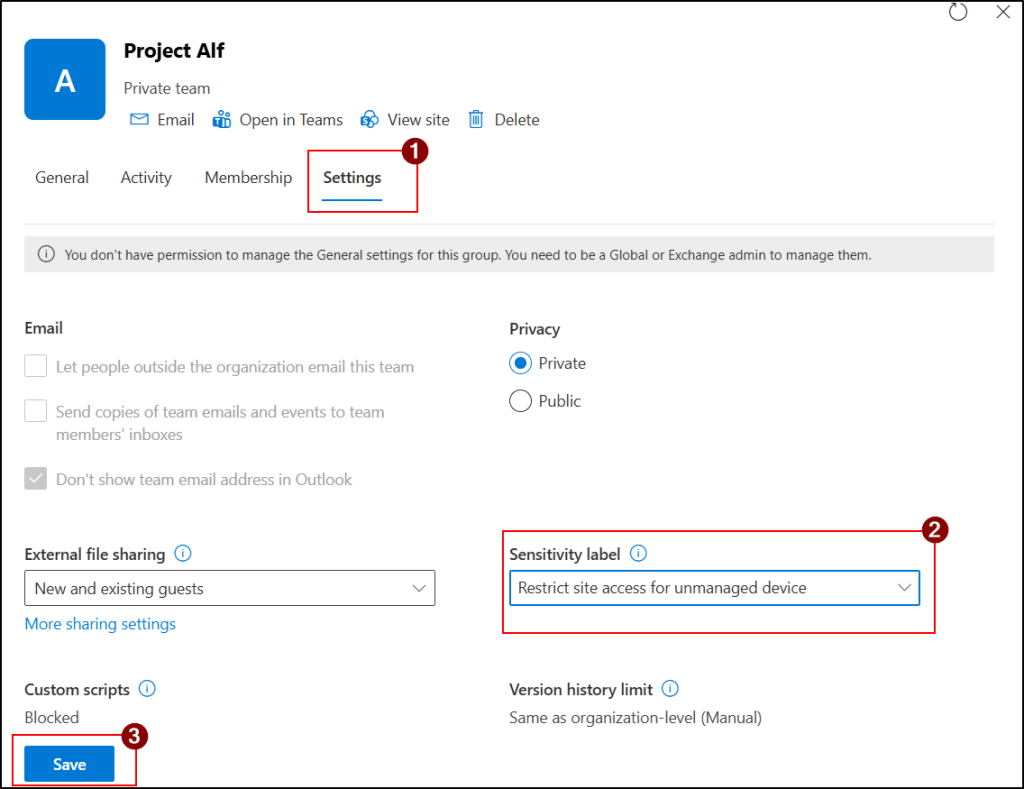
- Open SharePoint admin center and navigate to Sites → Active sites.
- Select the required site and navigate to Settings tab.
- Choose the sensitivity label from the Sensitivity label drop down and click Save.
Best Practices for Restricting Unmanaged Device Access in SharePoint Online
Configuring unmanaged device restrictions in SharePoint Online is not just about enabling a policy. Organizations should carefully plan the rollout, validate the impact on users, and align the configuration with existing Microsoft 365 security controls.
The following best practices help organizations implement unmanaged device access controls securely while minimizing operational and user-impact issues.
- Start with a pilot deployment before enabling tenant-wide restrictions. Use Conditional Access report-only mode and test with a small user group for 24–48 hours to identify potential access or application issues.
- Prefer “Allow limited, web-only access” instead of complete blocking when users still require browser-based collaboration from unmanaged devices.
- Use sensitivity labels to apply stricter unmanaged device controls automatically for sensitive SharePoint sites such as HR, Finance, and Legal.
- Combine unmanaged device restrictions with other Microsoft 365 security controls such as Intune compliance policies, MFA, DLP policies, and external sharing restrictions for stronger protection.
- Inform users before rollout about expected behaviour changes such as blocked downloads, disabled sync, or browser-only access to reduce support requests.
Conclusion
We hope this blog helped you understand unmanaged device access controls in SharePoint Online and how they work at both tenant and site levels. While these settings are designed to balance security, configuring them properly alongside recommended Conditional Access policies for SharePoint security is essential. This way, you can protect sensitive data and maintain strong governance across your environment.
Thanks for reading. If you have any questions or insights about controlling unmanaged device access in SharePoint Online, feel free to share them in the comments.