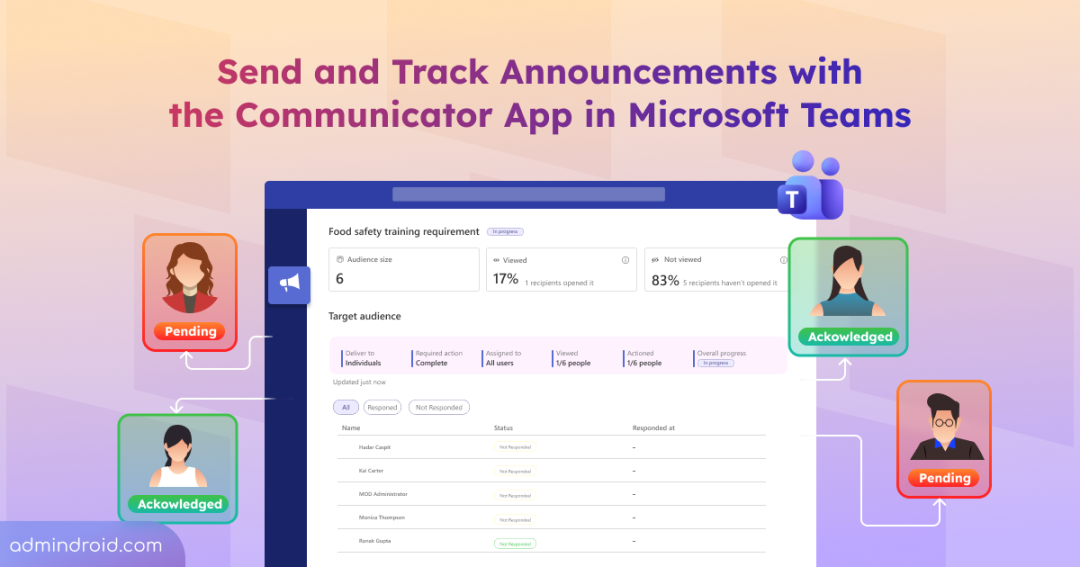
Sending company-wide announcements, operational updates, and critical alerts in Microsoft Teams is easy—it only takes a few clicks. But ensuring those messages actually get read and acted on? That’s where things get painful. Admins might catch read receipts in a 1:1 or group chat, but in channel updates, they are left entirely in the dark.
For years, bridging this visibility gap meant relying on email broadcasts, expensive third-party notification tools, or custom-built apps to confirm whether users actually saw an announcement.
Microsoft is now addressing this with Communicator, a new Teams app designed to help organizations manage targeted announcements and operational communications at scale. In this blog, we’ll take a quick look at the Communicator app, its core feature set, and what admins need to know to get started.
New Communicator App in Microsoft Teams
Communicator app is built for organizations that regularly need to send important, action-oriented communications to specific users, groups, or teams. Instead of simply posting an announcement and hoping everyone sees it, this allows organizations to:
- Create, publish, and manage announcements with rich text.
- Target specific users, groups, or Teams channels across the tenant.
- Add links to supporting resources in the message.
- Include response buttons, such as acknowledge, read and accept, confirm, or complete, to require explicit user confirmation.
- Set a due date for the required action.
- Preview how the announcement will look on both desktop and mobile views before publishing.
- Track views, responses, and overall progress via built-in reports.
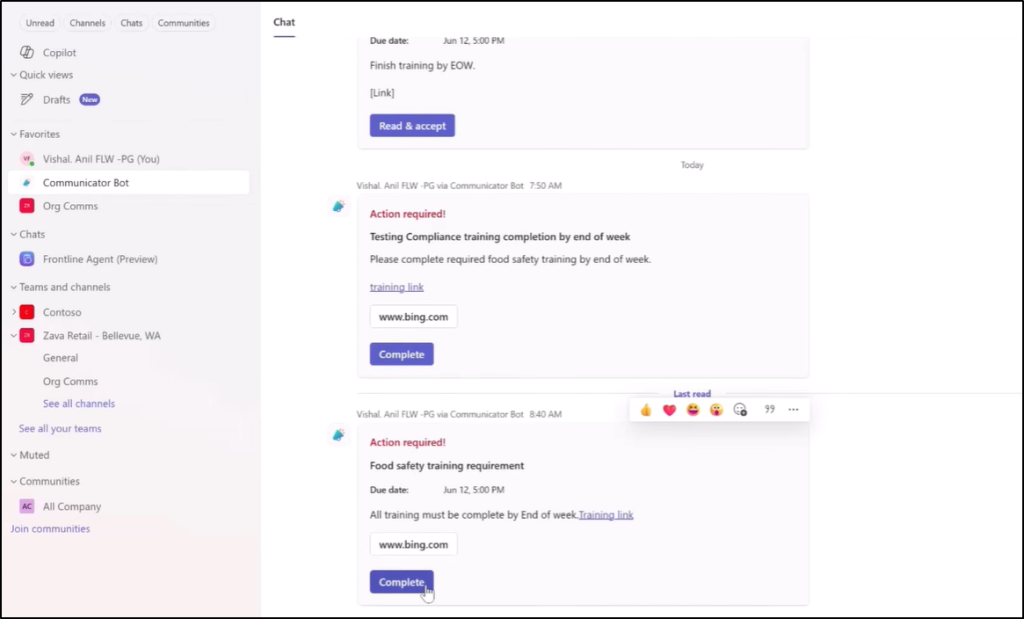
This makes Communicator particularly useful for targeted communications such as system maintenance updates, office access changes, benefits enrollment reminders, etc.
Rollout Timeline for the New Communicator App in Microsoft Teams
- The Public Preview rollout began in mid-August 2026 and is expected to reach completion by mid-January 2027.
- General Availability began in mid-August 2026 and is expected to be completed by late January 2027, with both rollouts extending across worldwide tenants.
Key Features of the Microsoft Teams Communicator App
Here are some of the features that make Communicator worth a look.
1. Reach the Right Users Across Microsoft Teams
One of the useful parts of the Communicator app is its targeting options. Communicators can send an announcement to users, groups, or Teams, depending on the scenario.
- For Teams-based communications, communicators can select multiple Teams even if they aren’t members of those Teams, provided they have the appropriate delegated access. They can also choose whether team owners or all team members need to acknowledge the announcement posted in the Teams General channel.
- For individual targeting, communicators can search for individual users, groups, or upload a CSV containing the recipients. The announcement is delivered to each recipient through the Communicator Bot in a 1:1 chat. When a group is selected, communicators can review its members and add or remove individual users before sending the announcement.
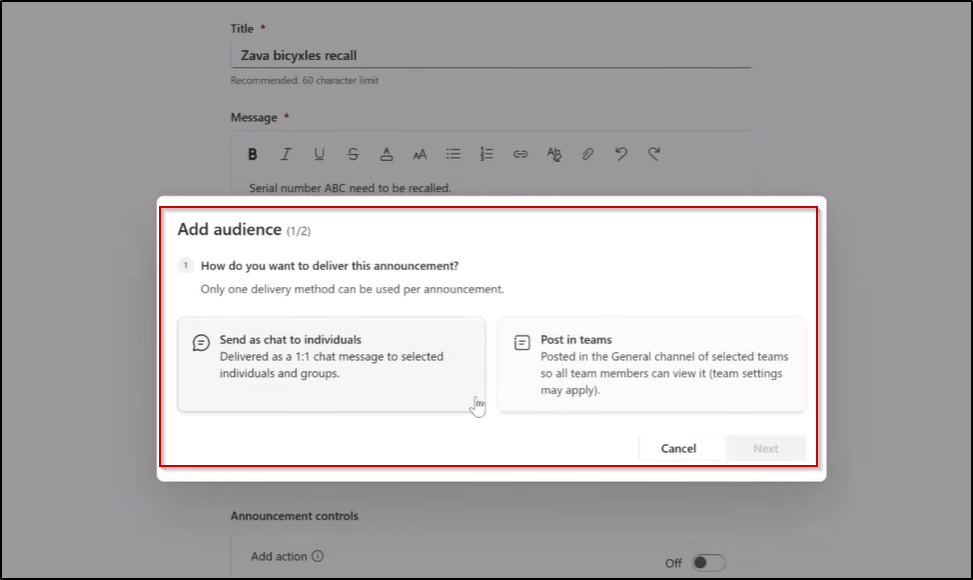
This gives communicators more control over exactly who receives an announcement.
2. Turn Teams Announcements into Actionable Workflow
Communicator app isn’t limited to sending announcements in Microsoft Teams. When creating an announcement, communicators can add response actions such as Acknowledge, Read and Accept, Confirm, or Complete, depending on what they need recipients to do.
Recipient responses are then tracked based on their interactions with these action buttons, providing visibility into who has responded, when they responded, and who is still pending. This makes it easier to monitor engagement and follow up on communications that require a response or action.
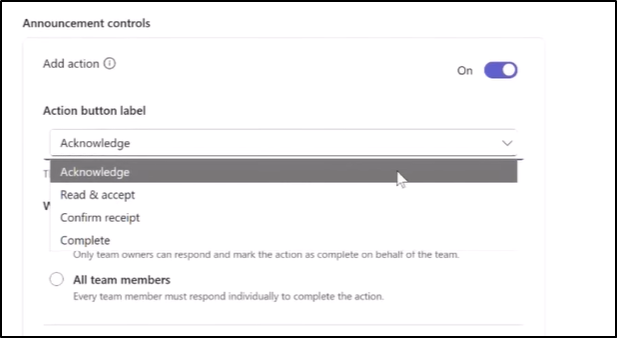
They can also set a due date for the required action. For example, an organization could send a security training announcement to a group of users and require everyone to complete the training by Friday at 5 PM.
This app automatically flags announcements with approaching deadlines as active operational risks, helping communicators identify time-sensitive communications that may require attention. This turns a simple announcement into a trackable, action-oriented workflow.
3. See Who Viewed and Acted on an Announcement with Built-in Reports
This is probably one of the most useful parts of the Communicator app compared with simply posting an update in Teams.
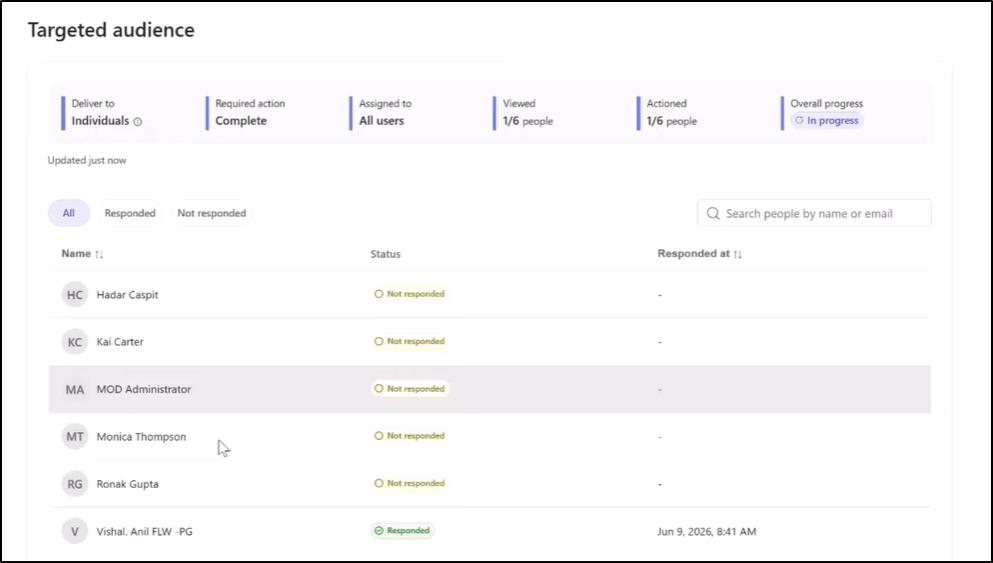
Communicator comes with built-in reporting capabilities that let communicators see who has viewed an announcement and who has completed the required action.
For individual communications, the reporting view provides details such as audience size, viewed percentage, response percentage, overall progress, and the list of users who have or haven’t responded. Communicators can also filter the report to identify users who have responded and those who are still pending.
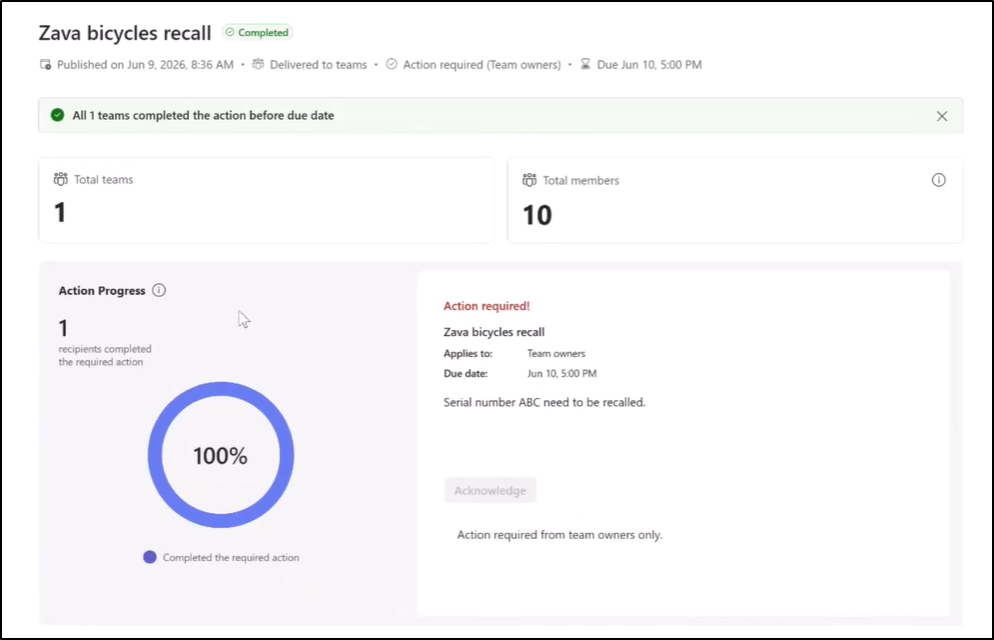
For Teams-based announcements, reporting can also provide visibility into the Teams and members covered by the communication.
Along with these features, Microsoft also plans to add reminders, follow-ups, and more capabilities to Communicator. These additions will further expand its support for action-tracking workflows and end-to-end communication.
How to Get Started with the Communicator App in Microsoft Teams
Preparing for the Communicator app rollout requires admins to consider both sides of the communication workflow: the communicators who create and send announcements and the recipients who receive and act on them.
Here is the administrative checklist to ensure a smooth deployment:
- Enable Public Preview for the intended users
Since Communicator is initially available in Public Preview, admins should include users who need access to the preview in the appropriate Teams Public Preview policy. This allows the designated users to access preview features while the feature is being rolled out. - Install the Communicator app for designated communicators
Identify the users responsible for creating and sending organizational announcements, such as HR, IT, compliance, or operations teams. Install and make the Communicator app available to these users through Teams. Once available, designated communicators can use the app to create, publish, and track announcements. - Make the Communicator Bot available to recipients
Recipients interact with announcements through the Communicator Bot, including viewing messages and completing required actions such as acknowledging or confirming an announcement. Install and make the bot available to the users and Teams that will receive communications. - Validate Teams app policies and availability
Review the relevant Teams app permission policies, app setup policies, and app availability settings to ensure that the right users can access the Communicator app and the associated bot. Make sure the app isn’t blocked by existing organizational policies. - Compare with Existing Notification Tools in Your Tenant
If your organization already uses a third-party or internally developed notification tool, compare its capabilities with Communicator before planning a migration. This comparison can help admins plan a phased migration and avoid maintaining overlapping communication tools unnecessarily.
This preparation ensures that communicators can send announcements and recipients can receive and act on them once the Communicator app becomes available in the tenant.
How Designated Users Can Publish Announcements Using the Communicator App
Once the Communicator app and bot are available to the appropriate users, designated communicators can start creating and publishing announcements from Microsoft Teams as shown below.
- Open Microsoft Teams and navigate to Apps > Communicator.
- From the dashboard, click New Announcement to start creating a message.
- Enter a clear title and description for the announcement. Use the rich-text editor to format text and attach links to supporting resources, such as internal SharePoint documents or policy portals.
- Choose the target recipients for the announcement. If required, select a response action and due date.
- Preview the announcement to check the content, links, audience, action, and due date.
- Save it as a draft if you’re not ready to publish, or click Publish to send it to the selected audience.
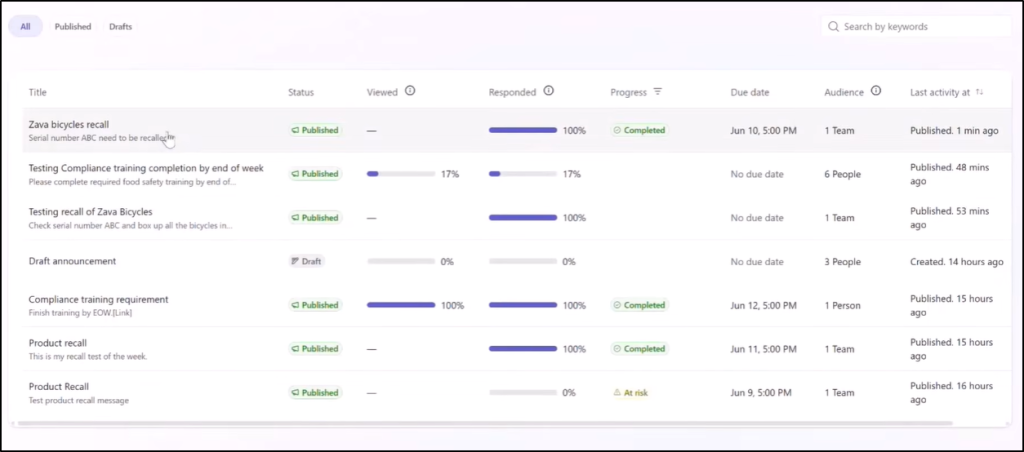
Once published, communicators can track and manage the announcement directly from the Communicator dashboard. The dashboard provides details such as views and response percentages, progress, due date, audience, and last activity. From the dashboard, they can also filter announcements by status or search for specific communications using keywords.
Click any specific announcement to view detailed engagement information, including view and response percentages, individual recipient responses, progress, and more.
Conclusion
Microsoft Teams Communicator app brings a more structured way to handle important organizational communications. Instead of simply sending an announcement and waiting for responses, communicators can target the right users, assign actions, set deadlines, and track who has viewed or acknowledged the message.
With Public Preview and GA rolling out, admins can start preparing their Teams environment and for the new experience. As Microsoft adds more capabilities, the Communicator app could become a useful option for managing action-oriented communications across the organization.
That’s it! We hope this blog helped you understand what Microsoft Teams Communicator offers and how it can help organizations manage targeted communications more effectively.
Thanks for reading!