When an employee reports a missing or stolen laptop, admins must act quickly to prevent unauthorized access. But securing the device often comes with a difficult choice: leave it accessible and risk data exposure, or remotely wipe it and lose the data even if the device is recovered later. Neither option is ideal when the immediate priority is simply to secure the device.
To address this challenge, Microsoft Intune introduces the Remote Lock support for Windows devices, currently in preview. This gives admins another way to protect missing or compromised devices by restricting access without erasing stored data.
In this blog, let’s explore what’s this remote lock feature is and how to configure it for Windows devices using Microsoft Intune.
What is Remote Lock for Windows Devices
Previously, the remote lock action was available for Android and macOS devices under Devices > Select a device > Security > Remote lock in the Intune admin center. Using this, admins can remotely lock devices when needed, while users can regain access using their device password. Microsoft now extends remote lock capabilities to Windows devices, but the way this capability works is significantly different.
Unlike Android and macOS, Windows devices do not have a dedicated remote lock option in the Intune admin center. Instead, admins must use Intune configuration policies to control the devices’ lock state.
The unlock process is also different. Once a Windows device is locked using this configuration, users cannot regain access using their existing PIN, password, or administrator credentials. Admins must deploy a separate unlock policy through Intune to restore access.
To use this feature, devices must meet the following requirements:
- Run Windows Pro, Enterprise, or Education editions.
- Be Microsoft Entra joined, Microsoft Entra hybrid joined, or MDM-enrolled.
Microsoft’s documentation also lists Windows 10 and Windows Server 2016, 2019, and 2022 as applicable platforms. However, the current preview announcement specifically identifies Windows 11 Insider Preview Build 29708.1001.
With these requirements in mind, let’s explore how to configure the policies and use Microsoft Intune to remotely lock and unlock Windows devices.
How to Enable Remote Lock for Windows Devices in Intune
First, create a device group containing the Windows devices you want to manage. Then, follow the steps below to configure remote lock through Intune.
- Sign in to the Microsoft Intune admin center.
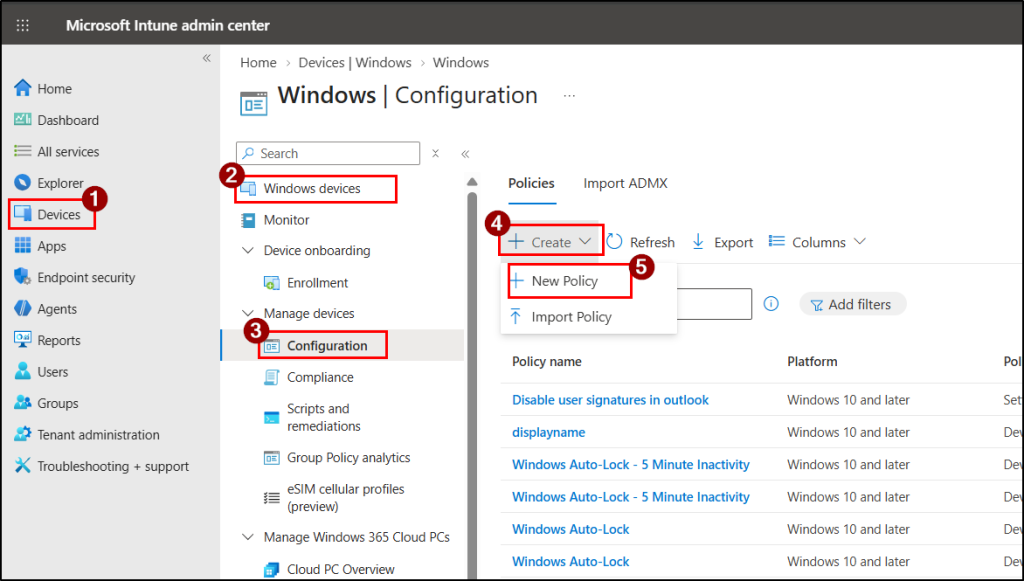
- Navigate to Devices > Monitor > By Platform > Windows.
- Under Manage devices, select Configuration > Create and click New Policy.
- Choose Platform as Windows 10 and later and Profile type as Templates > Custom. Click Create.
- Provide a name for the policy, for example, Remote lock for Windows devices. Click Next.
- Under Configuration Settings, click Add and configure the following OMA-URI settings:
Setting Name Description OMA-URI Data Type Value Lock state (Required) Determines whether the Windows device should be locked or unlocked. ./Device/Vendor/MSFT/RemoteDeviceLock/LockState Integer 1 Lock reason (Optional) Displays the reason for locking the device on its lock screen. Supports up to 1,024 characters. ./Device/Vendor/MSFT/RemoteDeviceLock/LockReason String <Your lock reason> Recovery hint (Optional) Displays recovery information, such as help desk contact details, on the lock screen. Supports up to 256 characters. ./Device/Vendor/MSFT/RemoteDeviceLock/RecoveryHint String <Help desk contact details> 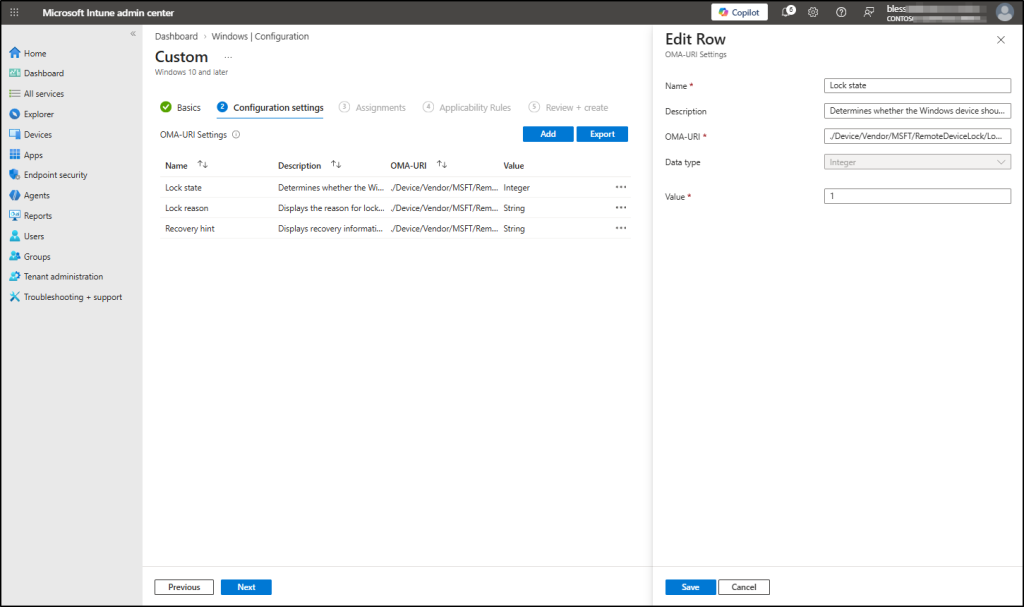
- Under Assignments, add the device group containing the Windows devices you want to lock.
- Optionally, configure Applicability Rules to apply any additional rules. Click Next.
- Review the policy configuration and click Create to deploy the remote lock policy. The policy takes effect during the devices’ next Intune check-in.
The configured policy uses the Lock state value 1 to instruct Intune to lock the Windows device. If a device is misplaced or a security issue arises, admins can add it to the assigned device group to apply this policy. The device will be locked during its next Intune check-in.
Once the security incident is resolved and the device is verified as safe to use, admins can restore access by unlocking the locked Windows device.
How to Unlock a Remotely Locked Windows Device in Intune?
To unlock a remotely locked Windows device, admins must deploy a separate Intune configuration policy using the same OMA-URI setting but with the Lock state value set to 0.
Assign this unlock policy to the device group that needs access restored. Also, ensure these devices are no longer part of the groups targeted by the original lock policy to avoid conflicting configurations.
Once the devices receive the unlock policy during their next Intune check-in, the lock is lifted, allowing users to sign in again.
What Happens When a Windows Device Is Remotely Locked?
Once the device is added to the group assigned to the remote lock policy and receives the policy, the remote lock takes effect, and the following changes occur:
- Active access is terminated: Anyone using the device is signed out of their current session.
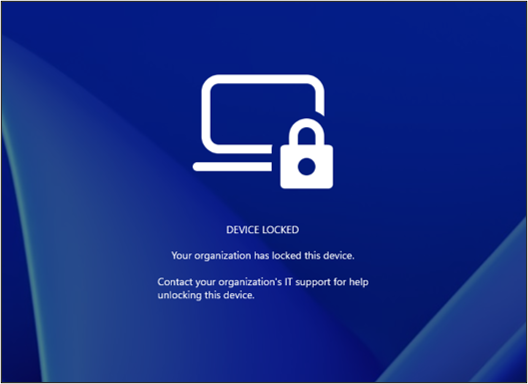
- Sign-in is restricted: Users cannot access the usual sign-in options while the lock is active. Instead, a lock screen is displayed with the lock reason and recovery hint configured through the policy.
- Data remains untouched: Existing files and user’s personal data are preserved without wiping the device.
- Security protection stays in place: BitLocker continues protecting the device, and its Intune enrollment remains unchanged.
- The lock stays active: Restarting the device or disconnecting it from the network does not clear the lock.
- Unlocking requires admin action: Admins must send the appropriate unlock configuration through Intune before users can regain access.
Important Considerations for Admins About Windows Remote Lock
However, restricting access to the Windows sign-in screen does not mean the device is completely inaccessible through other recovery methods. Admins should keep the following limitations in mind:
- User accounts remain active: Remote lock does not disable the user’s Microsoft Entra ID account or revoke existing sessions. Admins must use Microsoft Entra ID controls separately to block account access or revoke sessions when needed.
- No network isolation or data removal: Locking a device does not disconnect it from the network or erase its contents. Use other Intune security actions when these measures are necessary.
- Boot and recovery options remain accessible: Remote lock does not prevent users from accessing Windows Recovery Environment, Safe Mode, or booting from external media. Keep BitLocker enabled to protect data against offline access or unauthorized disk removal.
- No local or offline unlock: Users or admins cannot unlock the device using their PIN, password, local administrator credentials, or web sign-in. Access can be restored only when the device receives the separate unlock policy through Intune.
One Lock Away from Better Security
With remote lock now available for Windows devices, admins have another useful option in their Intune security toolkit. It helps them act quickly when a device is lost or compromised while keeping the recovery process simple.
That’s all for now! We hope this guide helps you get started with remote lock for Windows devices. If you have any questions, experiences, or tips to share, feel free to leave them in the comments below.
Thank you for reading!