Email signatures are more than just contact details. They help reinforce branding, maintain professionalism, and ensure every message carries the right business information. However, managing them in Microsoft 365 can be frustrating, as employees often forget to update them, use inconsistent formats, or may miss branding and legal disclaimers. For IT teams, maintaining consistency across the organization often turns into a time-consuming challenge.
To address this, Microsoft 365 offers two approaches: server-side and client-side email signatures. While both may look identical to recipients, they differ significantly in how they are applied, managed, and experienced. Choosing the wrong approach can lead to lack of control or poor user experience.
Server-side and Client-side Email Signatures
To understand the difference clearly, it all comes down to a simple idea on when and where the signature gets added to an email.
Server-Side Email Signatures in Microsoft 365
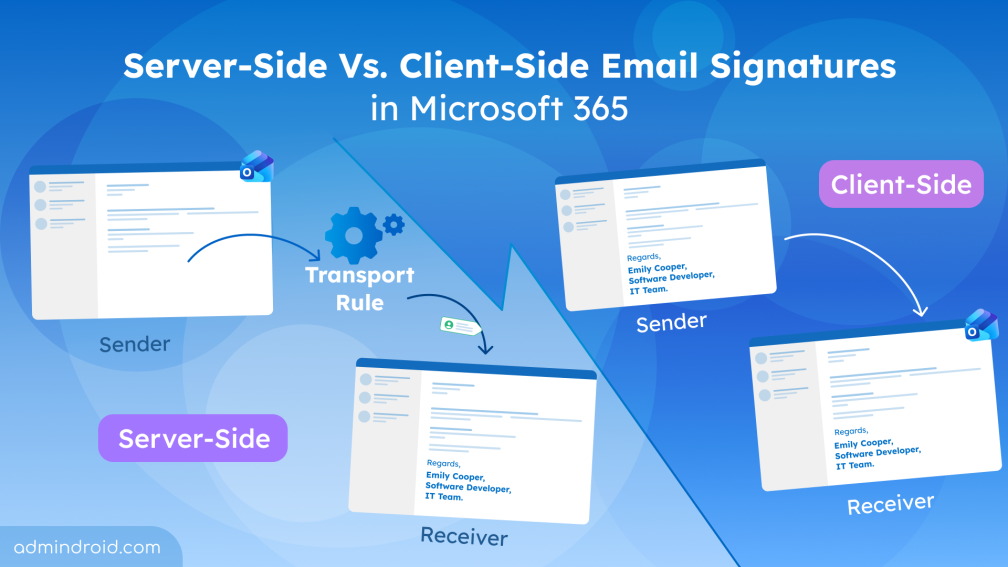
A server-side email signature is applied after the email is sent. Once the user sends an email, Exchange Online processes the message and evaluates the transport rules based on defined conditions. If the conditions are met, the signature is automatically appended using mail flow (transport) rules.
In Microsoft 365, this is technically implemented using disclaimer rules, which were originally designed for legal notices and confidentiality statements. Many organizations extend this capability to enforce server-side email signatures.
Since this happens at the server level, the sender does not see the signature while composing the email. It is only added during transit before the email is delivered to the recipient. This approach ensures that a consistent signature is applied across all outgoing emails in the organization, regardless of the device or app used to send them.
Client-Side Email Signatures in Microsoft 365
A client-side email signature is applied during email composition. This signature can be managed in two ways:
- User-managed client-side signature: Users create and manage their own signatures using Outlook’s built-in signature settings. This depends on how each user configures it, so it may vary from person to person. Unless a standard format is followed, signatures can look different across users, which can affect professionalism and brand consistency.
- Admin-managed client-side signature: Admins can centrally manage client-side email signatures using the PowerShell cmdlet Set-MailboxMessageConfiguration to configure mailbox-level signature settings. This approach combines central control with greater visibility during composition. However, support is currently limited to Outlook on the web (OWA) and new Outlook, and users may still be able to edit the signature while drafting.
Key Differences Between Server-Side and Client-Side Email Signatures
Now that the core concept is clear, let’s look at a breakdown of how server-side and client-side email signatures differ.
| Key factors | Server-side email signature | Client-side email signature |
| Visibility to the sender | Not visible to the sender since it is added after the email is sent | Visible to the sender since it is added during email composition |
| Visibility in Sender’s Sent Items folder | Signature/disclaimer not shown in Sent Items | Signature is visible in Sent Items |
| Where the signatures are managed | Managed through mail flow rules in the Exchange admin center | User-managed: Managed by the user in Microsoft Outlook Admin-managed: Managed centrally via PowerShell using ‘Set-MailboxMessageConfiguration’ cmdlet. |
| Centralized control | Yes | Available only with admin-managed deployments |
| Standardization | Fully standardized across the organization | User-managed: Low standardized Admin-managed: Standardized |
| User modification | Not allowed | Allowed; Users can edit/customize signature before sending. |
| Supported devices | Work across all client devices and SMTP connected clients | Depends on Outlook client (may not be consistent across all devices) |
| Attribute based targeting | Supported | Not required in user-managed; Supported with admin-managed signatures |
| Compatibility with S/MIME encryption | S/MIME encrypts the message before sending, so the server cannot append the signature. | Signature is added before sending, so it is included in the encrypted message. |
| Multi-branding | Requires multiple transport rules | Via custom PowerShell script or third-party tools. |
Hybrid Deployment of Email Signatures in Microsoft 365
If your organization’s requirements aren’t fully met by either approach alone, you can use a hybrid deployment by combining both server-side and client-side email signatures. This approach ensures a seamless, reliable signature experience across the organization.
In this model, client-side signatures allow users to preview their signature while composing emails, improving visibility during drafting. Server-side signatures then act as an enforcement layer by appending standardized branding elements or legal disclaimers after the message is sent.
How to Choose the Right Email Signature Type for Your Organization
The right choice ultimately depends on your organization’s priorities, whether that is centralized governance, user flexibility, or a balance of both.
| Organization Profile | Primary Goal | Recommended Email Approach |
| Regulated industry (legal, finance, health care) | Require legal disclaimers to ensure trust and compliance | Server-side or hybrid email signatures |
| Enterprises needing strict IT control | Centralized management and policy enforcement | Server-side or admin-configured client-side signatures |
| Sales and customer facing teams requiring branding, rich banners, and promotional content | Highly customized branding with rich promotional content in emails. | Client-side signatures |
| Heavily mobile/BYOD-first organizations | Commonly emails are composed and sent from iOS/Android mobiles. Hence needed consistent email signature | Server-side signature |
| Organizations using encrypted/S/MIME signed emails frequently | Signatures must be included within encrypted emails | Client-side signature |
| Multi-brand organizations | Require customized email signatures based on department, job title, etc. | Admin-managed client-side signature |
| Small scale organizations | No central IT team but prefer signatures. | User-managed client-side signature |
How to Configure Email Signatures in Microsoft 365
Once you’ve selected the signature type that fits your organization, follow the steps below to set it up:
- Configure server-side email signatures
- Add user-managed client-side email signatures
- Set up admin-managed client-side email signatures
1. Configure Server-Side Email Signatures via Transport Rules
To configure server-side email signatures, create mail flow rules in the Exchange admin center. These rules use the disclaimer feature, which is commonly used to append signatures to outgoing emails. You can configure both plain-text and HTML-based signature content.
For detailed setup instructions, follow this guide to configure email signature using transport rule.
Additionally, if you need to customize signatures based on user attributes such as username, department, or job title, you can also add supported Entra ID attributes (for example, %DisplayName%%) to the signature content.
You can also combine signatures with legal disclaimers, compliance notices, or confidentiality statements within the same mail flow rule, making it a centralized way to manage both branding and compliance requirements.
2. Add User-Managed Client-Side Email Signatures
Users can create and configure their own signatures in Microsoft Outlook by following the steps below:
- Sign in to your Microsoft Outlook account.
- Navigate to Settings → Accounts → Signatures and select +Add signature.
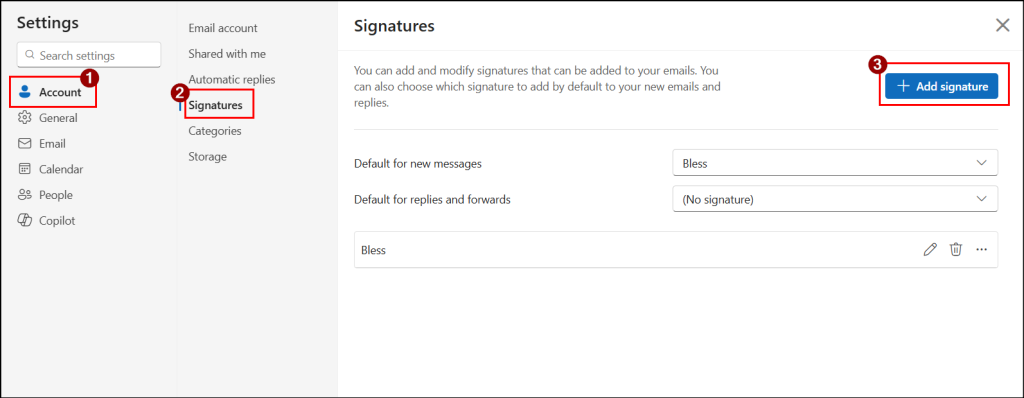
- Select Create. Enter your signature content and choose when it should be applied.
- Next, click Save to apply the changes.
Once configured, the signature is automatically added when composing a new email or replying to or forwarding a message. You can also enable automatic application of a standard signature for all outgoing emails if required.
3. Set Up Admin-Managed Client-Side Email Signatures
To configure admin-managed client-side email signatures in Outlook, Microsoft does not provide a direct option through the Outlook interface. Instead, you can use a PowerShell cmdlet Set-MailboxMessageConfiguration to configure mailbox-level signature settings for supported Outlook experiences. This method is currently supported only in Outlook on the web (OWA) and the new Outlook clients.
Before applying this, admins need to disable roaming signatures using the PostponeRoamingSignaturesUntilLater property. This temporarily disables Outlook’s roaming signature behavior and helps prevent conflicts across Outlook clients.
However, manually configuring signatures for every user can be time-consuming. To simplify this, you can use a PowerShell script to automate client-side signature configuration for all or list of mailboxes Outlook.
Download the script from GitHub: ConfigureEmailSignatureInOutlook.ps1
The script supports both plain text and HTML-based signatures and helps maintain a standardized email experience across the organization.
Limitations of Microsoft 365 Email Signatures
While email signatures in Microsoft 365 are highly useful, there are a few limitations to be aware of.
- Duplicate signatures issues: If a user configures a client-side signature and a server-side signature is also applied, there is a possibility of both signatures appearing in the same email.
Note: When server-side signatures are enabled, users should avoid configuring personal Outlook signatures to avoid such duplicates. - Server-side signatures are always added at the bottom of the email thread: When you reply to a message, you would expect the signature to appear directly under your response. However, with server-side signatures, the signature is added at the very end of the entire email conversation.
To avoid this, go to Exchange admin center → Mail flow → Rules and open the signature rule. Under Exceptions, select Subject or body includes any of these words and add unique words from the signature. - HTML rendering issues: Email signatures created using HTML may not always render consistently across different devices or email clients. This can result in broken images, font mismatches, or alignment issues.
Wrapping Up
That’s all! We hope this blog has given you a clear understanding of server-side vs. client-side email signatures in Microsoft 365. With this knowledge, evaluate your organization’s needs and choose the approach that best fits, rather than selecting one at random. Have questions or experiences to share? Feel free to drop them in the comments below. We’d love to hear from you. Stay tuned for more upcoming blogs.