Since early 2020, the number of Teams meetings each person attends in a week has risen by about 192%. That’s almost triple. It sounds huge, but it isn’t surprising. Teams has become the place where users share updates, talk things through, and make decisions, from anywhere and at any time.
And it’s convenient. Users can record a meeting to revisit later, drop a link in the chat, or share a screen to walk through a document in seconds.
But with great convenience comes great risk 😐. Every Teams meeting shares information through screens, video, chat, and recordings. A screenshot or recording sent to the wrong person can expose sensitive details, sometimes through a simple sharing mistake.
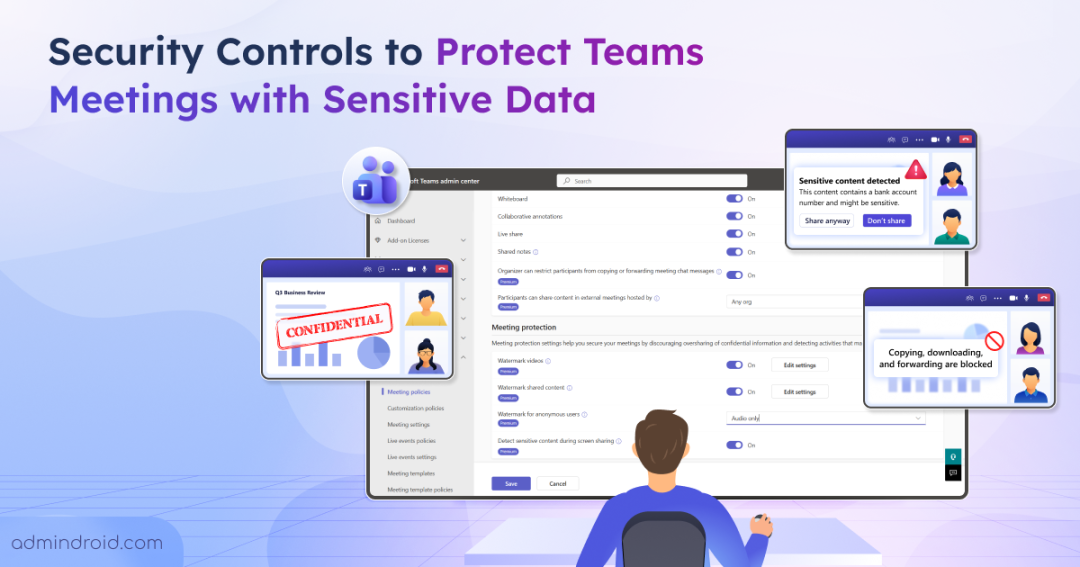
That’s why protecting a meeting matters as much as holding it. In this blog, let’s explore the key security controls that help keep Teams meetings secure and productive.
Key Controls to Protect Sensitive Information in Microsoft Teams Meetings
As Teams meetings become a regular part of everyday work, Microsoft continues to introduce features that improve the meeting experience and help protect sensitive information. These include external bot detection, end-to-end encryption for Teams meetings, and more.
Each feature addresses a different security concern, helping organizations manage who can join meetings, what participants can share, and how meeting content is protected.
Among these, the following four key controls help safeguard sensitive information in Microsoft Teams meetings:
- Sensitive content detection in Teams meetings
- Enable watermarks in Microsoft Teams meetings
- Control who and what can be shared in Teams meetings
- Turn off copying and forwarding in Teams meetings
Let’s explore how each control works and how you can use it to protect Microsoft Teams meetings with sensitive data.
Note: Some of these advanced meeting protection features require a Microsoft Teams Premium license. Check your tenant’s licensing configuration to access these meeting options.
How secure is your next Teams meeting?
From controlling what participants can share to protecting sensitive content on screen, Teams offers security settings that can help keep meeting information safe. But do you know which ones to use?
Explore these controls and put your knowledge to the test in our interactive game.👉 https://admindroid.com/cybersecurity-awareness-month-2026?play=21
1. Sensitive Content Detection in Microsoft Teams Meetings
We often keep multiple tabs open while working, from customer records and financial reports to internal documents and emails. When sharing a screen during a Microsoft Teams meeting, it’s easy to accidentally expose information that wasn’t meant for everyone to see.
To help reduce this risk, Microsoft Teams Premium offers sensitive content detection, which detects supported types of sensitive information during screen sharing. When a participant shares their screen, Microsoft Teams automatically scans the supported shared content for recognized sensitive data.
If it detects potentially sensitive information, it notifies both the presenter and the meeting organizer. The presenter is prompted to stop sharing if the information was displayed unintentionally.
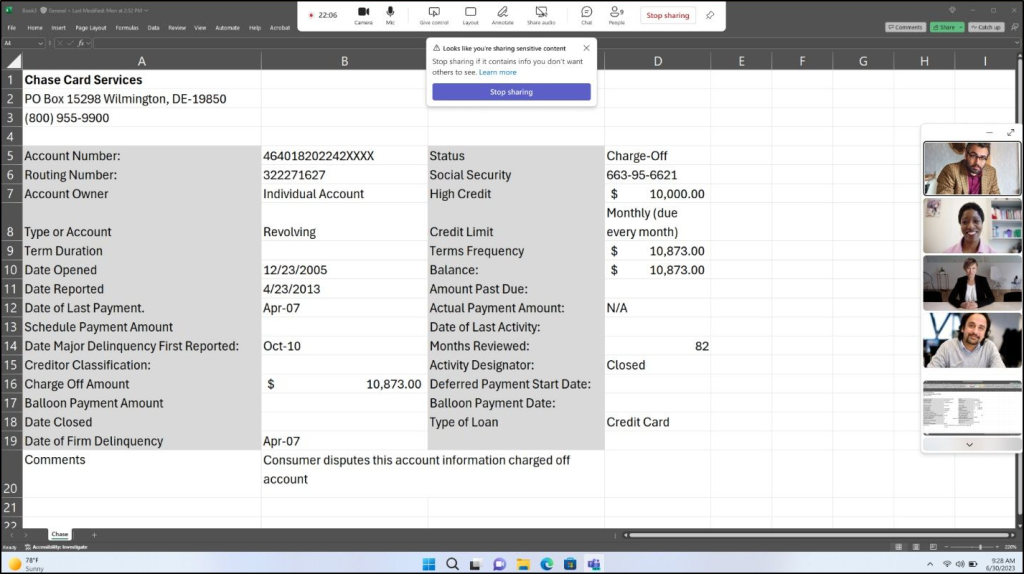
Sensitive content detection helps reduce accidental data exposure during meetings. It does not automatically conceal the information, block all screen sharing, or guarantee that sensitive information will never be exposed.
Supported Types of Sensitive Content Detection in Teams Meetings
Sensitive content detection in Microsoft Teams supports specific financial info and numerical IDs, including:
- Credit card numbers
- US bank account numbers
- ABA routing numbers
- US Social Security numbers
- Taxpayer Identification Numbers
- US and UK passport numbers
- Supported EU identification and financial information, including national identification numbers, driver’s license numbers, and debit card numbers
How to Enable Sensitive Content Detection in Teams Meetings
Sensitive content detection can be configured at two levels:
If required, admins can also enforce this setting through sensitivity labels and Teams meeting templates.
Configure Sensitive Content Protection Through Teams Admin Center
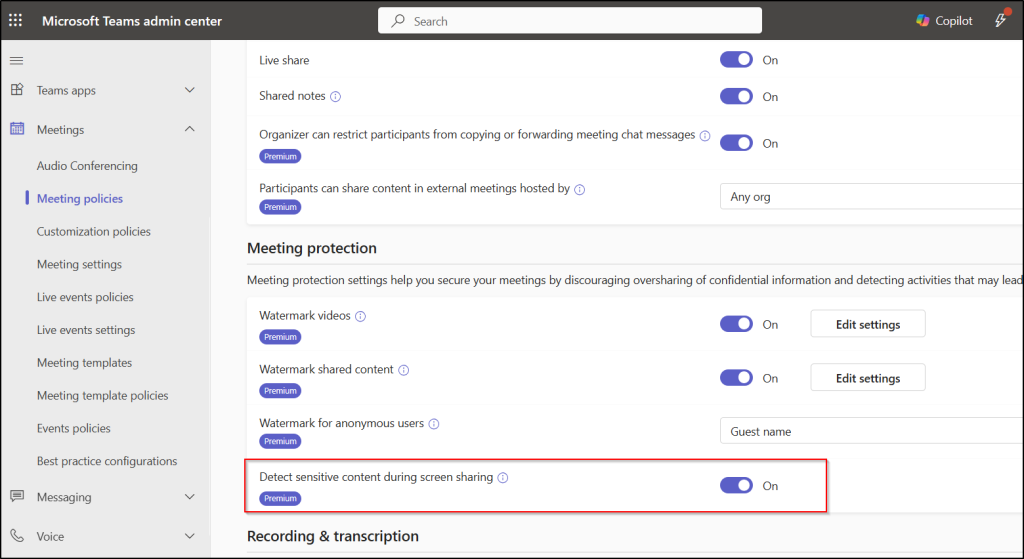
This setting lets admins control whether meeting organizers are allowed to use sensitive content detection. By default, the setting will be ON for all organizations with a Teams Premium license. If you need to check or update the settings, follow the steps below.
- Sign in to the Microsoft Teams admin center.
- Go to Meetings > Meeting policies.
(In the new Teams admin center experience, go to Settings & policies, select the Global or custom policy, and open Meetings to access the meeting settings.) - Select any existing meeting policy or create a custom meeting policy based on your needs.
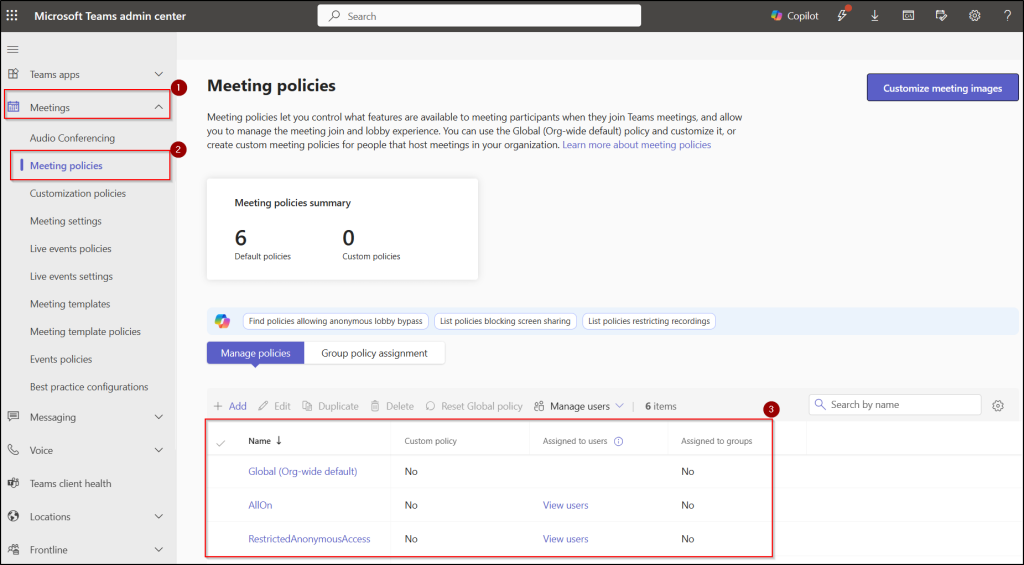
- Under Meeting Protection, locate Detect sensitive content during screen sharing.
- Ensure the setting is turned on and select Save.
Enable Content Protection Settings for an Individual Teams Meeting
When this policy setting is enabled, eligible meeting organizers with a Teams Premium license can choose whether to use sensitive content detection for individual meetings.
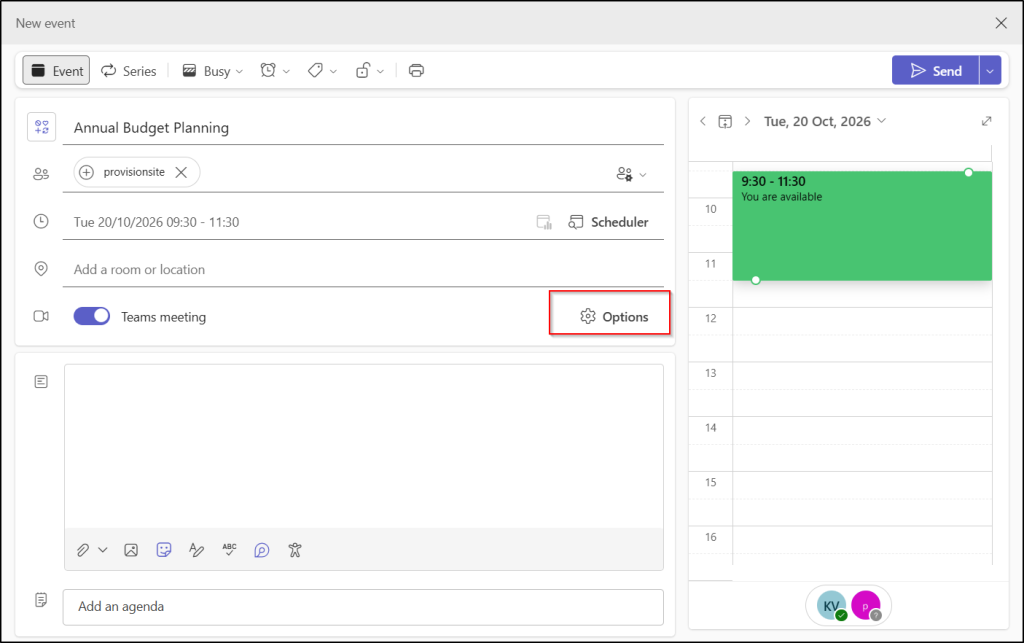
- Open Microsoft Teams on the web, desktop, or mobile and select Calendar.
- Click “New Event” to schedule a meeting or click “Edit” on the upcoming meeting. For a recurring meeting, choose whether to edit a single occurrence or the entire series.
- Then, select Options to open the meeting options.
- Locate the Advanced protection section and enable Detect sensitive content during screen sharing.
- Then, click Apply to save the meeting configurations.
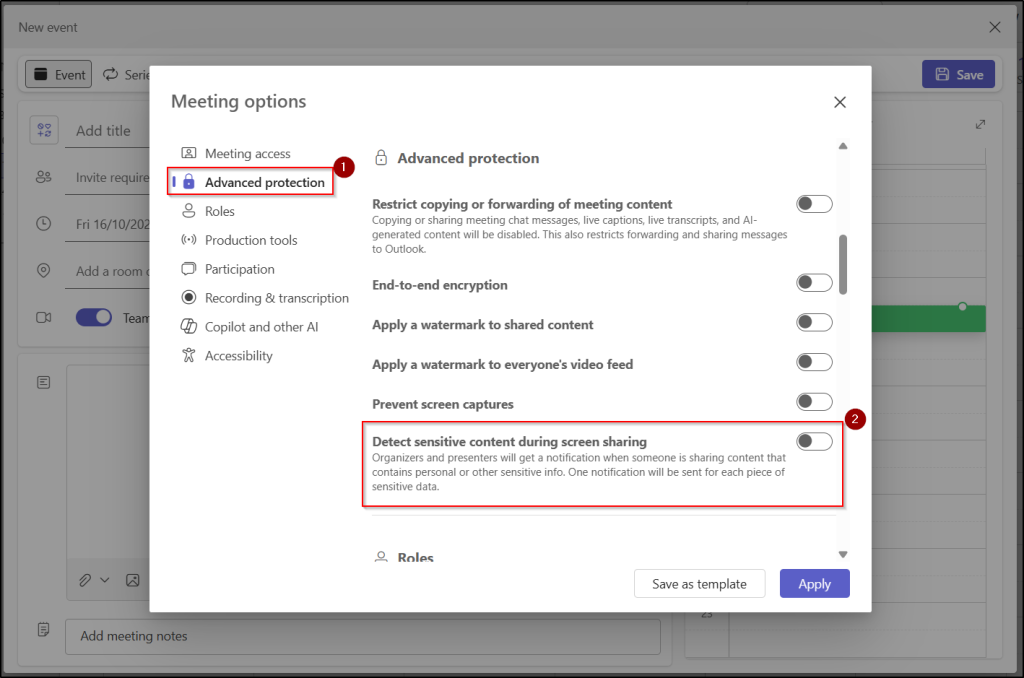
Once enabled, Teams performs content detection automatically during supported screen-sharing sessions. It’s best to enable the feature before the meeting starts. If it’s enabled after the meeting has started, all participants must leave and rejoin for the change to take effect.
Important: Sensitive content detection and end-to-end encryption cannot be enabled together in the same meeting. However, end-to-end encryption can still be used in other meetings.
What are the limitations of sensitive content detection in Teams meetings?
Detection is based on supported patterns and categories. It should not be treated as a general-purpose system that understands every confidential document or recognizes all forms of personally identifiable information.
The following categories are not necessarily detected by this feature:
- Language and content limitations – It currently supports English content and doesn’t detect sensitive information in fast-moving shared content.
- Unsupported sharing methods – It also doesn’t support certain sharing methods, including Microsoft Whiteboard, content from camera, PowerPoint Live, Excel Live, and Browse my computer.
- Limited Customization – You can’t customize the types of sensitive information the feature detects. For example, a customer’s name, an internal project name, a password, or a confidential business strategy is not a supported detection category.
2. Protect Microsoft Teams Meetings with Watermarks
Any user in a meeting can snap a photo of a confidential slide and post it outside the organization, and nothing in the meeting itself stops them. A watermark changes that by overlaying each participant’s own email address on meeting content. If a screenshot leaks, the visible address points back to the account that captured it.
Watermarks are designed to discourage unauthorized sharing, not guarantee that screenshots or recordings are impossible.
Microsoft Teams supports two types of meeting watermarks, and you can use either or both:
- Watermark Shared Content – Overlays a personalized watermark on presentations, shared screens, and live-sharing content, such as PowerPoint Live and Excel Live.
- Watermark Everyone’s Video Feed – This option overlays a watermark on participant video feeds. It can help when participants use their cameras to show physical documents, whiteboards, or other sensitive information.
Meeting watermarking is a Microsoft Teams Premium feature. Ensure you have the required Teams Premium license before configuring it for your tenant.
There’s one catch: Watermarks add little when every participant already has direct access to the content. They work best when you share information with people who don’t normally see it, such as finance sharing quarterly estimates with managers from other divisions.
How to Configure Watermarks for Sensitive Teams Meetings?
Admins can enable watermarks through Teams meeting policies, and eligible organizers can configure them through individual meeting options.
First, follow the steps below to make watermarking available to meeting organizers.
Teams admin center -> Meetings -> Meeting policies -> Select the policy -> Meeting protection.
Here, make sure the watermark is enabled for your tenant and update the following watermark settings.
- Watermark videos: Turn this on to allow watermarks on participants’ video feeds.
- Watermark shared content: Turn this on to allow watermarks on content shared during meetings.
- Watermark for anonymous users: Configure how anonymous participants experience watermarked meetings, including whether they can view meeting content or are restricted to audio-only participation.
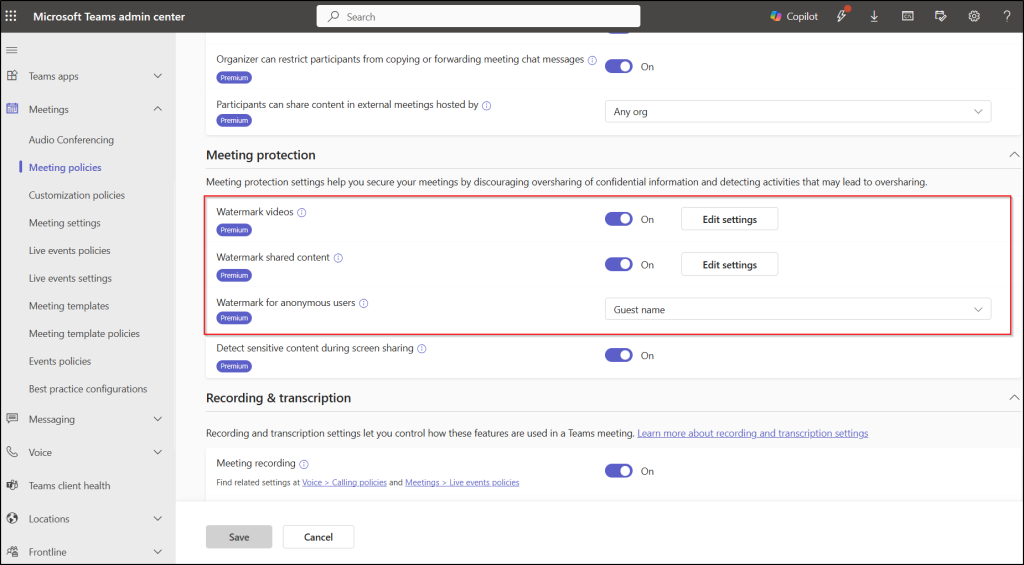
Then, select Edit settings to customize the following watermark settings.
- Pattern: Choose whether each participant’s email address appears once or repeatedly across the shared content or video feed.
- Transparency: Adjust how prominently the watermark appears over meeting content.
- Organizer customization: Decide whether meeting organizers can change watermark settings when creating or editing meetings.
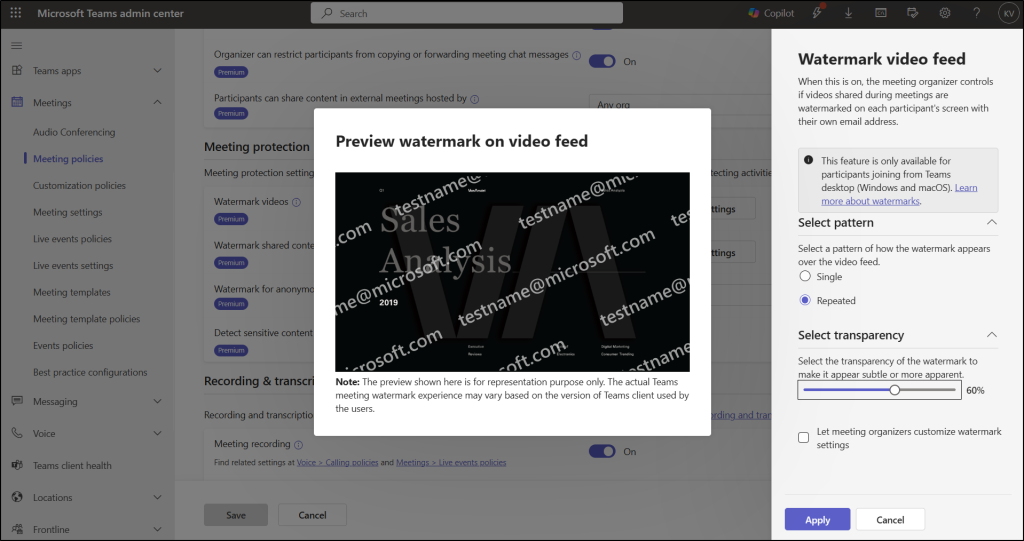
Then, click Apply to confirm the watermark customization and select Save to save the meeting policy.
Once the policy is in effect, eligible meeting organizers with a Teams Premium license can apply watermarks for Teams meetings through the following path.
“Teams calendar ->Create a meeting or edit a meeting -> choose Options -> click Advanced protection -> configure ‘Apply a watermark to shared content’ and ‘Apply a watermark to everyone’s video feed’ -> click Apply”
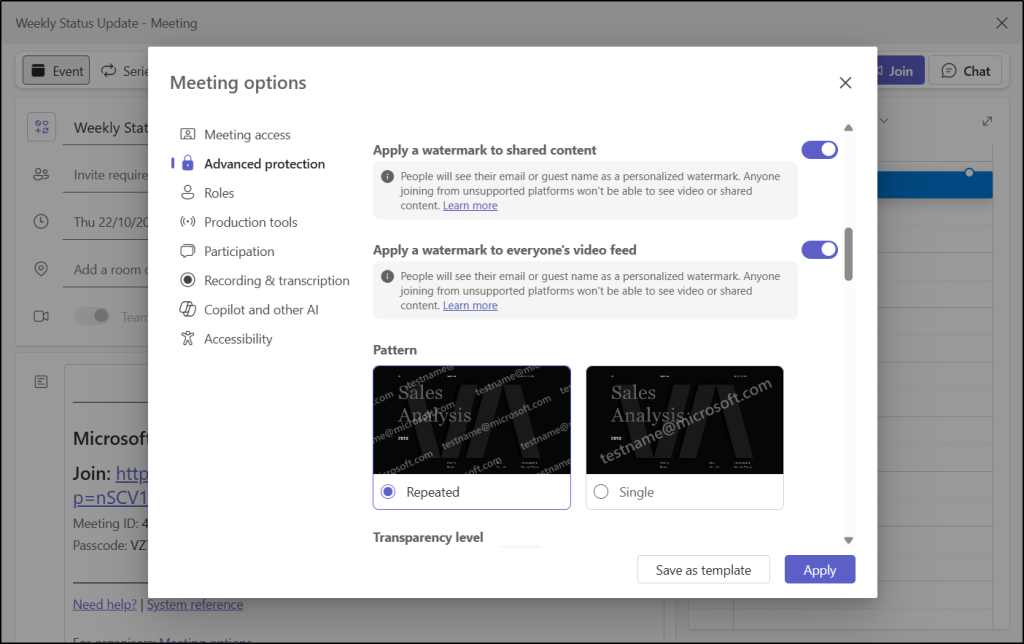
If the organizer customization option is enabled by an admin in the Teams meeting policy, eligible meeting organizers can also update the watermark settings.
What are the Limitations of Watermarks in Teams meetings?
Watermarks add a visible layer of accountability, but you should understand their limitations before using them to protect confidential meeting content.
- Screenshots and external capture: Watermarks discourage unauthorized screenshots, but they cannot guarantee that content will not be captured. Pair it with the prevent screen captures option to block screenshots and recordings.
- Meeting recordings: Downloaded MP4 recordings do not retain playback-time watermarks. Review recording and download permissions to protect sensitive content.
- Limited meeting features: Large gallery view is unavailable, and camera content cannot be shared when shared-content watermarking is enabled.
- Unsupported clients: Participants using unsupported clients or access methods, such as certain VDI environments or older Teams clients, may be restricted to audio-only participation.
3. Control Who and What Can Be Shared in Teams Meetings
Not everyone in a Teams meeting needs the same level of access. For example, while some participants may need to present information, others may only need to attend and view the presentation. Allowing everyone to share content or take control can introduce unnecessary security risks, especially during confidential discussions.
Microsoft Teams provides meeting controls that let meeting organizers manage who can present, restrict screen-sharing capabilities, and control access to shared content. By configuring these settings based on the meeting’s requirements, you can prevent unauthorized sharing, minimize distractions, and maintain better control over what participants see and do during a meeting.
Unlike the other three controls, these meeting controls are available under standard meeting policy settings.
How to Manage Who Can Present in Teams Meetings?
Restricting presenter permissions helps prevent unexpected screen sharing and interruptions. Admins can set the default presenter permissions for meetings across their organization, while organizers can adjust them for individual meetings when permitted.
Follow the steps below to configure default presenter permissions for all Teams meetings.
- Sign in to the Microsoft Teams admin center and go to Meetings > Meeting policies.
- Select the policy you want to update.
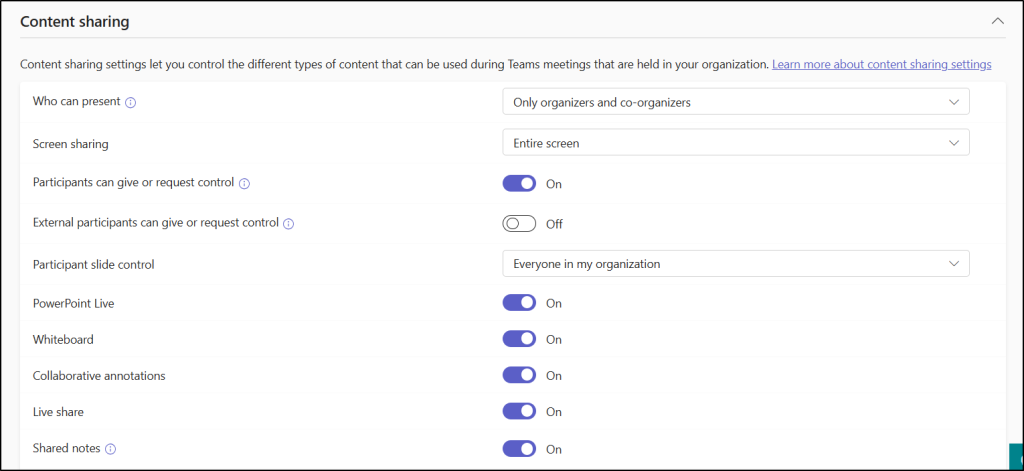
- Under Content sharing, locate Who can present.
- Choose the appropriate default presenter:
- Everyone: All meeting participants can present.
- People in my org and guests: Participants from your organization and users with guest access can present.
- Only organizers and co-organizers: Presentation permissions are limited to the meeting organizer and designated co-organizers.
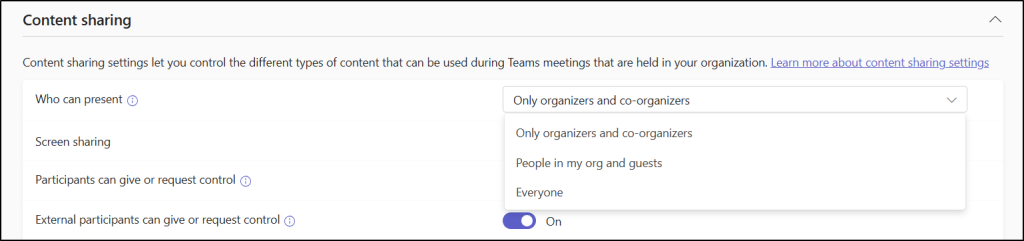
- Click Save to apply the changes.
In the same Content sharing configuration, you can also update ‘Participants can give or request control’ and ‘External participants can give or request control’. This remote control setting determines whether participants can give or request control of a shared desktop or window. When enabled, eligible participants can collaborate on the presenter’s shared content.
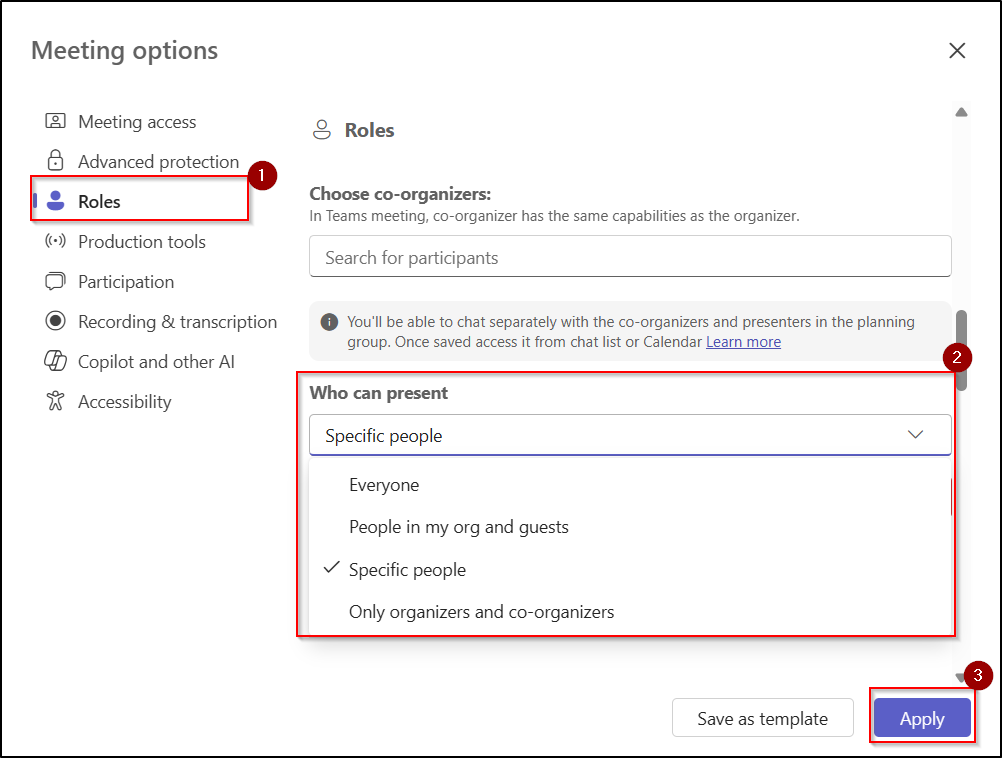
The selected option will become the default for all upcoming meetings. Meeting organizers can adjust the setting for individual meetings using the following path.
“Teams calendar ->Create a meeting or edit a meeting -> Click Options -> Locate Roles -> Update ‘Who can present’ -> click Apply”
Here, you can also choose specific meeting participants who are allowed to present.
During a meeting, organizers can also promote or demote participants through the People panel by selecting the participant’s additional options next to a name and choosing Make a presenter or Make an attendee. This allows organizers to grant presentation permissions when needed without making every participant a presenter throughout the meeting.
How to Control What Presenters Can Share in Teams Meetings?
Microsoft Teams meeting policies allow you to control screen-sharing capabilities across your organization. Depending on the available settings, you can configure whether users can share their entire screen, individual windows, or other supported content.
To control what can be shared in Teams meetings, follow the steps below:
- Go to Meetings > Meeting policies in the Teams admin center.
- Select the policy you want to update.
- Under Content sharing, configure the required settings:
- Screen sharing mode: Allow sharing of the entire screen and applications, restrict sharing to a single application, or disable screen and application sharing. Presenters can also choose Share > Window to share only the needed window, keeping other apps out of view.
- PowerPoint Live: Control whether users can share PowerPoint presentations through PowerPoint Live.
- Whiteboard: Allow or restrict Whiteboard sharing.
- Collaborative annotations: Control whether users can annotate shared content. You must enable Whiteboard at the tenant to use collaborative annotations in Teams meetings.
- Live Share: Control document collaboration during meetings.
- Shared notes: Allow or restrict meeting notes.
- Select Save to apply the policy to the appropriate users.
These settings are user-level policies, so the capabilities available during a meeting depend on the policies assigned to the relevant users.
4. Turn Off Copying or Forwarding Chat, Captions, and Transcripts in Meetings
Meeting chat, live captions, transcripts, and AI-generated recap content often hold customer details and confidential decisions. Even when access to the meeting is tightly restricted, a participant can still copy that text or forward it somewhere it was never meant to go.
The Teams Premium meeting option ‘Restrict copying and forwarding of meeting content‘ closes that gap. When enabled, the restriction blocks supported copy and forward actions through keyboard shortcuts, right-click context menus, and the More actions menu, including sharing messages to Outlook. This adds another layer of protection for confidential discussions and helps keep meeting content within the intended audience.
How to Prevent Copying or Forwarding Meeting Chat Messages in Microsoft Teams?
Admins can control whether meeting organizers have access to this protection setting using the steps below.
- Open the Teams admin center with appropriate admin permissions.
- Navigate to Meetings > Meeting policies and select the relevant meeting policy.
- Under “Content sharing”, enable Organizer can restrict participants from copying or forwarding meeting chat messages.
- Select Save to apply the changes.
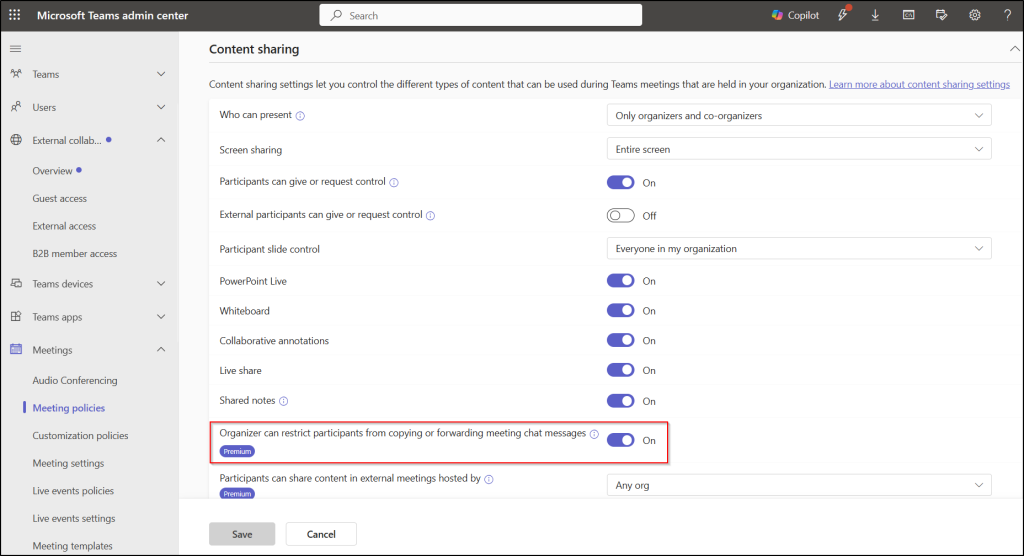
Meeting organizers can then enable this restriction per meeting through the following path, provided the required Teams Premium licensing is in place.
Teams calendar -> Create or edit a Teams meeting -> Click Options -> Choose Advanced protection -> Turn on ‘Restrict copying or forwarding of meeting content’.
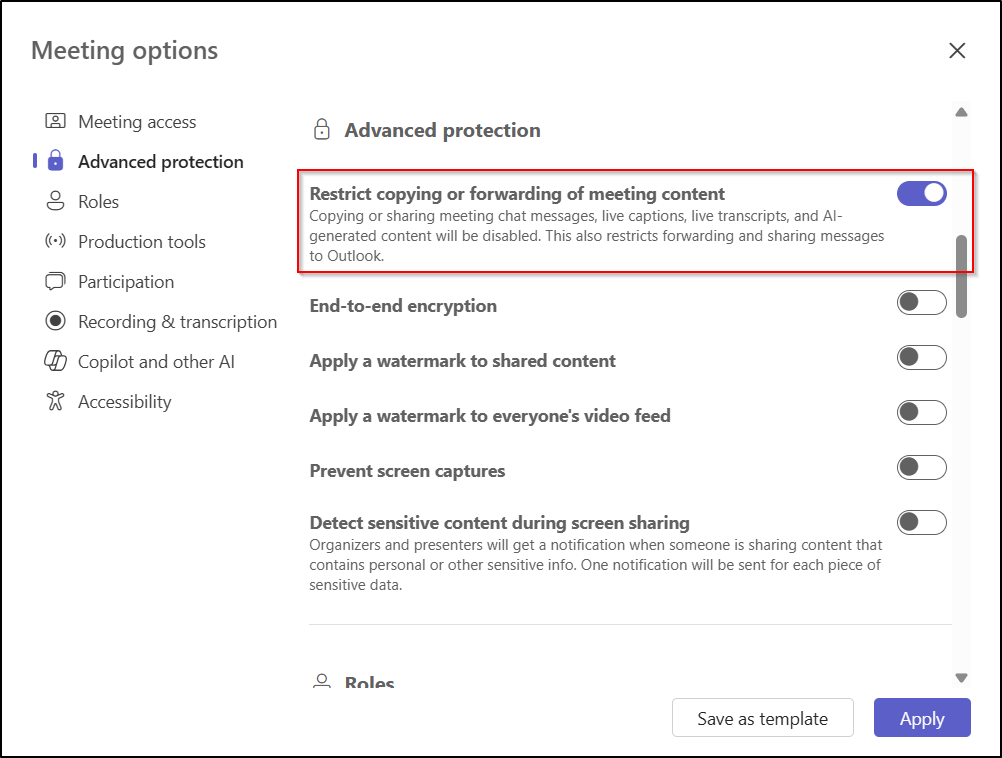
This feature does not prevent participants from taking screenshots, photographing their screens with another device, or capturing information using external tools. It should not be treated as a complete barrier against information disclosure.
Enforce Security Controls to Protect Teams Meetings with Sensitive Data
From the above settings, you might find that some security controls cannot be enforced directly through meeting policies. You can configure these settings to allow meeting organizers to manage them through their meeting options.
But what if a meeting organizer forgets to enable the required security controls for a meeting? This could leave sensitive meeting content exposed to unauthorized sharing or access. To address this, Microsoft Teams provides two ways to enforce meeting security controls: sensitivity labels and meeting templates.
Let’s explore how to enforce these security controls using sensitivity labels and meeting templates.
- Enforce Teams meeting protection with sensitivity labels
- Secure Microsoft Teams meetings with meeting templates
Prerequisite: Configuring meeting options through sensitivity labels and custom meeting templates requires Teams Premium. Ensure your organization has the required licensing.
1. Use Sensitivity Labels to Protect Microsoft Teams Meetings
Sensitivity labels in Microsoft Purview help organizations apply security requirements based on how sensitive a meeting is. You can configure labels with supported meeting protection settings and publish them to the appropriate users.
When an organizer applies a sensitivity label to a meeting, its configured settings take precedence over conflicting template or organizer settings. Supported settings can be enforced so that organizers cannot change them in Teams.
With sensitivity labels, you can control the following settings:
- Who can present
- Apply watermarks to shared content or video
- Prevent copying and forwarding of meeting chat messages
However, sensitivity labels do not provide controls for screen-sharing mode, sensitive content detection, and who can give or request control.
Create a Sensitivity Label for Teams Meetings
Follow the steps below to configure Microsoft Purview sensitivity labels to secure Teams meetings.
- Open the Microsoft Purview portal and go to Solutions -> Information Protection -> Sensitivity labels.
- Here, click Create -> Label to create a new policy.
- Enter a name, display name, description, and optional priority and color. Then, click Next.
- Ensure the label includes the Meetings scope. To select it, you must also select ‘Files & other data assets’ and ‘Emails’.
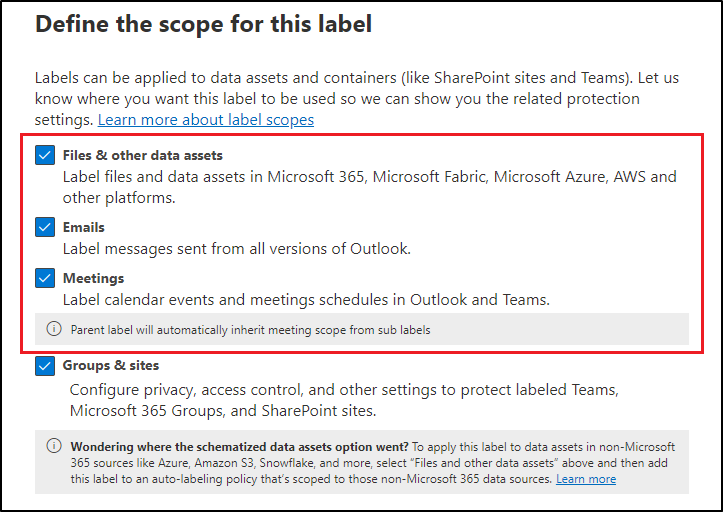
- On the Choose protection settings for labeled items page, select Protect Teams meetings and chats.
- On the Settings for Teams meetings and chats page, define the security controls such as ‘Control who can present’, ‘Control watermarks’, and ‘Prevent copying chat content to clipboard’. Configure other supported settings according to your requirements.
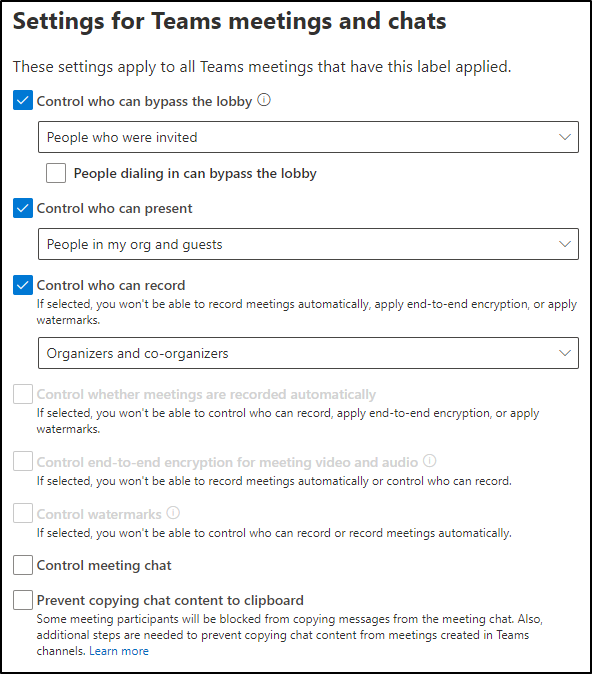
- Review the sensitivity label settings and click Create label. Then, click Done.
Then, go to the label policies in Microsoft Purview and publish the sensitivity label to make the label available to users. It may take up to 24 hours for the published label to become available in Teams.
Once available, meeting organizers can choose the sensitivity label using the Sensitivity dropdown while creating or editing a Teams meeting.
Limitations of Sensitivity Labels for Microsoft Teams Meetings
A few things to know before you roll sensitivity labels out:
- Labels can’t be applied to live events.
- Organizers and participants must use supported Teams clients: Windows 1.5.00.32158+, macOS 1.5.00.32154+ and Teams mobile app for iOS 5.23.0+, Android 1416/1.0.0.2023235001+, or Edge/Chrome.
- Some options, such as watermarks and record and transcribe settings, don’t take effect in Meet Now meetings. If a label changes during a meeting, some settings require the organizer to end and restart the meeting.
2. Use Custom Meeting Templates to Secure Sensitive Teams Meetings
Custom meeting templates provide another way to standardize meeting security. Admins can create templates for different meeting scenarios and configure supported meeting options with default values.
Unlike a default setting that organizers can change, a locked template setting prevents organizers from changing that option. Admins can also hide supported options so organizers cannot see them in the template configuration.
Here’s how to create a custom meeting template in the Teams admin center.
- Open the Teams admin center and go to Meetings > Meeting templates.
- Select Add to create a custom template and enter a name and description.
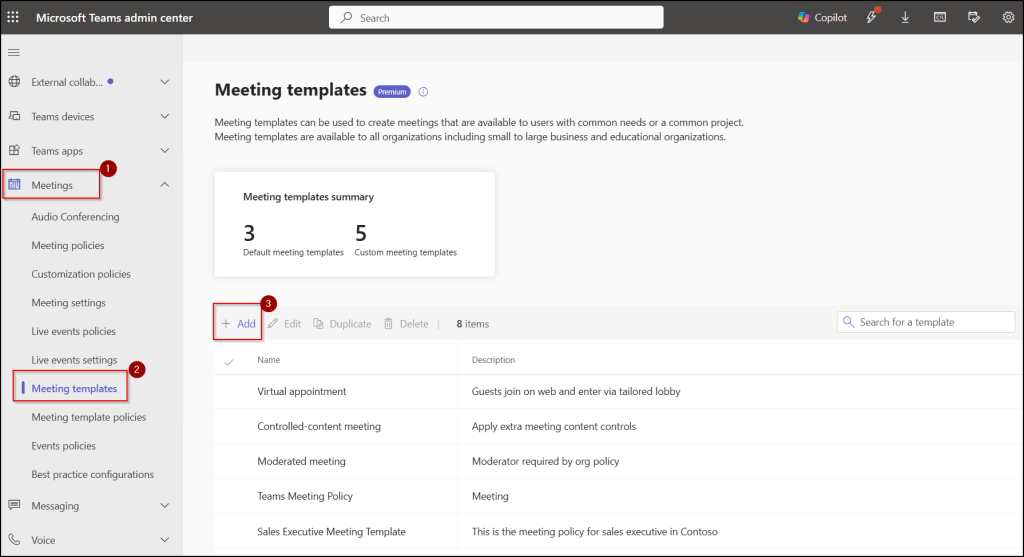
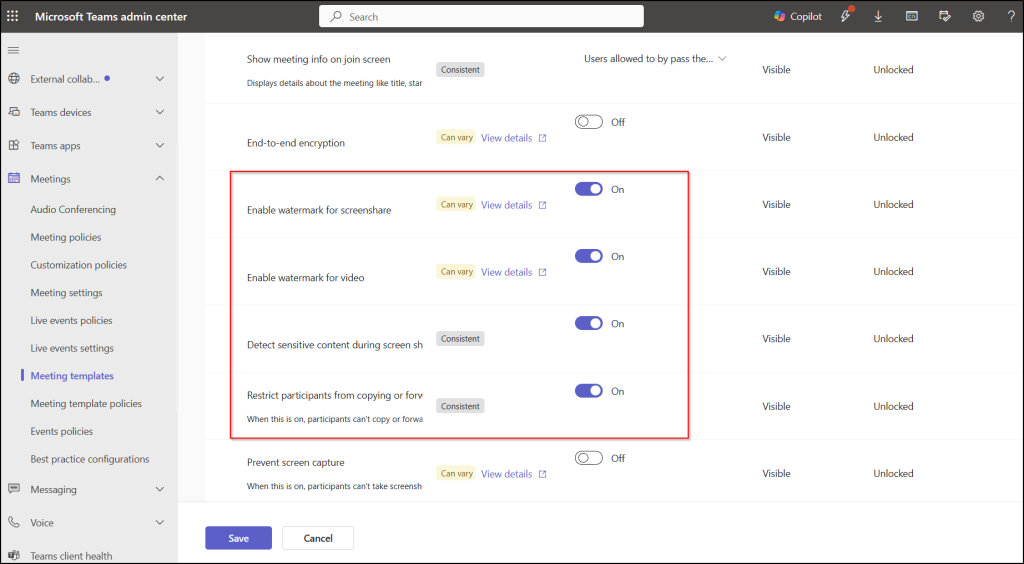
- Select and lock the required meeting options that organizers must not be able to change. Hide options when appropriate.
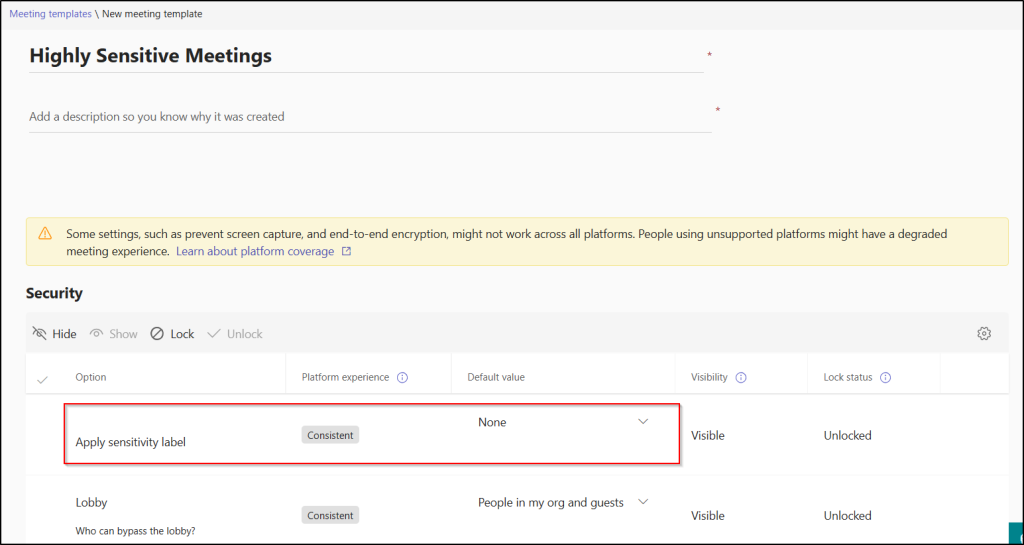
- If the template should use a sensitivity label, select the label under Apply sensitivity label and lock that option if organizers must not be able to change it.
- Select Save and manage which users can access the template through meeting template policies.
New templates can take up to 24 hours to appear for users, and the option to pick a template isn’t available in Outlook for Mac or Outlook on the web.
Microsoft Teams Meeting Security Controls at a Glance
Teams meetings now carry sensitive information through screen shares, video feeds, chat, and recordings. Microsoft provides built-in controls to reduce accidental exposure and unauthorized sharing, from detecting sensitive data on screen to restricting who can present or copy content.
This table summarizes each control discussed in this blog, what it does, how it helps, and the license you need, so you can decide which to enable for your tenant.
| Feature | What it is | How it helps | License requirement |
| Sensitive content detection | Scans supported content during screen sharing for sensitive data. | Notifies the presenter as well as the organizer, and prompts the presenter to stop sharing. | Teams Premium |
| Meeting watermarks | Overlays each participant’s email address on shared content and/or video feeds. | Discourages screenshots and leaks, and a leaked image points back to the account that captured it. | Teams Premium |
| Control who can present and what can be shared | Meeting policy and meeting option settings for default presenter permissions, screen sharing mode, remote control, PowerPoint Live, Whiteboard, and more. | Limits sharing to trusted people and reduces unplanned screen sharing and unnecessary access. | Standard Teams meeting policy settings (no Premium needed) |
| Restrict copying and forwarding | A meeting option that blocks copying and forwarding of meeting chat, live captions, and transcripts. | Keeps meeting text within the intended audience, even when access to the meeting itself is tightly controlled. | Teams Premium |
| Sensitivity labels (Microsoft Purview) | Labels with preconfigured meeting protection settings that organizers apply to a meeting. | Enforces presenter limits, watermarks, content detection, and copy restrictions, so protection doesn’t depend on organizers remembering to enable it. | Teams Premium |
| Custom meeting templates | Admin-created templates with default or locked meeting options, and the option to hide settings from organizers. | Standardizes security across meeting types and prevents organizers from changing locked options. | Teams Premium |
Several of these controls have limitations. Sensitive content detection doesn’t conceal data, and watermarks and copy restrictions don’t prevent screenshots or photos of the screen. They work best as layers rather than as a single safeguard.
Apply the Appropriate Protection to Each Teams Meeting
Not every Teams meeting requires the same level of security. A weekly stand-up doesn’t need locked settings, but a board review does. Microsoft’s own guidance uses three tiers of protection: baseline, sensitive, and highly sensitive. A practical version looks like this:
- Routine meetings: Rely on sensible defaults. Move the Who can present policy away from “Everyone”, and leave organizers free to add protections.
- Sensitive meetings: Apply a label or template that enforces presenter limits, content detection, watermarks, and the copy & forward restriction.
- Highly sensitive meetings: Lock the supported controls in a label or template, including watermarks on shared content and video and sensitive content detection. Ask organizers to turn on Prevent screen capture, and use meeting policies to restrict screen sharing mode and remote control for the people involved.
The point is to go past making settings available. Labels, templates, and policies together mean the right protections are applied every time a meeting handles sensitive data, whoever organizes it.
The goal is to move beyond simply making security settings available. By applying appropriate labels, templates, and meeting policies, organizations can ensure that supported protections are consistently applied to meetings that handle sensitive information.