With the Microsoft 365 price increase taking effect this July 1st, IT budgets are bound to feel the squeeze. For many organizations, this impending hike serves as a critical wake-up call to audit license allocations and eliminate unnecessary spend.
Whether it’s licensed inactive users or unused subscriptions, hidden license waste is already draining your budget. Now, with Microsoft revising prices by 5% to 33% across all business and premium tiers, those gaps are about to become far more expensive! Unfortunately, native tools only show who holds a license, not how much it actually costs you.
To bridge this gap, we’ve developed a specialized Microsoft 365 license cost saving tool using PowerShell. It instantly identifies hidden license waste, calculates your potential savings, and helps you perform bulk actions to reclaim those licenses.
Free Microsoft 365 License Cost Optimization Tool
Admins no longer need to waste time hopping between portals or maintaining a messy library of individual scripts to report on and clean up license waste. This single tool consolidates everything into a unified solution. With this Microsoft 365 license cost optimization tool, you can maximize your ROI while eliminating administrative overhead.
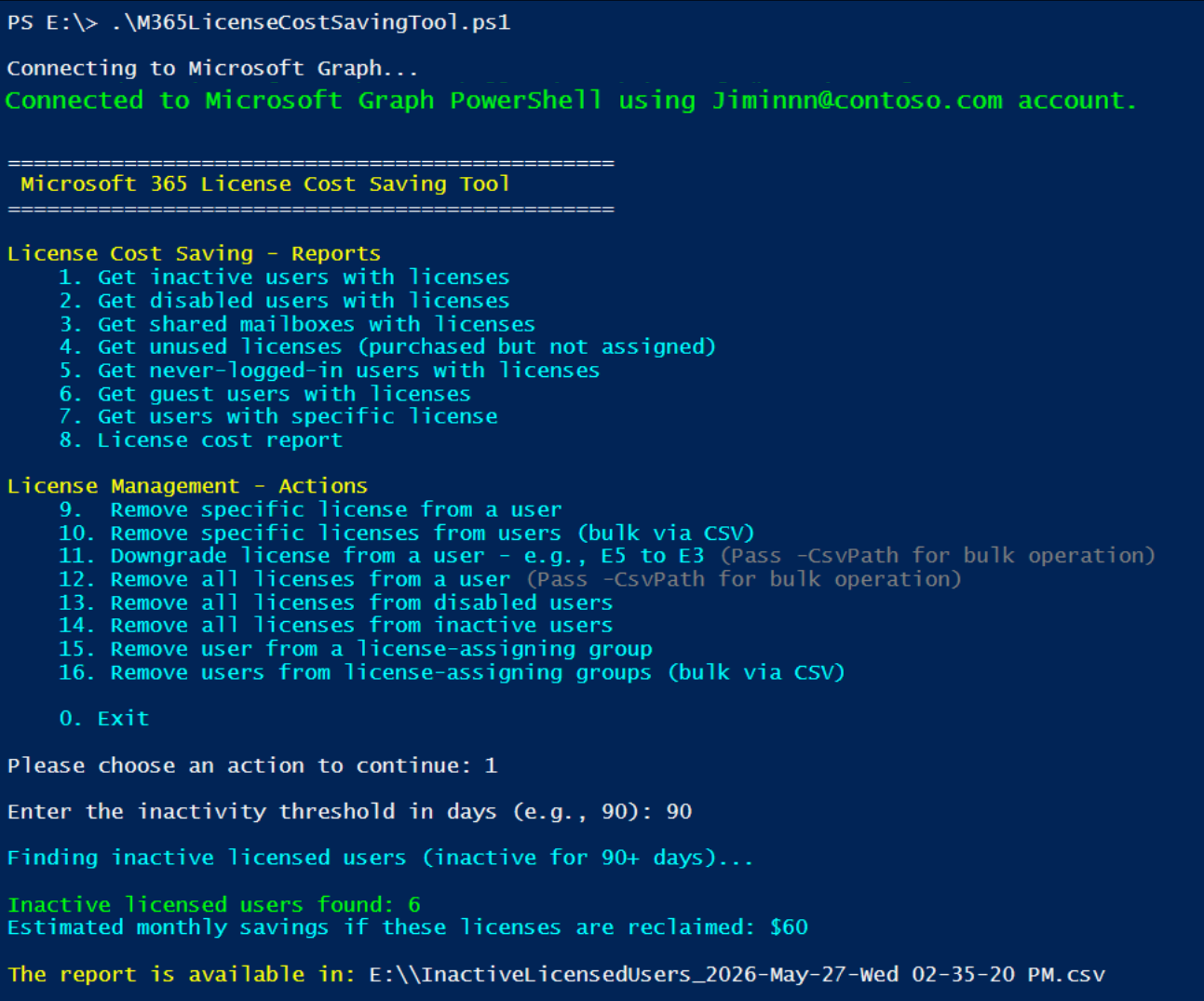
Ready to uncover hidden savings in your tenant? Download the license cost-saving tool, extract the files, and execute it in Windows PowerShell as given below.
⬇️ Download: M365LicenseCostSavingTool.zip
Before execution, update the LicenseCostandFriendlyName.csv file with your organization’s Microsoft 365 license pricing. Since subscription costs vary across countries and licensing agreements, this ensures accurate cost analysis results.
|
1 |
./M365LicenseCostSavingTool.ps1 |
You can also execute the script using certificate-based authentication through a registered app in Microsoft Entra ID, as shown below. Based on your requirements, you can either use a CA-issued certificate or create a self-signed certificate.
|
1 |
./M365LicenseCostSavingTool.ps1 -TenantID <TenantID> -AppId <AppId> -CertificateThumbprint <CertThumbPrint> |
The Microsoft 365 license cost optimization tool includes 16 built-in actions, allowing admins to choose the required operation based on their optimization needs. It includes:
Beyond direct actions, this script packs a wide range of filters to match your exact cost-saving goals. Here is what this license cost optimization tool can do for you.
Export Microsoft 365 License Cost Saving Reports
To give you complete clarity on your current Microsoft 365 licensing costs, the script breaks down your overall monthly subscription spend and surfaces hidden waste across 8 distinct reports designed to:
- List inactive users with licenses
- Identify the cost spent on disabled users
- Find licensed shared mailboxes in Microsoft 365
- Calculate costs for unused Microsoft 365 licenses
- Detect never-logged-in users with licenses
- Track licensed guest users in Microsoft 365
- Check users with a specific license
- Monitor Microsoft 365 licensing cost report
💡Tip: If you want to generate multiple reports without restarting your script session each time, run the script with the -MultipleActionsMode parameter. This keeps the session active so you can run several report variations sequentially.
1. List Inactive Users with Microsoft 365 Licenses
Whether it is former employees, seasonal staff who are no longer actively working, or contractors whose projects have ended, these users quickly become inactive. Licenses assigned to these stale accounts drain your IT budget and introduce serious security risks through unmonitored access points.
To identify these licensed inactive user accounts, execute the script with the -Action parameter set to 1, and specify the required inactivity threshold using the -InactiveDays parameter.
|
1 |
./M365LicenseCostSavingTool.ps1 -Action 1 -InactiveDays <NoOfInactiveDays> |
Upon execution, the script displays the total number of licensed inactive users and the estimated cost savings from reclaiming their licenses.
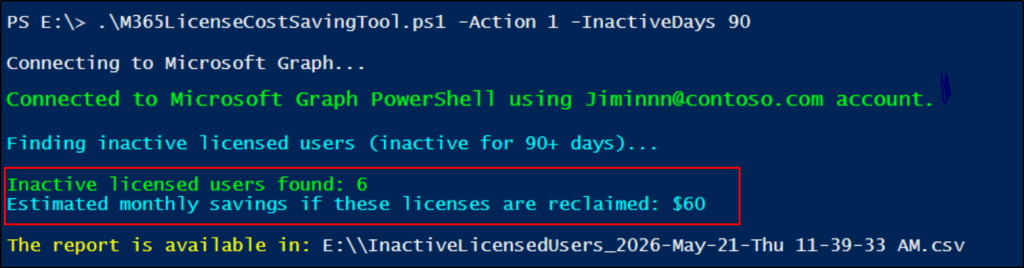
The exported report shows license costs associated with users who have not signed in for 90 days, along with details such as display name, UPN, assigned licenses, and more for deep-dive analysis.

Note: You can use the -EnabledUsersOnly or -DisabledUsersOnly parameters to specifically retrieve enabled or disabled inactive user accounts.
2. Identify the Cost Spent on Sign-in Disabled Users
During user offboarding or temporary account deactivation scenarios, admins promptly block sign-in for these accounts to secure the identity. However, blocking access does not automatically remove their licenses, and these disabled accounts continue to incur avoidable expenses.
To surface these sign-in blocked accounts and reclaim unused licensing costs, execute the script as shown below.
|
1 |
./M365LicenseCostSavingTool.ps1 -Action 2 |
The license cost optimization tool will instantly calculate your potential monthly savings and export a CSV report detailing the disabled accounts, their assigned licenses, and the exact financial impact.

3. Find Licensed Shared Mailboxes in Microsoft 365
Microsoft clearly states that Exchange Online shared mailboxes require a paid license under any of the following conditions:
- The shared mailbox is sign-in enabled.
- Total storage size of the shared mailbox exceeds 50 GB.
- An In-Place Archive is actively used.
- The shared mailbox is placed on a litigation or a retention hold.
Operating without a license in these scenarios violates Microsoft’s licensing terms. On the other hand, there are many cases where a shared mailbox does not require a license at all.
Often, when a user account is converted to a shared mailbox during offboarding, the original user license is left assigned by mistake. Similarly, license waste occurs when mailboxes shrink below 50 GB after cleanup, or when legal holds are lifted but the paid license remains active.
Execute the script below to identify exactly which shared mailboxes in your Microsoft 365 are unnecessarily assigned a license.
|
1 |
./M365LicenseCostSavingTool.ps1 -Action 3 |
By evaluating them against compliance criteria, the tool provides a detailed report explaining why these shared mailboxes do not require a license. This allows you to safely unlicense them and cut costs.

4. Calculate Costs for Unused Licenses in Microsoft 365
Organizations often purchase extra licenses expecting future hiring or wider adoption, but many of those seats remain unassigned. Over time, these unassigned licenses silently inflate your subscription costs and drain your IT budget without delivering any business value.
Execute the script as shown below to find unused Microsoft 365 licenses and uncover potential cost waste.
|
1 |
./M365LicenseCostSavingTool.ps1 -Action 4 |
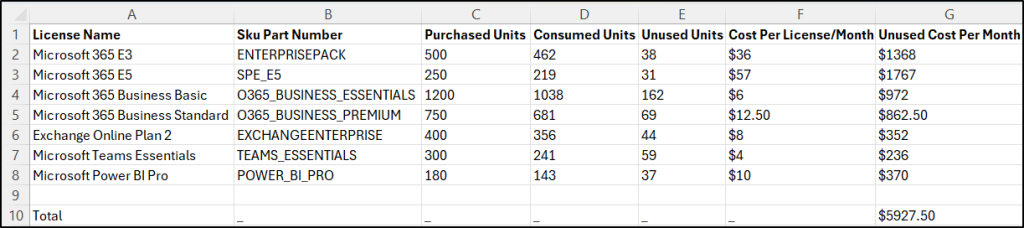
Upon execution, the exported unused licenses report provides detailed SKU-level breakdowns, including license names, total purchased licenses, unassigned seat counts, unit costs, and the exact monthly expenditure associated with unused subscriptions.
5. Detect Licensed Users Who Have Never Logged In
While the inactivity report looks for users who stopped logging in, this check isolates a unique risk: accounts that have been assigned a Microsoft 365 license but have never logged in once. These usually point to stalled employee onboarding or automated provisioning errors, resulting in immediate budget waste from day one.
To identify never-logged in users and uncover unnecessary licensing costs, execute the script with the Action parameter as shown below. In addition, you can also filter never-logged-in accounts by sign-in status using the -EnabledUsersOnly or -DisabledUsersOnly parameters.
|
1 |
./M365LicenseCostSavingTool.ps1 -Action 5 |
The script exports a report of never-logged-in licensed users and their associated costs. Crucially, it showcases the creation date of these accounts to help you differentiate true licensing waste from recently onboarded users who simply haven’t started yet.

6. Track Licensed Guest Users in Microsoft 365
External guests do not need paid licenses for collaboration tasks like Teams meetings, chats, or file access. But when organizations assign licenses to these guest users or forget to reclaim them after their projects end, it creates a silent budget leak.
To evaluate costs on licensed external users, execute the following PowerShell script.
|
1 |
./M365LicenseCostSavingTool.ps1 -Action 6 |
Key details like guest user’s display name, assigned licenses, associated costs, last successful sign-in, creation date, and more are exported by this licensed guest users report. Using this report, you can easily identify external users who do not require a license and revoke them safely.

7. Check Users with a Specific Microsoft 365 License
Isolating specific subscription pools helps administrators pinpoint hidden cost leaks, such as standalone license overlaps, misallocated premium add-ons like Copilot or E5, and bloated seat counts right before an annual true-up or contract renewal. To find specific license assignments, execute the following script after replacing the license SKU name in the -LicenseName parameter:
|
1 |
./M365LicenseCostSavingTool.ps1 -Action 7 -LicenseName Microsoft 365 E3 |
The following report shows users with Microsoft 365 E3 licenses, along with their account status, last successful sign-in date, department, etc. Having this level of granular visibility allows you to instantly identify inactive or misallocated E3 users, making it easy to eliminate unnecessary expenses.

8. Monitor Microsoft 365 License Cost Report
The Microsoft 365 licensing cost report provides an overall summary of how licensing costs are distributed across your organization, helping identify areas for cost optimization. By executing the script below, you can generate a detailed CSV report listing all Microsoft 365 licenses used in your organization along with their associated costs.
|
1 |
./M365LicenseCostSavingTool.ps1 -Action 8 |
Upon execution, the script displays the overall monthly license cost summary directly in the console.
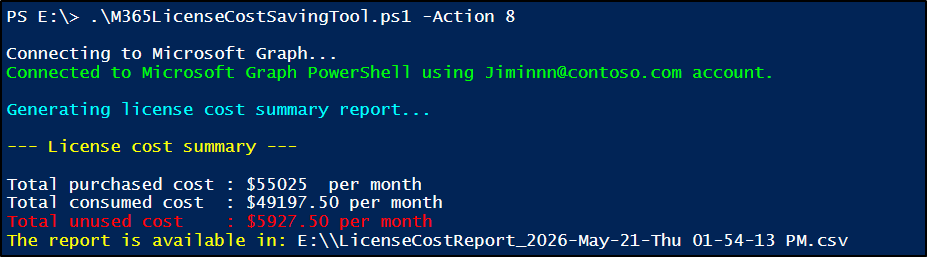
The report also includes SKU details, unit cost, purchased quantity, consumed licenses, unused units, and monthly licensing expenses.

Manage and Optimize Microsoft 365 Licensing Costs
Beyond tracking wastage, true cost optimization means taking action. Whether you need to make individual license tweaks or handle bulk license cleanups, this license cost optimization tool helps you to eliminate unnecessary subscription spend and save money:
- Remove a specific license from a user
- Bulk delete specific licenses from users
- Downgrade license for users
- Remove all licenses from a user
- Reclaim all licenses from disabled users
- Unassign all licenses from inactive users
- Remove user from a license-assigning group
- Bulk remove users from licensing groups
1. Remove a Specific Microsoft 365 License from a User
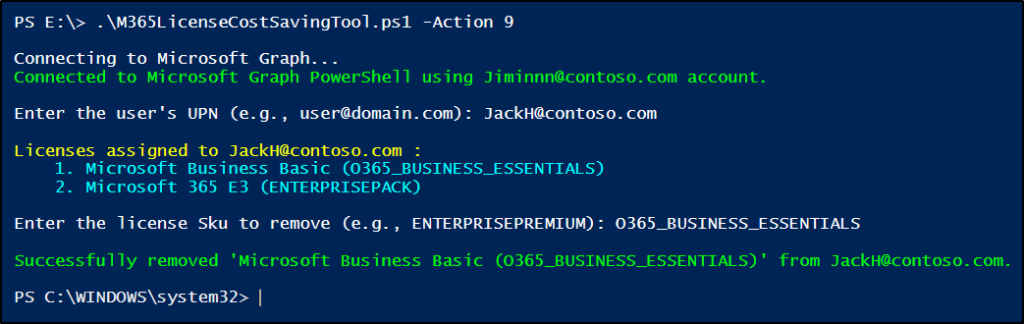
Execute the script below to immediately unassign a specific license or standalone add-on from a user account in Microsoft 365. This allows admins to instantly reclaim assigned licenses that users no longer require or resolve costly duplicate license assignments.
|
1 |
./M365LicenseCostSavingTool.ps1 -Action 9 |
When prompted, enter the user’s UPN and the target license SKU part number to safely unassign the subscription.
2. Bulk Delete Specific Licenses from Microsoft 365 Users
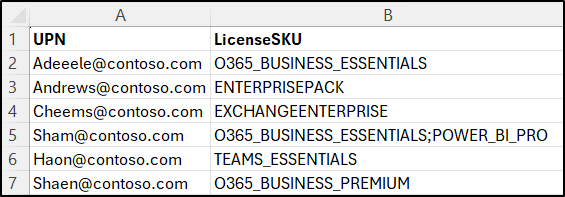
Navigating a major company restructuring can make manual license cleanup an absolute headache. Because every user has a different combination of licenses, there is no one-size-fits-all solution. Instead of clicking through accounts one by one or sorting them into messy spreadsheets, you can execute this script to efficiently remove multiple licenses from bulk users in Microsoft 365.
|
1 |
./M365LicenseCostSavingTool.ps1 -Action 10 -CsvPath "<InputCSVFilePath>" |
Your input CSV file must contain UPN and LicenseSKU columns as shown below. To target multiple distinct licenses for a single user, simply provide them as a semicolon-separated list within the LicenseSKU cell (e.g., ENTERPRISEPREMIUM;VISIOCLIENT).
Input CSV file format:
Output log file:

3. Downgrade Microsoft 365 Licenses for Users
Imagine an internal audit reveals that employees assigned Microsoft 365 E5 licenses have not utilized premium features such as Power BI, Advanced Analytics, or Defender for more than six months.
By downgrading those users to Microsoft 365 E3 or E1 based on their actual requirements, organizations can significantly reduce licensing costs without affecting core productivity services.
Execute the script as shown below and provide the higher-tier and lower-tier license details for a specific user.
|
1 |
./M365LicenseCostSavingTool.ps1 -Action 11 |
To downgrade license for bulk users, create an input CSV file containing the UPN column and provide the -CsvPath parameter to process multiple users at once.
|
1 |
./M365LicenseCostSavingTool.ps1 -Action 11 -CsvPath "<InputCSVFilePath>" |
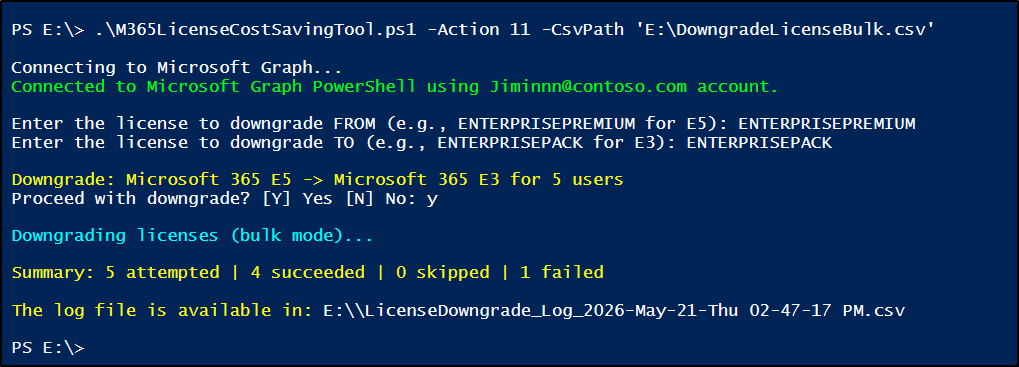
The generated log file shows the executed action, result status, and any error details for each user.

4. Remove All Microsoft 365 Licenses from a User
Often, administrators need to remove all assigned licenses from users during account deprovisioning, contract or project completion, or temporary account suspension. Simply execute the script below and enter the target UPN to instantly remove all assigned licenses.
|
1 |
./M365LicenseCostSavingTool.ps1 -Action 12 |
To bulk remove all licenses from a list of users, use a CSV file containing a UPN column and specify the file path with the -CsvPath parameter:
|
1 |
./M365LicenseCostSavingTool.ps1 -Action 12 -CsvPath "<InputCSVFilePath>" |
Output log file:

5. Reclaim All Microsoft 365 Licenses from Disabled Users
Leaving licenses assigned to disabled accounts leads to unnecessary subscription costs and reduces the availability of licenses for active users or new hires. Reclaiming those licenses helps return them to the available license pool for better resource allocation.
However, removing licenses from disabled users in bulk through native portals is difficult and time-consuming. Execute the script as shown below to efficiently unassign all licenses from disabled users in Microsoft 365.
Before executing this action, you can run Action 2 to review which disabled accounts with active licenses will be impacted by this license removal process.
|
1 |
./M365LicenseCostSavingTool.ps1 -Action 13 |
The CSV log file captures the removal status and any encountered errors for each user.

6. Unassign Licenses from Inactive Users in Microsoft 365
Manually identifying inactive accounts and removing their licenses in admin portals often requires repetitive cross-verification of user activity and license assignments. Execute the script below to unassign Microsoft 365 licenses from users who have been inactive for a specified period, such as 30, 60, or 90 days. This helps reclaim unused subscriptions and reduce licensing costs.
Before proceeding, you can use Action 1 to identify which licensed inactive users will be affected by this license reclamation process.
|
1 |
./M365LicenseCostSavingTool.ps1 -Action 14 -InactiveDays 90 |
This action removes Microsoft 365 licenses from users who have been inactive for 90 days. It generates a detailed log file tracking the affected accounts, the specific licenses removed, the execution status, and any error details encountered during the cleanup process.

7. Remove Users from License-Assigning Groups
While the previous actions successfully remove directly assigned licenses, they cannot remove licenses inherited through group membership. In Microsoft 365, group-based licensing automatically assigns subscriptions to users through Entra ID groups.
As a result, users may continue to receive unnecessary licenses after role changes or department transfers if they remain members of licensing groups.
Execute the script below to remove users from licensing groups and reduce unnecessary subscription costs.
|
1 |
./M365LicenseCostSavingTool.ps1 -Action 15 |
Enter the user’s UPN and the group name from which the user must be removed.
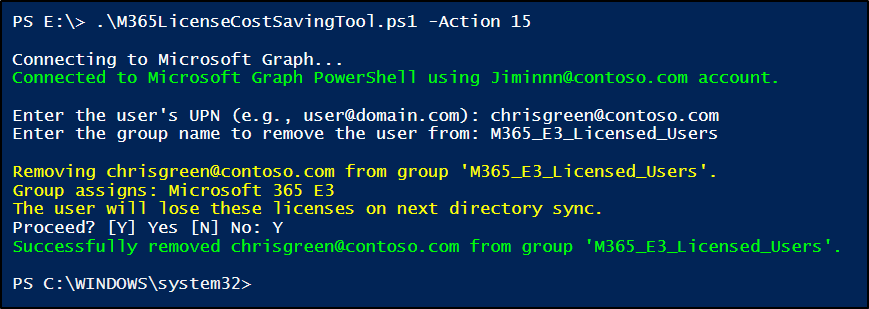
Before proceeding, kindly note that removing a user from a group completely revokes all licenses and service access assigned through that group.
8. Bulk Remove Users from Group-Based License Assignments
Imagine a scenario where your latest audit flags dozens of inactive users or departed contractors who are still holding premium licenses. Because they were assigned via Entra ID groups, you cannot just unassign the license directly. You have to manually hunt down and remove each user from their respective groups to stop the budget drain.
To eliminate this hassle, you can use this script to easily drop these targeted users from their license-assigning groups in bulk. Simply execute the script and upload a CSV file containing the target UPN and GroupName columns.
|
1 |
./M365LicenseCostSavingTool.ps1 -Action 16 -CsvPath "<InputCSVFilePath>" |
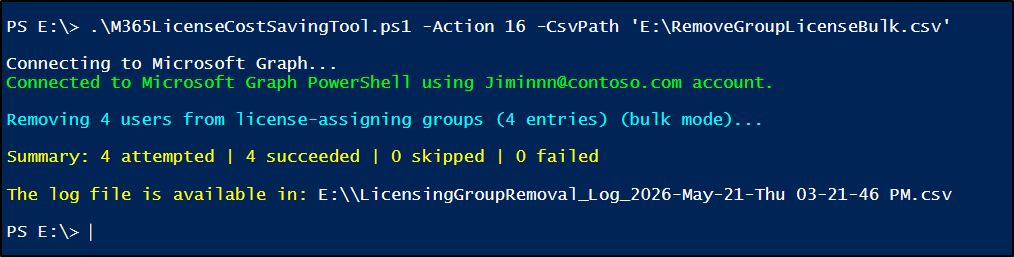
Input CSV file:
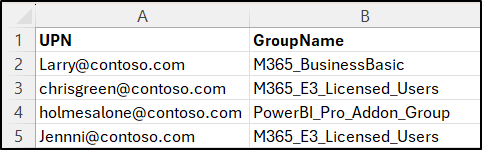
If multiple groups share the same display name, the operation will fail with a duplicate group name error. Use unique group names to avoid conflicts during execution.
Output log file:

At its core, utilizing this specialized Microsoft 365 license cost optimization tool reduces unnecessary subscription costs while keeping license assignments clean and efficient. While PowerShell works well, what if you could handle your Microsoft 365 license management through an intuitive, visual interface instead, and get it completely free?
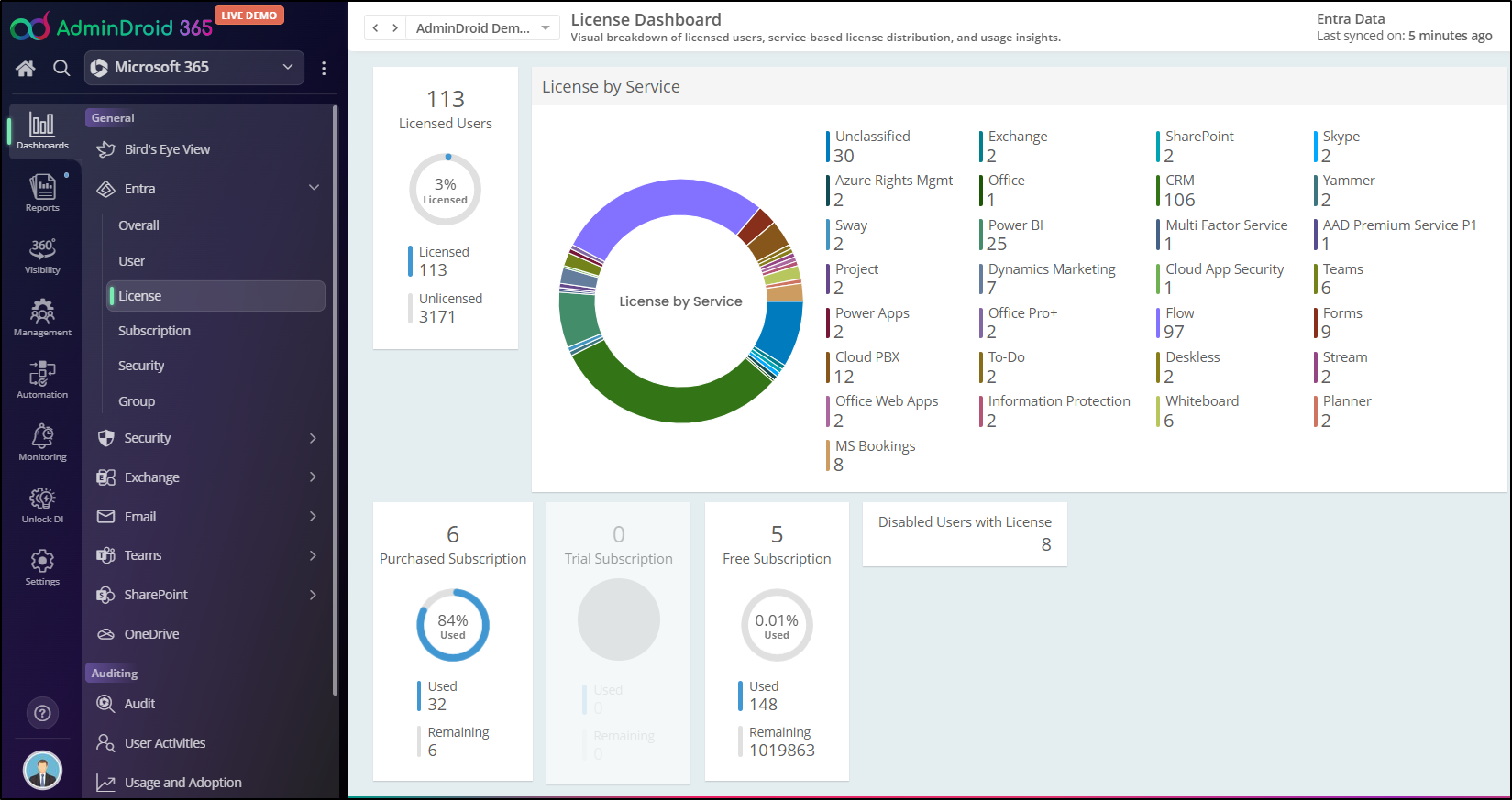
Yes, AdminDroid’s Microsoft 365 license management tool gives you exactly that. It provides 120+ free reports including all licensed users, license assignment audits, unused licenses, and more. For complete visibility, a centralized license dashboard brings all your critical tenant data into a single, comprehensive view. In addition, AdminDroid also offers license management actions that help you to control your budget.
Download AdminDroid’s free Microsoft 365 management tool for effortless M365 license management!
We hope this solution helps administrators simplify license management, automate repetitive cleanup tasks, and maintain complete control over Microsoft 365 licensing costs.