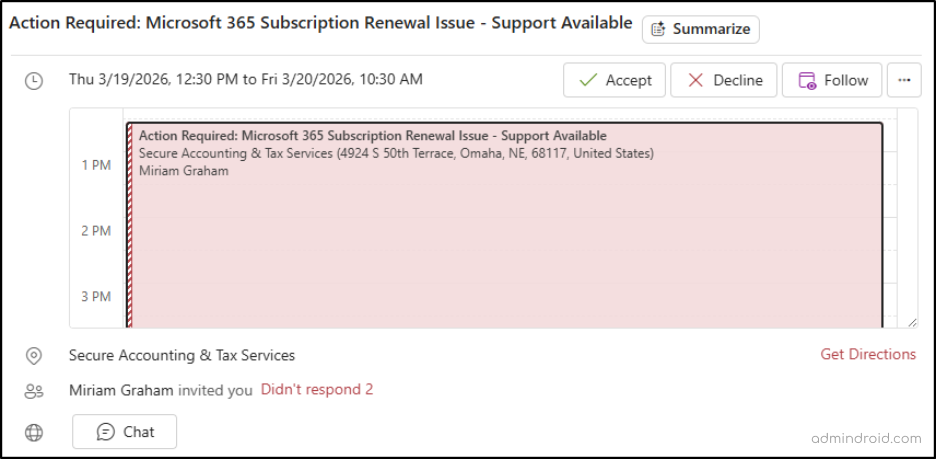
Not long ago, I opened my Outlook and noticed something odd. A suspicious calendar invite about a Microsoft 365 subscription renewal issue was sitting in my inbox.
I hadn’t accepted anything. Naturally, I deleted the message.
The strange part? 🤔
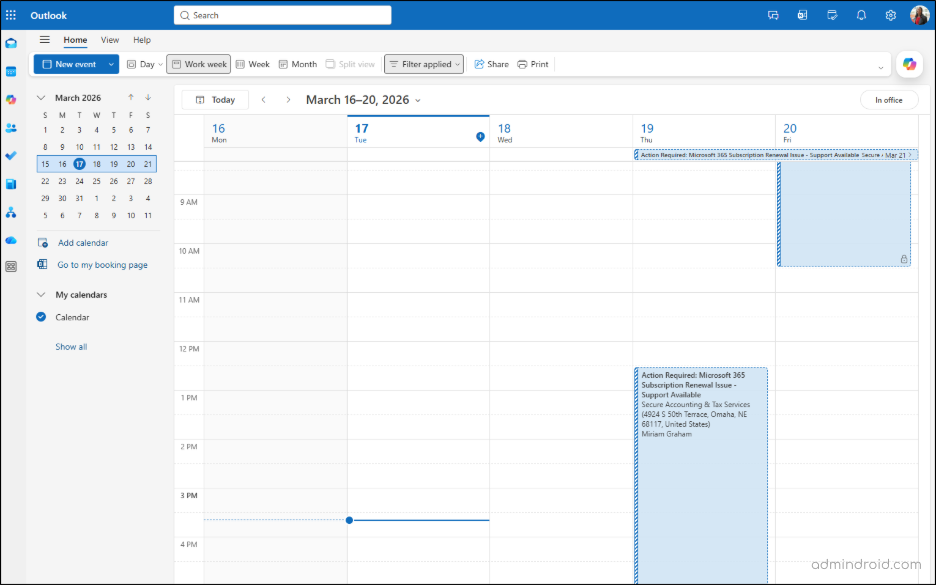
When I checked my calendar later, the meeting was still there. That’s when it hit me; this wasn’t just another phishing email. It was a calendar phishing attack. ⚠️ A tactic that is far more subtle, harder to notice, and increasingly used to bypass traditional email-based defenses.
What is Calendar Phishing Attacks in Microsoft 365
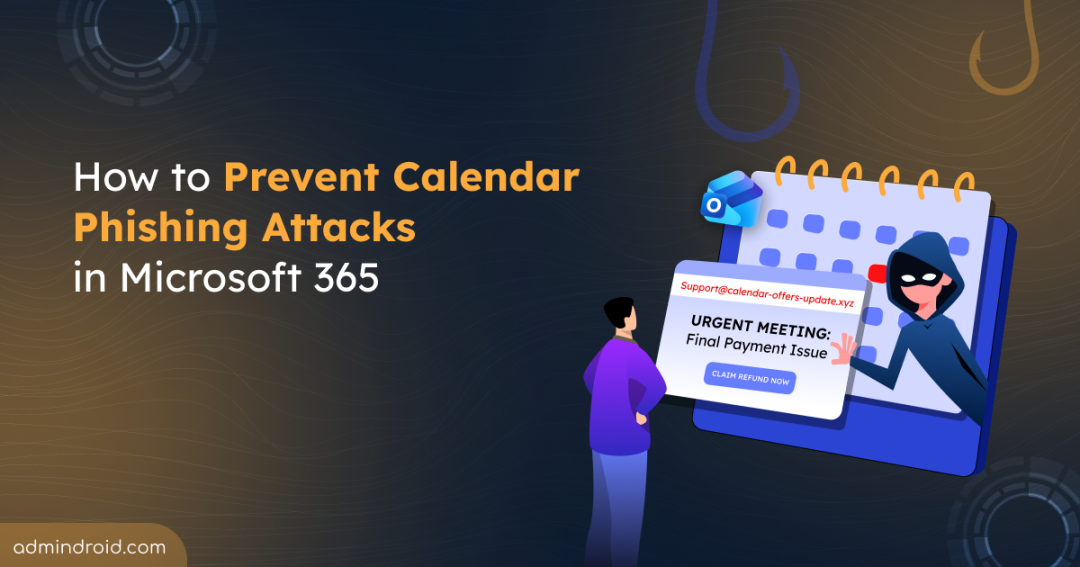
Let’s first understand how calendar phishing works in Microsoft 365. A calendar phishing attack is a social engineering technique where attackers send malicious meeting invites instead of traditional phishing emails. The goal is to exploit the trust users place in calendar events and trick them into clicking harmful links or visiting fake login pages.
In Microsoft 365, these invites can sometimes appear on a user’s calendar automatically due to default calendar processing settings, even without explicit acceptance. This behavior allows malicious invites to appear as scheduled events without requiring any action from the user.
Why Malicious Calendar Invites Are So Scary Than Phishing Emails
We’ve all gotten pretty good at spotting suspicious emails. We check sender addresses. We hover over links. We know the drill. But calendar invites? We’re conditioned to trust them as simple meetings, and attackers are exploiting that blind spot.
The danger lies in how systems handle .ics file type. Traditional email filters often have limited visibility into calendar metadata, allowing malicious invites to slip through. When a device processes a standard .ics file, it often automatically parses the event into your schedule before you’ve even opened the invite. This creates a massive gap in protection: the invite becomes a “trusted” part of your calendar, even if the original email is later flagged as spam.
This ICS phishing is particularly risky because of its persistence. Unlike a standard email that disappears once deleted, a calendar event can stay stuck in your schedule. Without dedicated anti-ics calendar phishing measures in place, these threats quietly sit in front of the user, waiting for that one accidental click. 👀
The good news, however, is that organizations are not powerless here. With the right preventive controls, mail flow configurations, and user awareness calendar phishing risks can be reduced.
The Fix That Didn’t Fix Calendar Phishing Attacks
Before getting into prevention strategies, there’s one important reality that needs to be understood, because missing this can lead you down the wrong path entirely.
When I first encountered a suspicious calendar invite in my user mailbox, the immediate response was to look for a way to prevent this happening. The answer seemed consistent everywhere: disable automatic processing in Outlook by setting AutomateProcessing to None. It felt like I had found the fix within minutes.
Except… I hadn’t. ❌
The setting didn’t behave the way it was supposed to. The invites continued to be processed. At that point, I stopped relying on assumptions and went straight to Microsoft’s documentation. And there it was, clearly stated:
“The default value for user mailboxes is AutoUpdate, but you can’t change the value on a user mailbox.”
The AutomateProcessing = None approach only works for resource mailboxes (like room or equipment mailboxes). It does not work for user mailboxes.
While PowerShell may let you run the command and even return a value of None in your console, the underlying Exchange Online service architecture ignores this override for non-resource mailboxes. Because the system is hardcoded to ensure users don’t “miss” meetings, it defaults back to its native state: AutoUpdate.
With that clarity in place, let’s look at the practical ways to prevent calendar invitation attacks in Microsoft 365, and how to respond effectively if one still gets through. 🚀
How to Defend Against Calendar Invitation Attacks in Microsoft 365
Since no single defense can stop calendar phishing on its own, a layered approach is essential. The following methods focus on hardening calendar processing and reducing user exposure to malicious invites.
- Block external calendar invites using mail flow rule
- Safe links protection for phishing calendar invites
- Remediate malicious calendar invites in Defender portal
- Post-incident administrative actions for calendar phishing attacks
- User training for calendar phishing attack
1. Block External Calendar Invites Using a Mail Flow Rule
A practical approach to managing external calendar invites is to control them at the mail flow level.
Mail flow rules that target calendar message types only block native meeting requests generated by Exchange or Outlook. They do not block calendar invites sent as .ics file attachments, which are commonly used in phishing or spam scenarios. To ensure complete coverage, additional conditions must be configured to filter messages based on attachment type (e.g., .ics).
With this enhanced approach, administrators can:
- Block external native calendar invites
- Block
.ics-based calendar attachments - Allow exceptions for trusted domains
- Preserve internal meeting functionality
This ensures comprehensive protection without disrupting internal collaboration.
Follow the steps below to block outsider calendar requests in Exchange Online.
- Sign in to the Exchange admin center.
- Navigate to Mail Flow → Rules → Add a rule.
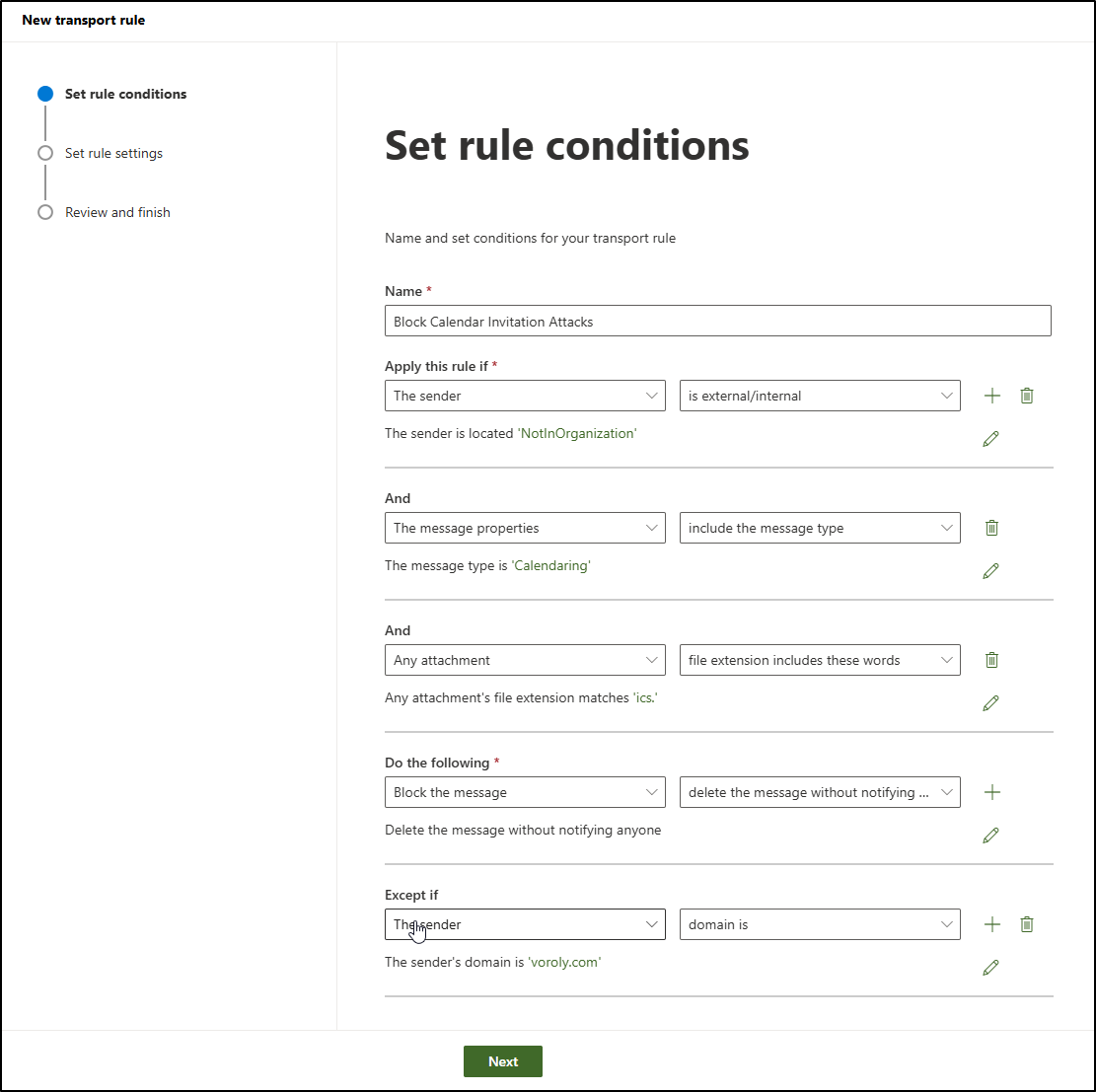
- Give your rule a descriptive Name.
- Under Apply this rule if,
- To filter external senders: Select ‘The sender’ from the first drop down, choose ‘is external/internal’ from the next drop down, and set the sender location value to Outside the organization.
- To restrict native calendar invites: Click on +. Next, select ‘The message properties’ from the first drop down menu, and then choose ‘include the message type’ from the next drop down. Set the message type value to ‘Calendaring’ from the drop down and click Save.
- To block ics. file extentions: Again, click on +. Choose ‘Any attachment’ from the first drop down menu, followed by ‘file extension includes these words‘ from the next drop down. Enter the extension type as ‘ics.’ and click Save.
- You can perform any one of the following actions:
- To Delete External Calendar Invites: Under Do the following, select Block the message and choose ‘delete the message without notifying anyone’ from the next drop down.
- To Quarantine External Calendar Invites: Under Do the following, select Redirect the message to and choose Hosted quarantine. This approach allows admins to review external calendar invites before deciding whether to release or block them.
- Trusted domains can be excluded under Except if by selecting The sender in the first drop down, choosing domain is, and entering the domain value.
- Choose Next.
- On the Set rule settings page, leave the default values unchanged and select Next.
- On the Review and finish page, select Finish.
- Don’t forget to enable this policy once created.
Note: This approach can block legitimate external meeting invites if trusted domains are not explicitly configured as exceptions. As a result, important requests from clients, vendors, or partners may be unintentionally dropped. To avoid this, administrators must carefully maintain an allowlist of approved external domains based on business requirements.
2. Safe Links Protection for Phishing Calendar Invites
Even with preventive controls in place, some malicious calendar invites or embedded links may still slip through. This is where Safe Links in Microsoft Defender adds an essential layer of protection.
When a user clicks a URL inside a calendar event, Safe Links evaluates the destination in real time.
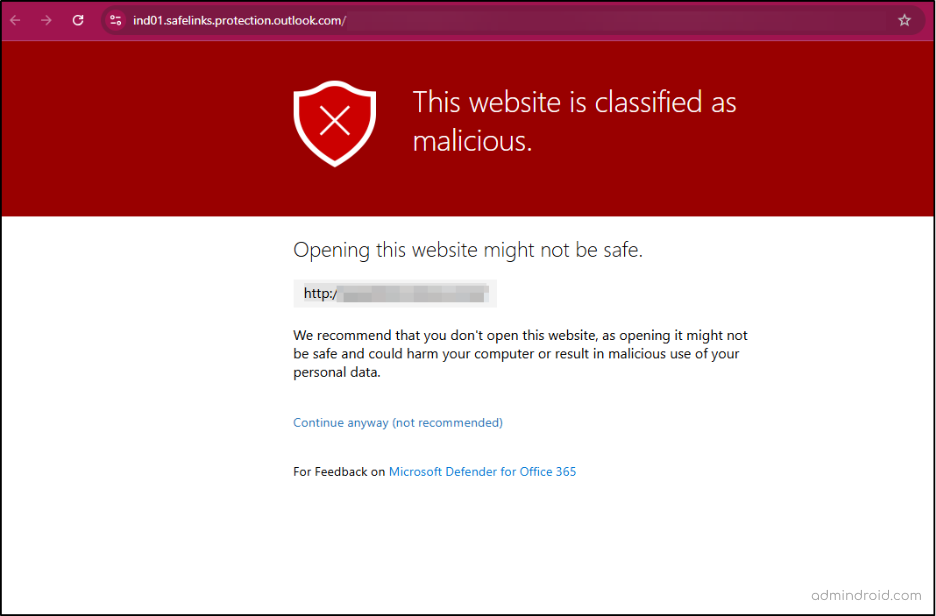
If the link is identified as malicious, access is blocked instantly and the user is shown a warning page instead of the site. This “time-of-click” protection is critical because it helps stop phishing attacks even after delivery.
To configure Safe Links Policy for Calendar Invites in emails, do the following:
- Log in to the Microsoft Defender portal as a Security Administrator.
- Navigate to Email & collaboration → Policies & rules → Threat policies → Safe Links.
- Click Create policy.
- Give a clear Name and Description to the safe links policy. Click Next.
- On the Users and domains page, you can leave the fields empty so the policy applies to all users and domains. To target specific people, add users, groups, or domains in the selection fields. Use Exclude if you need exceptions, such as service accounts or special mailboxes. Select Next.
- On the URL & click protection settings page, begin with email protection, as this is the primary entry point for calendar-based threats. Ensure the following options are enabled in Safe Links Settings for Email:
- Turn on Safe Links for email
- Apply to internal messages
- Enable real-time scanning (time-of-click protection)
- Wait for scanning before delivery
- Do not rewrite URLs (Optional) – It should be used only for fully trusted domains. Note that this list should be kept minimal, as any URL added here will bypass Safe Links time of click protection.
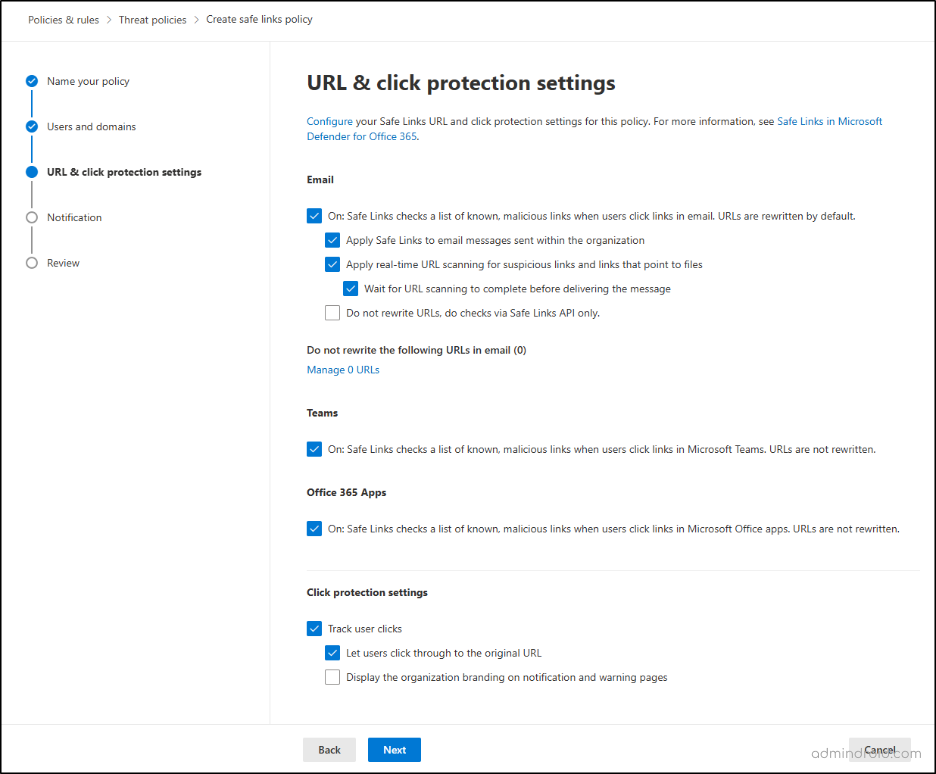
- Then, under Click protection settings leave Track user clicks option selected to enable the tracking user clicks on URLs. Select Next.
- On the Notification page, choose how users are alerted when a malicious link is blocked, either use the default notification text or define a custom message.
- Select Next to review your configuration.
- Verify all sections and select Submit.
Safe Links does not block calendar invites from being delivered, but it protects users by stopping access to malicious links when they are clicked, even if the invite bypasses other controls.
If a link is flagged as unsafe, the user will see a warning page explaining that Microsoft blocked the site!
Consideration: Safe Links only inspects clickable URLs and does not protect against QR codes embedded in calendar events, which may still lead users to malicious sites when they scan.
3. Remediate Malicious Calendar Invites in Defender Portal
A key challenge with calendar phishing is that deleting the email alone does not remove the associated calendar event. Since the email and calendar entry are stored separately, the event can persist even after the message is deleted.
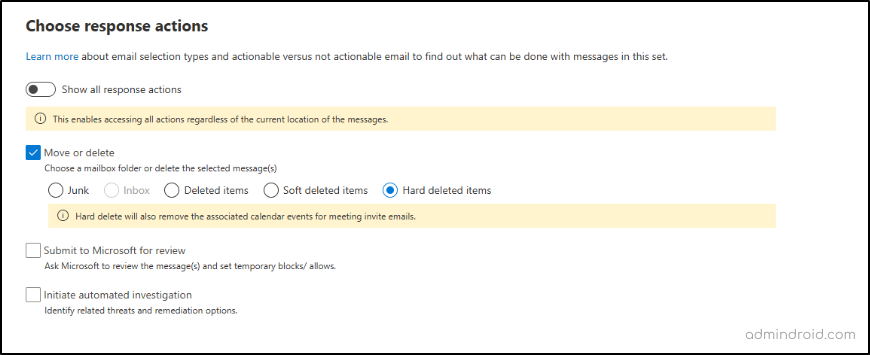
This creates a security gap where users may still access malicious links from their calendar. To fully remediate the threat, administrators should hard delete calendar events in the Microsoft Defender portal. Microsoft Defender provides the ability to perform a Hard Delete, which removes malicious emails along with any associated calendar entries.
This capability is available across multiple remediation surfaces, including Threat Explorer, Advanced Hunting, and APIs.
Follow these steps to remediate malicious emails in the Defender portal.
- Log in to the Microsoft Defender portal as a Security Administrator.
- In the left-hand navigation menu, go to Email & collaboration > Explorer.
- Search for and select one or more email messages from the list.
- Click the Take action button that appears at the top of the message list.
- In the “Choose response actions” fly out, select the Move or delete option and the Hard deleted items. Click Next.
- Provide a Remediation Name and Description for your internal tracking. Click Next.
- Review the details and click Submit.
Important Considerations – Even after a Hard Delete, calendar entries may still persist in certain cases:
- If the invite is resent to the user,
- If the calendar events created through .ics file attachments (Only inline meeting request events are covered).
4. What Actions Admins Should Take After Calendar Phishing Attack
To ensure complete removal of threats, administrators must target both the phishing email and its persistent calendar entry through following approaches.
- Identify affected users – Use Message Trace, Explorer, or Advanced Hunting in Microsoft Defender to determine who received the invite and assess the potential impact across the organization.
- Block the sender or domain – Add the sender or domain to the Tenant Allow/Block List or enforce blocking through mail flow rules to prevent repeat delivery attempts.
- Create block entries for malicious URLs – Add confirmed phishing URLs to the Tenant Allow/Block List. This helps future messages containing those links are treated as high-confidence phishing and stopped earlier in the delivery pipeline.
- Validate preventive controls – Confirm that mail flow protections, Safe Links/Safe Attachments, anti-phishing policies, and calendar auto-processing settings are properly configured.
- Notify users if wider targeting is suspected – If multiple users are impacted, send a brief security advisory to raise awareness and educate users to recognize attacks.
Additionally, consider creating Tenant Allow/Block List entries for known malicious URLs to proactively stop high-confidence phishing messages before they reach users.
5. User Training for Calendar Phishing Attack
Administrators should ensure users are trained to identify and respond to suspicious calendar invites, as user awareness remains a key defense against phishing attacks. The following actions should be clearly communicated to all users:
- Delete the invite safely – Do not click any links or open attachments; instead, delete the message immediately. Choose Do not send a response if Outlook prompts you, as it will provide information to the attacker that the mailbox is active.
- Delete the calendar event – If the invite has already been added to your calendar, remove the event directly from your calendar view. This ensures no malicious links remain accessible later.
- Report the invite – Use Report phishing in Outlook after deleting the message so that Microsoft and your organization’s security team can analyze the threat and improve detection for similar attacks.
- Block the sender – Mark the sender as Junk or Spam to reduce the likelihood of receiving additional invites from the same source, recognizing that attackers may still rotate domains.
What to Do If Users Have Clicked a Calendar Phishing Invite
If a user has clicked a suspicious link from calendar, take immediate action to secure a compromised mail enabled account, limiting potential damage. Administrators should promptly perform the following remediation steps:
- Disable the compromised Microsoft 365 account.
- Revoke user’s active sessions.
- Reset the user’s password.
- Monitor activity logs to identify actions performed and assess potential impact.
- Notify the affected user and stakeholders via a personal phone call, as Teams and email access will be unavailable after the account is disabled.
Acting quickly helps minimize the attacker’s window of opportunity and prevents further spread.
✅ Automate the Compromised Account Remediation Process
To standardize the response, we have developed a PS script to secure compromised Microsoft 365 account by automating 8 essential best practices. This helps administrators respond faster and more consistently during incidents.
Download Script: AutomateCompromisedAccountRemediation.ps1
The script performs the following remediation actions to regain control of the account and eliminate attacker access:
- Temporarily blocks the compromised account to immediately stop any attacker from accessing Microsoft 365 services.
- Revokes all active login sessions and authentication tokens to ensure the attacker is signed out everywhere.
- Changes the compromised credentials to prevent further unauthorized sign-ins.
- Checks the registered MFA methods and removes any unauthorized authentication options added by the attacker.
- Disables inbox rules that may hide security alerts or automatically redirect emails.
- Reviews mailbox forwarding settings to detect if emails are being forwarded to external addresses.
- Removes any unauthorized forwarding configurations to stop sensitive emails from leaving the organization.
- Export the activities performed during the compromise and assess potential impact.
While rapid response limits impact, the most effective defense begins with users recognizing and safely handling suspicious calendar invites.
Final Thoughts
That strange meeting invite I noticed in my Outlook calendar was a small reminder of how attackers adapt. As a security awareness around phishing emails improves, threat actors are shifting toward less obvious entry points like calendar invites.
In some cases, attackers may also combine phishing attack with other techniques such as MFA fatigue attacks, where repeated authentication prompts are sent to users in hopes they eventually approve one. When users unknowingly approve these requests, attackers can gain access even after credentials are protected by multi-factor authentication.
What makes these attacks effective is that they are less obvious. They blend into everyday workflows and rely on users trusting what appears on their calendars.
The solution isn’t panic, its preparation! By tightening Microsoft 365 configurations and helping users recognize suspicious invites, organizations can stay one step ahead of this emerging phishing technique.
Because sometimes the biggest security threats aren’t the loudest ones. Sometimes, they look like just another meeting on your calendar! 🛡️