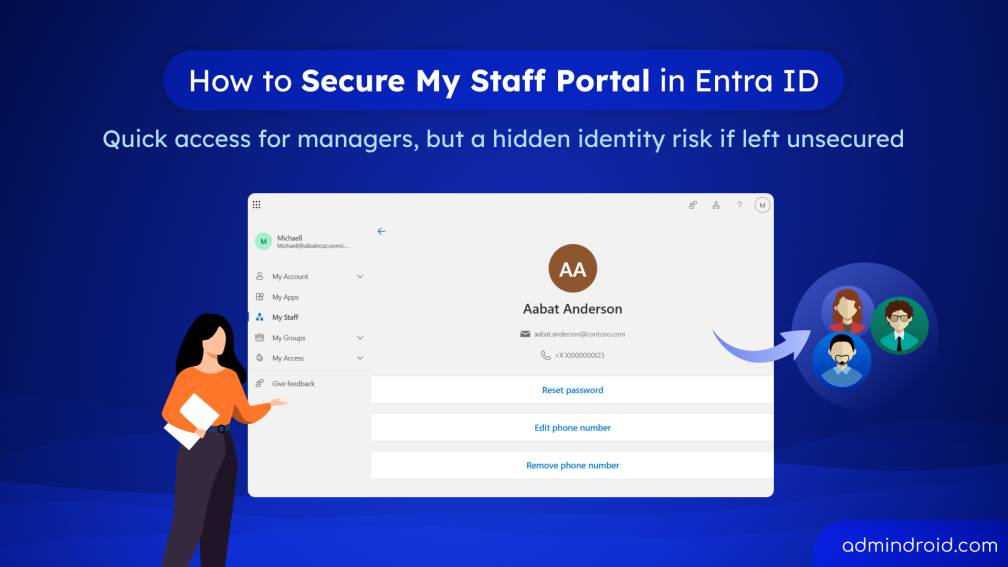
Most Microsoft 365 security efforts focus on protecting privileged admin accounts. However, delegated access paths can introduce risks that are often overlooked. The My Staff portal is one such example, allowing frontline managers to perform user authentication tasks for their teams without direct IT involvement.
If not configured securely, it can become a weak link in your identity security strategy. Once a manager’s account is compromised, attackers can reset authentication methods for multiple users without the visibility normally applied to admin accounts.
This blog shows how to secure the My Staff portal, so frontline teams can work efficiently without creating security gaps in your tenant.
What is My Staff Portal and How Does It Work?
My Staff is a Microsoft Entra ID portal designed to delegate limited user authentication and account management tasks to frontline and non-IT managers. It enables them to assist users with their assigned scope without requiring full access to the Microsoft Entra admin center.
With My Staff, managers can:
- Reset user passwords
- Add, edit, or remove MFA phone numbers
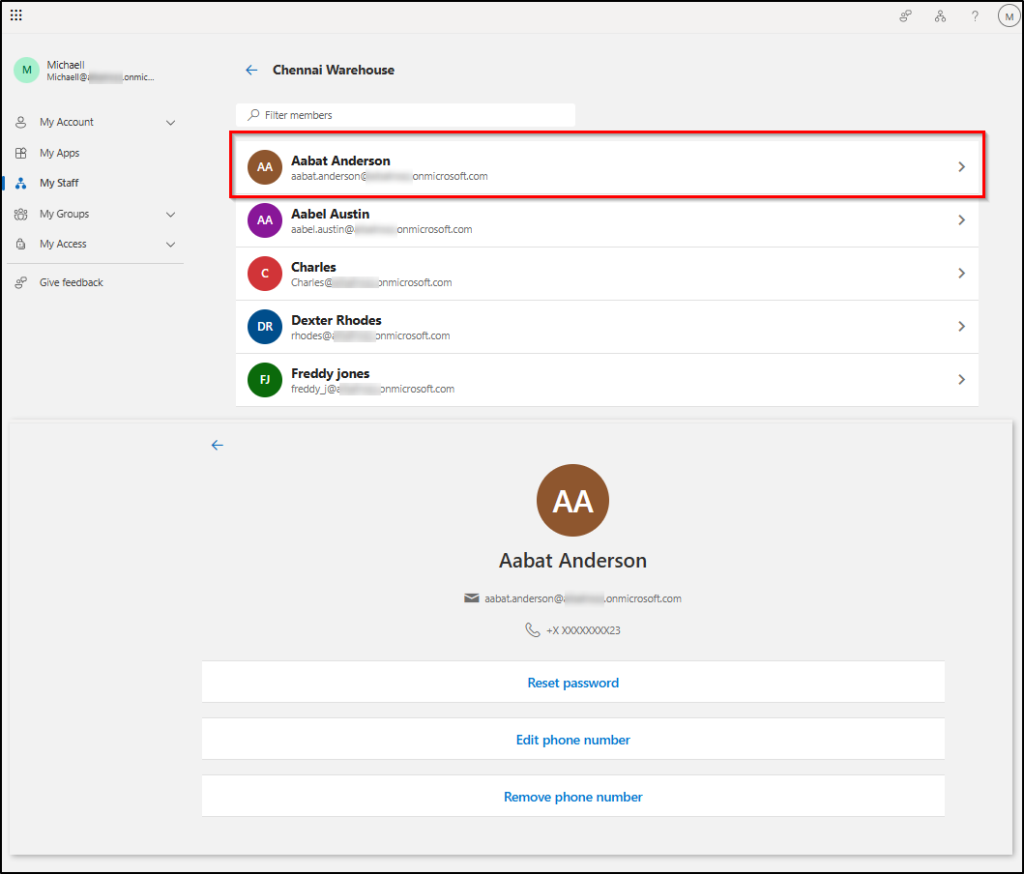
Common frontline support scenarios using the My Staff portal
- Retail store managers can reset passwords for cashiers after account lockouts.
- In healthcare organizations, shift supervisors may update MFA phone numbers when staff change or lose devices.
- Teachers can help students within their assigned scope regain access to classroom accounts.
- During shift onboarding, warehouse team leads often reset passwords for frontline workers.
- Department coordinators may manage MFA updates for temporary or seasonal staff.
Why Microsoft 365 My Staff Portal Can Be a Security Risk
At first glance, My Staff portal may appear to be a low-risk portal because it offers limited permissions. But it can become an attractive target for attackers if left unsecured for the following reasons.
A compromised manager account can lead to account takeover risks: Managers with delegated roles may have permission to reset passwords and modify MFA authentication details for multiple users within their Administrative Unit. If compromised, attackers could take over multiple accounts and impact an entire team without immediate detection.
Unprotected My Staff access can bypass security controls: The My Staff portal uses its own service principal and is often not included in existing Conditional Access policies. As a result, managers may still access it from unmanaged or risky devices unless it is explicitly secured.
Delegated access can become over-permissive: In some configurations, delegated permissions granted to managers may extend beyond what is strictly required for their role, increasing the risk of unintended or excessive access to user accounts and settings.
Limited visibility compared to admin roles: Activities performed through My Staff may not always provide the same level of centralized monitoring or detailed auditing as full administrator actions, making it harder to detect misuse or unusual activity in real time.
Prerequisites to Configure & Use My Staff Portal
Before using the My Staff portal, ensure the required licenses and admin roles are available.
Required Licenses:
- Microsoft Entra ID P1 or P2 for Conditional Access.
- Microsoft Entra ID P2 or Entra ID Governance for PIM.
Required Roles:
- Global Administrator or Privileged Role Administrator: Required to configure Administrative Units and PIM.
- User Administrator: Required to reset user passwords through the My Staff portal.
- Authentication Administrator: Required to manage phone-based authentication methods for users in the My Staff portal.
How to Securely Configure the My Staff Portal in Microsoft Entra ID
Securing My Staff portal involves more than simply enabling the access. By default, users with any admin roles can access the My Staff portal. To reduce the above listed risks, it’s important to secure the My Staff portal by implementing the following security practices.
- Create administrative units to define manager scope
- Manage My Staff portal permission using PIM
- Create service principal for My Staff portal
- Create Conditional Access policy for My Staff portal
1. Create Administrative Units to Define Manager Scope
Access in My Staff is controlled using administrative units (AUs). They define which users a manager can view and manage. Without AUs, the My Staff portal has no defined scope for delegation.
For example, a retail organization with stores in Chennai, Mumbai, and Bangalore can create one AU per location. A Chennai store manager will only see and manage Chennai employees in the My Staff portal.
How to Create an Administrative Unit in Entra ID
Follow these steps to define the scope of users that managers can view and manage through My Staff Portal.
- Sign in to the Microsoft Entra admin center as a Global Administrator.
- Navigate to: Entra ID → Roles & admins → Administrative units.
- Click + Add and enter a meaningful name such as: Chennai Warehouse.
- Add a description if needed and click Create.
- Open the newly created Administrative Unit.
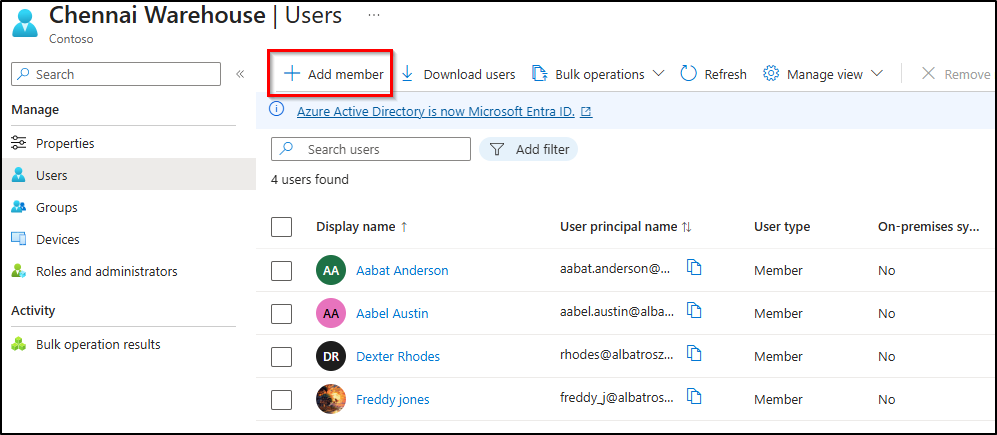
- Go to the Members tab and click + Add members.
- Search for and add the frontline worker accounts that belong to that location or department.
- Click Select to save the membership.
2. Manage My Staff Portal Permissions with Just-in-Time Access Using PIM
Standing admin permissions increase risks such as increased attack surface, higher impact of account compromise, privilege misuse, lateral movement risk, etc. Instead of assigning permanent elevated access, managers should receive permissions only when needed.
Privileged Identity Management (PIM) helps ensure admin access is granted only when needed instead of remaining active all the time. Managers must activate their role when required, complete MFA, and optionally provide justification.
For example, a store manager may only need elevated access during working hours to help employees regain access to their accounts.
Recommended Roles for My Staff
| Role | Capabilities in My Staff | Recommended Use |
| Authentication Administrator | Reset passwords and manage MFA phone numbers | Recommended for most My Staff managers |
| Helpdesk Administrator | Reset passwords only | Limited frontline support |
| Password Administrator | Password resets only | Minimal-privilege option |
| User Administrator | Broader user management | Senior managers only |
How to Assign an Eligible Role for the My Staff Portal Using PIM
If the authentication admin role is assigned to a manager through PIM for a limited duration, they can manage MFA phone number-related tasks in the My Staff portal. This access is available only during the active role period. Once the role expires, those options become unavailable, preventing further authentication-related changes.
To add an eligible assignment for users, follow the steps below:
- Navigate to Microsoft Entra admin center → Identity Governance → Privileged Identity Management → Microsoft Entra roles.
- Click Roles and search for the role you want to restrict access.
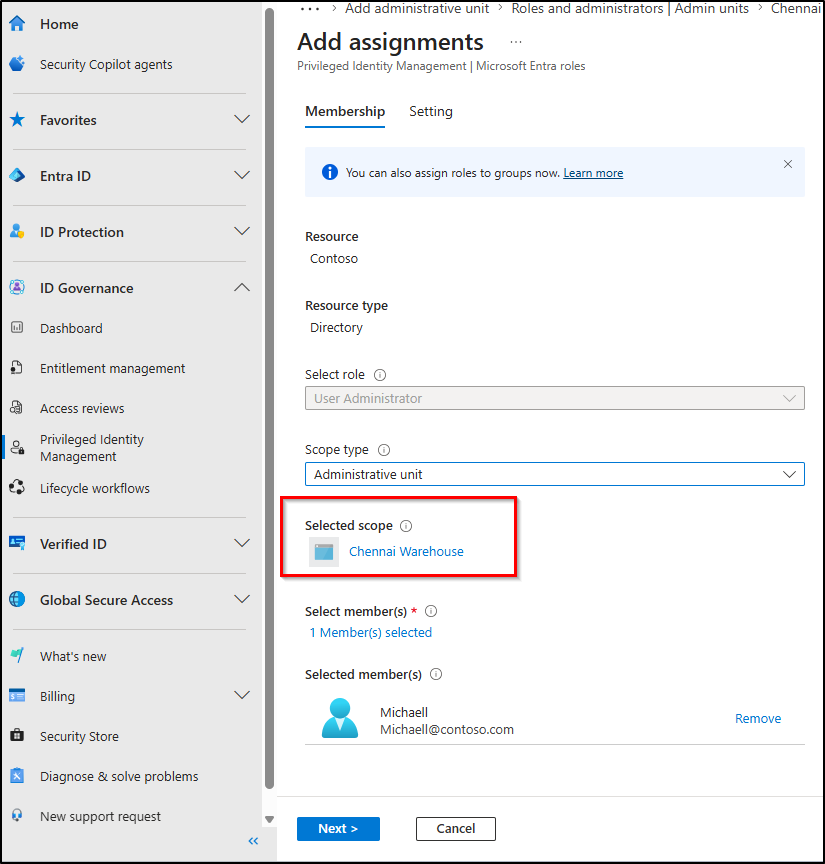
- Open the role and click + Add assignments.
- Under the Scope type, change the scope from Directory to Administrative unit.
- Select the Administrative Unit created for that manager.
- Click Select member(s) and choose the frontline manager account.
- Under Settings, select Assignment type as Eligible.
- Configure the assignment duration based on your requirement.
- Click Assign to save changes.
Configure Microsoft Entra PIM for Just-In-Time Access
After assigning the role, configure activation settings to enforce security controls during role activation.
- Navigate to: PIM → Microsoft Entra roles → Roles → Role settings → Edit.
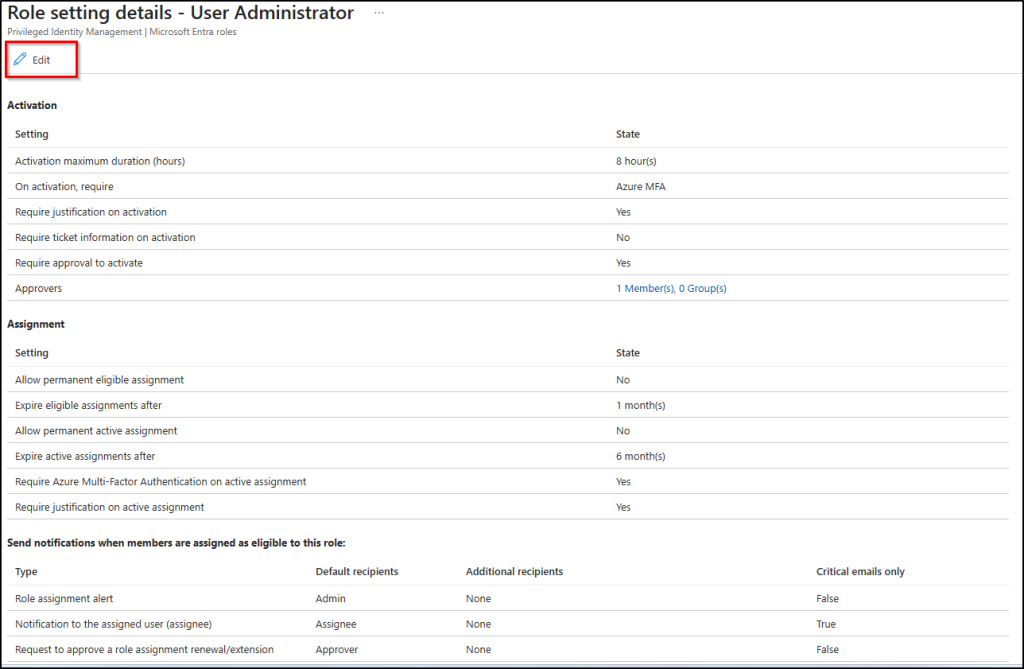
- Configure the following recommended settings:
| Setting | Recommended Configuration |
| Activation maximum duration | 4–8 hours |
| Require MFA on activation | Enabled |
| Require justification | Enabled |
| Require approval | Optional |
| Email notifications | Enabled |
- Click Update to save the configuration.
These controls ensure managers activate elevated access only when required and create an audit trail for every activation.
3. Create Service Principal for My Staff Portal Using PowerShell
The My Staff portal uses its own service principal in Microsoft Entra ID. Until this service principal exists in the tenant, the My Staff application will not appear in the Conditional Access cloud apps list, making it difficult to apply dedicated access policies for the portal.
In some environments, Microsoft may provision the service principal automatically after the first My Staff portal sign-in. However, manually creating it through PowerShell is the more reliable approach to ensure the application becomes available for Conditional Access configuration.
Since the My Staff portal is not automatically covered under the general admin portal included in Conditional Access policies, it is recommended to configure a dedicated policy for it. To create the My Staff service principal using PowerShell, follow the steps below:
- Connect to Microsoft Graph
|
1 |
Connect-MgGraph -Scopes "Application.ReadWrite.All" |
- Verify the service principal
Before creating the service principal, confirm the My Staff portal provision in your tenant to avoid duplicate entries by using the cmdlet below.
|
1 |
Get-MgServicePrincipal -Filter "DisplayName eq 'My Staff'" | Select DisplayName, AppId, Id |
This cmdlet returns the My Staff service principal details, including the App ID, which is required in the next step to configure the service principal.
- Create the My Staff service principal
|
1 |
New-MgServicePrincipal -AppId "ba9ff945-a723-4ab5-a977-bd8c9044fe61" |
After provisioning, the My Staff application becomes available for Conditional Access targeting.
4. Create a Conditional Access Policy to Protect the My Staff Portal
Conditional Access is the most important security layer for protecting the My Staff portal. Without it, a compromised manager account could access My Staff from any device or location. A properly configured policy helps ensure only trusted, compliant, and MFA-protected sessions can access the portal.
Follow the steps below to create the Conditional Access policy to secure My Staff portal using the steps below.
- Sign in to the Microsoft Entra admin center and navigate to: Entra ID → Conditional Access → Policies → + New policy.
- Enter a descriptive policy name such as: Require MFA and Compliant Device for My Staff Portal.
- Under Users:
- Select Specific users.
- Choose your Frontline Managers security group.
- Under Target resources → Cloud apps:
- Click Select apps.
- Search and select the My Staff application.
- Optionally, under Network, toggle Configure to Yes:
- Under Include, select Any network or location.
- Under Exclude, select Selected network or locations.
- Choose your trusted IP ranges or Global Secure Access (GSA) network locations or exclude none.
- Under Grant controls:
- Select Grant access.
- Enable “Require multi-factor authentication” and “Require device to be marked as compliant”.
- Set the policy to Require all selected controls.
- Under Session, configure Sign-in frequency to 8 hours.
- Set Enable policy to On and click Create to enable the policy.
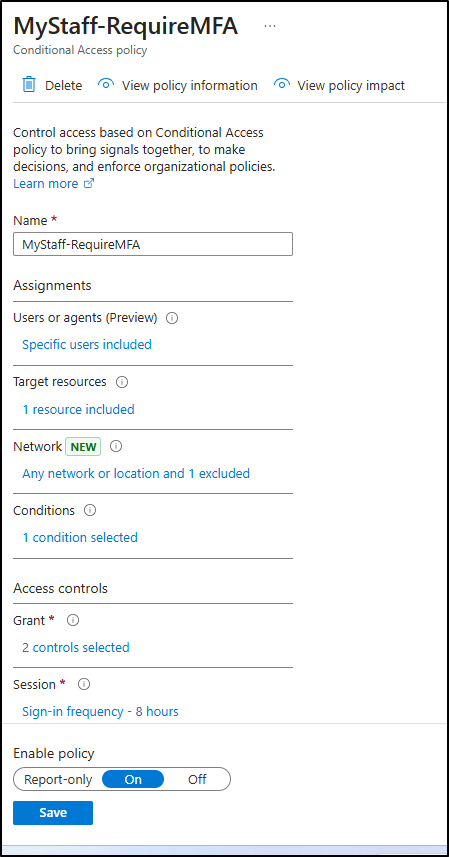
In addition, phishing-resistant authentication methods ensures managers accessing the My Staff portal only from trusted and compliant environments while reducing the risk of unauthorized access.
End User Experience: Frontline Manager Accessing My Staff Portal
After configuring the required security controls for the My Staff portal, when a frontline manager needs to perform delegated user management tasks, they must first activate their eligible role through PIM.
- To do this, they sign in to Entra ID and go to My Roles.
- Select the Authentication Administrator or User Administrator role and click Activate.
- During activation, they may be required to provide a justification and choose an activation duration.
Depending on the organization’s PIM settings, approval may also be required. Once approved, the role becomes temporarily active, and the required permissions are granted.
The manager then signs in to mystaff.microsoft.com. Since Conditional Access policies are applied, the sign-in is validated using controls such as MFA, compliant device checks, and trusted network requirements. If the device or sign-in does not meet policy requirements, access to the portal is blocked as shown below.
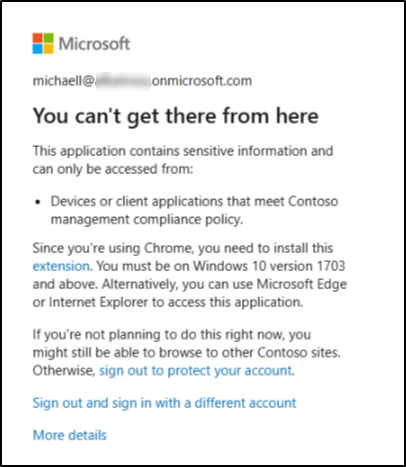
After successful sign-in, the manager can access only users within their assigned administrative unit. For the duration of their PIM activation window, they can reset passwords and update MFA phone numbers for frontline users within the My Staff portal without receiving full admin access.
Best Practices to Secure and Monitor the My Staff Portal
Even with the right configuration, the following practices are essential to keep the My Staff portal protected while strengthening the overall security of your Microsoft 365 environment.
- Exclude break-glass accounts from Conditional Access policies: Always exclude emergency access accounts from My Staff Conditional Access policies. These accounts act as recovery options if a policy misconfiguration blocks administrator access.
- Use MFA together with location-based controls: Trusted locations alone are not enough. If an attacker gains access from a trusted network or VPN, location checks can be bypassed. Always combine location conditions with MFA requirements.
- Review PIM activations regularly: Monitor Authentication Administrator role activations through PIM audit logs. Look for unusual activation times, unfamiliar locations, or vague justifications that may indicate misuse.
- Restrict managers to their assigned Administrative Unit only: Always scope role assignments to a specific Administrative Unit instead of the full directory.
Wrap Up
If your organization uses the My Staff portal for delegated user management, it’s important to secure it with the same level of attention as other privileged administrative workflows. Proper scoping through Administrative Units, PIM just-in-time access, and strong Conditional Access policies are essential to prevent misuse.
Thanks for reading! If you have any questions or additional security recommendations around the My Staff portal, feel free to share them in the comments.