For years, Microsoft Entra Privileged Identity Management (PIM) has made it easy for admins to keep privileged access temporary and avoid unnecessary long-term permissions. But bringing the same time-bound access model to Microsoft Purview role groups has been a long-standing challenge for compliance admins.
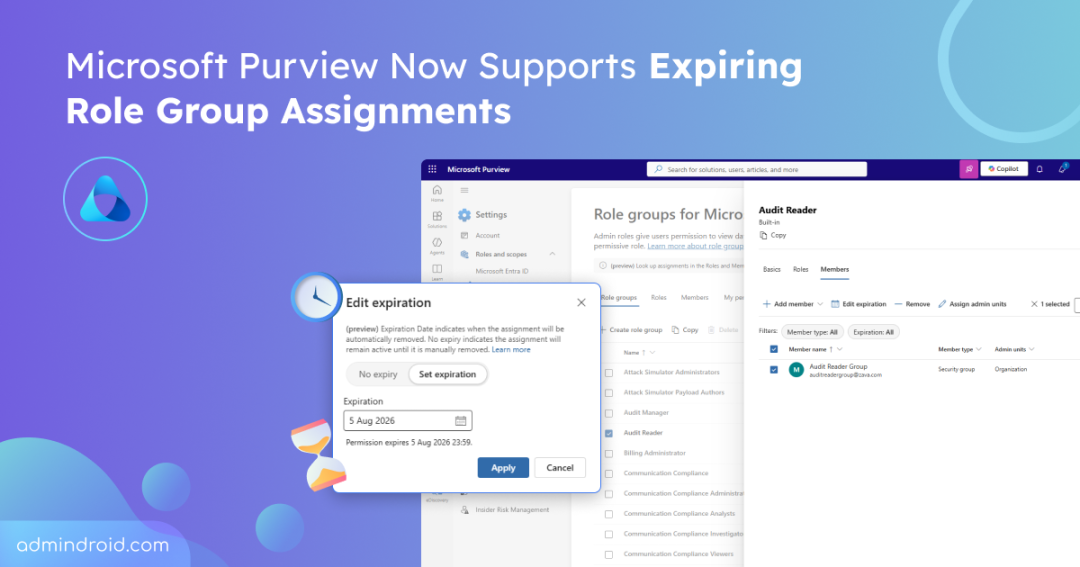
Fortunately, Microsoft is now addressing this highly requested, native capability within the Microsoft Purview compliance portal. It lets admins set an expiration date directly on supported Purview role group assignments. Microsoft began rolling out this time-limited purview role groups in late July 2026, with the rollout expected to be completed by late August 2026.
In this blog, we’ll explore how automatically expiring Purview permissions work, how to configure them, and the key considerations admins should know.
How Admins Previously Managed Temporary Purview Access
Admins who wanted time-bound access typically had built indirect purview access through PIM for groups. Instead of assigning a user directly to a Purview role group, admins would:
- Create a security group in Microsoft Entra ID.
- Assign that security group to the required Purview role group.
- Configure the security group in PIM for Groups.
- Make users eligible for the group rather than permanent members.
- Let users activate their group membership through PIM when Purview access was required.
The access path essentially looked like this:
User → PIM-managed security group → Purview role group
Once activated, the user becomes a member of the security group and inherits the associated Purview permissions. If the PIM activation expires, the access to the purview role group will also be revoked.
This approach works and remains useful when organizations need a full just-in-time (JIT) access workflow. But when the goal is simply to make a Purview role group assignment temporary, it requires an additional security group and PIM configuration to achieve it.
How to Set Expiration Date for Purview Role Group Assignments
With the new temporary role group permissions in Microsoft Purview, admins now have a simpler option when a least-permissive role is required only until a specific date. Follow the steps below to set an expiration date for the Purview role groups assignment:
- Sign in to the Microsoft Purview portal and open Settings > Roles and scopes > Role groups.
- On the Role groups for Microsoft Purview solutions page, select the role group, then navigate to the Members tab.
- Click the +Add member option and select Choose users or Choose groups.
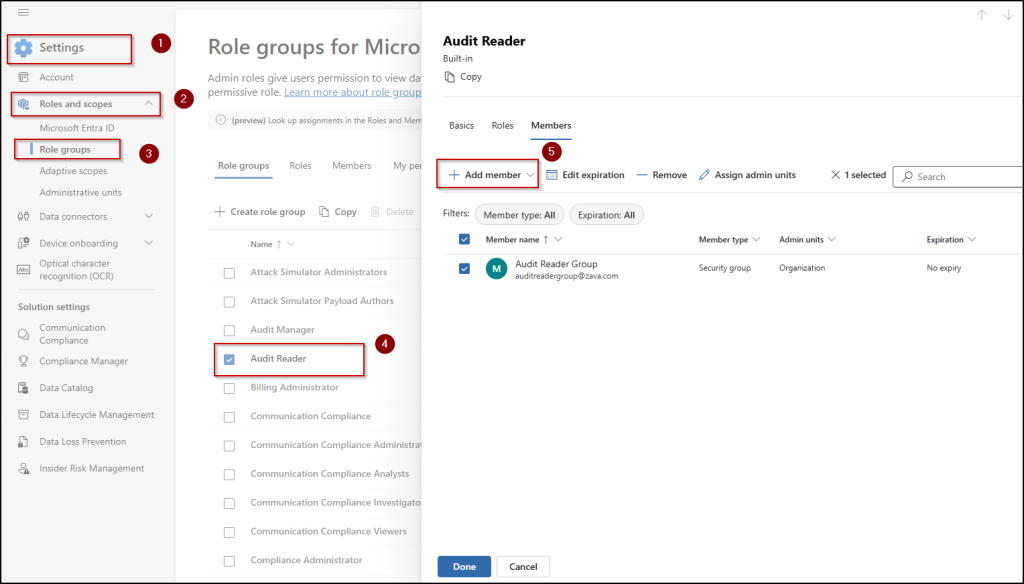
- Pick the security group or users and click Select.
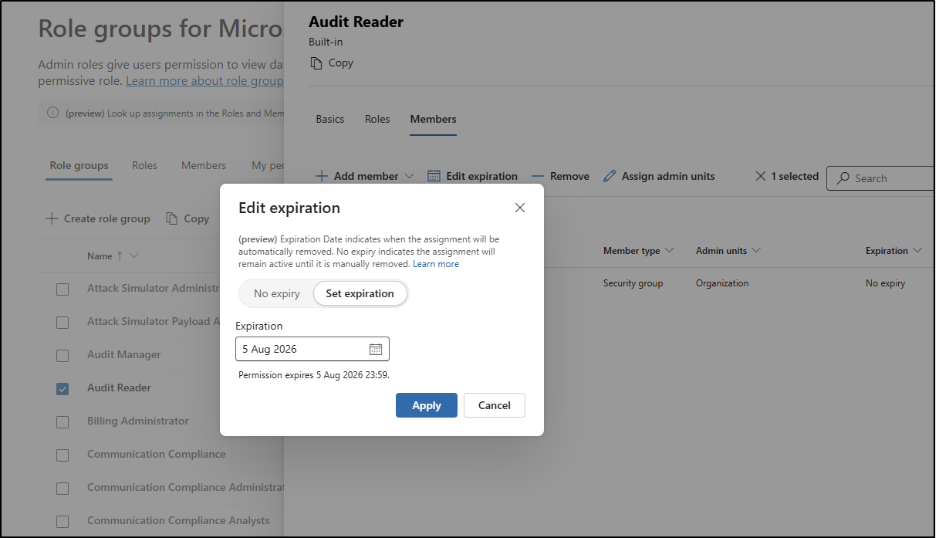
- Select those members again and choose Edit expiration.
- Click Apply after choosing an expiration date. Note that expiration can be set from one day up to two years from the current date.
- Optionally, select Assign admin units if you want to add the assignment to specific administrative units.
- Select Next, then Save and Done.
Manage Expiration for New and Existing Purview Role Assignments
Temporary permissions can be applied to both new and existing Purview role group assignments. However, existing assignments aren’t automatically given an expiration date when the feature becomes available.
They remain permanent and appear with No expiry until an admin explicitly configures an expiration. To add an expiration to an existing assignment:
- Open the required role group in the Microsoft Purview portal and select Edit.
- Select the existing user or security group and choose Edit expiration.
- Set the required expiration date and save the changes.
Admins can use the same Edit expiration option later to manage the assignment. You can:
- Extend the expiration if access is needed for longer.
- Set a different expiration date if the access period changes.
- Select ‘No expiry’ to remove the expiration and make the assignment permanent.
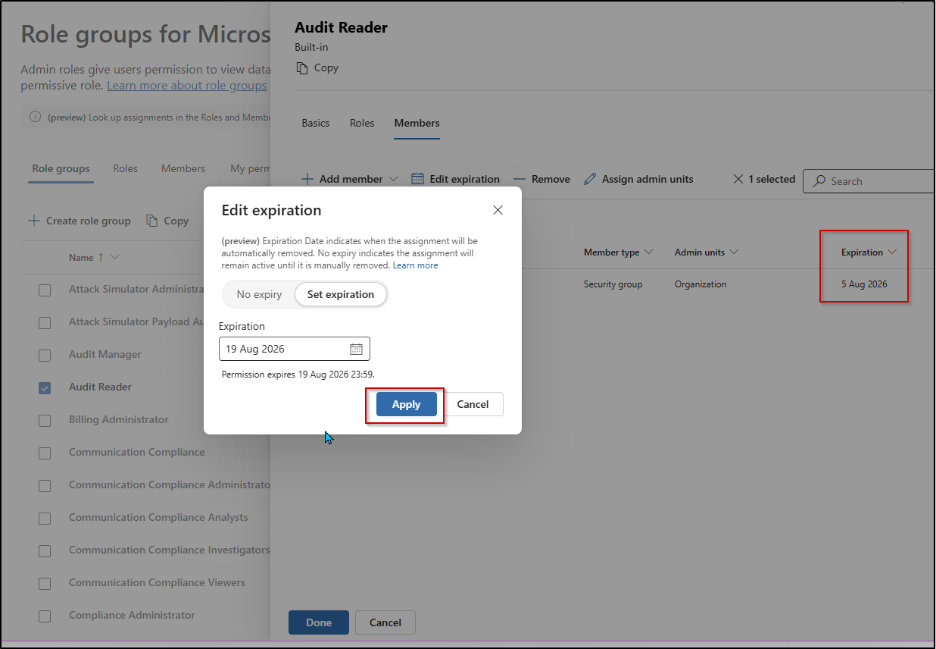
If access needs to end immediately, you don’t have to wait for the expiration date. Simply select Remove members to revoke the role group assignment right away.
Verify Permission Expiration from My Permissions
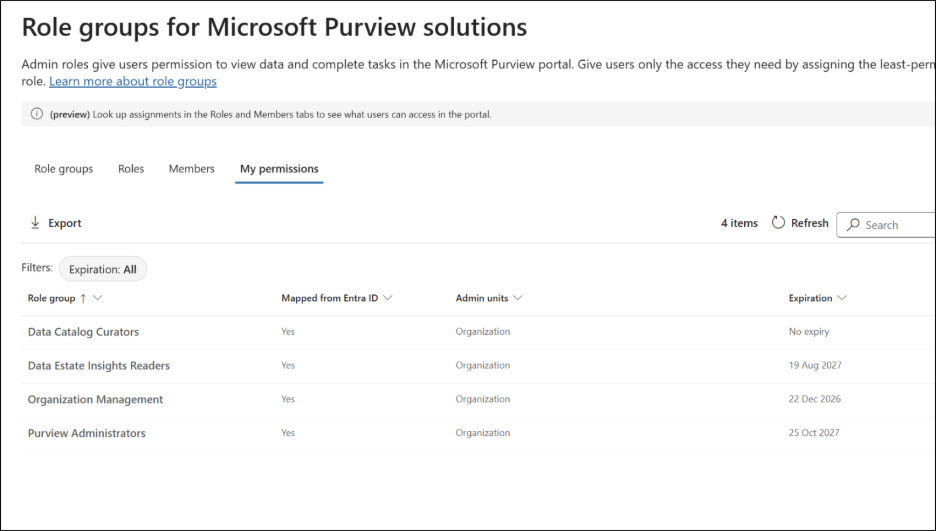
Users can also check the My Permissions page to view their permissions and expiration details. If a user has multiple active assignments, the page displays the latest expiration date across those assignments.
What Expiring Purview Permissions Does Not Revoke
Setting an expiration date removes the specific role group assignment when it expires. However, a few conditions can affect whether the user actually loses access:
Check for multiple assignments: A user can receive the same Purview role group through different paths, such as a direct assignment and a security group. Each assignment has its own expiration. If one expires while another remains valid, the user keeps the access provided by the active assignment.
Watch for overlapping Microsoft Entra roles: A user may also hold a Microsoft Entra role that grants overlapping permissions. Expiring a Purview role group assignment doesn’t revoke permissions granted separately through Entra. Before assuming access has ended, check the user’s other role assignments and effective permissions.
eDiscovery role groups are excluded: Automatically expiring permissions aren’t supported for eDiscovery Manager and eDiscovery Administrator. Other built-in and custom Purview role groups support expiration.
There is no advance expiration notification: Users aren’t notified before their temporary permission expires. They can only check the expiration date of their active assignments from the My Permissions page. For ongoing investigations or compliance work, admins need to extend the assignment before its expiration date to avoid unexpected loss of access.
Security group support has a cloud limitation: Assigning security groups to Purview role groups is supported only for Microsoft 365 commercial cloud organizations.
And remember, expiration controls how long an assignment lasts; it doesn’t determine whether that access should still exist. Periodic access reviews are still useful for validating whether users continue to need a role group, while privileged access management can provide additional controls for sensitive operations.
We hope this blog explains how Microsoft Purview role group expiration works and how it can simplify temporary access management.
Go ahead and put it to use the next time you need to grant time-bound least privilege access for Purview roles.