We all know the modern Bring Your Own Device (BYOD) reality. Contractors, external vendors, and hybrid employees want to work from their own devices, and they are using Windows App to access your Azure Virtual Desktop (AVD) and Windows 365 environments.
But here’s where things get tricky for IT admins! How do you protect corporate data when employees connect from personal, unmanaged devices? However, requiring users to enroll their personal devices in Mobile Device Management (MDM) may not always be practical due to user privacy concerns and organizational constraints.
Fortunately, Microsoft is addressing this challenge by extending Intune app protection policy support to the Windows App desktop client (Preview). By combining an app protection policy with a Microsoft Entra Conditional Access, admins get the best of both worlds: app-level data protection for Windows App while leaving users’ personal devices free from full MDM management.
Let’s look at how this Conditional Access policy bridges that gap and walk through the exact setup.
How Conditional Access and Intune App Protection Work Together
While Microsoft Entra Conditional Access controls access to corporate resources, Intune app protection policies define how organizational data is protected within Windows App. Through app protection policies, admins can configure restrictions on data transfers, control supported redirection capabilities and enforce supported app and device health checks.
To ensure these app protections are in place before granting access, Conditional Access evaluates Windows App sign-in requests using the MAM compliance state reported by Intune. It acts as a gatekeeper between users and their virtual desktop resources, determining whether they can access Azure Virtual Desktop or Windows 365.
Together, these capabilities help protect organizational data accessed through Windows App without requiring full MDM enrollment of personal devices.
Why Require App Protection Policies for Windows App Using Conditional Access?
Requiring app protection policies through Conditional Access helps address several security gaps that can arise when users access Windows App from personal devices.
- Closes the Unmanaged Endpoint Blind Spot: Without this CA policy, a user with valid credentials may access corporate virtual desktops through Windows App on an unpatched or compromised personal device.
- Stops Data Exfiltration Across Session Boundaries: Even if your remote Cloud PC is hardened, an unprotected client may allow local drive redirection, clipboard sharing, or printer redirection. By enforcing an app protection policy through Conditional Access, admins can ensure the configured data protection restrictions are applied. This helps prevent unauthorized data transfers across these channels.
- Enforces Client Health Checks Without MDM: By requiring an app protection policy, Conditional Access ensures the local device meets minimum OS build requirements and acceptable Mobile Threat Defense (MTD) risk levels. This helps admins verify device health before users launch a virtual desktop, without requiring full MDM enrollment.
- Helps Prevent Client Version Bypass: Users cannot simply bypass configured minimum app version requirements by continuing to use an outdated Windows App version. App protection policy enforces the configured version requirement before access is granted.
Now, let’s walk through the prerequisites and steps to configure a Conditional Access policy that requires an app protection policy for Windows App.
Prerequisites to Create a Conditional Access Policy to Require App Protection for Windows App
Before creating the Conditional Access policy, ensure an Intune app protection policy is created and assigned to the target BYOD or contractor user group.
Ensure the following prerequisites are met:
- Supported clients: Microsoft Edge on Windows 11 and Windows 10 (20H2 or later with KB5031445), and Windows App desktop client (Preview).
- Required role: At least the Conditional Access Administrator role to create the CA policy, along with appropriate Intune permissions to create and assign app protection policies.
Configure Conditional Access Policy to Require App Protection for Windows App
Follow these steps to create the Conditional Access policy:
- Log in to the Microsoft Entra admin center.
- Navigate to Entra ID > Conditional Access > Policies and select New policy.
- Enter a descriptive name for the policy, such as ‘Require app protection policy for Windows App’.
- Under Assignments > Users:
- Include: Select All users.
- Exclude: Select Users and groups and exclude your organization’s break-glass accounts.
- Under Target resources > Resources (formerly cloud apps):
- Include: Click Select resources and add the resources relevant to your organization such as Office 365.
- Next, under Conditions, configure the following:
- Device platforms
- Set Configure to Yes.
- Under Include, select Windows.
- Select Done.
- Client apps
- Set Configure to Yes.
- Select Mobile apps and desktop clients for the Windows App desktop client Preview.
- Select Done.
- Device platforms
- Then, under Access controls > Grant:
- Select Grant access.
- Select Require app protection policy and Require device to be marked as compliant.
- Under For multiple controls, select Require all the selected controls. Click Select.
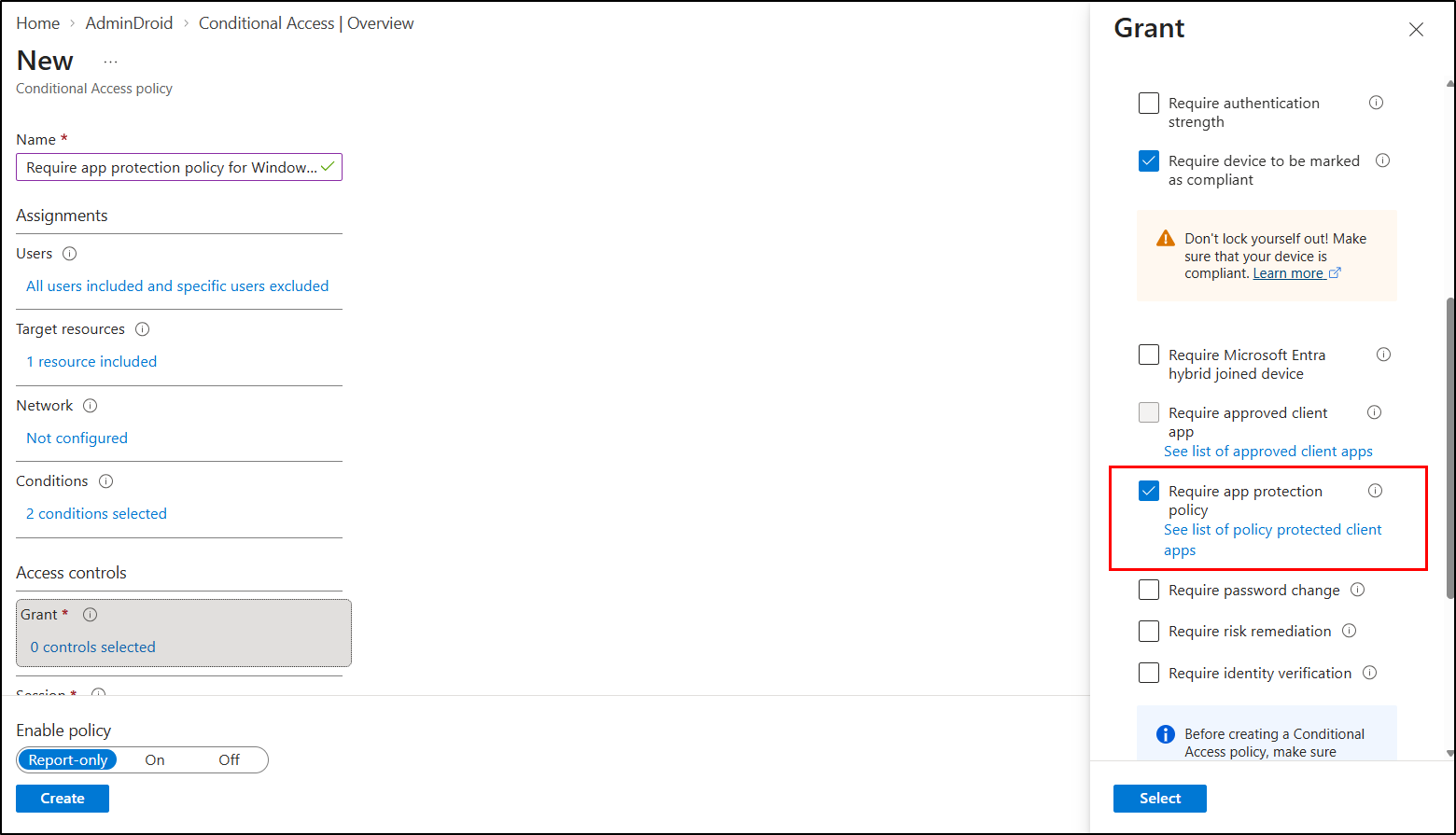
- Set Enable policy to Report-only mode. Then, select Create to create a Conditional Access policy that requires app protection policy for Windows App.
Review the results in Conditional Access insights and Microsoft 365 sign-in logs. Once you’ve confirmed that the policy works as intended, switch it to On. You can also stage the rollout by targeting specific user groups before expanding it.
Note: User-scoped Conditional Access policies don’t target service principals. If you need to control workload identities, configure a separate Conditional Access policy for workload identities. Also consider excluding relevant service accounts where necessary to avoid unintended access disruptions.
User Experience After Enabling the Require App Protection for Windows App Policy
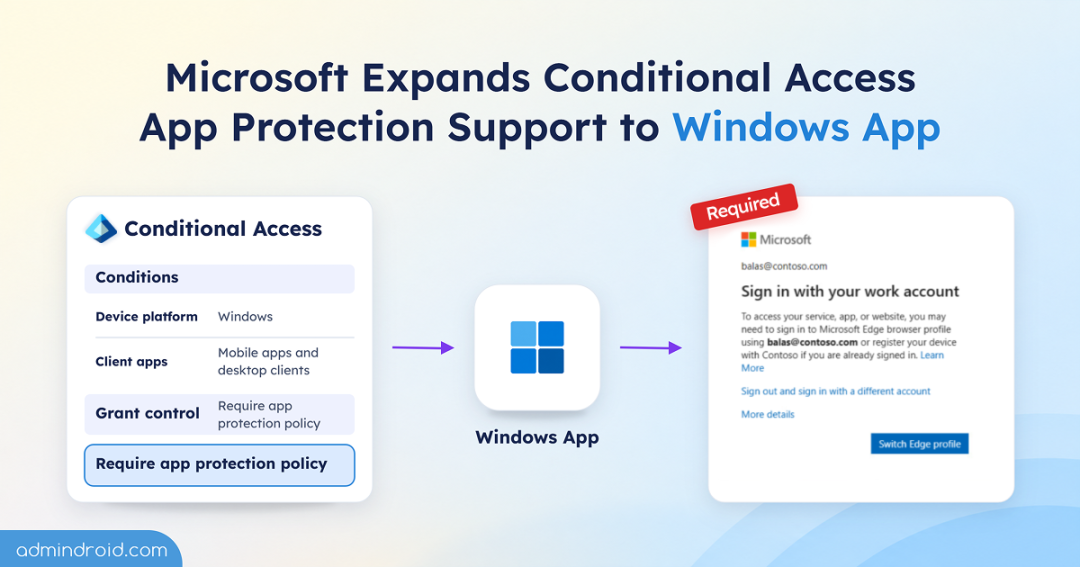
When users first sign in to Windows App from an unmanaged Windows device, they’ll be prompted to register their device with Microsoft Entra ID with the following message.
To access your service, app, or website, you might need to sign in to Microsoft Edge using username@domain.com or register your device with organization if you’re already signed in.
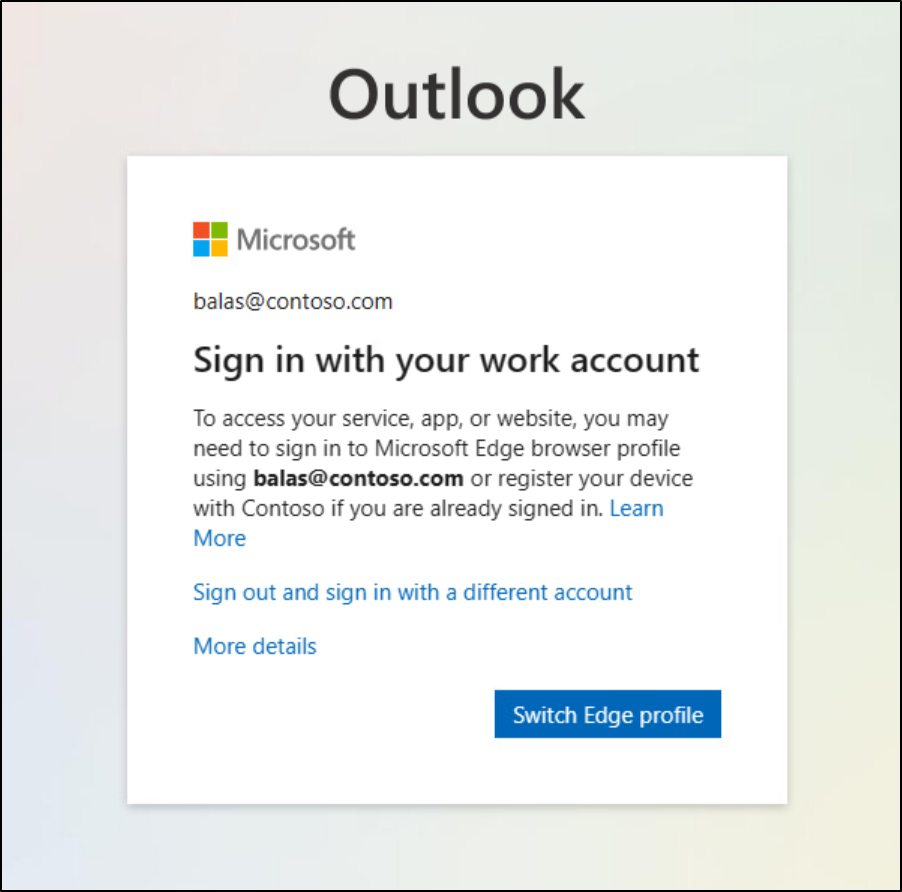
Selecting Switch Edge profile opens a window displaying the user’s Work or school account and the Sign in to sync data option.
Next, Windows prompts users to allow it to remember their account and automatically sign them in to apps, websites, and services. Select Yes to register the device and enroll it in Intune mobile application management (MAM).
A progress window may appear while the app protection policies are applied. Once complete, users see You’re all set, app protection policies are applied, confirming that the MAM enrollment process is complete.
Limitations of Enforcing App Protection for Windows App Through Conditional Access
Before rolling out this policy to production, keep these deployment constraints, preview limitations, and troubleshooting behaviors in mind:
- Target Unmanaged Devices Only: Windows MAM only supports unmanaged endpoints. Exclude MDM-enrolled or corporate-joined devices, otherwise Conditional Access cannot verify app compliance and will block user access.
- Windows App MAM Preview Scope: Windows App support for Windows MAM is in public preview. Supported environments and feature behavior may differ from generally available scenarios, and sovereign clouds are not supported.
- Block Unsupported Platforms: Admins can pair this app protection policy with the Conditional Access rule that blocks access from unsupported or unknown device platforms to prevent users from bypassing app checks via user-agent spoofing.
- Hide the MDM Enrollment Prompt: Enable the property to disable the device management UX screen during sign-in so users do not accidentally MDM-enroll their personal PCs.
- Resolve Existing Account Conflicts: If a user previously added an unregistered work account or chose “This app only”, MAM registration will fail. They must disconnect the existing account under Settings > Accounts > Access work or school and sign in again.
- Troubleshoot Sign-In Loops: Seeing a repeated sign-in prompt after the “You’re all set!” screen usually indicates a background policy delay, expired registration, or failed local health check (such as an outdated OS build). Waiting a few minutes or verifying device health in Intune resolves the loop.
That’s it! Deploying an Intune app protection policy through Conditional Access is an effective way to protect Azure Virtual Desktop and Windows 365 sessions on personal devices without requiring full MDM enrollment. By enforcing security at the app level, admins can block clipboard, drive, and print redirection while verifying endpoint health before every connection.
Additionally, Intune app protection policies offer ways to protect corporate email data on unmanaged devices, secure SharePoint access, and more through supported apps.
Have any thoughts or questions? Share them in the comment section below!