Multi-factor authentication (MFA) has become the frontline defense for modern organizations. And Microsoft Authenticator is often the tool used to approve sign-ins and verify user access through MFA. By adding a second layer of verification beyond passwords, it helps safeguard access to Microsoft 365, Microsoft Entra ID, and countless work accounts.
However, it’s common for users to run into issues with the Authenticator app, like approval prompts not arriving, codes showing as expired, or sign-in attempts failing unexpectedly.
To help you stay ahead of these scenarios, this guide covers the most common Microsoft Authenticator issues along with practical fixes you can apply to get back in without hassle.
What Causes Microsoft Authenticator Issues?
Microsoft Authenticator works across devices, networks, and account types, which makes it flexible but also more prone to issues. Most failures can be traced back to a few common root causes:
- Phone replaced or lost: MFA registration is tied to the physical device. Switching phones without a backup breaks the connection entirely.
- App reinstalled without backup: Uninstalling the app — even temporarily without enabling cloud backup removes all account registrations.
- Notifications blocked by OS or network: Battery optimization, Do Not Disturb, VPNs, and corporate firewalls can silently block push notifications.
- Device clock out of sync: OTP codes are time sensitive. Even a slight time drift can cause codes to expire before they’re accepted.
- Outdated app version: Older app versions may stop receiving push notifications, especially if they fall outside Microsoft’s support window.
- Device security or policy conflicts: Rooted or jailbroken devices, missing encryption, or mismatched organizational policies can block MFA or passwordless sign-in.
Common Microsoft Authenticator App Issues and How to Fix Them
Here are the five common issues users face with the Microsoft Authenticator app and the solutions to fix them effectively.
- Microsoft Authenticator push notifications not working
- Authenticator app crashes, freezes, or won’t open
- Wrong or expired codes in Microsoft Authenticator
- Microsoft Authenticator accounts not transferring to new phone
- Locked out of Microsoft Authenticator after losing your phone
1. Microsoft Authenticator Push Notifications Not Receiving
Problem:
During sign-in, Microsoft Authenticator sends a push notification asking users to enter the code as shown below. Users are prompted to tap “Approve to sign in” on their device to complete authentication.
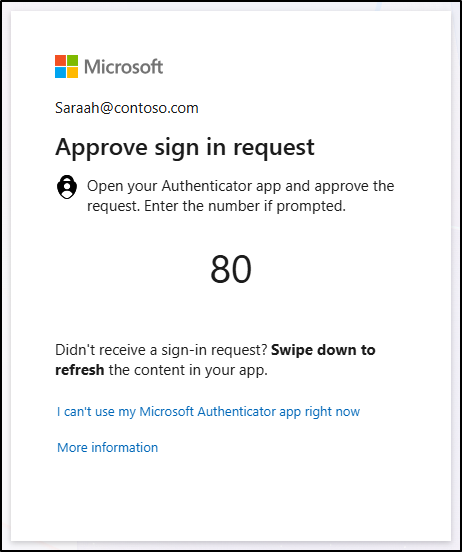
However, this process often fails with errors like “Authentication did not complete” because the approval prompt never arrives. Instead of a seamless sign‑in, users are left waiting for a notification that doesn’t show up. They’re forced to fall back on manual codes and in some cases are locked out entirely.
The underlying issue often comes down to notification delivery problems, app glitches, or mismatched time settings, which block the Authenticator app from sending or receiving prompts as expected.
Solution:
To fix this, verify that the following settings are in place to restore notification delivery:
Fix Notification and Device Settings on Android and iOS
Make sure your device and notification settings are correctly configured to allow push approvals:
- Ensure notifications are fully enabled at the OS level, including lock screen alerts, banners, and sounds.
- Turn off Do Not Disturb, Focus Mode, or Airplane Mode if any are active.
- Set date and time to automatic (network-provided) and restart the device; even a slight time drift can cause notifications and tokens to expire before they reach you.
Check Network Settings to Fix Microsoft Authenticator Push Failures
Switch between Wi-Fi and mobile data to see if one works better. Also, temporarily disable any VPN, as firewalls or network restrictions can block push delivery.
Check Battery Optimization Settings Blocking Authenticator on Android
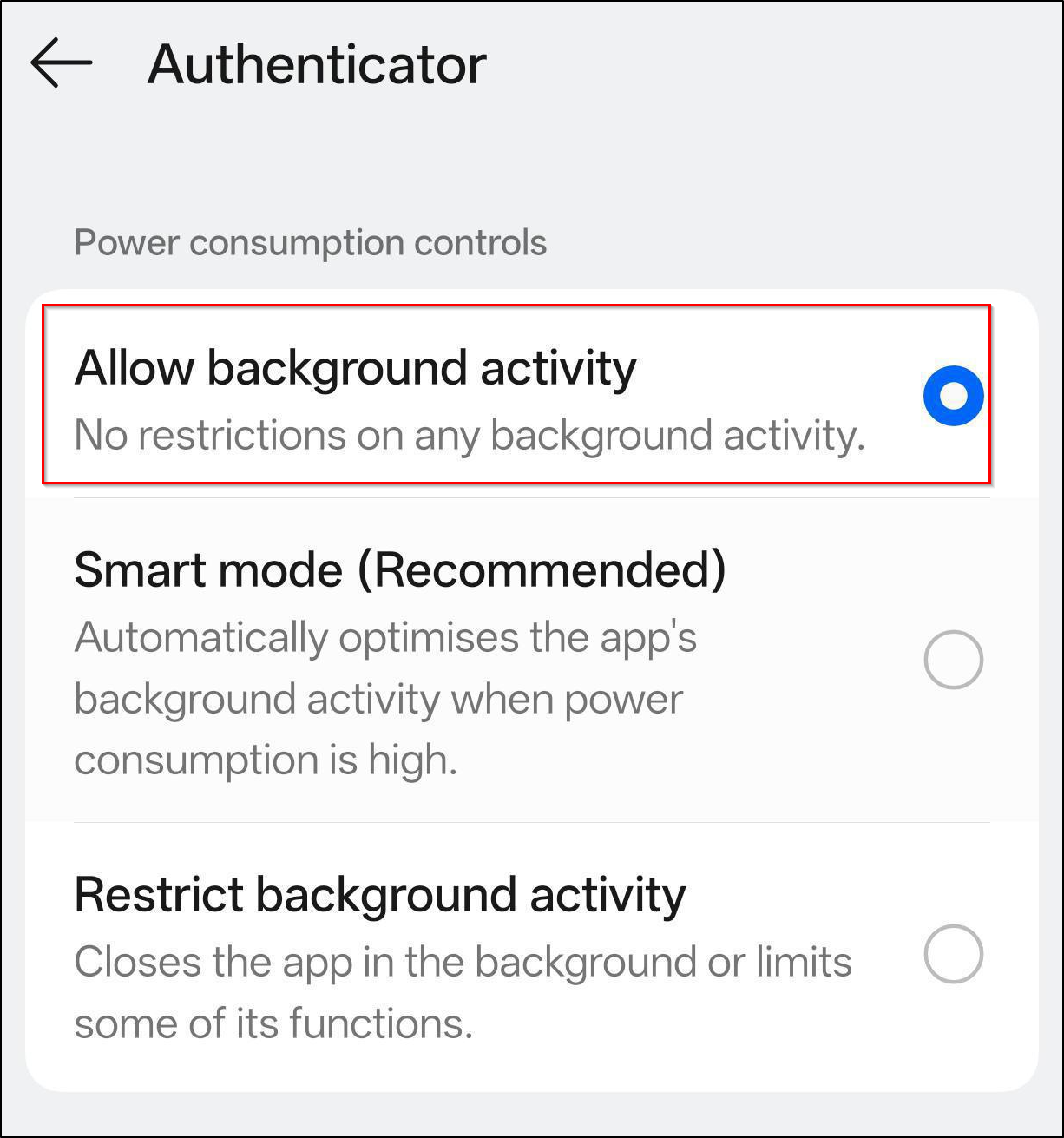
Go to your device’s default battery settings and select Microsoft Authenticator app. Ensure “Allow background activity” is selected. This setting removes restrictions and lets the app run normally in the background. Avoid the “Restrict background activity” option, as it can limit the app’s ability to receive push notifications and may block sign-in approvals.
Keep Authenticator App Updated to Prevent Push Failures
Keep the Microsoft Authenticator up to date, as older versions may stop receiving push requests. If only one account is affected, remove and re-add it using the QR code setup.
⚠️Ensure you have a backup sign-in method available before removing the account.
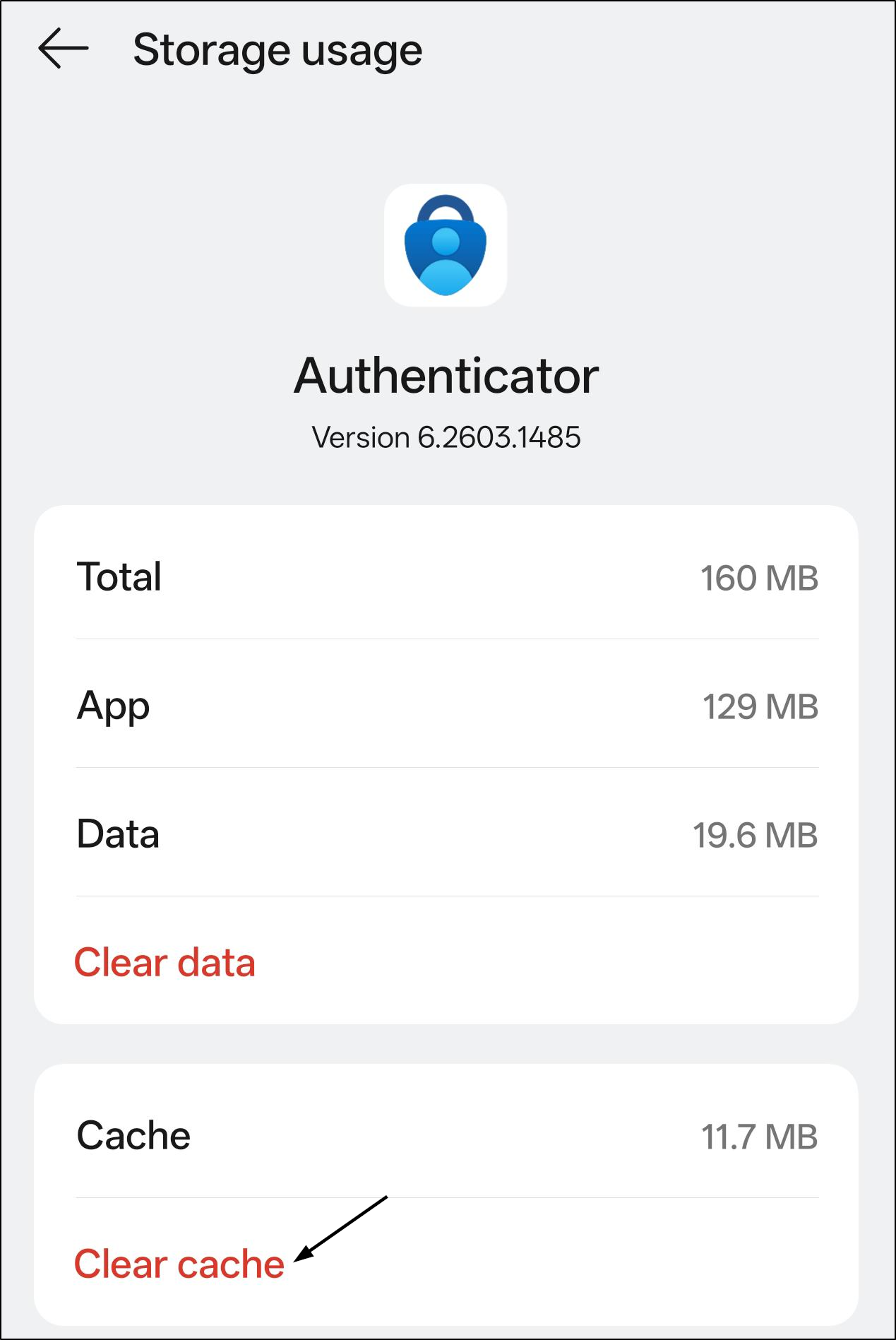
Clear Authenticator App Cache on Android to Fix Sign-In Issues
Over time, the app accumulates temporary data that can become corrupted. This causes Authenticator to misread stored credentials, fail to load accounts, or drop the connection to Microsoft’s authentication servers mid-sign-in.
Clear the Authenticator app cache to remove corrupted temporary data, then restart your device and try signing in again. If the problem continues, use Clear Data, but note this removes saved accounts from the app, so ensure you have a recovery method ready first.
2. Microsoft Authenticator App Crashing, Freezing, or Not Opening
Problem:
When you open Microsoft Authenticator during a sign-in, you’re met with a blank screen, a sudden crash, or an app that simply won’t respond. In some cases, the app may not even launch, leaving you stuck without a way to complete authentication.
Solution:
Try the steps below to get the app back into a stable, working state:
Fix Microsoft Authenticator Compatibility Issues After a Phone or OS Update
Update Authenticator to the latest version, as outdated builds are one of the most common causes of crashes. Verify your device meets current app requirements; older devices or unsupported OS versions may struggle with newer builds. So, updating your device OS is necessary.
Reinstall Microsoft Authenticator to Fix Persistent Errors
Uninstalling and reinstalling often clears deeper software conflicts that a cache clear alone won’t fix. Before removing the app, make sure you have at least one of the following ready to avoid getting locked out:
- A backup code saved during account setup.
- A registered phone number to receive a verification code via SMS.
- A registered email address to receive a one-time code.
- A hardware token linked to your account.
Once confirmed, uninstall the app, reinstall it from the App Store or Google Play, and sign back in using one of the methods above to restore access.
3. Microsoft Authenticator OTP Not Received or Expired
Problem:
Microsoft Authenticator generates a 6-digit OTP code, which is often referred as TOTP that refreshes every 30 seconds. This is your one-time password, and it’s only valid for that short window. Both your device and Microsoft’s servers use the same clock to generate and verify that code, so they need to be in sync.
Even if you enter the exact code shown in the app, sometimes you may still see an “incorrect code” or “code expired” error. This often happens when the code is about to expire or when there’s a slight mismatch between devices.
Solution:
Follow the below methods to resolve code-related issues and get your sign-ins working reliably again:
Fix Incorrect Device Time Causing Authenticator Codes to Fail
Make sure your phone has date and time set to automatic (network-provided). Do the same on the device you’re signing in from (PC or laptop). Any mismatch between the two can cause authentication to fail.
Remove Duplicate Accounts in Authenticator
Check if the same account appears more than once in the app; you may be copying a code from the wrong entry. Remove duplicates and use only the correct account entry.
Remove and Re-Add the Account in Authenticator to Fix Code Errors
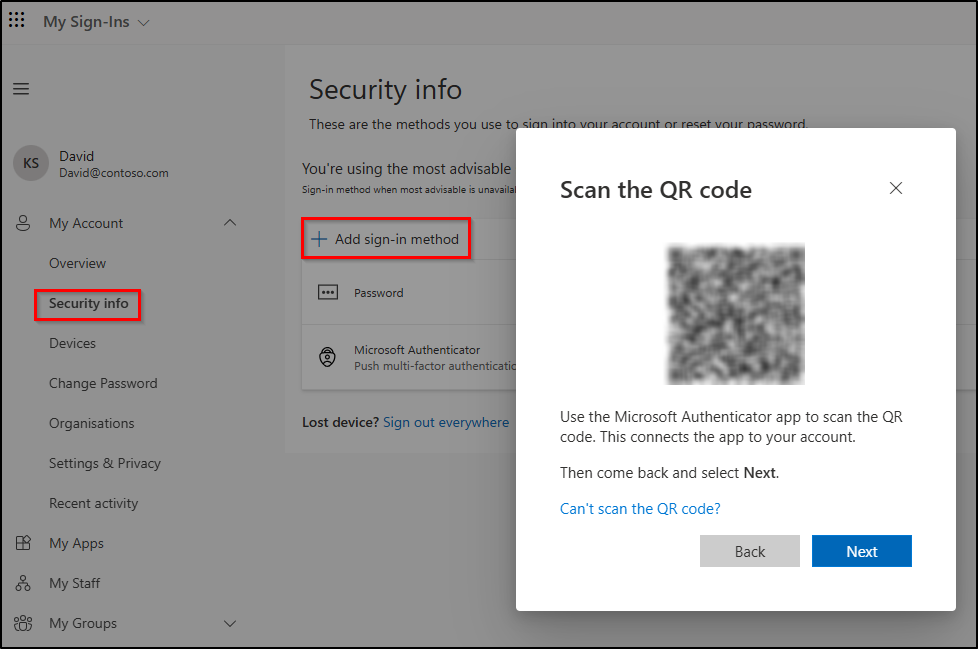
If codes keep failing, remove the account and re-add it using a QR code. This resets the sync between the app and the service and typically resolves persistent code mismatches. To re-add your account using a QR code:
- Go to your account’s Security info page (My Account) → click Add sign-in method → choose Authenticator app to generate a QR code.
- Open the Microsoft Authenticator and tap the + (Add account) or QR scan icon.
- Scan the QR code shown on the screen to complete the setup.
Resolve Authenticator App OTP Code Expiry Issues
If you enter a code right as it’s about to expire, it may be rejected before it’s processed. Wait for the 30-second timer to reset and use the newly generated code immediately.
4. Microsoft Authenticator Accounts Not Transferring to New Phone
Problem:
If you’ve upgraded to a new phone and expect your accounts in Microsoft Authenticator to move over seamlessly, but the reality is often different. After installation, no accounts show up.
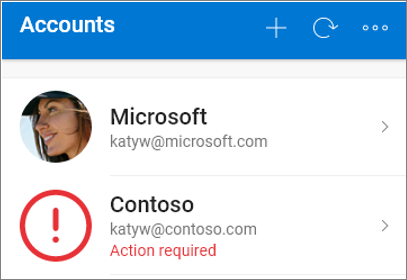
The restore option is easy to miss because it only appears during the initial setup screen and disappears once you sign in, leaving many users stuck with a blank app and no clear path forward. In some cases, particularly for work or school accounts, the account may appear but shows an “Action Required” warning. It means the account was detected but couldn’t be fully restored due to device-specific encryption. The outcome depends entirely on whether backup was enabled before you switched devices.
Solution:
✅ If backup was enabled on your old device
Restore Authenticator Accounts from iCloud Backup on a New iPhone
If you’re an iPhone user, check that iCloud Drive, iCloud Keychain, and iCloud Backup were enabled before making the switch.
- On your new phone, open the Authenticator app, and select Begin Recovery or Restore from Backup on the first screen.
- Sign in with the same Apple ID you used on the old device.
Restore Authenticator Accounts from Cloud Backup on a New Android Phone
If you’re using an Android device, confirm on your old device that backup was enabled under Authenticator → Settings → Cloud Backup and linked to a personal Microsoft account. On your new phone, install the app, select Begin Recovery, and sign in with the same Microsoft account.
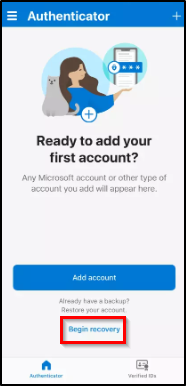
️ Note: As discussed earlier, the recovery option only appears during initial setup. If you’ve already passed it, reinstall the app (iOS) or clear app data (Android) to trigger it again.
For Work or School Accounts Showing “Action Required”
- Personal accounts restore automatically, but work accounts use device-specific encryption keys and require re-verification.
- Re-scan the QR code from your organization’s MFA or security portal.
- If you can’t access the portal, contact your IT admin to assist with re-registration.
❌ If Backup Was Not Enabled on Your Old Device
Without a backup, your original MFA registration is gone but you likely still have a path back in.
Try Alternate Sign-In Methods First When Microsoft Authenticator Is Unavailable
Check whether your account has SMS verification, email-based codes, or a registered security key. If any are available, use one to sign in, then immediately reconfigure Authenticator from your account’s security settings on the new device.
Contact IT Admin to Recover Work or School Account Access
Contact your IT helpdesk and request an MFA reset. Ask them to issue a Temporary Access Pass (TAP). This lets you sign in temporarily and re-enroll the Authenticator without needing the old device.
Contact Support to Recover Personal Microsoft Account Access
Recovery goes through Microsoft’s own account recovery process using your registered verification methods. If those methods are no longer available, Microsoft Support can manually verify your identity.
Note: Backup in Microsoft Authenticator is platform-specific. iOS backups restore only on iOS; Android backups restore only on Android. Switching platforms means manually re-registering all accounts from scratch.
5. Microsoft Authenticator MFA Lockout Due to Lost Phone
Problem:
If phone is lost or stolen, and that’s when it hits you: Microsoft Authenticator was your only MFA method, and no backup was enabled. Now every sign-in asks for approval from a device you no longer have, leaving all your protected accounts out of reach.
Solution:
Based on your setup, follow the applicable steps below to recover access and set things up again:
Recover Authenticator Accounts Using Cloud Backup for Lost Phone
Install Microsoft Authenticator on your new device.
- Restore using the same account — Microsoft account for Android, or Apple ID for iOS.
- Follow the restore steps suggested in the section above.
Use Authenticator Backup Codes to Regain Account Access
When you set up two-factor authentication, most third-party providers provide one-time backup codes. These are designed for situations where your primary authentication method isn’t available.
How to use backup codes:
- When prompted for verification, enter one of your backup codes. Each code is single-use only, and once used, it becomes invalid.
- Reconfigure the Authenticator on your new or existing device. Then generate a new set of backup codes and store them securely for future use.
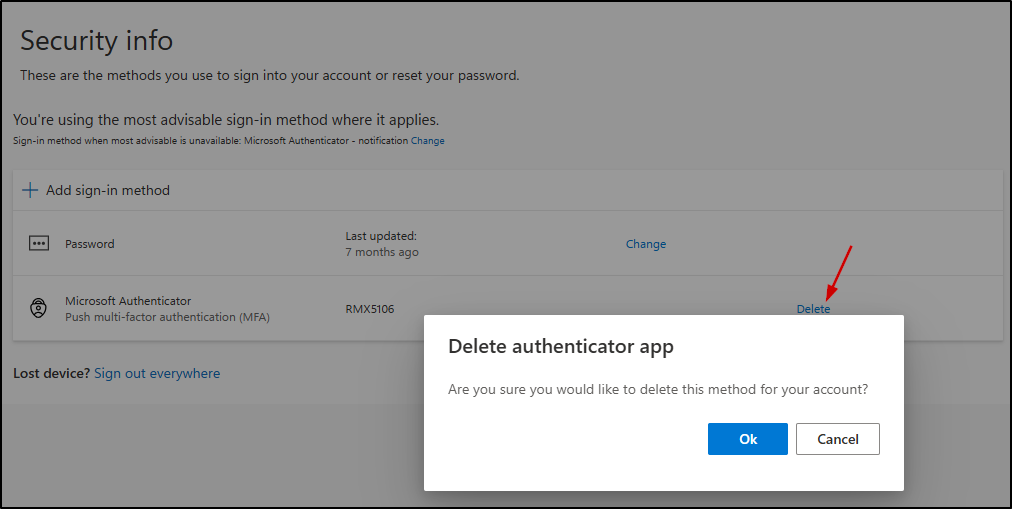
Reconfigure Microsoft Authenticator for a Personal Account
Sign in to your Microsoft account and navigate to Security Info.
- Click “Add sign-in method” to use alternate methods (email, phone, or hardware token).
- Remove the old Authenticator entry and set it up again on your new phone.
Request an MFA Reset from Your IT Admin for Work or School Account
Contact your IT helpdesk and request an MFA reset. Only an admin can remove the old device requirement and re-register your new device using the Authenticator app.
Recover Access and Reset MFA for Third-Party Accounts
Use backup codes if you have them saved. If not, contact that service’s support team to request an MFA reset. Re-enable MFA once access is restored.
Summary: Microsoft Authenticator Personal Vs Work/School Accounts
Let’s take a quick overview of how personal and work/school accounts differ in Microsoft Authenticator.
| Feature | Personal account | Work / School account |
| Backup method | Microsoft cloud | iCloud (iOS) / Google-tied (Android) |
| Cross-platform restore | Tied to Microsoft cloud | Tied to OS backup ecosystem |
| Who resets MFA | You (via account settings) | IT admin / Microsoft Entra ID |
| Recovery if locked out | Microsoft Support | Entra admin center |
| Temporary Access Pass (TAP) | Limited / not standard | Supported (if configured by admin) |
| Self-service MFA reset | ✅ Available | ❌ Requires admin intervention |
Common Misconceptions About Microsoft Authenticator: What Works Vs What Doesn’t
The following table breaks down common misconceptions about Microsoft Authenticator, helping you understand what works versus what doesn’t.
| Category | Scenario | Works? | Quick Clarification |
| No Internet Connectivity | Use OTP Codes | ✅ | Codes are generated locally, no internet connection required |
| Push Approval Notifications | ❌ | Push notifications require internet | |
| Switching to a New Phone | Transfer Authenticator Accounts | ✅ | Supported via backup or QR-based setup |
| Restore iCloud Backup to Android | ❌ | iCloud backups restore only on iOS; Android backups stay within Android | |
| MFA Reset | Personal Microsoft Account | ✅ | Can be done via Microsoft account recovery options |
| Work/School Account | ❌ | Requires admin action in Microsoft Entra ID | |
| Advanced Access | Temporary Access Pass (TAP) | ⚠️ | Works only if enabled and configured by IT admin |
| Location-based authentication | ⚠️ | Enabled only if admin enforces location-based access policies | |
| Account Recovery | Recover after losing Authenticator access | ✅ | Requires identity verification through Microsoft recovery process |
| TOTP Behavior | Reuse same OTP code | ❌ | Codes are time-based, single-use, and expire quickly (~30 seconds) |
Proactive Steps to Avoid Microsoft Authenticator Problems in Future
Avoiding issues with Microsoft Authenticator isn’t just about fixing problems; it’s about preparing for them in advance. A few proactive steps can help you regain access quickly instead of getting locked out. Here are the key best practices to keep your accounts secure and accessible:
Prepare Backup and Recovery Options in Advance
- Enable cloud backup before you need it, not after something goes wrong.
- Save backup codes somewhere secure (password manager) right after MFA enforcement.
Strengthen Account and Device Security for MFA
- Register multiple MFA methods, don’t rely on Authenticator alone. Add SMS, email, or a hardware security key as a fallback.
- Review your registered devices in the Authenticator app regularly and remove old or unused ones from your account security settings.
Maintain App and Device Compatibility for Reliable Authentication
- Keep both the Authenticator app and your device OS updated, as outdated builds are a common source of silent failures.
- If you use phishing-resistant MFA methods, ensure your device has a PIN or biometric lock set up. Rooted or jailbroken devices in authenticator can trigger sign-in failures or authentication loops.
That’s it, most issues with Microsoft Authenticator aren’t caused by complex failures; they typically come down to outdated setups or misconfigured settings. The key isn’t just fixing problems when they arise but being prepared before access gets interrupted.
With the right practices in place, Microsoft Authenticator remains a reliable and secure way to manage sign-ins without turning everyday access into a recovery challenge.